Duplicate a report in a Canvas Dashboard
If you have feedback regarding a possible bug or technical issue, please submit a ticket to Workfront Support. For more information, see Contact Customer Support.
Please note that this beta is not available on the following cloud providers:
- Bring Your Own Key for Amazon Web Services
- Azure
- Google Cloud Platform
You can duplicate a KPI, table, or chart report in a Canvas Dashboard after it’s been created. Once duplicated, you can edit the report as needed before saving.
Access Requirements
| table 0-row-2 1-row-0 2-row-2 3-row-2 4-row-2 layout-auto html-authored no-header | |
|---|---|
| Adobe Workfront package | Any |
| Adobe Workfront license |
Standard Plan |
| Access level configurations | Edit access to Reports, Dashboards, and Calendars |
| Object permissions | Manage permissions for the dashboard |
For more detail about the information in this table, see Access requirements in Workfront documentation.
Prerequisites
You must add a report to a dashboard before it can be duplicated.
For more information, see Create a Canvas dashboard.
Duplicate a report
-
Click the Main Menu icon

-
In the left panel, click Canvas Dashboards.
-
On the Canvas Dashboards page, click the More

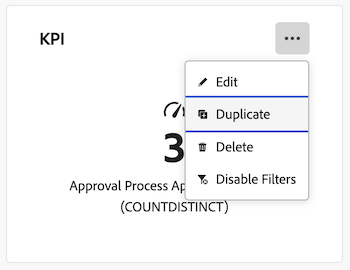
-
(Optional) In the Configure box that appears, enter a new report Name in the Details tab.
-
(Optional) Make any needed adjustments to the configurations using the tabs on the left side.
note NOTE These tabs will vary depending on if you duplicated a KPI, table, or chart report. For more, see Build a KPI report in a Canvas Dashboard, Build a chart report in a Canvas Dashboard, and Build a table report in a Canvas Dashboard. -
Click Save. The duplicated report appears on the dashboard.