Build a chart report in a Canvas Dashboard
If you have feedback regarding a possible bug or technical issue, please submit a ticket to Workfront Support. For more information, see Contact Customer Support.
Please note that this beta is not available on the following cloud providers:
- Bring Your Own Key for Amazon Web Services
- Azure
- Google Cloud Platform
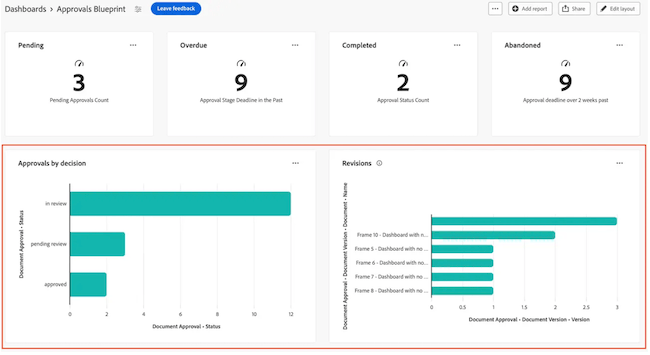
You can build and add a chart report to a Canvas Dashboard to visualize your data as a bar, column, line, or pie chart.
Access Requirements
| table 0-row-2 1-row-0 2-row-2 3-row-2 layout-auto html-authored no-header | |
|---|---|
| Adobe Workfront package | Any |
| Adobe Workfront license |
Standard Plan |
| Access level configurations | Edit access to Reports, Dashboards, and Calendars |
For more detail about the information in this table, see Access requirements in Workfront documentation.
Prerequisites
You must create a dashboard before you can build a chart report. For more information, see Create a Canvas Dashboard.
Build a chart report in a Canvas Dashboard
There are many configuration options available for building a chart report. In this section, we’ll walk you through the general process of creating one.
-
Click the Main Menu icon

-
In the left panel, click Canvas Dashboards, then click the name of the dashboard you want to add the report to.
-
Click Add report in the upper-right corner of the page.
-
In the Add report box, select Create report.
-
On the left side, select Chart.
-
In the top-right corner, click Create report.
-
(Optional) Follow the steps below to configure the Details section:
-
Enter a report Name.
-
Enter a report Description.
-
If desired, uncheck the Show extra series as “Other” box.
note NOTE There is a maximum number of 60 series that can be displayed in a chart. When this box is checked, any series above the limit are consolidated into an Other grouping in the chart. -
(Optional) In the Run this report with the access rights of field, begin typing the name of the user whose permissions you want the report to use, then select the user when they appear in the list. When you configure a report to run as another user, all viewers of the dashboard see the same data, regardless of their own access level. If you don’t select a user, each viewer sees data based on their own permissions.
note important IMPORTANT If the selected user is deactivated or loses access to the relevant workspaces or record types, the report may display incomplete data or fail to render.
-
-
Choose which type of chart you want to create:
Bar, column, or line chart
-
In the left panel, click the Build chart

-
In the Chart type drop-down, select Bar, Column, or Line.
-
In the second drop-down menu, select the bar, column, or line type:
- Simple
- Multi-series
- Stacked
-
In the Bottom (X) axis section, select the Update field, then locate and select the field that contains the data that will be summarized in the chart.
-
In the Aggregation type drop-down, select how the data rolls up to produce the chart output.
-
(Optional) Add an axis label in the space provided.
-
(Optional) Toggle Hide axis on.
-
(Optional) Input a Reference line value to set a target or threshold on the chart.
-
Choose a Line type from the drop-down menu.
-
Select the Update field button under the second section, then locate and select the second field you want to display in the chart.
Pie chart
-
In the left panel, click the Build chart
-
In the Chart type drop-down, select Bar.
-
In the Metric section, select the Update field, then locate and select the field that contains the data that will be summarized in the chart.
-
In the Aggregation type drop-down, select how the data rolls up to produce the chart output.
-
In the Segment section, select the Update field, then locate and select the field that contains the segments you want to display in the pie chart.
-
(Optional) In the Pie section, toggle Show segment labels on to display segment labels.
-
(Optional) Toggle Show total on to display the total in the middle of the chart. When enabled, there are additional options to show a center label and choose the value format.
- Count aggregation types: The center value displayed is a count of all segments of the chart.
- Sum aggregation types: The center value displayed is the aggregated total of the numeric or currency value.
- Average, max, and min aggregation types: The center value displays the average, maximum, or minimum value accordingly.
-
(Optional) In the Legend section, toggle Show legend on to display the chart legend.
-
(Optional) Choose a Legend position from the drop-down menu.
Configure additional chart report settings
Filters
In the left panel, click the Filter

For more information, see Filter a report in a Canvas Dashboard.
Drilldown settings
Follow the steps below to configure the Drilldown Column Settings section:
-
In the left panel, click the Drilldown Columns

-
(Optional) To update any of the existing column configurations, select the column you want to update in the Current columns section and then update the desired information (e.g. label, linked status, and conditions).
-
Click Add column and then select the field you want to display as a column in the table. Repeat this process for each column you want to add.
Drilldown group settings
In the left panel, click the Drilldown Group Settings

For more information, see Configure drilldown groupings in chart and KPI reports in Group report data in a Canvas Dashboard.
Click Save to create the report and add it to the dashboard.
Build a chart report example
In this section, we will go over the steps to create a column chart that displays overdue tasks by project owner.
-
Click the Main Menu icon
-
In the left panel, click Canvas Dashboards, then click the name of the dashboard you want to add the report to.
-
Click Add report in the upper-right corner of the page.
-
In the Add report box, select Create report.
-
On the left side, select Chart.
-
In the top-right corner, click Create report.
-
Follow the steps below to configure the Details section:
-
Enter a report Name (e.g. Overdue Tasks by Project Owner).
-
Enter a report Description.
-
-
Follow the steps below to configure the Build chart section:
-
In the left panel, click the Build chart icon.
-
In the Chart type drop-down, select Column.
-
In the Column type drop-down, select Simple.
-
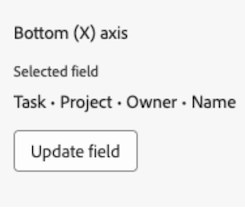
Select the Update field button under the Bottom (X) axis section, then locate and select the Task > Project > Owner > Name field.
-
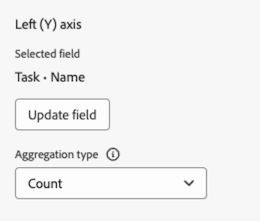
Click the Select field button under the Left (Y) axis section, then locate and select the Task > Name field.
-
In the Aggregation type drop-down, select Count.
-
-
Follow the steps below to configure the Filter section:
-
In the left panel, click the Filter icon.
-
Select Edit filter.
-
Click Add condition.
-
Click in the empty condition area, then select Pick Field.
-
Select the Percent Complete field.
-
In the Operators drop-down, select Less Than, then enter 100 in the evaluator field.
-
Click Add Condition, then Pick Field.
-
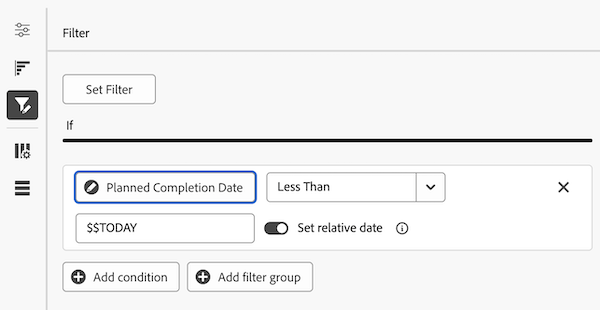
Select the Planned Completion Date field.
-
In the Operators drop-down, select Less Than.
-
Toggle Set relative date to ON.
-
Enter $$TODAY in the evaluator field.
For more information, see Date-based wildcard filter variables in Report filter reference for Canvas Dashboards.
-
-
Follow the steps below to configure the Drilldown Column Settings section:
-
In the left panel, click the Drilldown Columns
-
Click Add column, then select the Assigned To > Name field.
-
Click Add column, then select the Planned Start Date field.
-
Click Add column, then select the Planned Completion Date field.
-
Click Add column, then select the Last Update Date field.
-
(Optional) To display the update time, select the Last Update Date option in the Current Columns field, then select a time value option in the Date format drop-down.
-
-
Follow the steps below to configure the Drilldown Group Settings section:
-
In the left panel, click the Group Settings
-
Click the Add grouping button and then select the Project > Name field.
-
-
Click Save to create the report and add it to the dashboard.
Considerations when building a chart report
Reports with financial data
Users with View or Edit access to Financial Data in their access level will still see financial data in Canvas Dashboard visualizations—even if the View finance permission is removed at the task or project level.
- Users without financial data rights at the access level will not see financial data in reports.
- Users who do see financial data are limited to records they already have permission to view (projects, tasks, issues, etc.). They will not see financial values for records they cannot access.
- Report creators should exercise caution when including financial data in dashboards and be mindful of who they share dashboards with to prevent unintended access.
This is a known limit, and we plan to address it in the future.
Utilizing the field selector
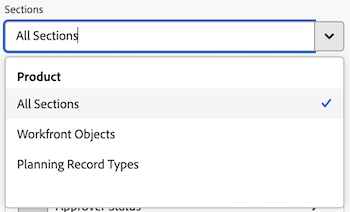
The Sections drop-down in the Build chart section is designed to narrow down the choices in a field selector to make an object easier to find when building a table report. To start, you would select a base entity object.
- All Sections: All object types in Workfront and Workfront Planning.
- Workfront Objects: Native Workfront objects.
- Planning Record Types: Custom record types defined in Workfront Planning.
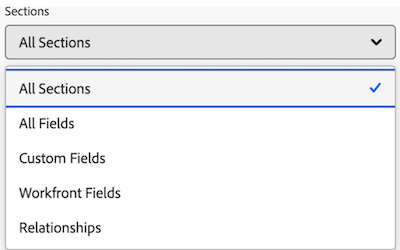
Once the base entity object has been selected, the Sections drop-down then updates with applicable field type options to choose from.
- All Sections: Native fields, custom fields, and related objects.
- All Fields: Both native and custom fields (excludes relationships).
- Custom Fields: Customer-defined fields either on a custom form or Planning record.
- Workfront Fields: Native fields only.
- Relationships: Connected records.
Referencing children objects
Some parent-to-child relationships are available for columns, filters, and groupings. For more information, see Referencing children objects in Report filter reference for Canvas Dashboards.