Edit report filters in a Canvas Dashboard
If you have feedback regarding a possible bug or technical issue, please submit a ticket to Workfront Support. For more information, see Contact Customer Support.
Please note that this beta is not available on the following cloud providers:
- Bring Your Own Key for Amazon Web Services
- Azure
- Google Cloud Platform
You can edit report filters once you’ve applied them to a Canvas Dashboard to update the data that displays as a project progresses.
Access Requirements
| table 0-row-2 1-row-0 2-row-2 3-row-2 4-row-2 layout-auto html-authored no-header | |
|---|---|
| Adobe Workfront package | Any |
| Adobe Workfront license |
Standard Plan |
| Access level configurations | Edit access to Reports, Dashboards, and Calendars |
| Object permissions | Manage permissions for the dashboard |
For more detail about the information in this table, see Access requirements in Workfront documentation.
Prerequisites
You must add a filter to a report before it can be edited.
Edit a report filter
-
Click the Main Menu icon

-
In the left panel, click Canvas Dashboards.
-
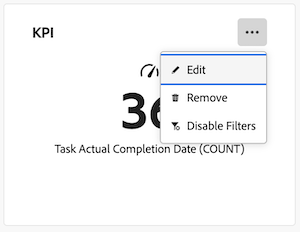
On the Canvas Dashboards page, click the More

-
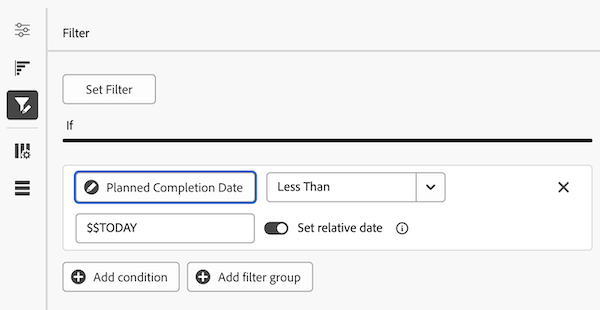
On the left side of the Configure dialog box, select the Filters panel.
-
Click Edit filter.
-
Select the field or the modifier that you want to edit, then adjust the current selections as needed.
-
(Optional) Click Add filter group to add another set of filtering criteria. The default operator between the sets is AND. Click the operator to change it to OR.
-
Click Save.
Considerations when editing a report filter
Date-based wildcards filter variables
Date-based wildcard options can be used in combination with any date filter attribute. For information about adding a date-based wildcard to a report, see the article Use date-based wildcards to generalize reports.
You can choose from the following date-based wildcards:
To indicate various periods of time and various points in time (future or past), you can combine the wildcards above with the following:
For example, the wildcard $$TODAYb+2w refers to “2 weeks from the beginning of this week.” The wildcard *$$NOW+2h refers to “2 hours from now.”
Logged-in user wildcard filter variables
-
When filtering on the user
nameattribute, you will view the Me (Logged in user) option.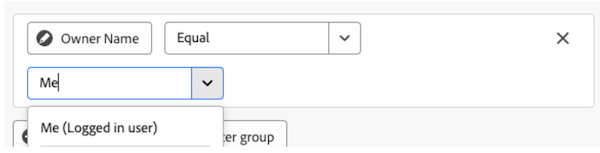
-
When filtering on a group
nameattribute, you will view the My home group (Logged in user group) and My other groups (Logged in user groups) options to use in a filter condition.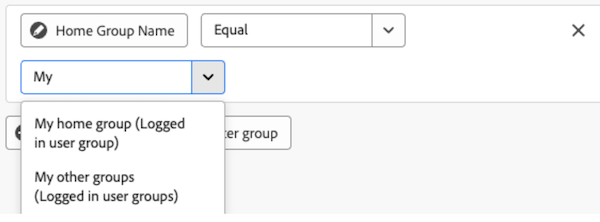
-
When filtering on a team
nameattribute, you will view the My default team (Logged in user team) and My other teams (Logged in user teams) options to choose from in the filter condition.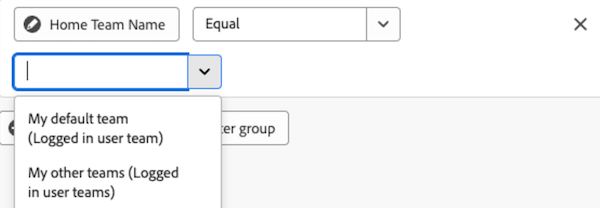
Referencing children objects
Available relationships for additional columns, filter options, and grouping attributes are generally limited to objects higher in the Workfront object hierarchy or otherwise have a single selection on the report’s base entity object. There are some exceptions to this, which include the following:
- Project > Tasks
- Document Approval > Document Approval Stages
- Document Approval Stages > Document Approval Stage Participants
When utilizing any of the parent-to-child relationships listed above, you will see a row in the table for each child record connected to the parent object.
Field operators by field type
| table 0-row-4 1-row-4 2-row-4 3-row-4 4-row-4 5-row-4 html-authored no-header | |||
|---|---|---|---|
| Field Type | Example | Operators | Wildcards |
| Object / Reference Name | Any native name attribute or custom lookup |
|
User: Name
Group: Name
Team: Name
|
| String / Text Input | Project: Description |
|
|
| Integer / Double | Project: Planned Hours Task: Percent Complete |
|
|
| Date / Date Time | Project: Planned Start Date Hour: Entry Date |
|
By toggling on the Set relative date option, you can apply relative date wildcards to make the report more dynamic and self-adjust based on common date periods.
|
| Boolean | Project: Has Documents Task: Is Critical User: Is Active |
|