Manage dependent connections
As a workspace manager, you can define dependent connections when creating connection fields between record types in Adobe Workfront Planning.
When adding connected fields, you can turn on a setting that indicates that the values of the connected record type depend on the values of the source record type (the one where you’re adding the connection), whenever both fields appear together on a third record type.
For example, you might want to ensure that a Region field only shows values tied to the selected Geo. This is configured directly in the connection field setup: when adding a connection from a Geo record type to a dependent record type (like Region), a new setting allows workspace managers to mark it as dependent on the Geo record type, using the relationships already established between those record types.
Once configured, any record type that references both fields (such as a Campaign) will see the effect immediately: selecting a Geo value narrows the Region picker to only those Regions actually linked to that Geo. This enforces your record structure automatically, eliminating mismatched combinations and reducing manual cleanup.
Access requirements
| table 0-row-0 1-row-0 2-row-2 3-row-2 4-row-2 5-row-2 6-row-2 7-row-2 layout-auto html-authored no-header | |
|---|---|
| Adobe Workfront package |
To connect record types from the same workspace:
To connect record types from different workspaces:
|
| Additional products |
In addition to Adobe Workfront, you must have the following, if you want to connect record types with objects from the following applications:
|
| Adobe Workfront license | Workflow Standard |
| Adobe Planning license | Planning Standard |
| Access level configuration | You must add both a Workflow and a Planning license type to the access level when you have both a Workflow and a Planning package |
| Object permissions |
Manage permissions to a workspace System Administrators have permissions to all workspaces, including the ones they did not create |
For more information about Workfront access requirements, see Access requirements in Workfront documentation.
Considerations for dependent connected fields
-
Dependent connected fields can only be set up between record types that have an established connection field relationship. You cannot define dependency logic between unrelated record types.
-
You can have a dependent connected field between record types in separate workspaces.
-
You cannot have a dependent connected field between Planning record types and Workfront or AEM object types.
-
The dependency setting is configured one connection at a time, within the connection field setup itself, rather than as a global rule.
-
The filtering behavior between the two connected records only activates when both the source and dependent fields are present together on a third record type. The dependency has no effect if only one of the two fields displays on a record type.
-
The dependent field’s picker is limited to values already linked to the selected source value at the record level; it cannot show or suggest unlinked values.
-
If the source field’s value changes, the dependent field is automatically cleared rather than left in an invalid state, preventing mismatched combinations from persisting.
You receive an inline or toast message explaining why the dependent field was cleared.
-
Each dependent field can have up to 3 direct controlling fields.
-
Dependency levels are limited to 6 connections. This means that up to 7 record types can be connected.
-
For the dependency chain to work, all dependent fields must exist on the same record type at the same time.
-
Dependent fields are supported for all areas where the connected records fields display, including the Details areas of a record or request forms.
Create a dependent connection
-
As a workspace manager, go to a record type in Workfront Planning and open it in the table view.
-
Click the + icon in the upper-right corner of the table view to add a new field.
-
Click New connection, then start adding a new connection for a second record type.
note tip TIP You can create a dependent connection only between two Planning record types. You cannot create dependent connections between record types and objects from Workfront or AEM. -
In the Connection settings section, turn on the Make this connection dependent.
note tip TIP Turning on the Make this connection dependent setting automatically turns on the Create a corresponding field on linked record type. There is a limit of 500 fields per record type. 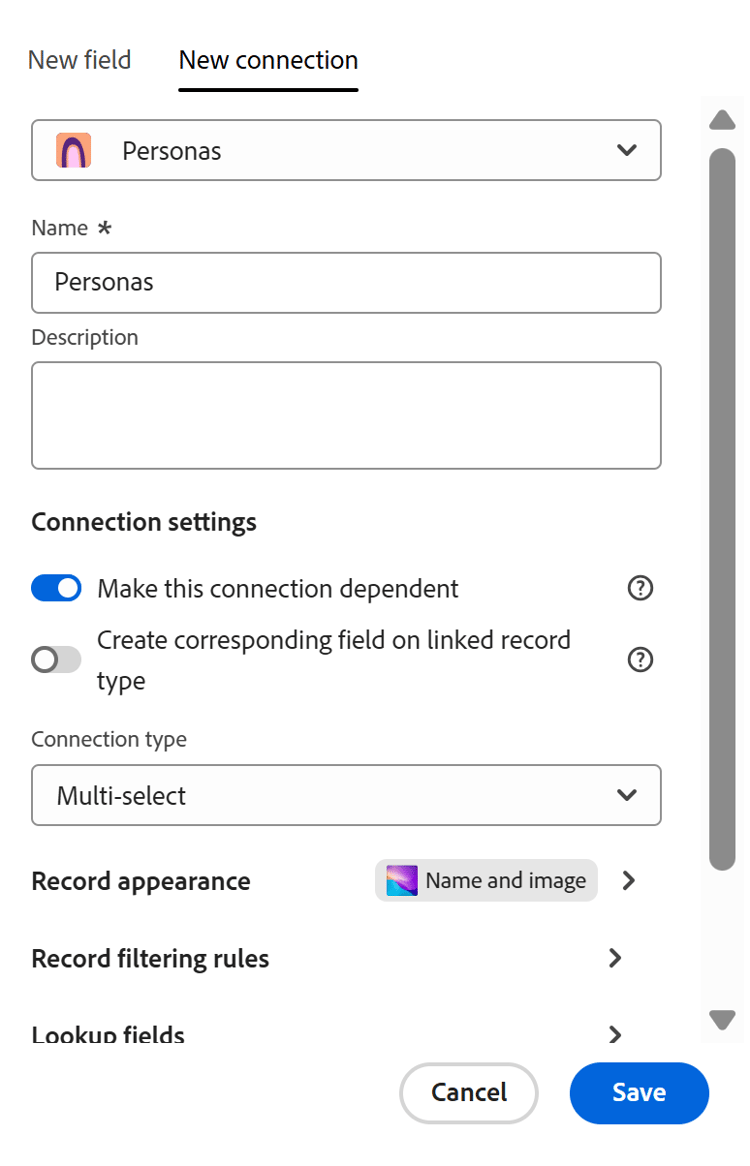
-
Continue setting up the connection, as described in the article Connect record types.
-
Click Save.
The following things occur:
-
The connection between the two record types is created and their values will depend on one another when they display together on the same record type.
-
A corresponding field displaying the first record type is created for the second record type.
-
When both record types are connected to a third record type, the values displayed as choices for the second connected record field are those that are connected to the first record. The values displayed as choices for the first record type are the ones connected to the second record type.
For information, see the section Example of dependent connected record types in this article.
-
There is an indication in the column header of the connected record fields that explains that the field is in a dependent connection relationship.

-
-
(Optional) Click Record filtering rules and select fields from the record type you are connecting to to limit the options for that field’s values, then click Done.
For more information, see Connect record types.
-
(Optional and recommended) Go to a third record type and add both the first and second record type as connected record fields.

Example of dependent connected record types
This section provides a simple example of how you can set up dependent record types and how they work for a third record type.
-
In a workspace that you can manage, create the following record types:
- Campaign
- Countries
- Continents
-
In the Countries record type, add the following records:
- France
- United States
- Japan
-
In the Continents record type, add the following records:
- Europe
- America
- Asia
-
From the Countries record type, create a connected dependent field for Continents.
This adds the following connected record fields:
- The Countries connected record field for the Continents record type.
- The Continents connected record field for the Countries record type.
-
Do one of the following:
-
From the Countries record type table view, add the following values for the Continents connected record field:
- Europe for France
- America for United States
- Asia for Japan
-
From the Continents record type table view, add the following values for the Countries connected record field:
- France for Europe
- United States for America
- Japan for Asia
-
-
Add the Countries and Continents connected fields to the Campaign record type table view.
-
Select Japan for the Countries field on the Campaign record type. Notice that the only value available for the Continents connected field on the campaign is Asia.
Or
Select Europe for the Continents field on the Campaign record type.
Notice that the only value available for the Countries connected field on the campaign is France.