Color management

Color management is the handling and conversion of colors. From importing resources to displaying colors on screen to finally exporting textures. Color calibration is important to ensure the same look across applications.
In the application color management is handled via the integration of OpenColorIO (OCIO for short) version 2. OCIO is the standard in film and animation to convert and display colors. To enable color management, simply create a new project or open an existing one and enable the dedicated settings.
Project settings
Color management settings:
Vocabulary
It may be helpful to know a few technical terms related to color management in order to understand better the associated workflow:
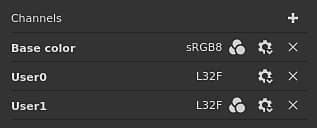
List of color managed channels
Inside the application, which channels are color managed or not (data/passthrough) is pre-defined.
Depends on Texture Set settings. By default user channels are not color managed.
Color picker
When color management is enabled, the color picker behavior change slightly:
- Colors are edited based on the current Display selected.
- A few additional information are added to the interface.
For more information, see the color picker documentation page.
Viewport controls
Both the 2D and 3D views are color managed and have a dedicated settings available at the top of the viewport to control which display transform to use:

- Left button: Enable/disable the display transform of the viewport. If disabled the viewport will display colors as raw/passthrough. This button is enabled by default.
- Right dropdown: Specify which display transform to use to convert the colors to display them on screen. The default value is based on the OCIO configuration. This setting isn’t saved with the project since it can be monitor dependent.
Export settings
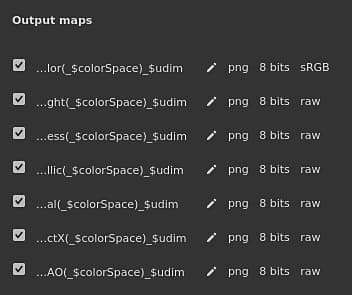
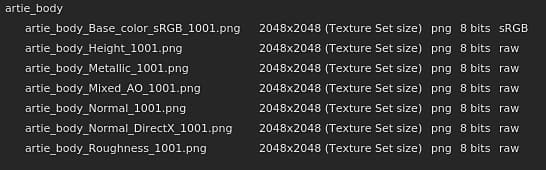
The main export settings are driven by the project configuration (see above).
Inside the export textures window there is a keyword that can be used to append to the filenames the color space used per texture: $colorSpace.
Overriding color spaces
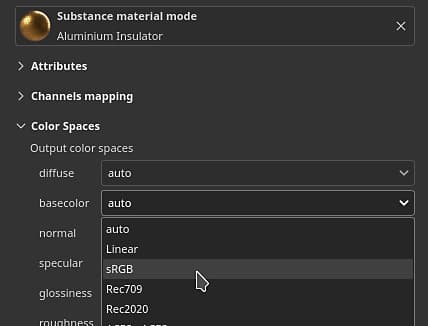
It may be necessary to specify an alternate color space for a resource to differ from the defaults. This can be done via the color space menu.
Changing the color space of a resource
Inside the properties window is it possible to override the color space of a specific resource (where it is currently used).
To do so, expand the color space section and use the dropdown to specify the new color space:
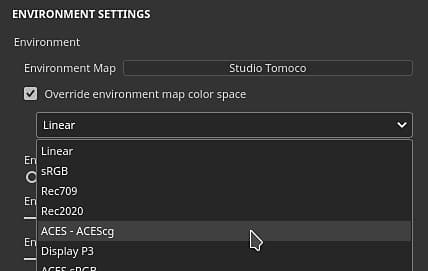
Changing the color space of the environment map
Inside the display settings, enable the Override environment map color space then choose a color space in the list that matches your resource.