Color management with Adobe ACE - ICC
This page lists the color management settings related to the Adobe Color Engine (ACE) to use image with ICC profiles.
Project settings
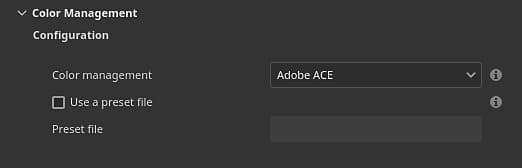
The project settings can be set when creating a new project via the new project window or by using the project configuration window.
The available settings are:
Define which engine to use to manage colors.Possible values:
- Legacy (default): Use the predefined sRGB/Linear sRGB gamma color correction.
- OpenColorIO: Use OCIO integration.
- Adobe ACE: Adobe Color Engine, to support ICC profiles.
The color space used by the engine to work inside the application. This the color space from which textures may be converted to (import) or from (export).Possible values are:
- Linear sRGB IEC61966-2.1 (default)
- ACEScg ACES Working Space AMPAS S-2014-004
- Linear Adobe RGB (1998)
Specify the method used to convert color between color spaces.Possible values:
- Perceptual
- Saturation (default)
- Relative chromatic
- Absolute chromatic
Using a preset file
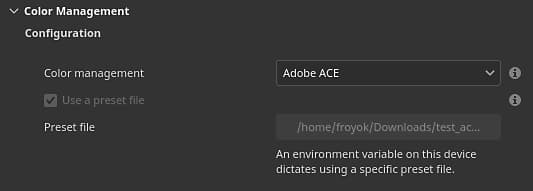
It possible to use a preset file (in json format) to drive the ACE settings when creating new projects.
Environment variable
The environment variable PAINTER_ACE_CONFIG can be used to specify the path of a preset file. If present, the application will always use a preset file to drive the Color management settings. The settings will be disabled in the interface.
For more details see the Environment variables page.
Preset example
Below is an example of a json file that can be used a preset file:
{

  "color settings": {

    "working color space": "Linear Adobe RGB (1998)",

    "rendering intent": "Saturation"

  },

  "bitmap import color space defaults" : {

    "8 bit images": "image P3",

    "16 bit images": "image P3",

    "floating point images": "Raw",

    "use embedded ICC profiles when available": false

  },

  "substance material": {

    "material color space default": "image P3"

  },

  "export colors spaces" : {

    "8 bit images": "image P3",

    "16 bit images": "image P3",

    "floating point images": "Raw"

  }

}