Project Creation
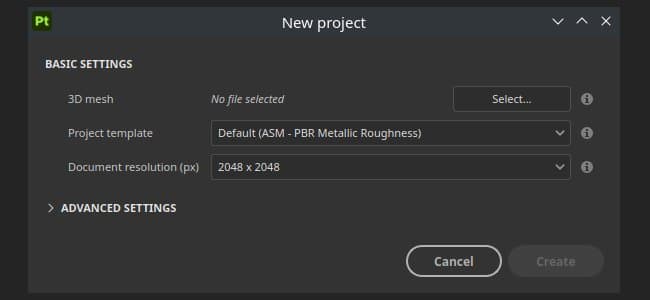
The New project window allows you to create a project file to store your 3D model and its texturing information.
A new Texture Set is created per material definition found on the imported 3D model. This means multiple objects can be imported through a single file (even with overlapping UVs) if they have different materials.
Creating a New Project
To create a new project, click on File > New or use keyboard shortcut Ctrl + N.
Below is an explanation of all the parameters available in the New Project window.
Basic Settings
Specify a template that will define the default settings of the project. A template contains the following parameters:
- Texture Set settings.
- Display settings.
- Baking settings.
- Shader resources (including attached textures).
- Environment Map file.
Note: Templates are *.spt files that are created from an existing project via the File menu and saved inside the Assets folder to be easily shared with team members.
File type-specific settings
When a USD is selected, other file type-specific settings become available.
Select a specific part of a USD file. By default, this is set to ‘Root’, which means the entire USD file will be used to create the Painter project. Change… opens a new window that displays the contents of the USD. If variants are detected, it is possible to select a specific variant for project creation. Scope and variants can be changed after project creation in Project configuration settings. Note that -
- Only the modeling variant selection will have any impact on the project.
- Variants nested within variants are not currently detected.
ADVANCED Settings
Defines the Normal map format for the project, can be either
- DirectX (X+, Y-, Z+)
- OpenGL (X+, Y+, Z+)
Note: As a reminder:
- Unreal Engine uses DirectX by default.
- Unity uses OpenGL by default.
If enabled, the Bitangents are computed in the fragment (pixel) shader instead of the vertex shader. This parameter impacts the way the Normal map is decoded by the Shader in the viewport. Changing this settings will require to rebake the Normal map. Note: As a reminder:
- Unreal Engine needs this setting to be Enabled.
- Unity needs this setting to be Disabled (or enabled if you are using the HDRP workflow)
UV Tile Settings (UDIMs)
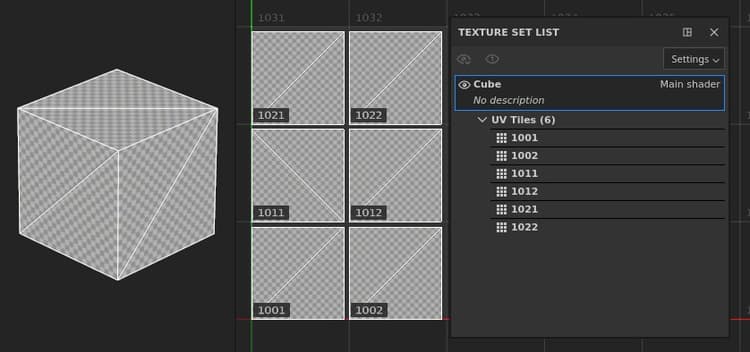
UV Tiles (UDIMs) are imported and grouped per material assignment on the mesh. This means a single Texture Set can contain multiple UV Tiles visible side by side in the 2D View. UV Tiles that are within the same Texture Set can be painted across seamlessly.
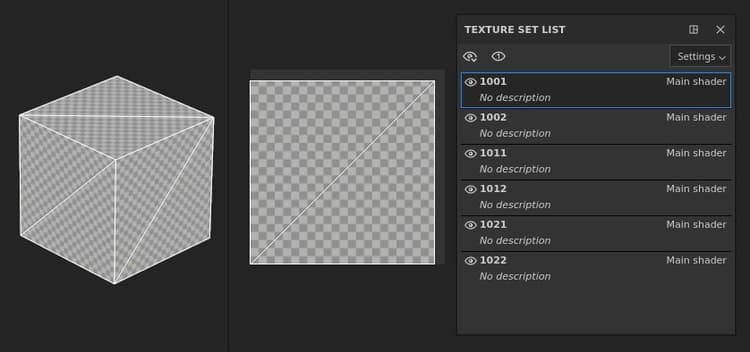
UV Tiles (UDIMs) are separated into individual Texture Sets and renamed, ignoring any material assignments. Each UV Tile is moved to the UV [0-1] range to be paintable.
Import Settings
If cameras are present in the mesh file, they will be imported into the project and accessible as presets for visualization. Note: Substance 3D Painter doesn’t support some cameras in certain conditions :
- Physical cameras from 3DS Max.
- Orthographic cameras stored in Alembic files (*.abc).
Import baked maps
Use the Add button to load texture files as Mesh maps and automatically assign them in the Texture Set settings. A specific naming convention must be followed for the mesh maps to be automatically assigned to their Texture Sets. Mesh maps can also be baked directly inside the application; see the Baking documentation.
Naming convention: TextureSetName_MeshMapName
Example: DefaultMaterial_ambient_occlusion.png
List of supported Mesh maps and their naming:
Physical size
Physical size settings allow you to adjust how Painter determines the physical size of your mesh in real world units. This is useful to make sure that materials are applied at a realistic scale.
- Use mesh file’s internal unit scale: Most file types include information about the physical size of the object as it was exported from the 3D modeling application. With this option selected, Painter will use this information from the imported file.
- Custom unit scale: Overwrite the unit scale of the imported file, or if no unit scale is included, use the custom entry box to adjust the size of a single “unit”.
- Switch fill layer scaling to Physical size when assigning materials: If this is enabled, materials that have physical size information can adjust their scaling to match the physical size of the surface to which they’re being applied.
Color management
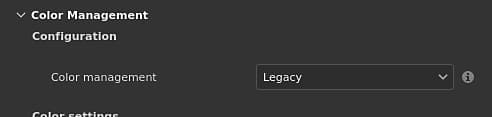
This section controls the project’s color management settings. By default, it is set to Legacy (sRGB / linear workflow).
Take a look a the color management documentation to learn more about how to use this workflow and what the settings are doing.