Color picker
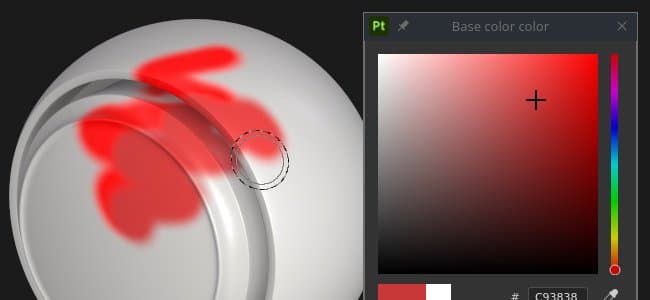
The color picker allows to set a color to paint or project on the mesh. It can be used to pick colors from external images or to adjust an existing one within the application.
The color picker window appears when clicking on any color field in Painter, which can be found in Properties or within any additional settings or menus, like Display or Shader parameters.
Color picker overview
Once open, the color picker is semi-persistent, which means that it will stay open until a change of context - for instance, when switching from a paint layer to a fill layer. It is possible to move the window around and place it anywhere on any of the available screens. However unlike other windows the color picker cannot be docked.
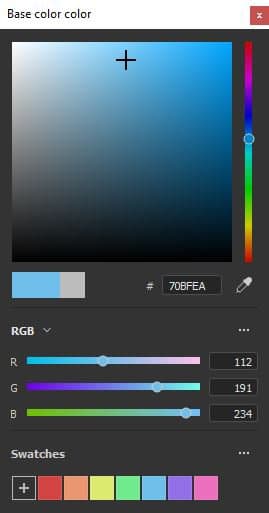
The window has a vertical layout and is comprised of three sections:
- Gradient picker (or spectrum)
- Sliders (RGB/HSV)
- Swatches
Gradient picker (spectrum)
Display selector
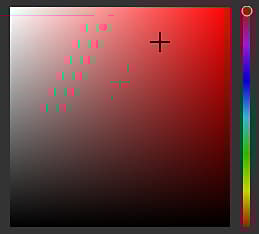
Spectrum
Current and previous color

Hexadecimal field

Eyedropper

The eyedropper can be used to pick a color from an external source. To use it click on the icon then move the mouse and again to copy the color wanted. Note: When selecting a color inside the viewport, it is possible to use the Shift modifier to pick the current channel edited directly. This avoid doing lossy color conversion between the original texture and the color displayed on screen. This is also useful to pick colors without having to switch from the Material display mode.
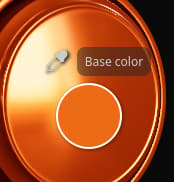
Note: Color fields also feature an eyedropper next to them and can be used to quickly pick colors without having to open the color picker.
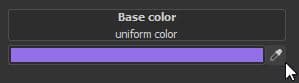
Note: On Mac OS, the eyedropper may not be able to pick colors outside of the application interface because of privacy settings. To fix this issue, assign the proper rights to the application in: System Preferences > Security & Privacy > Privacy > Screen Recording
Color settings
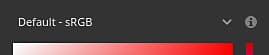
Specify the color space for color selected outside of the viewport.The auto setting uses the Standard sRGB color space from the project settings.
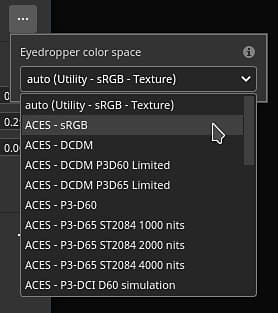
Note: This setting also applies on eyedroppers next to color buttons. Note: Colors selected inside the viewport also use this profile when not using the Shift modifier.
Sliders
Color sliders allow for a manual adjustment of individual values.
The sliders can be set two different modes, HSV or RGB. To change the mode, use the dedicated dropdown menu.
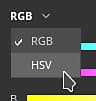
HSV
HSV stands for Hue, Saturation and Value.
Hue allows to cycle through the global color families, much like the vertical gradient slider.
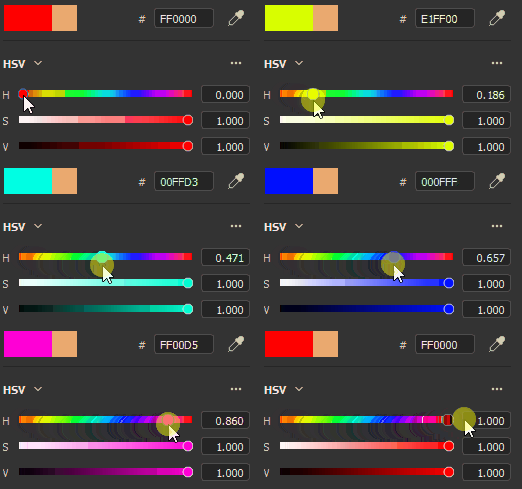
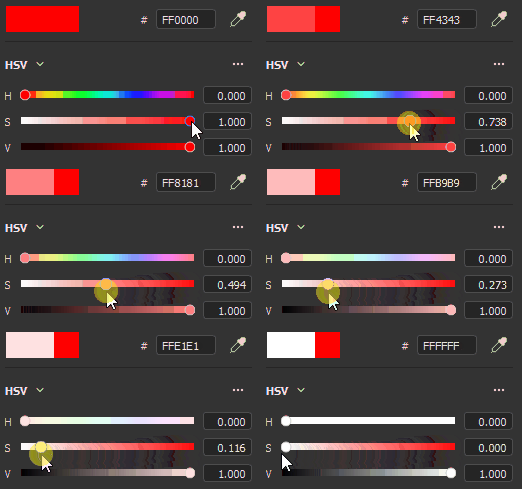
Saturation controls the richness of the selected color, and goes from grayscale to fully saturated.
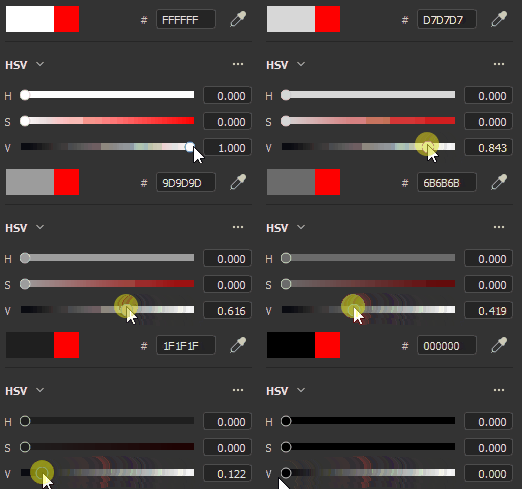
Value determines how dark or light a color is, and it ranges from fully black to fully white.
RGB
RGB stands for Red, Green and Blue.
These are the main components used digitally to store colors in computer graphics. Each slider represents how much of the component is present in the final color.
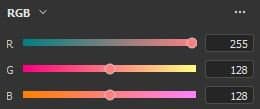
Example: the image below has a color that contains a 100% of red, but 50% of blue and green.
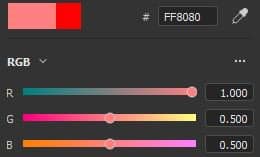
It is more common to have the RGB sliders measured via 0-255 values. This can be done by disabling the Floating point values option.
Sliders settings
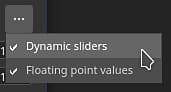
The settings menu allow to configure a few additional behaviors:
If enabled, sliders values are represented going from 0.0 to 1.0.If disabled:
- HSV: the hue slider is measured in degrees (like a color wheel). Saturation and Value use percentages.
- RGB: components are represented as value going from 0 to 255.
Working color space

This section shows the final color value given the current working color space.
Hovering the Working color space title with the mouse allows to display the name of the current color space.
Swatches
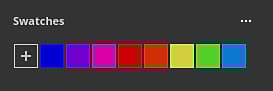
Color swatches offer a way to save colors so they can be reused at a later point. Swatches are available across projection and sessions.
Add swatch

Clicking on this button will create a new swatch color in the current set.
The swatch color is created only if the last color (the one next to the button) is different to the color currently edited.
Swatch color

Click on a swatch color to load it.
Hovering the swatch will display its hexadecimal value.
Swatch settings
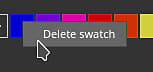
Right-click on a swatch color open the menu and delete it.
Settings menu
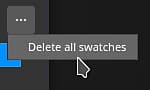
Use the settings menu to delete all the swatches.