This page lists warnings and errors messages which may be triggered by function graphs in Substance 3D Designer, and offers common troubleshooting steps for each.
Warnings are displayed in the warning icon’s tooltip for the graph resource in the Explorer panel, as well as in the bottom left corner of the Graph view if the graph is loaded. If the function is applied to a parameter in a Substance graphs, any warning will result in the warning “The [x] parameter’s function has some errors” being raised for that parameter.
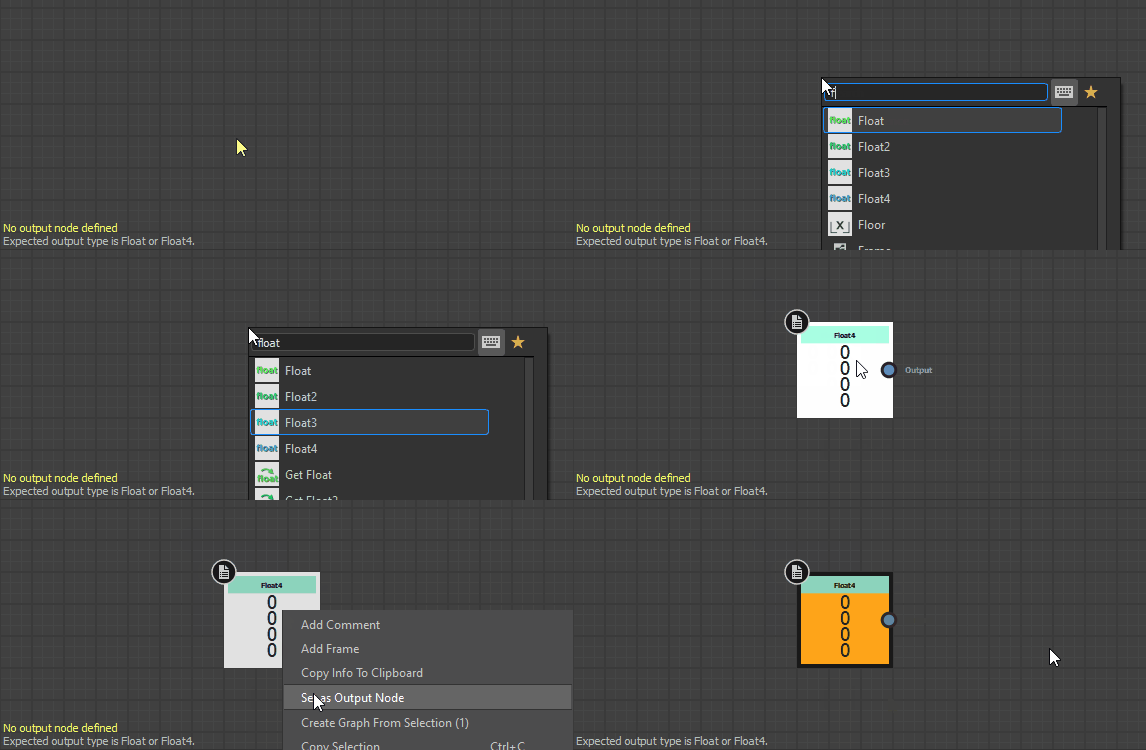
No output node defined
The function has no output node defined.
Select any node in the graph which outputs a value which type matches the expected type for this function if any, then click RMB and select the Set as Output Node option in the contextual menu. A function graph’s output node is colored orange.
note
NOTE
If a function has an expected output value type, a note in the bottom left corner of the Graph view lets you know about that type.
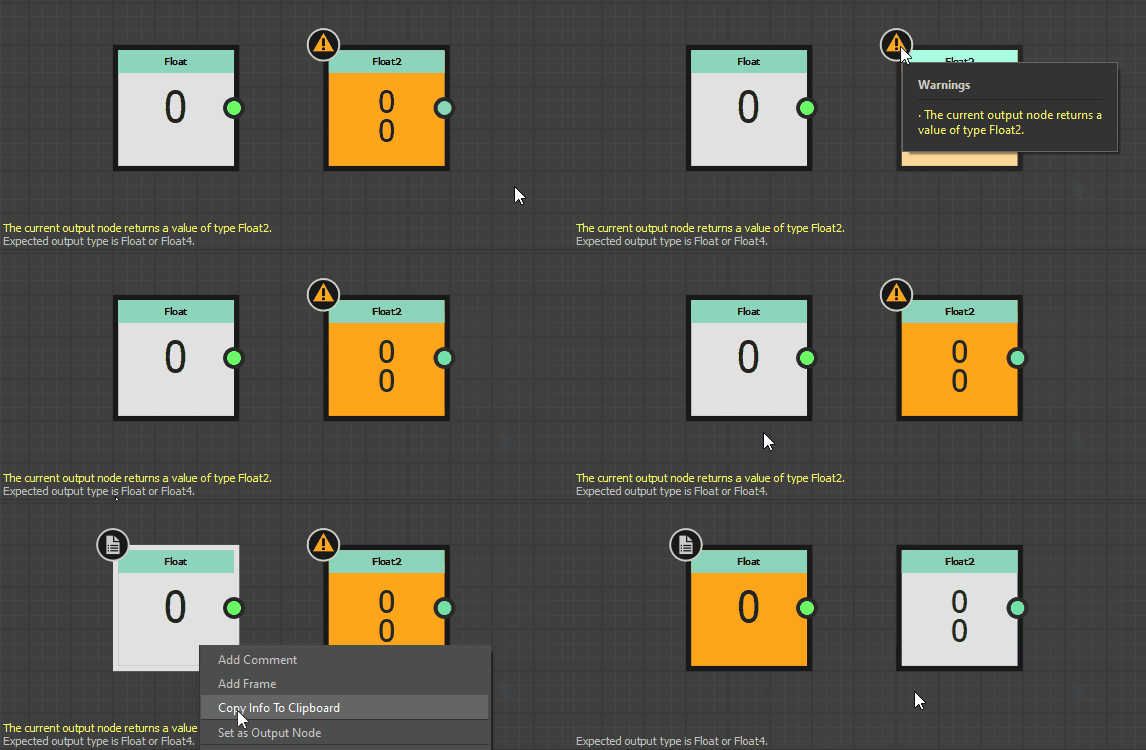
The current output node returns a value of type x
The function’s output node returns a value which type does not match the expected output value type for that function.
Select any node in the graph which outputs a value which type matches the expected type for this function, then click RMB and select the Set as Output Node option in the contextual menu. A function graph’s output node is colored orange.
note
NOTE
If a function has an expected output value type, a note in the bottom left corner of the Graph view lets you know about that type.
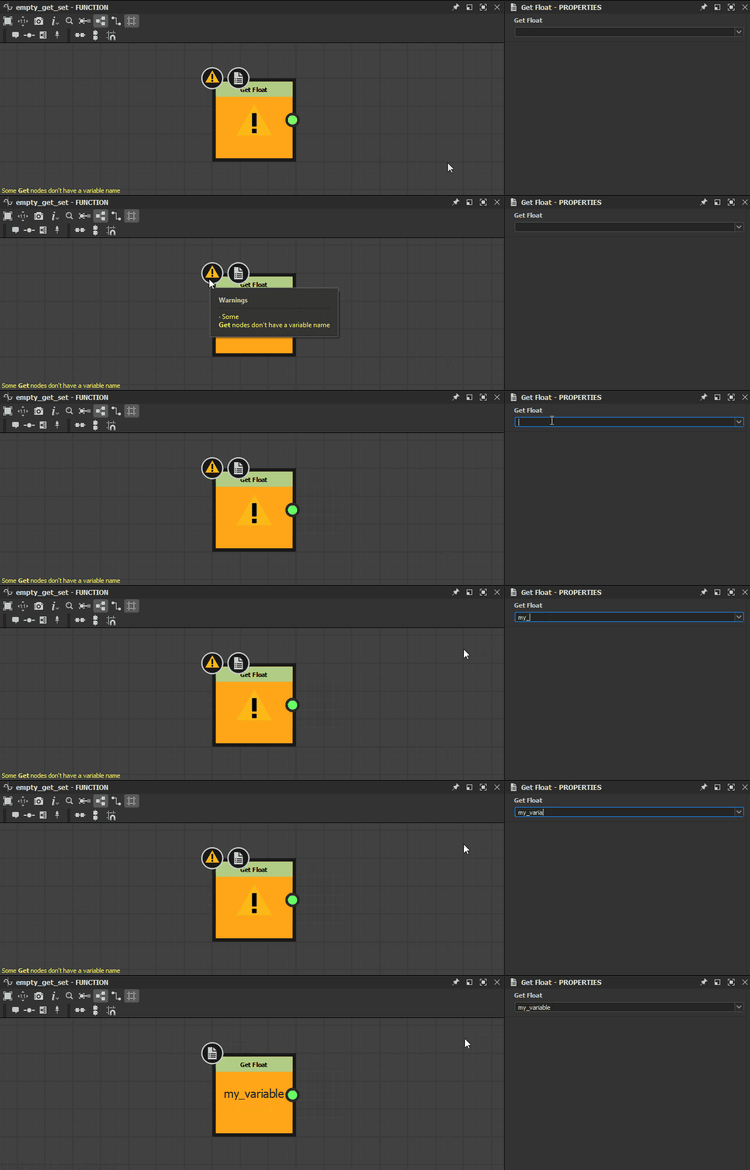
Some Get nodes don’t have a variable name
One or more Get nodes have their Get… property left blank, thus refer to no variable.
Input a string matching the name of a variable available in the function’s scope into the Get… property of Get nodes raising this warning.
note
NOTE
The input string is displayed in the node, which makes it easy to find nodes with blank values.
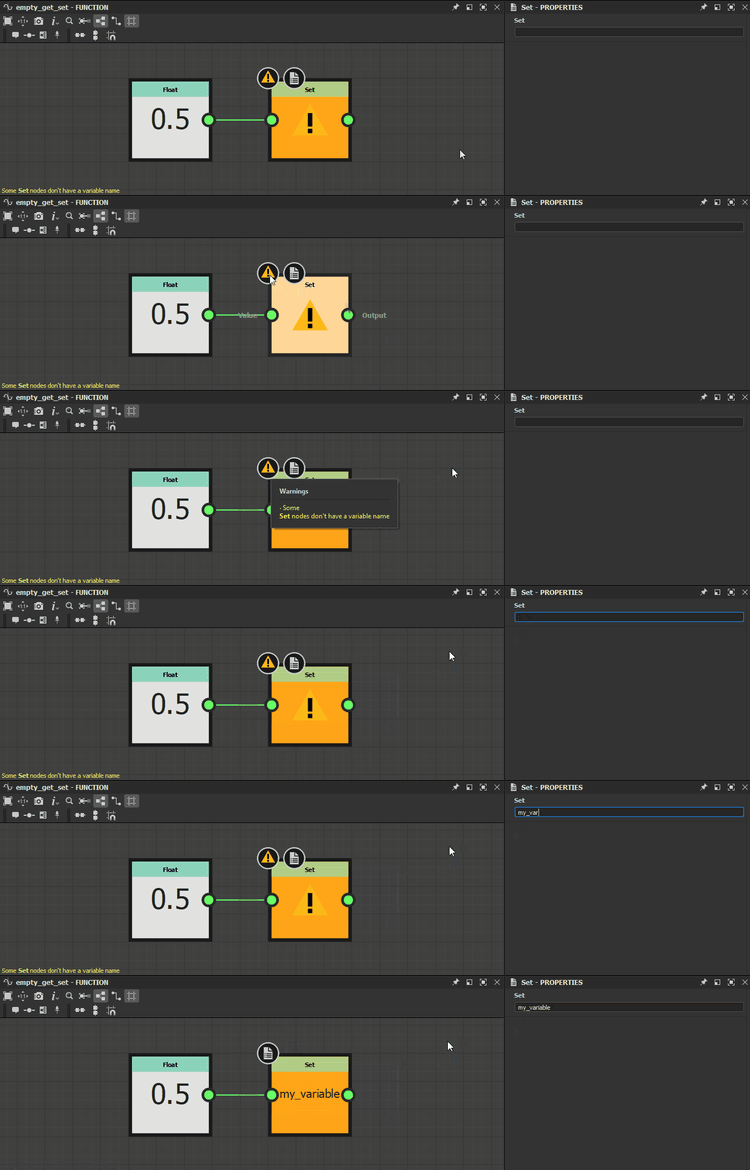
Some Set nodes don’t have a variable name
One or more Set nodes have their Set property left blank, thus refer to no variable.
Input any string into the Set property of Set nodes raising this warning.
note
NOTE
The input string is displayed in the node, which makes it easy to find nodes with blank values.
note
NOTE
If the string does not match any variable available in the function’s scope, a new variable is created within that scope and named after the string.