1.5.1 CJA & ChatGPT with MCP server
[Alpha]{class="badge informative"}
Video
In this video, you’ll get an explanation and demonstration of all the steps involved in this exercise.
1.5.1.1 Create custom app in ChatGPT for CJA
- a paid version of OpenAI’s ChatGPT
- using the ChatGPT web client
Go to https://chatgpt.com/{target=“_blank”} and log in using your account details. Once you’re logged in, you should see this. Click your username.
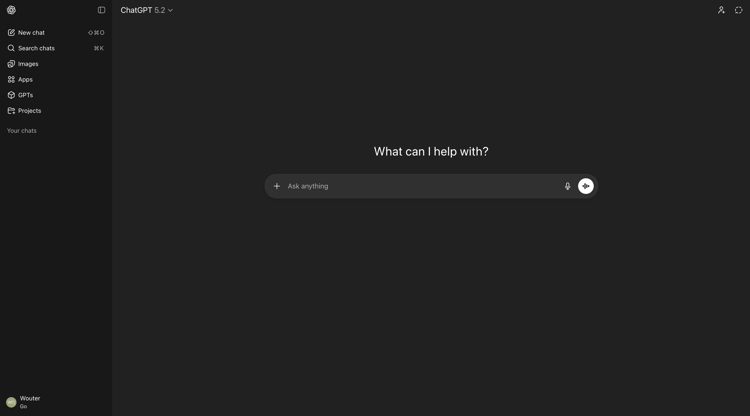
Select Settings.
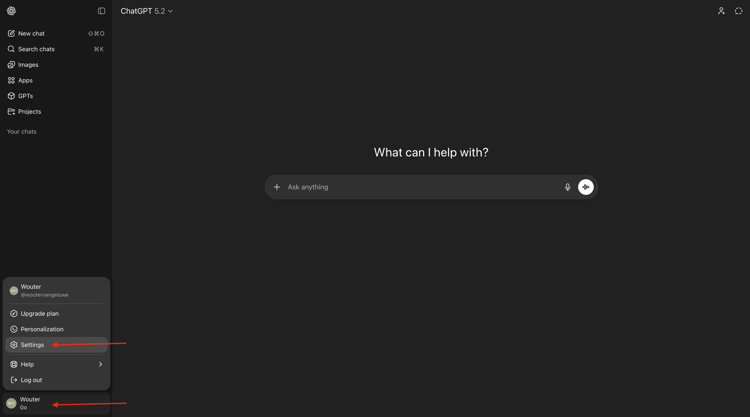
Go to Apps and then select Advanced settings.
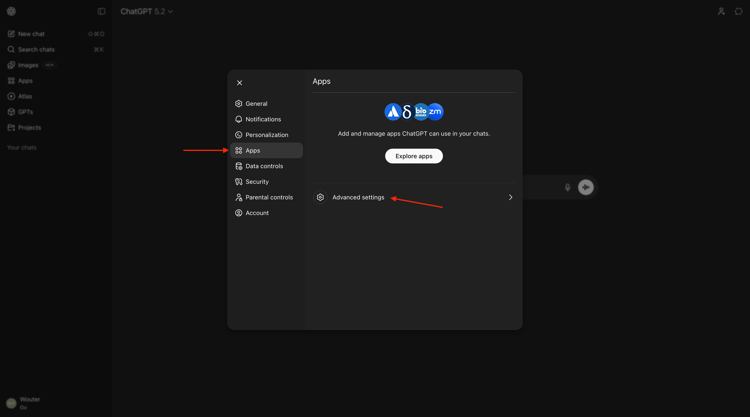
Turn on Developer mode and then click Back.
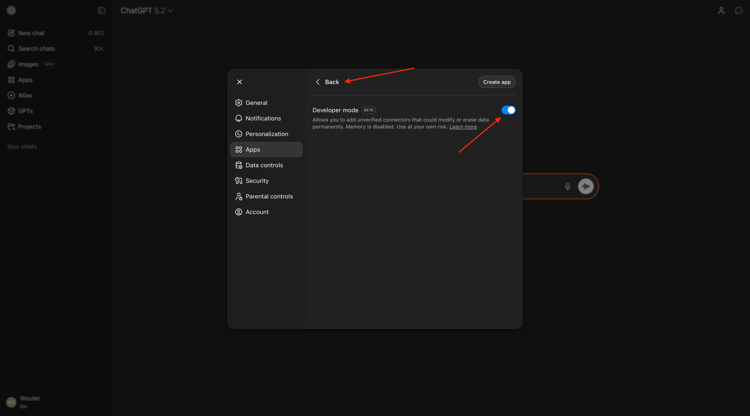
Click Create app.
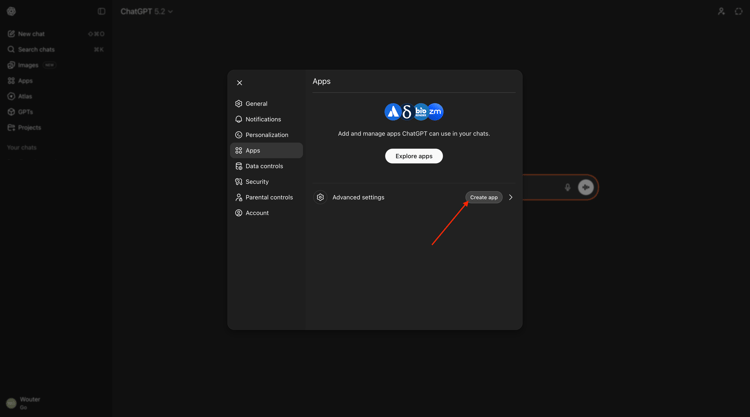
Fill out the fields like this:
- Name:
CJA - MCP Server URL: check with your Adobe representative
- Authentication:
OAuth
Check the checkbox for I understand and want to continue.
Click Create.
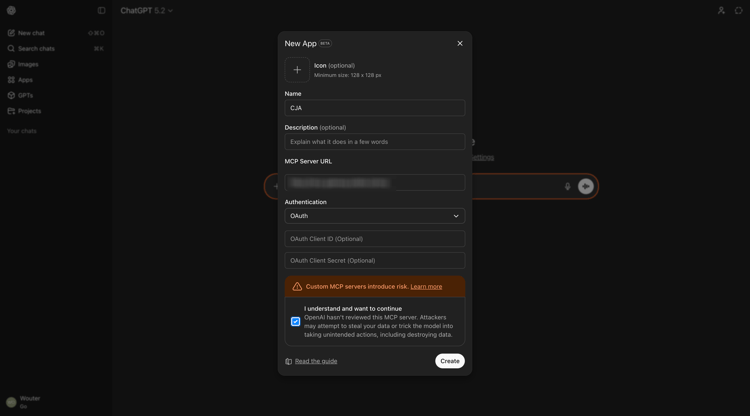
Once you’ve logged in successfully, you should see that your CJA app is now connected successfully.
1.5.1.2 Set context in CJA
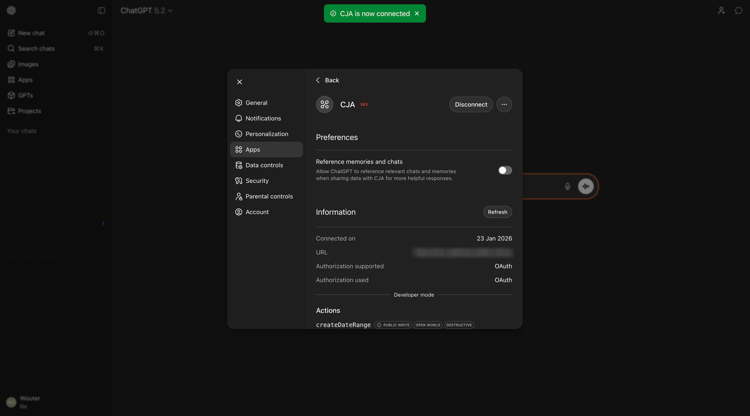
Close this window.
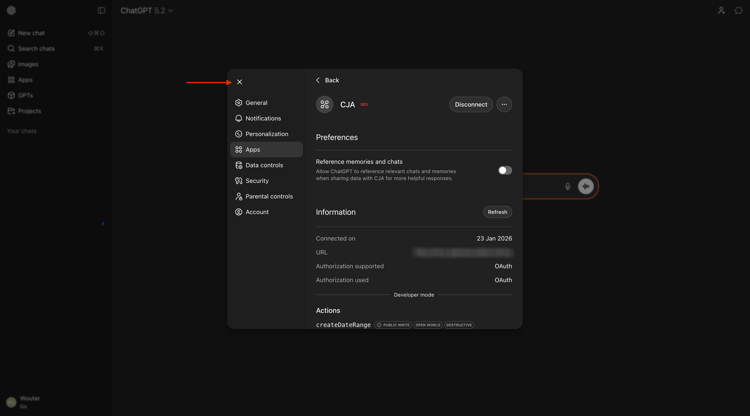
You should then see this. Click the + icon, go to More and then select CJA.
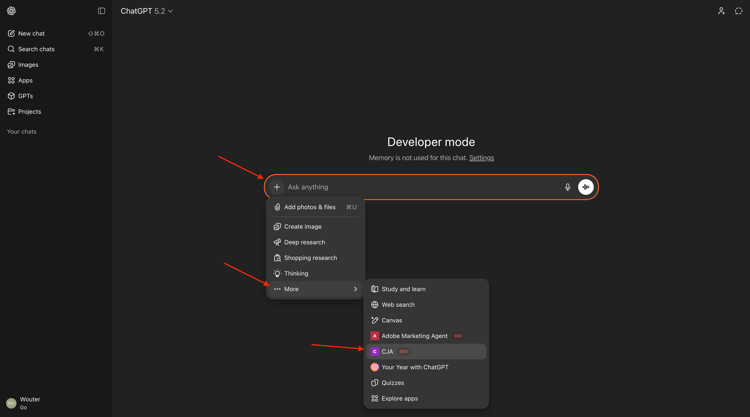
Before interacting further with CJA through ChatGPT, the context needs to be set.
For this exercise, the context needs to be set to use:
- Dataview: –aepUserLdap-- - Omnichannel Data View
The Dataview setting helps to identify which dataview ChatGPT should look at when asking questions.
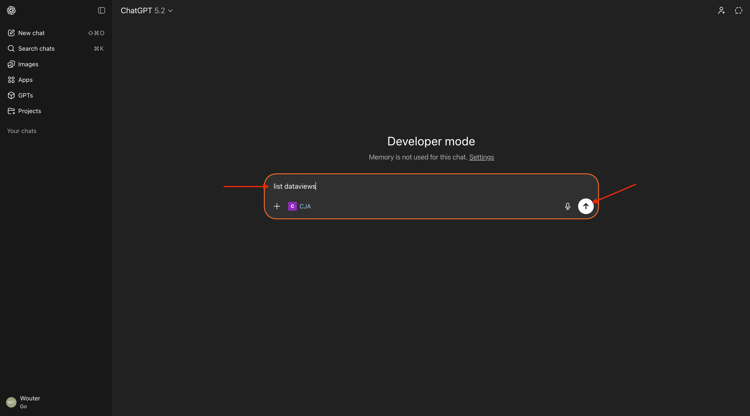
Enter the following Prompt and click the send button.
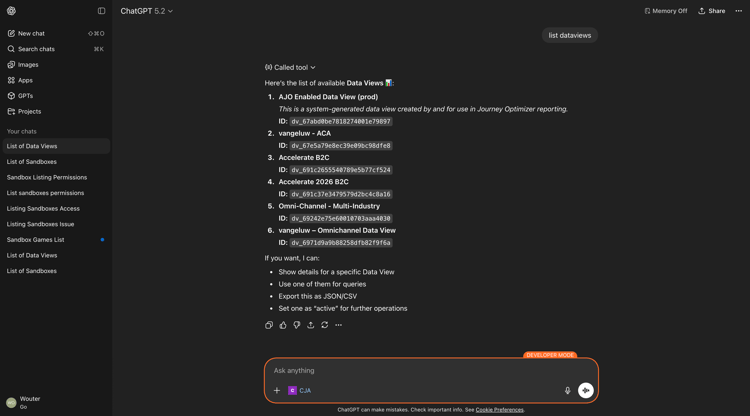
list dataviews
You should then see a similar list of available dataviews.
To change that to the dataview that needs to be used, enter the following Prompt and click the send button.
switch to dataview --aepUserLdap-- - Omnichannel Data View
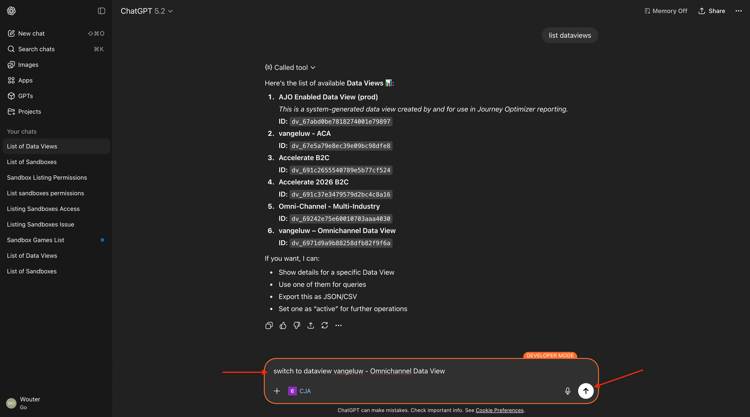
You should then see this.
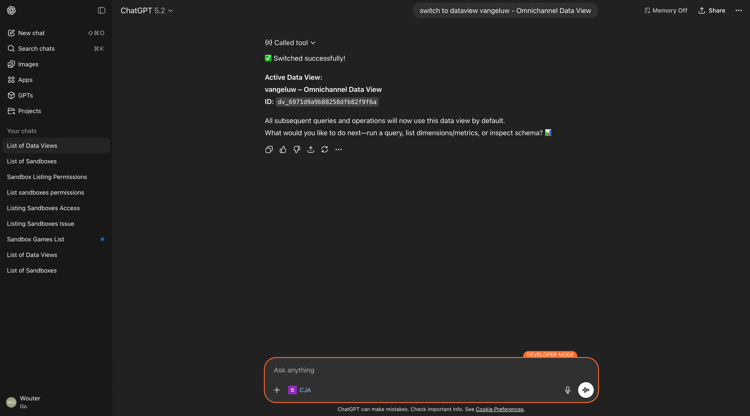
Your context is now properly set, so you can start sending specific prompts next.
1.5.1.3 Explore the dataview
Enter the following Prompt and click the send button to explore which metrics and dimensions are available to you.
list the available metrics and dimensions
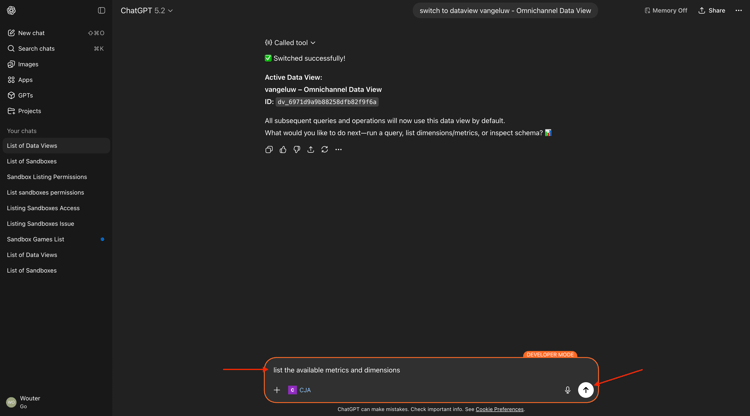
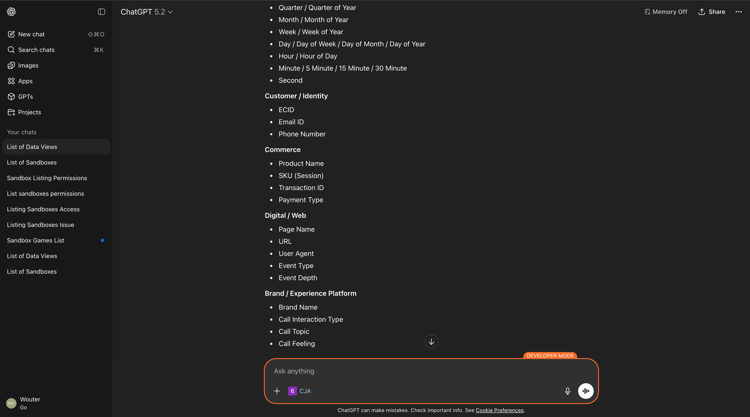
You should then see this response, which includes the metrics and dimensions that were set up as part of the exercise Create a dataview.
1.5.1.4 Freeform Table - Product Views
You can now start exploring the data. Start by entering the below prompt and click send to submit your report request.
how many product views happened on January 21?
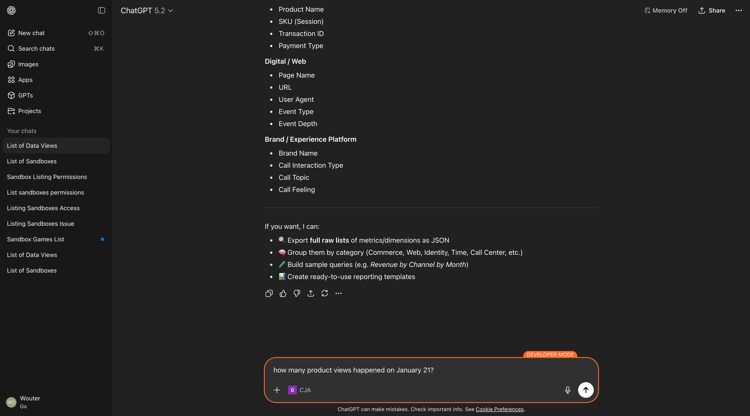
Select RunReport.
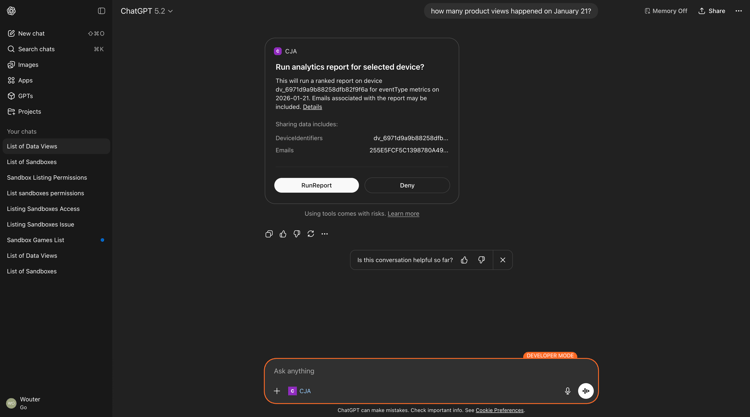
You should then see a response like this.
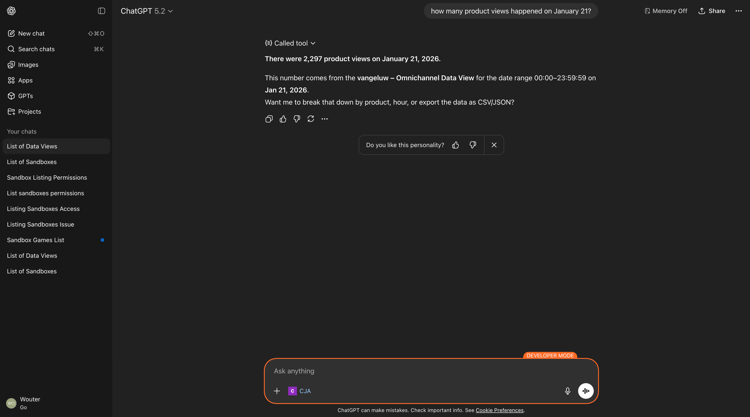
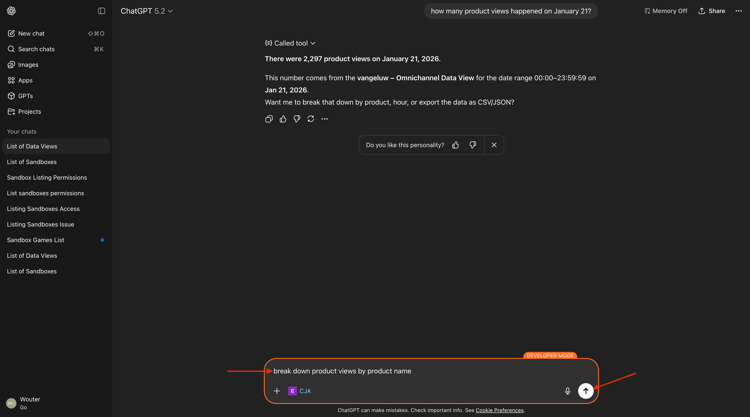
You can now break down the response by adding a dimension. Enter the following prompt and click the send button.
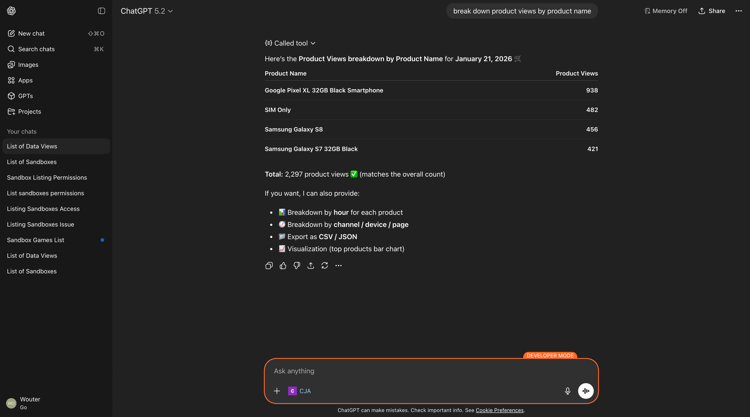
break down product views by product name
You should then see a response like this.
You can now also create a visualization. Enter the following prompt and click the send button.
create a line visualization by hour for product views on January 21
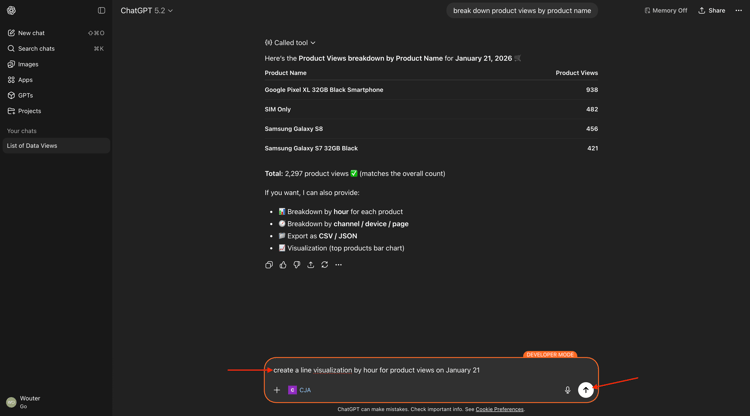
Select UpsertProject.
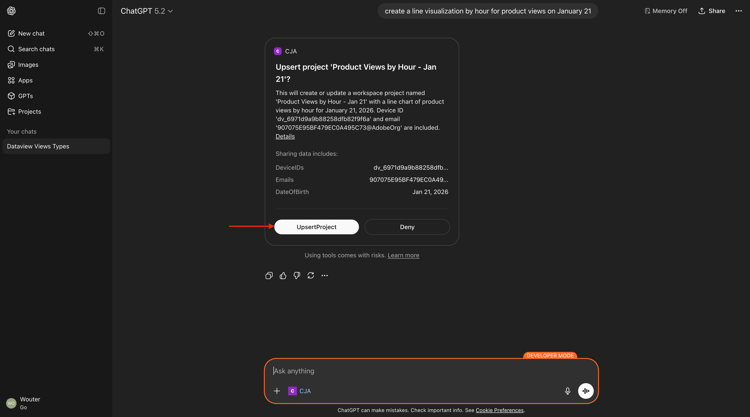
Select RunReport.
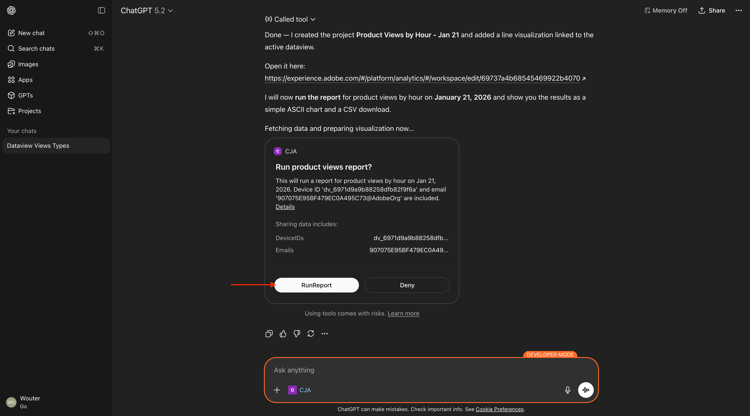
You should then see this.
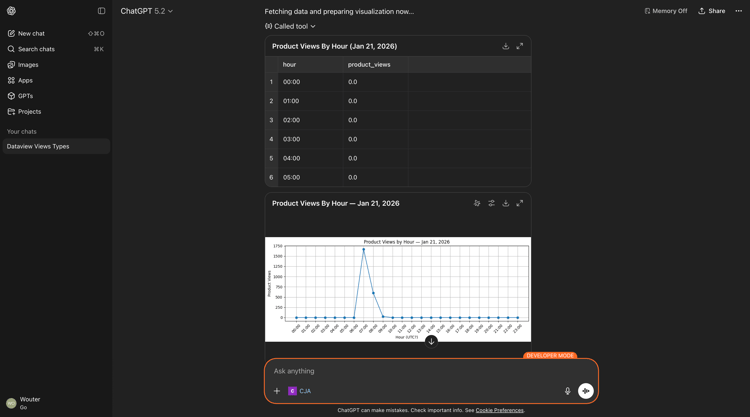
Scroll down.
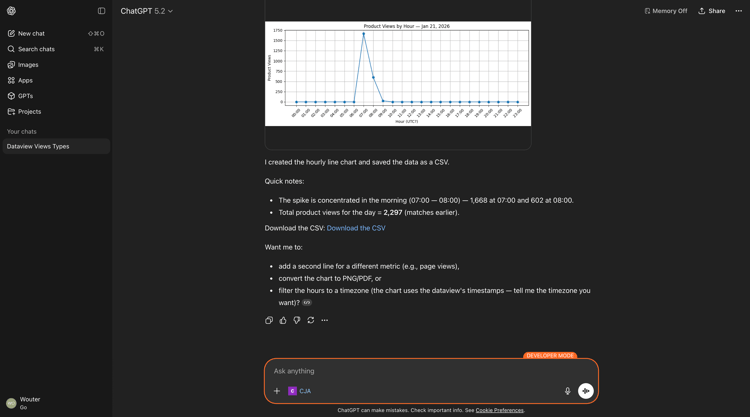
You can now also download this line graph. Enter the following prompt and click the send button.
export this chart to PNG
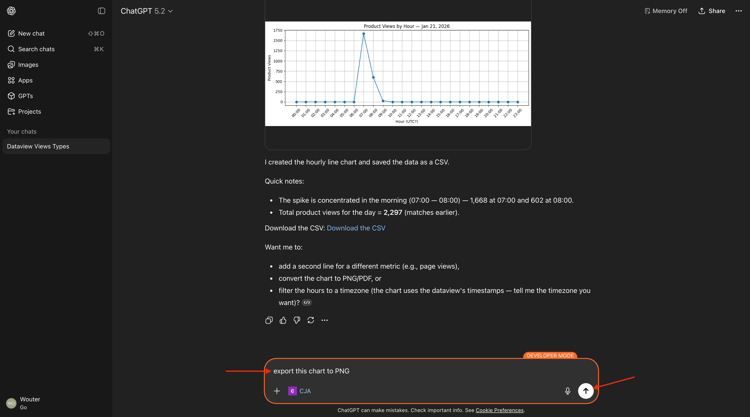
You should then see this. Click Download the PNG.
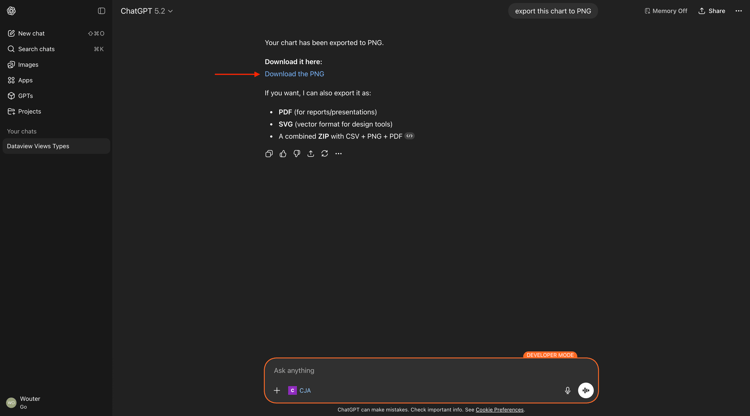
Enter the following prompt and click the send button.
can you breakdown product views by user agent?
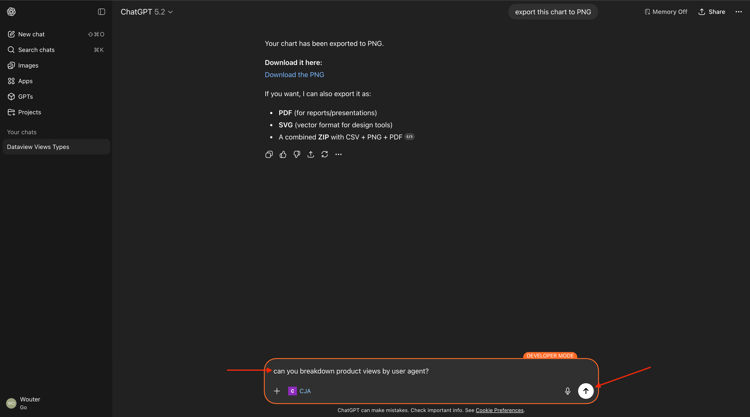
Select RunReport.
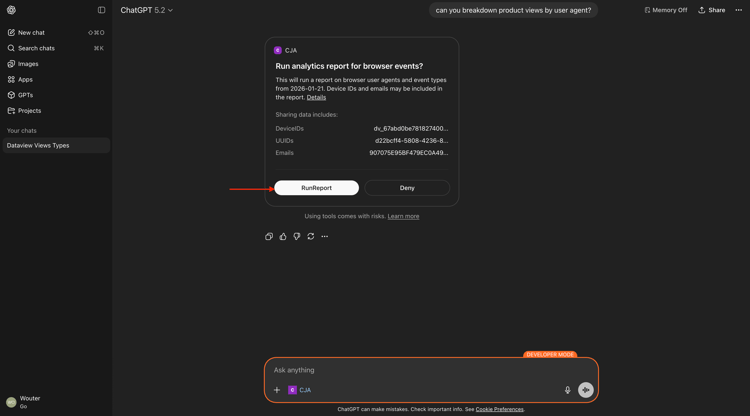
You should then see this.
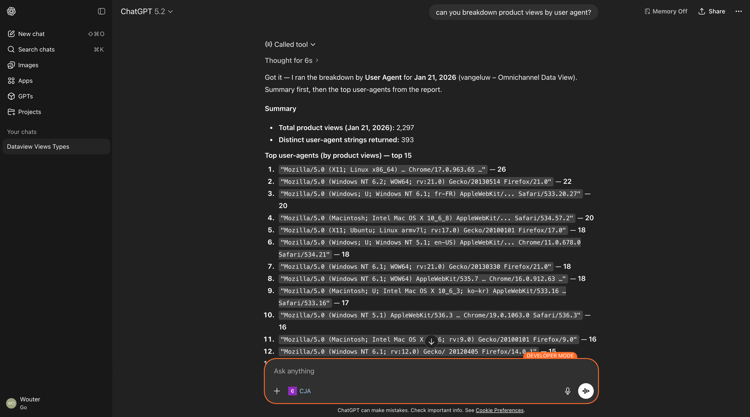
1.5.1.5 Fallout Visualization
Enter the following prompt and click the send button.
can you create a fallout visualization for the product interaction funnel, starting with all traffic and then in the next steps add Product Views, Add to Cart and purchases?
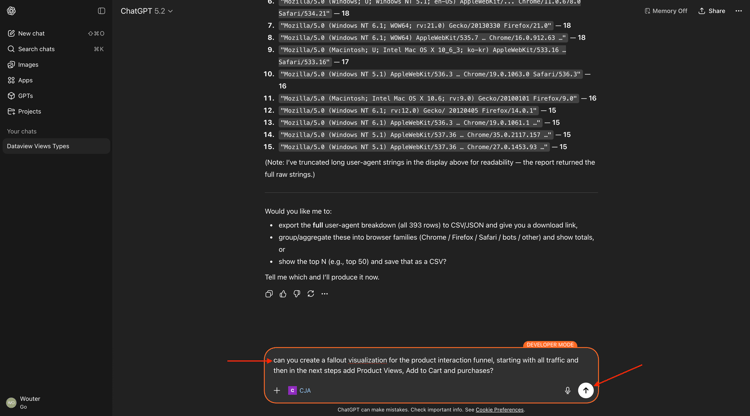
Select UpsertProject.
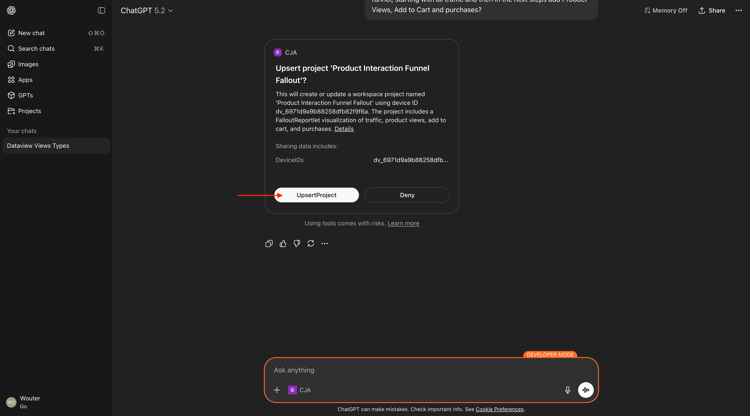
Select RunReport.
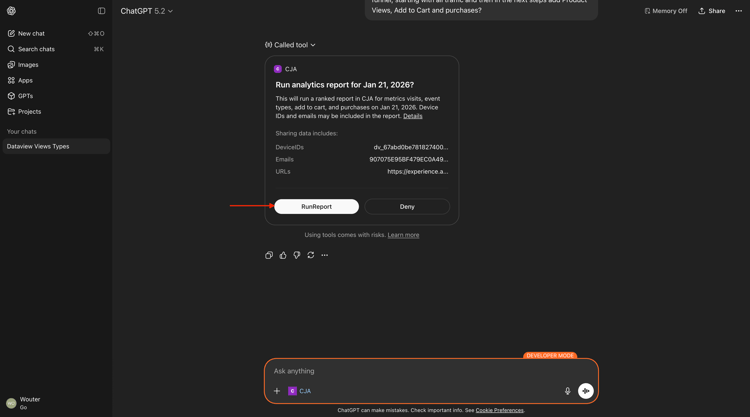
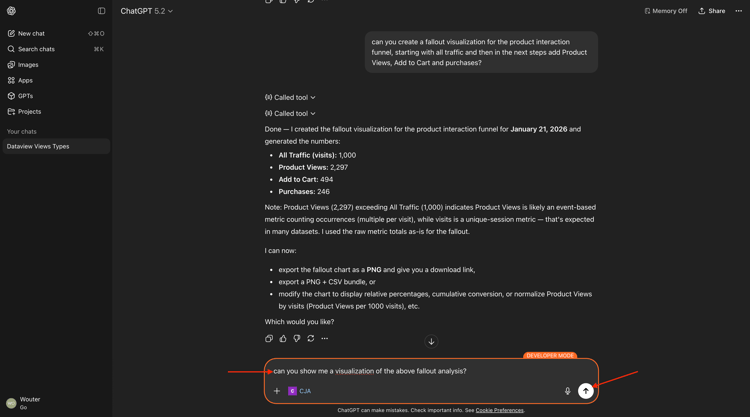
You should then see something like this. Enter the following prompt and click the send button.
can you show me a visualization of the above fallout analysis?
Click Download the PNG.
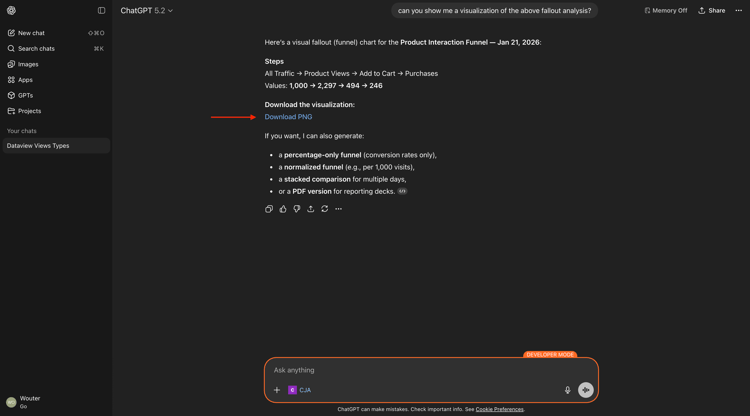
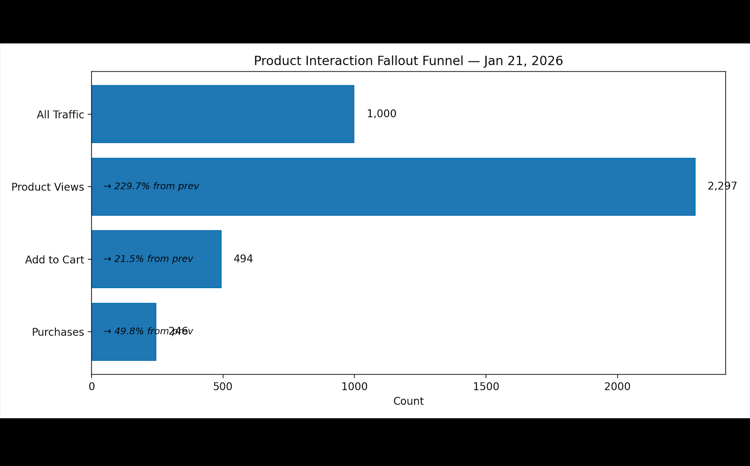
You now see the visualization of your fallout analysis.
Next Step: CJA & Claude.ai with MCP server
Go Back to Analytics & Agents