Personalize email content by persona
The Content Personalization skill transforms an email into persona-based, data-informed variants, so you do not have to build a separate email for each audience. Instead of sending one message after an event, the skill resolves your audience into derived persona cohorts, surfaces insights, and generates personalized variants. Every variant is saved as conditional content inside a single email, so each person automatically receives the version that matches their persona when a journey sends it.
- Skill -
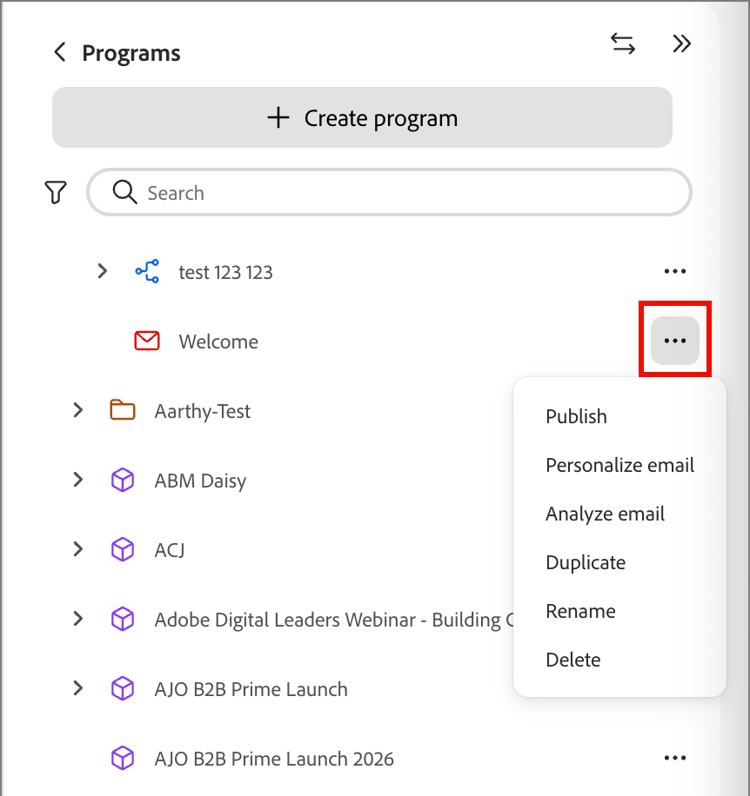
content-personalization - Invocation - From the chat interface, describe a target audience for a new email, or select Personalize email or Analyze email from the More menu of a draft email in the programs tree
- Reads from / writes to - Marketo Optimizer
Key concepts key-concepts
Prerequisites prerequisites
- Access to Marketo Optimizer with CX Coworker enabled.
- Derived personas resolved in your data. The skill relies on these classifications to build persona cohorts. Custom persona support is planned for a future release.
- Enough historical data for insights. If insights are not available for a persona cohort, the skill tells you that data is insufficient and falls back to general best practices for that persona.
- An email template or an existing draft email in a program.
- A person journey that contains the Send Email action node used to deliver the personalized email.
Create and personalize an email from a template create-personalize-from-template
This flow authors a new email and personalizes it in the same conversation.
-
Invoke the
/content-personalizationskill in the Coworker chat interface. -
Provide the content.
Upload a content brief, or describe the content you want in natural language.
-
Select a template from your template library.
-
Review the draft.
Coworker maps your content to the template and produces a draft email. You can make basic text edits inline.
note warning WARNING Only basic text edits are available inline during authoring. For advanced edits, save the email and open it in the visual design space. -
Describe the target group in natural language.
-
Review the resolved persona cohorts.
Coworker inspects your data and returns the persona cohorts that match your description, with a count for each. Revise the target-group description and try again if needed.
-
Confirm the target group.
Then Coworker retrieves insights for each resolved persona cohort.
-
Select the sections to personalize, such as the subject line or a body section, and review the generated variants.
Regenerate a variant if it does not fit. The number of persona cohorts is not fixed. It depends on your target group and your data.
-
Save the email.
All variants are stored in one AI Personalized Email, not as separate emails.
Analyze an existing email analyze-existing-email
The Analyze tool is available only for draft emails. After an email is published, it cannot be changed. In the programs tree, click the More icon (…) next to a draft email and choose Analyze email.
To run an email audit:
-
Describe the target group you want to personalize for, in terms of their persona.
For example People in Marketing roles or People in Leadership functions.
-
Review the email audit.
Coworker resolves your description into persona segments and shows an Email audit card listing each segment, then reviews the email against each one to highlight what resonates and what to improve.
-
Coworker asks what to do next, including See section-by-section audit and Personalize this email.
-
Select See section-by-section audit to open an Email analysis view with a persona selector and specific recommendations for each section.
Each section shows how many changes are recommended, and each persona shows a recommendation count, such as
4 recommendations for SVP/VP. You can also apply the recommendations directly by entering personalize in the chat. -
From the audit, select Personalize this email to apply the insights and generate variants.
See the following section, Personalize an existing email.
Personalize an existing email personalize-existing-email
Select Personalize email from the More menu of a draft email in the programs tree, or continue from an email audit, to personalize an email you already built.
-
Review the resolved persona cohorts.
Coworker inspects your data and returns the persona cohorts that match your description, with a count for each. Revise the target-group description and try again if needed.
If you arrived at this step from an email audit, Coworker continues directly from the audit insights.
-
Select the sections to personalize in the email preview, such as the subject line and specific content sections, and confirm.
-
Review the generated variants.
Variants can also vary by industry, such as a CXO in healthcare versus financial services. Coworker presents a Personalized variants grid, one card per persona cohort, with a subject line, headline, body, and a Preview option.
Select the Information icon on a card to see the insight for that variant (the persona it’s based on and the engagement insight that informed it) and regenerate a variant if needed.
You can filter the grid by persona.
-
Save the set.
Click Save and confirm. Coworker confirms the email is now available in the AI Library, then asks whether to apply the changes to the original email also, which updates it in place.
Saved output and use in a journey saved-output
Whichever flow you start from, personalization produces a single AI-personalized email stored in the AI Library. The email contains conditional content blocks keyed by persona. To edit sections, open it in the visual design space, and to preview how each persona-keyed block resolves, use Simulate Content.
To use the email in a journey, add a Send Email node and select Use an AI-personalized email.
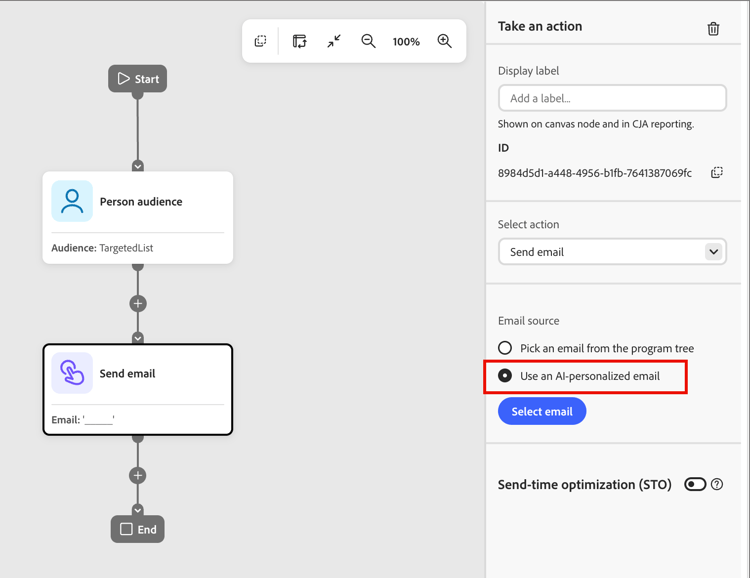
Then choose the saved email. Apply your configuration and business rules to the node as usual.
Run-time behavior run-time-behavior
You select the single AI personalized email in the journey, not one variant per audience. When the journey runs, the email automatically resolves to the variant that matches each recipient’s persona. You do not choose a variant per recipient.