Take an action node
In a person journey, use an action on people when you want to apply a change to all people on the node path.
Actions and constraints actions
-
Select or create a static list
-
If the list does not have an activated destination, activate the list to one or more destinations
-
Select a scheduled or live journey
-
Audience criteria of the target journey are not applied
- Create a new static list or select an existing one
- Select a static list in Marketo Engage
-
Select person attribute
-
Set new value
-
Select program
-
Select new status
-
Select program
-
Select new status
-
Select Static List
-
Skips person if not currently a member
-
Select a static list in Marketo Engage
-
Skips person if not currently a member
-
Select a live journey
-
Skips person if not currently a member of the target journey
- Select a Marketo Engage campaign
-
Create, edit, or use an AI-personalized email
-
Send-time optimization (optional)
- Select a WhatsApp message
Add an action node add-an-action-node
-
Navigate to the journey canvas.
-
Click the plus ( + ) icon on a path and choose Take an action.

-
In the node properties on the right, select an action from the list and set any values for the action.
Use this action to add people to a static list and activate that list to a destination directly from your journey. You can use an existing static list, or create one specifically for the journey.
| note prerequisites |
|---|
| PREREQUISITES |
| You must have one or more configured destinations for your Marketo Optimizer sandbox before you set up an Activate to destination journey node. |

Under Add to list, choose one of the following options:
-
Create — Create a new static list and add people to it. The list is immediately available under People lists.
Select a parent program for the list and enter a Name (required) and Description (optional). Click Create to add the new list for the node.

-
Select — Select an existing static list where you want to add people who reach the node.
Select the checkbox for the existing static list and click Save.

Anyone who reaches the node is added to the selected static list, but the action is not complete until the list is activated to a destination:
- If the selected list is already activated, its destinations appear under Destinations and the action is ready.
- Otherwise, an At least one destination is required message appears. Click Activate list to destination, select the destination, and click Save. Click Activate in the confirmation dialog.

When activation completes, the destination appears under Destinations and the action is ready. You can activate the list to additional destinations if needed.
Anyone who reaches the node is added to the selected static list, which is activated to the chosen destination, so they are added to that destination audience and, in turn, to any campaign that the audience feeds.
Use this action to add people to other scheduled or live journeys. People added through this action are immediately added to the audience of the target journey; the audience criteria of the target journey are not applied.

Use this action to add people to a static list in Marketo Optimizer.

Choose one of the following options:
- Create — Create a new static list asset and add people to it. The list is immediately available for use by other assets in Marketo Optimizer.
- Select — Select an existing static list asset where you want to add people who reach the node.
Use this action to add people to a static list in Marketo Engage.

Use this action to update the value of an attribute on a person record. Select the attribute and set the new value.
| note tip |
|---|
| TIP |
To clear the value of an attribute, set the value to NULL. |

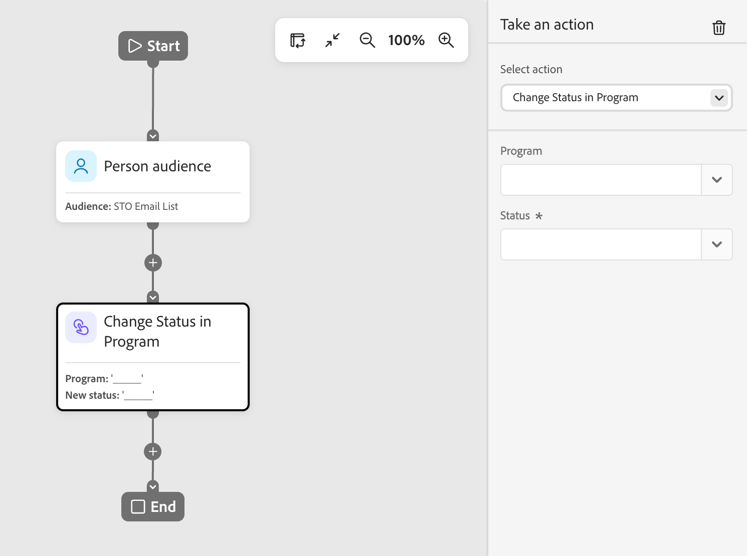
Use this action to change the status of a person in a Marketo Engage program. Select the program and then select the new status.
Use this action to change the status of a person in relation to an interactive webinar. Select the webinar and then select the new status.

Use this action to remove people from a static list in Marketo Optimizer. If a person is not currently a member of the list, the action is skipped for that person.

Use this action to remove people from a static list in Marketo Engage. If a person is not currently a member of the list, the action is skipped for that person.

Use this action to remove people from other live person journeys. The person is immediately removed from the target journey and no further actions are taken on them. If a person is not currently a member of the target journey, the action is skipped for that person.

Use this action to add people to a request campaign in a connected Marketo Engage instance. Select the Marketo Engage campaign to request.

Use this action to send an email to opted-in people. People who are unsubscribed, block listed, email suspended, or marketing suspended skip this action.

You can choose a published email from the program tree, which adds a copy of the email to the journey, or use an AI-personalized email. The copy is read-only. For information about creating, publishing, and duplicating emails, see Create emails and add them to journeys. To generate persona-based variants for a draft email, see Personalize email content by persona.
You can use Send-time optimization to personalize email delivery timing by predicting when each profile is most likely to engage.
Use this action to send a WhatsApp message. You can create, personalize, and preview WhatsApp messages in the visual design space (see WhatsApp authoring).
