Email send-time optimization
Use the Send-time optimization (STO) feature to personalize email delivery timing for person journeys by predicting when each profile is most likely to engage. Instead of a fixed send time, STO uses historical email engagement signals to schedule delivery at the optimal time for each recipient, improving overall engagement.
STO analyzes each profile’s historical engagement using a large language model. It predicts and ranks potential send times, then schedules delivery at the highest-ranked time within the optimization window.
Performance insights, such as usage, engagement lift, and STO vs. non-STO comparisons, are available through natural language queries in Coworker.
There are many future enhancements planned for STO:
- Global STO configuration in the Admin area
- Journey-level STO enablement
- Configurable test / control splits
Configuration configuration
You can configure send-time optimization when you add a Take an action node to a person journey and choose the Send email action.
-
Select the Send email journey action node.
-
In the node properties on the right, enable the Send-time Optimization option.

-
To specify the window and test distribution, set the STO options:
-
Send within next - This value determines the optimization window (in days), which is the time range in which emails can be delivered. For example, for a webinar occurring in five days, you might set a four- or five-day window. STO selects the best predicted send time for each profile within this window.
-
STO / Fixed distribution - STO automatically creates a test and control split to divide eligible profiles between optimized and fixed send times. The split enables direct performance comparison. (Future enhancements are planned to allow custom split percentages.)
note NOTE Profiles with strong engagement history are split evenly into control and test groups to measure STO impact. To ensure statistically reliable results, the STO vs. non‑STO split is constrained between 30% and 70%. This helps prevent smaller cohorts from skewing outcomes and ensures meaningful comparisons. -
-
Directly after the Send email node, add a Wait node.
A wait node must immediately follow an STO-enabled email action. Adding this node ensures that profiles remain in the journey until the full optimization window is cleared and all STO sends are complete. If you omit this node, the system flags the configuration as invalid.
-
After you complete the rest of the person journey, proceed to publish.
Reporting reporting
STO performance data is available through the Coworker using the send-time-report skill. You can view a journey-level report that summarizes all email nodes, or drill down to a node-level report for a specific email action.
The report displays each email node in the journey and indicates whether STO is enabled for it. It also shows a tabular comparison between STO-enabled and non-STO emails so you can evaluate engagement lift.
Generate the STO report generate-sto-report
There are three ways to generate an STO report using the Coworker:
Use the slash command
-
In the Coworker panel, type
/to display the list of available skills. -
Select send-time-report from the list and click the up arrow to submit the query.

If a journey is open in the editor, Coworker uses it as context automatically. Otherwise, Coworker prompts you to specify the journey.
Coworker loads the report and displays a summary card.
-
Click Open report to view the full report with node-level detail.
Click an email node
-
In the journey canvas, click the Send email node.
-
In the Coworker panel, ask for the STO report.
Because the node is selected, Coworker uses it as context and returns a report scoped to that node only.
It loads the report and displays a summary card.
-
Click Open report to view the full report.
Natural language query
-
In the Coworker panel, enter a request such as Give me the STO report for [journey name].
Coworker interprets the request, loads the
send-time-reportskill, generates the report, and displays a summary card. -
Click Open report to view the full report.
View the email report data sto-report-data
You can reduce the Coworker panel to increase the size of the displayed report, or scroll to see the full width.
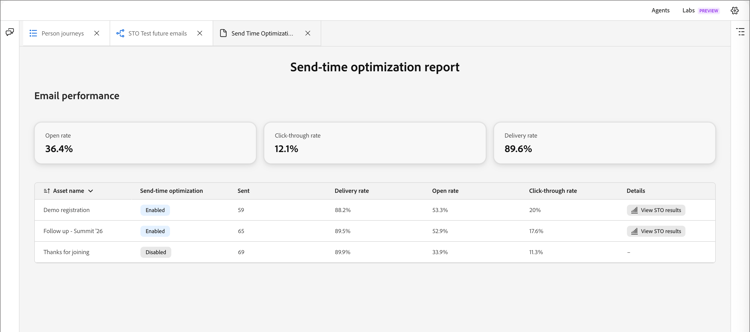
In the Details column, click View STO results to open a popup window. The window provides email data visualizations for Performance comparison, Send-time distribution, and Data integrity.
