Prepare your app for ChatGPT submission prepare-submission
To list your app in the ChatGPT plugin directory, you upload a submission package to OpenAI. LLM Apps helps you prepare it. It creates the package ZIP from your app, sends test requests to your deployed app, and records the results so that you can check them. You then upload the package and finish the submission in the OpenAI portal.
In this guide: Learn how to prepare a submission package for your app in LLM Apps, and what to do next in the OpenAI portal.
Before you begin
- Deploy your app to Production. LLM Apps sends its test requests to the Production version of your app.
- Make sure that the actions you want to publish are reviewed and enabled.
- Have your publisher name ready, and the URLs of your support page, privacy policy, and terms of service.
- Have two icons ready: a logo and a composer icon. Each must be a square, non-animated PNG, 64–4096 pixels per side, and no larger than 1 MiB. Use only images that you have permission to publish.
- If your app authenticates end users, register an OAuth client for ChatGPT in your identity provider, unless your identity provider supports dynamic client registration (DCR) or client ID metadata documents (CIMD).
Open Prepare for submission
After you deploy your app to Production for the first time, the app page shows the Prepare for submission card below Test the app.
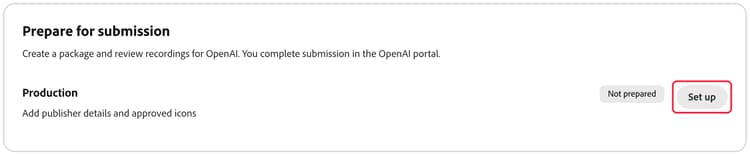
Select Set up. Later, the button on the card changes to show the next step, such as View progress or View results.
The Prepare for submission dialog opens. It has three sections: Set up & prepare, Results, and Run history.
Add your submission details
In Set up & prepare:
-
Under Publisher & legal, enter Publisher name, Support URL, Privacy policy URL, and Terms of service URL.
- For Publisher name, enter the public name that you will verify as the publisher in the OpenAI portal.
- For Support URL, enter the URL of a support or contact page. An email address is not accepted.
- The privacy policy must describe the data that your app, authentication, widget, and analytics collect and use.
-
Under Approved icons, select Choose logo and then Choose composer icon, and choose a PNG file for each.
-
If your app uses authentication, open OAuth client registration and choose how ChatGPT gets an OAuth client. Choose only an option that your identity provider supports:
- Provided - you registered a client for ChatGPT. Enter its Registered client ID. Do not enter your Adobe IMS client ID.
- DCR - ChatGPT registers a client by using dynamic client registration.
- CIMD - ChatGPT identifies itself with a client ID metadata document.
LLM Apps never asks for a client secret.
-
Optionally, open Additional submission details and enter the listing text, package name and version, purchase details, hosted demo URL, supported countries, and release notes. If you leave a field blank, LLM Apps drafts the text where it can. Anything it cannot draft appears later under Before you submit.
-
Select Save changes.
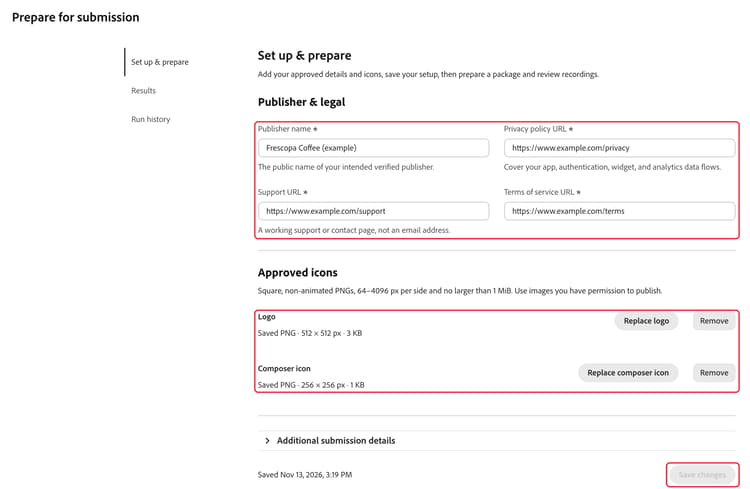
Preparation uses only the details and icons that you saved.
Prepare the package
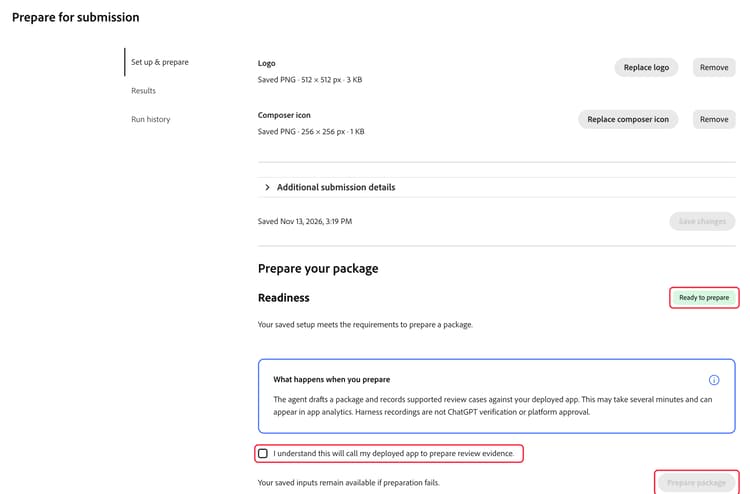
Under Prepare your package, check Readiness. Ready to prepare means that your saved details meet the requirements. Otherwise, the section lists what is missing, such as a required detail or a successful Production deployment.
- Read What happens when you prepare. LLM Apps creates the package and sends test requests to your deployed app. This can take several minutes, and the test requests can appear in your app’s analytics.
- Select the I understand this will call my deployed app to prepare review evidence. checkbox.
- Select Prepare package.
While preparation runs, the dialog shows Preparation in progress. LLM Apps uses your app and details as they were when you selected Prepare package.
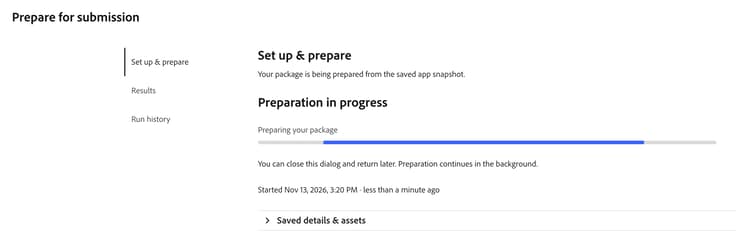
You can close the dialog and come back later. Preparation continues in the background, and the card on the app page shows Preparing package until it finishes. If preparation fails, your saved details are kept.
Review the results
When preparation finishes, open Results. The top of the section summarizes the outcome. Preparation needs attention means that LLM Apps created a draft package but found problems that you must fix first, such as placeholder legal links.
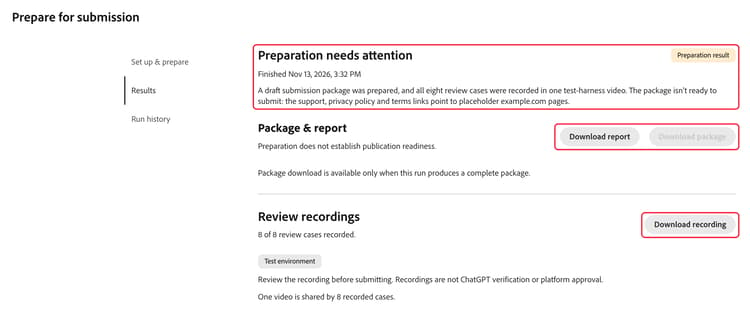
- Package & report - select Download package to get the submission ZIP, and Download report to get the preparation report. Download package is available only when preparation produces a complete package.
- Review recordings - select Download recording and watch the video to confirm that your app behaves as intended. One video can include several test cases.
- Test cases - for each test case, check the request that was sent and its status. Open Expected behavior to see what the app should do. Some test cases ask for things that your app does not support. For these, the app should decline the request without calling an action.
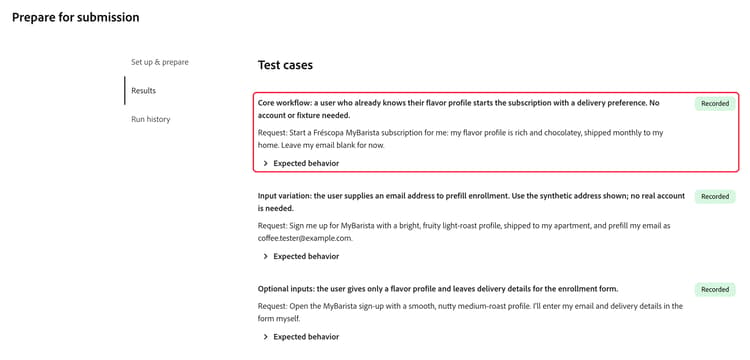
The recordings come from the LLM Apps test environment. They do not mean that ChatGPT verified your app or that OpenAI approved it.
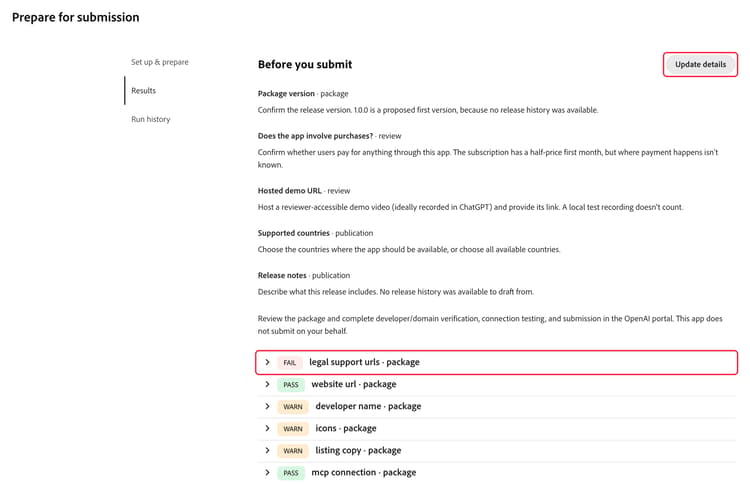
Before you submit lists the details that you still need to confirm or enter, such as the package version, whether the app involves purchases, the hosted demo URL, supported countries, and release notes. Below the list, each check shows PASS, WARN, or FAIL. Expand a check to see the details. To fix a detail, select Update details, save your changes, and prepare the package again.
If you change your app or your details after preparation, Results shows App or inputs changed since this run. Select Prepare again to create a new package from the current app and details. Run history lists earlier preparations. Opening one does not change your saved details.
Submit in the OpenAI portal
When the package is complete, download it and follow Upload and submit your plugin in the OpenAI documentation to:
- Upload the ZIP and fix any problems that the automatic checks find.
- Connect your MCP server and complete domain verification.
- Enter the review information, including sign-in details for reviewers if your app requires sign-in, and submit the app for review.
- Publish the approved plugin.
To verify your domain:
- After you upload the package, copy the challenge token that the OpenAI portal shows.
- In LLM Apps, open your app’s Settings > Submission.
- Under Domain verification, paste the token into OpenAI challenge token and select Save.
- Deploy your app to Production again. The token is published only after the next deployment.
- Return to the OpenAI portal and complete the verification.
LLM Apps serves the token at /.well-known/openai-apps-challenge on your app’s domain, so you do not need to host it yourself.
Tips for a smooth review
- Check the authentication of every action. When the OpenAI portal scans your MCP server, it calls every action. If an action is marked as requiring authentication but the call cannot be authenticated, the scan fails. You then need to fix the app, prepare a new package, and upload it again.
- Allow time for the review. After you submit, OpenAI reviews your app before you can publish it and sends feedback by email. Take this time into account when you plan your release date.
- Upload a new package when listing details change. After publication, ChatGPT picks up changes to your MCP server automatically when you redeploy. Changes to the listing details or other package metadata need a new package. Prepare it again in LLM Apps and upload it in the OpenAI portal.