Configure ChatGPT extensions chatgpt-extensions
These are ChatGPT-only extensions. They do not configure features in Claude or other LLM platforms. Your app can still work in those platforms through its standard actions and widgets.
Use ChatGPT Extensions to let people open your app directly, keep it beside a conversation, view supported files, or find items while composing a message.
In this guide: Learn how to configure these optional features and what people can do with them. A product catalog is the example; enable only the features your app needs.
Red outlines in the screenshots highlight controls used in the steps. They are documentation annotations, not UI error indicators.
Before you begin before-you-begin
You need:
- An existing LLM App, permission to edit its actions, and a working action for the task.
- A published widget for direct opening or file viewing. Text-only actions can provide mention search, but not entrypoints.
@adobe/llm-apps-runtime1.3.0 and, for the widget features,@adobe/llmapps-sdk0.2.1, or later supported versions. Ask your app maintainer to confirm both versions and update the served widget scripts if needed.- A connected app and a client that supports the selected extension.
Open ChatGPT Extensions open-extensions
- Open your app and select Actions.
- Open the action you want to configure.
- Select the ChatGPT Extensions tab.
The tab is also available during action creation. This guide uses an existing, reviewed action.
Select Save changes after editing. For publishing the configuration, follow Deploy your app and refresh the ChatGPT connection.
Choose where people open your app configure-entrypoints
An entrypoint is a place where people open your app without asking the model to invoke it.
-
Under Entrypoints, optionally enter a public HTTPS image URL in Icon URL. The icon is shared by this action’s entrypoints; use an image you are permitted to publish.
-
Under Where users can open this app, select any combination of the following checkboxes for the same widget. Leave all unchecked if the action does not need direct opening.
table 0-row-2 1-row-2 2-row-2 3-row-2 Type Result Global Open the catalog fullscreen from navigation Thread Open the catalog as a tab beside a conversation File Open matching files in your custom viewer -
For Global or Thread, confirm that the action works without required inputs.
-
For File, complete the setup below.
For example, select both Global and Thread to open the same catalog widget from navigation or beside a conversation. You can also select File if the widget supports file viewing. When File is combined with Global or Thread, leave Required unchecked for the file input: File launches still supply the file object, but Global and Thread launch with no inputs. The handler and widget must support both cases. A File-only action can require file.
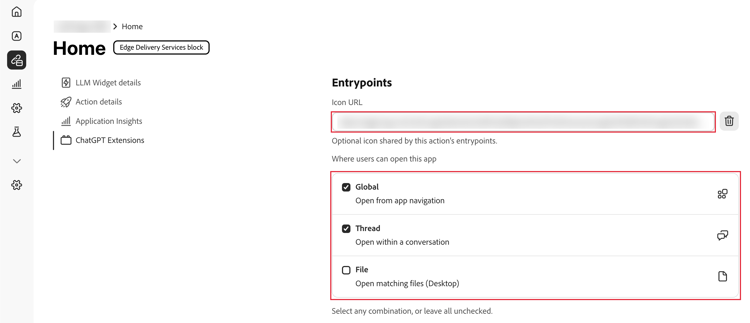
Expected result: Open the catalog from navigation for Global, or as a conversation-side tab for Thread.
Open from navigation or a conversation test-global-thread
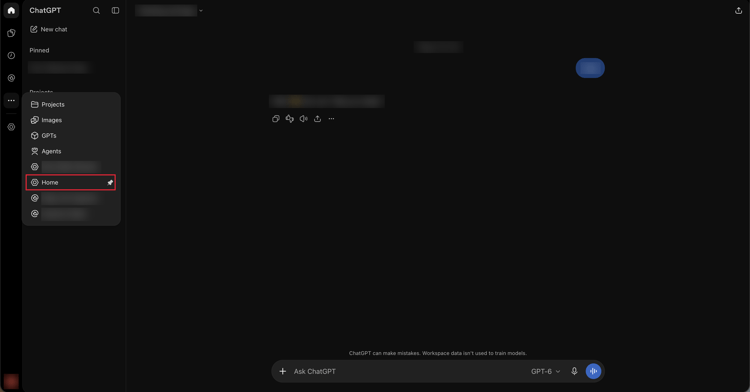
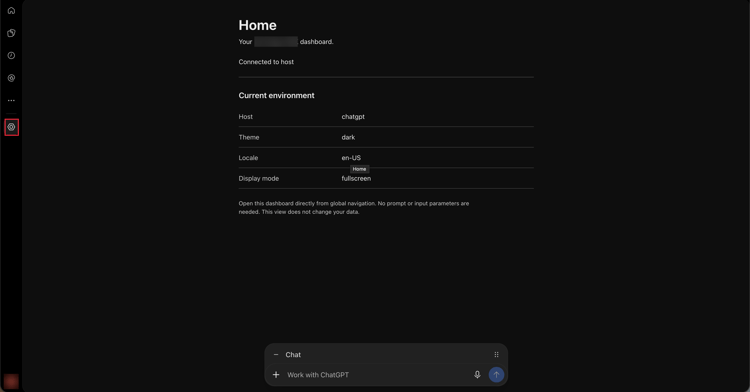
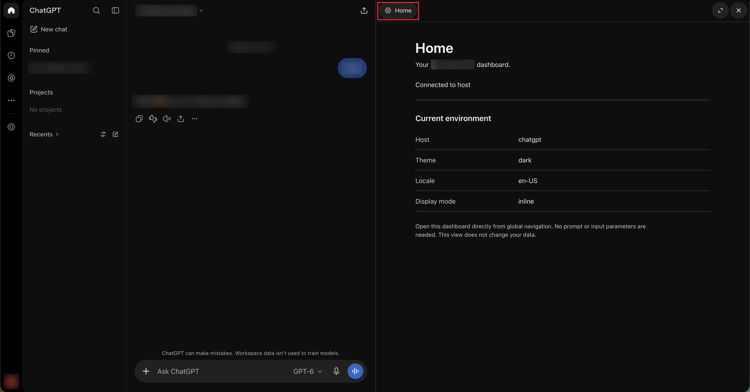
The following user-supplied screenshots illustrate the Home dashboard rather than the catalog example. Navigation and menu placement can vary by client.
For Global, open the navigation menu and select your app’s entrypoint. In this example, the entrypoint is Home.
Confirm that the dashboard opens fullscreen, with the navigation rail still available.
For Thread, open the conversation menu, select Plugins, and choose the entrypoint. Confirm that the widget opens beside the conversation without needing a new prompt.
Open a supported file in your app file-entrypoint
For a prepared CSV catalog viewer:
- Select the File checkbox, select Add extension, and enter
.csv. Add each supported extension in its own field. - Under Action details > Input parameters, confirm an Object parameter named
filethat acceptsnameandresourceUri. Selecting File adds an optional Object input if nofileparameter exists; check any existing definition. No other inputs can be required. Keepfileoptional if Global or Thread is also selected. - In a supported desktop client, open a non-sensitive
.csvfile with your app.
Expected result: Your widget displays the file. Saving edits additionally requires implemented editing support and a writable file.
Choose how the app is displayed display-settings
Under Display mode:
- Set Display when launched by the model to
inline,fullscreen, or No preference. - Select the widget’s Supported resource display modes: Inline, Fullscreen, or both. Leave both unchecked to use host defaults.
- Choose Initial resource display. If you selected supported modes, the initial mode must be included.
These are preferences; ChatGPT chooses the final presentation. Fullscreen does not create a side-panel tab: use a Thread entrypoint for that.
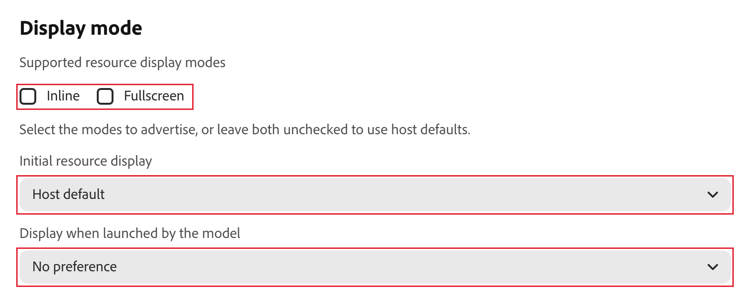
Check that the widget remains usable in each mode you advertise.
Let people find resources in the composer composer-mentions
Composer mentions let people search and select catalog items while writing a message. Use an action that already returns selectable search results.
- Open the search action and select Action details.
- Confirm a String input named
querythat accepts empty text, with no other required inputs. - Under LLM settings, enable Read only hint and Show as widget in app surface. The search action must actually be read-only.
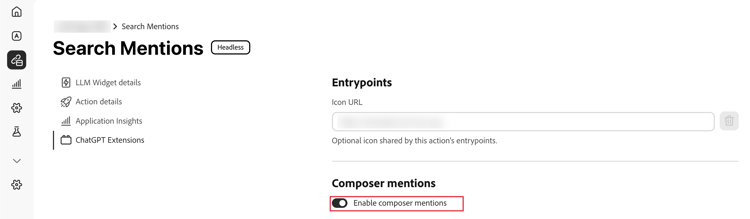
- In ChatGPT Extensions, turn on Enable composer mentions.
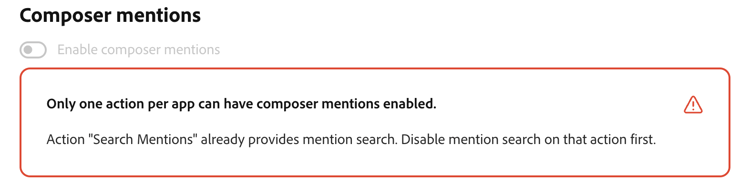
- Only one provider is allowed per app. If replacing one, disable mentions on the old provider and save it before enabling the new provider.
Expected result: Search for a known product in the app’s composer mention search, select it, and confirm the intended resource is referenced in the message.
The visibility setting makes the search action available to the app. The provider does not need its own visual widget.
The following example uses Search Mentions, a text-only action that searches synthetic documents rather than the catalog. Its query input is a String with Required unchecked.
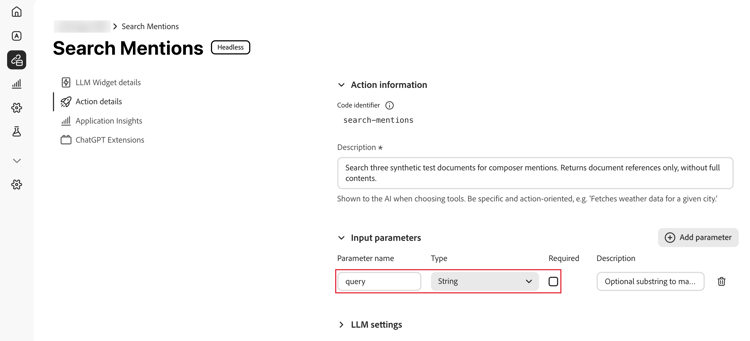
In the same action’s ChatGPT Extensions tab, Enable composer mentions is on.
If another action already provides mention search, the toggle is unavailable and a warning identifies that action. Disable mentions on the existing provider and save before enabling a replacement.
Additional ChatGPT widget features additional-widget-features
The SDK also supports ChatGPT-specific deep links, extended selection context, editable drafts, and conversation targeting. These need widget implementation, not another switch in this tab.
Basic widget messaging and other standard SDK APIs are not ChatGPT-only. Ask your maintainer which extensions your widget implements; see the SDK documentation.
Change or remove an extension change-or-remove
In the same tab, clear the entrypoint’s checkbox or turn off Enable composer mentions. Clear File if no extensions remain. To remove the shared icon, select Clear icon. To restore display defaults, select No preference, clear the supported modes, and select Host default.
Removing an entrypoint does not delete the action or user files. See field definitions and rules.
Troubleshooting troubleshooting
file, and mentions supply query. Ask the maintainer to resolve the mismatch; do not remove an input the action needsfile input, and use a compatible desktop client. The widget must implement that file formatquery input. Save removal of the old provider before enabling its replacementFor support, record the app, environment, client, failed step, and visible error. Do not include tokens, private URLs, or sensitive data.