Create actions creating-actions
Actions are the capabilities your app offers inside an LLM conversation, such as finding products, checking availability, or booking a service. Each action’s handler performs the task, and an optional widget presents the result.
After infrastructure setup, choose how to create actions from the app page. Automatic generation is available with both Adobe managed infrastructure and your own repositories.
In this guide: Learn how to generate actions from your website or create them yourself. For automatic generation, start the process and review the results before deploying and testing the app.
Choose how to build actions
Open your app. If Adobe is still preparing its infrastructure, wait for setup to finish.
In the Actions section, How do you want actions to be built? offers two choices:
Choosing the infrastructure in the create-app wizard does not select either of these options for you.
Generate actions from a website generate-from-website
- Select Build actions automatically.
- In Your website, enter a public HTTPS website that represents your brand’s products, services, or customer tasks. This example uses
https://frescopa.coffee/. - Select Build my actions.
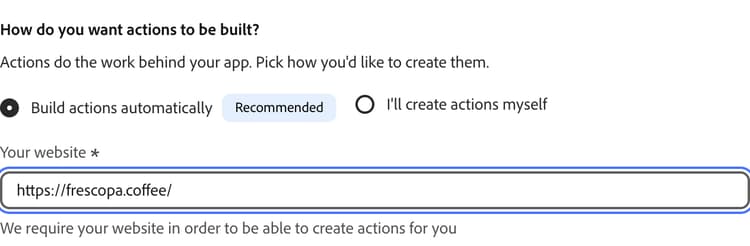
Use a website you are authorized to analyze. Do not provide a site that exposes confidential or access-controlled information.
Selecting Build my actions starts generation; entering the URL alone does not. You do not need to recreate the app or reopen the infrastructure wizard.
Follow generation progress
The app page shows Actions are being generated. Select Go to actions, or open Actions from the navigation, to follow progress.
The UI estimates up to 30 minutes for generation. Leave the page and return later if needed.
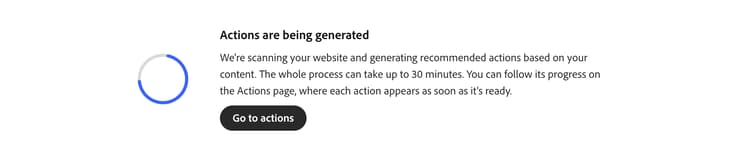
During generation, the platform:
- Analyzes the website and identifies customer tasks for the app.
- Creates suggested action metadata, including descriptions and input parameters.
- Generates server-side handlers and tests in the action repository.
- Generates widgets in the EDS repository.
- Prepares the generated actions for review.
While the platform analyzes the website, the Actions page shows Discovering actions for your conversational experience. Suggested actions appear as the platform discovers them; their code and widget previews may still be generating. Wait for generation to finish before reviewing each action.
If generation reports a failure, read the visible error and check the troubleshooting guidance. Do not approve an action simply to bypass a generation error.
Review the generated actions review-generated-actions
Review each suggested action before deployment. Confirm that it represents a useful task and that the generated behavior matches what you intend the app to do.

- On the Actions page, select Review for an action that is ready.
- Review the action’s description, input parameters, annotations, visibility, and generated handler.
- Review the widget configuration and preview, if the action has a widget.
- Inspect the generated code and tests, including any linked pull requests. Check what is sample behavior and what must be replaced with real integrations.
- When the action is ready, select Mark as reviewed.
- Return to the action list and repeat for the remaining actions.
The saved-action editor separates LLM Widget details, Action details, and Analytics. Review the widget and handler pull requests in their respective tabs.
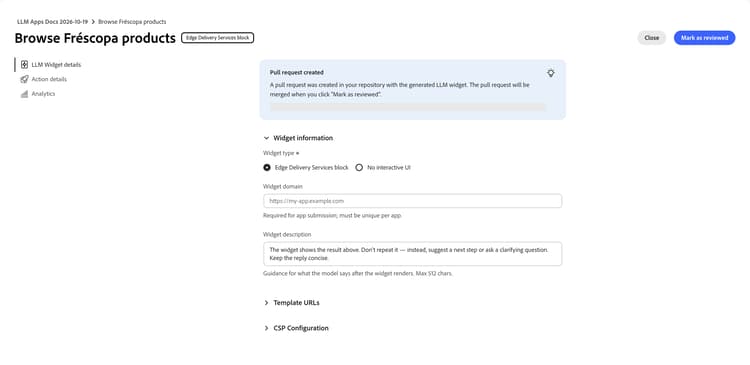
Selecting Mark as reviewed merges the action’s generated pull requests if no merge blockers remain. If an open pull request blocks review, resolve the blocker and retry. Do not approve an implementation with unresolved code-generation or merge failures.
After you review all generated actions, the Actions page shows All actions are reviewed!. To return to the app, select Go to App page.
Review is not deployment. The actions are not available through your app’s MCP server until you deploy the app.
Create actions yourself manual-actions
If you prefer not to generate actions from a website:
- In the app page’s action-creation choice, select I’ll create actions myself.
- Select I’ll create my actions.
- On the Actions page, select Create Action.
- Follow Create an action from scratch to define the metadata, implement a handler, and connect a widget if needed.
The infrastructure remains the same. Choosing manual creation does not create handler code or connect your business systems for you.
Add manual actions after reviewing automatically generated actions as needed.
Deploy and test
After reviewing the generated work:
- Deploy the app to Stage.
- Test it in ChatGPT or Claude, using the staging MCP server URL.
- Test prompts that match each action and unrelated prompts that do not call for that action. Check both the text response and widget interactions.
Before making the app available to customers, customize the handlers to connect your APIs and customize the widgets. Test the app in Stage to confirm that it works as expected. Deploy to Production only after testing succeeds.