Enable Live Hub (Beta) in Adobe Learning Manager
Administrators can enable Live Hub for an Adobe Learning Manager account and configure AI-powered assistants to support Instructors during live sessions. After Live Hub is enabled, Authors can use Live Hub virtual training tools to create and manage Virtual Classroom modules for courses.
To enable Live Hub:
-
Log in to Adobe Learning Manager as an Administrator.
-
Select AI in Learning in the left navigation pane.

Select AI in Learning to enable Live Hub. -
Select Live Hub.
The Live Hub page opens.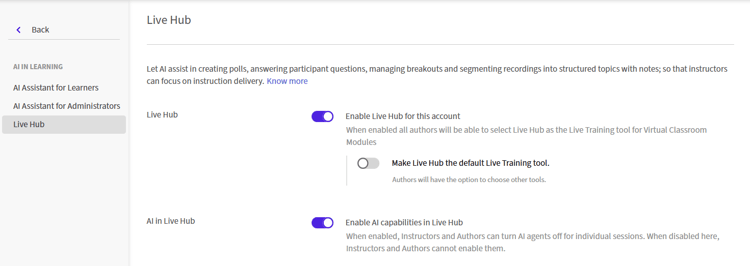
The Live Hub settings show the option to enable Live Hub in ALM. -
Toggle on Enable Live Hub for this account.
The Set Live Hub as the default dialog box appears.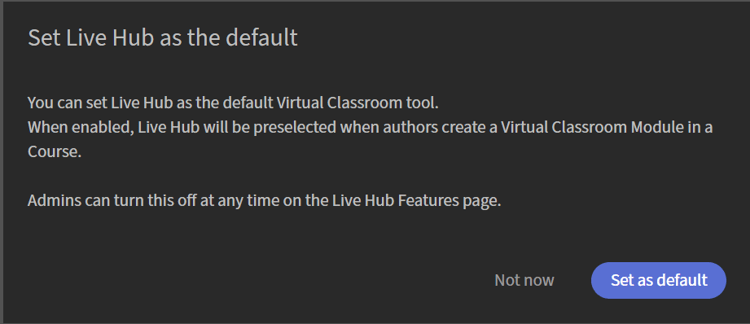
Select Set as default in the pop-up window. -
Choose one of the following options:
-
Set as default: Makes Live Hub the default virtual classroom provider. Live Hub is preselected when Authors create a virtual classroom module for a course.
-
Not now: Closes the dialog box without changing the default virtual classroom provider. You can enable this setting later from the Live Hub page.
-
-
Turn on AI in Live Hub to make AI-powered assistants available in live sessions.
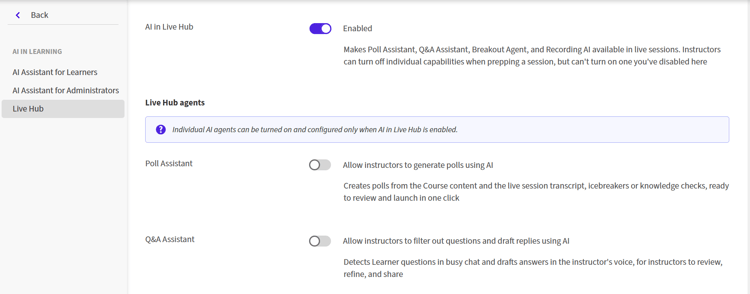
Enable AI in Live Hub to enable the Live Hub agents. -
Enable the assistants from the Live Hub agents:
-
Poll Assistant: Generates polls from the course content and the live session transcript, creating icebreakers or knowledge checks that are ready to review and launch in one click. View Create and launch a poll for more information.
-
Q&A Assistant: Detects participant questions in the session chat and drafts answers grounded in uploaded content and the session transcript, for instructors to review, refine, and share. View Use the Chat panel as an Instructor for more information.
-
Breakout Monitoring Assistant: Reads each breakout room’s transcript against the instructor’s objective, posts a status card every few minutes, and delivers per-room discussion summaries plus a single cross-room synthesis of themes, decisions, and gaps for an instant debrief. View Create and manage breakout sessions for more information.
-
Topics Generator for Recordings: Auto-segments session recordings into named topics with timestamps and structured notes, so a participant can go straight to what they need or learn from the notes without watching the full recording. View Understanding recordings and transcripts for more information.
-
Instructor Finder Assistant: Recommends instructors for a session by weighing skills, availability, utilization, preferred instruction hours, and other criteria. View Create a Live Hub session for more information.
-
View Getting started with Live Hub for more information.