Create and launch a poll
Use polls to make your Live Hub sessions more interactive and engaging. From the Polls & Quizzes panel, you can create polls manually by selecting question types such as multiple choice or short answer, or generate them using AI with Icebreaker and Knowledge check options.
During a live session, you can launch and close polls, monitor responses in real time, review participant answers, and choose whether to share results with Learners. This article explains how to create, manage, and share polls during a Live Hub session.
Create a poll manually
Create polls to ask questions and collect responses from Learners during a live session. You can create polls in advance or on the fly to check understanding, gather feedback, and encourage participation.
To create a poll manually:
-
Select

-
Select the Poll tab and then select Build your own.

Select Build your own in the Poll tab to create a poll manually. -
In the Poll tab, select one of the following question types from the dropdown:
-
Multiple choice
-
Short answer
-
-
Configure the poll based on the selected question type:
-
Multiple choice: Enter each answer option on a separate line. By default, three option fields are available. You can do the following:
-
To add more options, select Add option.
-
To allow multiple selections, enable Multiple correct answers.
-
-
Short answer: No answer options are required. Learners enter responses in a text field.
-
-
Select Save.
Create a poll using AI
You can use AI-assisted options in the Polls & Quizzes panel to generate poll questions without creating them manually. Two AI poll types are available:
-
Icebreaker poll: Generates introductory or conversational questions to encourage participation at the start of a session or when resuming after a break.
-
Knowledge check poll: Generates knowledge check questions to help Instructors understand how well Learners are following the topic and adjust their approach if needed.
Create an Icebreaker poll
Create an Icebreaker poll to engage Learners at the beginning of a session. Icebreaker polls help Instructors understand learner preferences, expectations, or prior knowledge, and encourage participation early in the session.
To create an Icebreaker poll:
-
Select
-
Select the Poll tab and then select Icebreaker poll.
-
Review the generated question and answer options and modify them if needed. You can do the following:
-
Edit the question.
-
Update or remove existing answer options.
-
Change the question type to Short answer.
-
Select Add option to include additional choices.
-
Enable Multiple correct answers in case of multiple-choice questions.

Generate and customize an Icebreaker poll with AI in the Poll tab. -
-
(Optional) Select Regenerate poll to generate a new question.
-
(Optional) Use the thumbs-up or thumbs-down options to provide feedback on the generated content.
-
Select Save.
Create a Knowledge check poll
Create a Knowledge check poll to assess learner comprehension during a session and evaluate how well Learners have understood a topic. These polls help Instructors identify knowledge gaps, validate key concepts, and adjust the session’s pace or focus based on learner responses.
To create a Knowledge check poll:
-
Select
-
Select the Poll tab and then select Knowledge check.
-
Review the generated question and answer options and modify them if needed. You can modify the following:
-
Edit the question.
-
Update or remove existing answer options.
-
Change the question type.
-
Select Add option to include additional choices.
-
Enable Has multiple answers in case of multiple-choice questions.
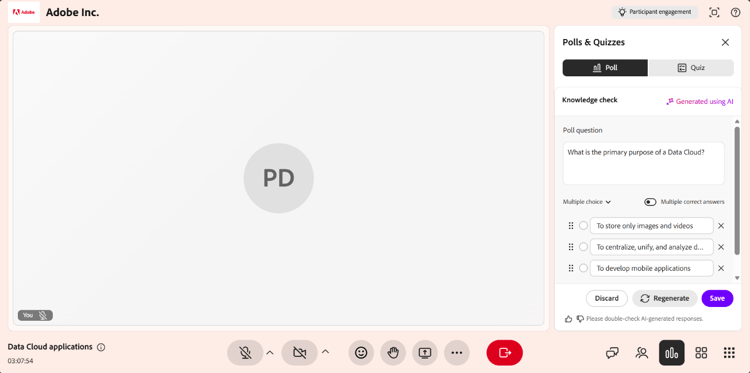
Generate and customize a Knowledge check poll with AI in the Poll tab. -
-
(Optional) Select Regenerate poll to replace the current question with a new one.
-
(Optional) Use the thumbs-up or thumbs-down options to provide feedback on the generated content.
-
Select Save.
Launch a poll
Once a poll is created and saved, it appears in the Polls & Quizzes panel, under the Polls tab. You can access saved polls at any time during the session and launch them to engage Learners and collect responses in real time.
To launch a poll:
-
Select
-
Select the Poll tab.
-
Select a saved poll from the list.
-
Select Launch poll.

Select Launch poll to start collecting responses during the session.
Share poll results with participants
You can share poll results with participants at any time during the session. Select Share results to all participants to make the results visible in real time. When results are shared, the poll displays a Results live tag, indicating that Learners can view the poll outcomes.
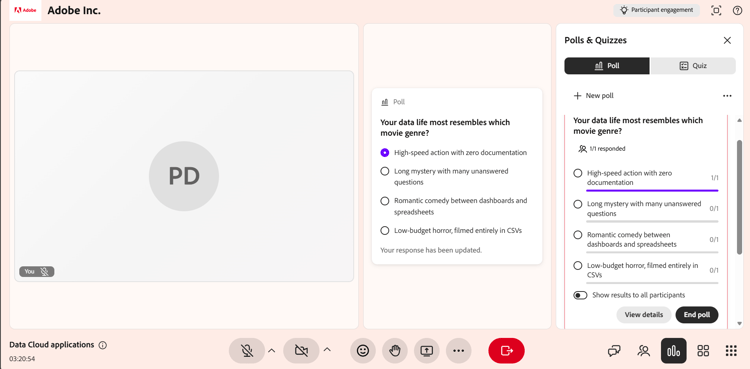
Select Share results to all participants to display poll results in real time.
Close a poll
When you no longer want participants to respond, you can close the poll.
To close a poll:
-
Select
-
Navigate to the active poll in the Poll tab.
-
Select End poll.

Select End poll to stop collecting responses and close the poll.
After the poll ends, the Closed status appears above the poll question.
View poll results
As an Instructor, you can view poll results during a session. These results are updated in real time as Learners submit or update their responses. By default, the poll view displays the overall distribution of responses for each option.
To view detailed responses:
-
Open the Poll tab.
-
Select the active or closed poll.
-
Select View responses.
A pop-up window opens showing the participant names, their selected answers, and multiple entries for questions that allow multiple responses.
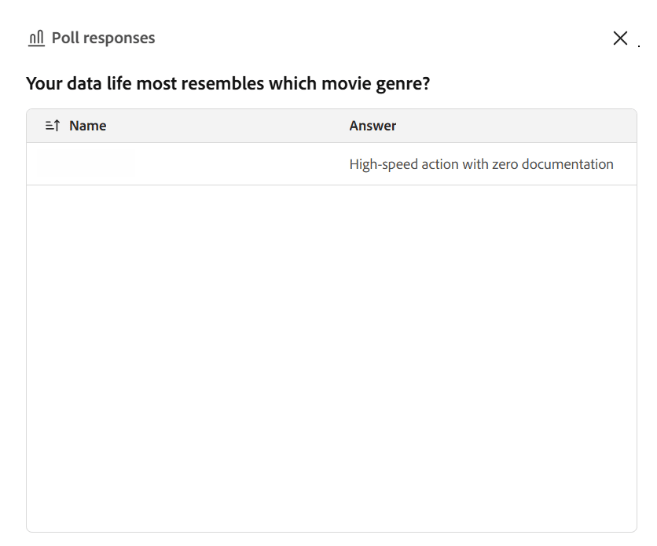
View participant names and their selected answers in the Poll responses window.
Learners can view the poll results in real time as responses are submitted or updated.
Manage a closed poll
After a poll is closed, you can manage it from the options menu (the three dots) on the poll. These options let you reuse the poll, create a copy, or remove it from the session.
To manage a closed poll:
-
From
-
Navigate to the closed poll and select the options (…) menu.
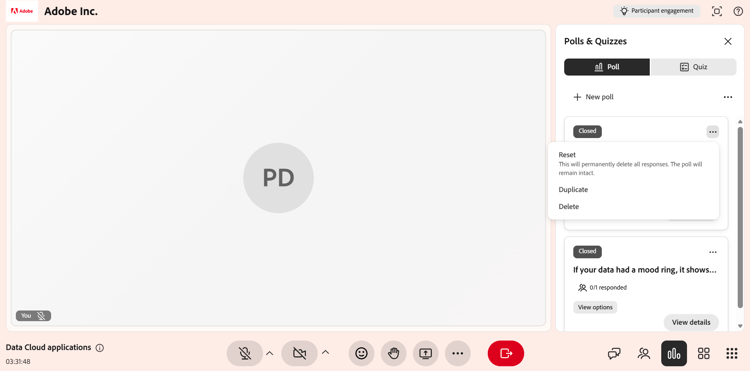
Use the options menu to Reset, Duplicate, or Delete a closed poll. -
Select one of the following options: