On this page: Learn how to configure a journey or campaign action to deliver messages through the best outbound channel for each customer, using manual ranking, profile preferences, or AI-powered propensity scores.
Channel optimization lets you add multiple outbound channels (Email, Push, Mobile message) to a single journey or campaign action and have Journey Optimizer automatically select the best one for each customer at send time.
Instead of choosing one channel upfront or messaging customers across all channels at once, the system picks the highest-ranked channel each customer is opted into and falls back gracefully when that channel is unavailable.
➡️ Learn more about channel optimization in this video
Guardrails and limitations limitations
-
Supported channels: Only native Email, Push, and Mobile message channels are supported. Other outbound channels such as WhatsApp are not supported. Channel optimization requires the use of Journey Optimizer’s native email, push, and mobile messaging capabilities; execution through custom actions is not supported.
-
AI optimization metric: The AI model optimizes for engagement (clicks) only. It does not optimize for orders, revenue, or other business metrics. If optimization for orders or revenue is required, a custom model can be trained offline by your data science team and applied via the customer profile attribute feature.
-
Click tracking required for AI ranking: When using AI model-based ranking, click tracking must be enabled for all configured channels. The model relies on click data to compute propensity scores; if tracking is disabled, the AI ranking mode cannot function correctly. Learn how to enable click tracking in email
-
Quiet hours: When multiple channels are combined in a single action, quiet hours are applied based on channel priority: Mobile messaging takes precedence, followed by Push, then Email. To use different quiet hours settings per channel, create separate journey actions rather than combining channels in a single action.
note NOTE Support for per-channel quiet hours settings is planned for the General Availability release. -
Send-Time Optimization incompatibility: Currently Send-Time Optimization and channel optimization cannot be used together — choose one or the other. The UI prevents enabling both features simultaneously on the same action.
-
Reaction events: Reaction events on the journey canvas currently reference only the first channel in a multi-channel action.
note NOTE Support for selecting any valid reaction event when multiple channels are present is planned for the General Availability release.
Use channel optimization in a journey or a campaign configure
To add multiple outbound channels with channel optimization to a journey or a campaign, follow the steps below.
-
Start your journey with an Event or a Read Audience activity.
-
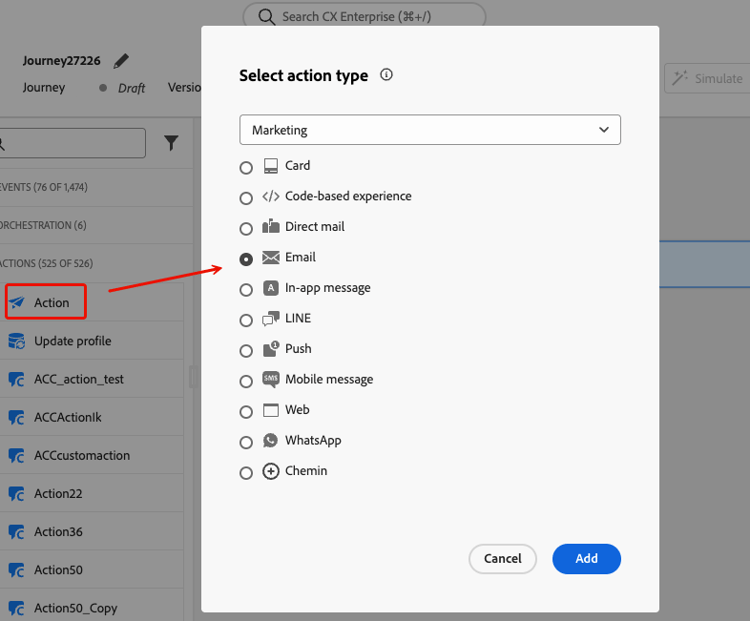
From the Actions section of the palette, drag and drop an Action activity into the canvas.
-
Select an outbound channel (Email, Push, or Mobile message) and click Add.
-
Enter a label for your action and click Configure action.
-
Create an Action campaign and navigate to the Actions tab.
-
Click the Add action button and select an outbound channel (Email, Push, or Mobile message).
Once an outbound action is selected in the Actions tab, continue with the following steps.
-
Select a channel configuration and click Add action to select another outbound channel.
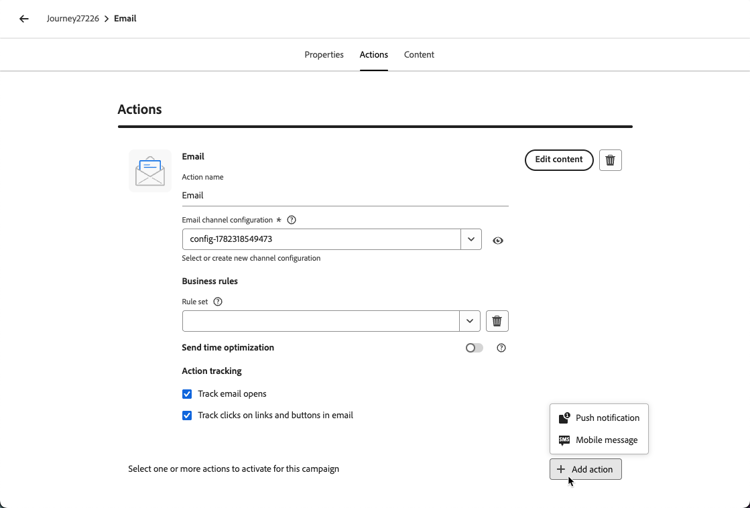
note NOTE Only one action per channel type is supported in a single multi-channel action. For example, you cannot add two separate Email actions with different configurations. You can add up to three outbound channels (Email, Push, Mobile message) to a single journey action or campaign.
-
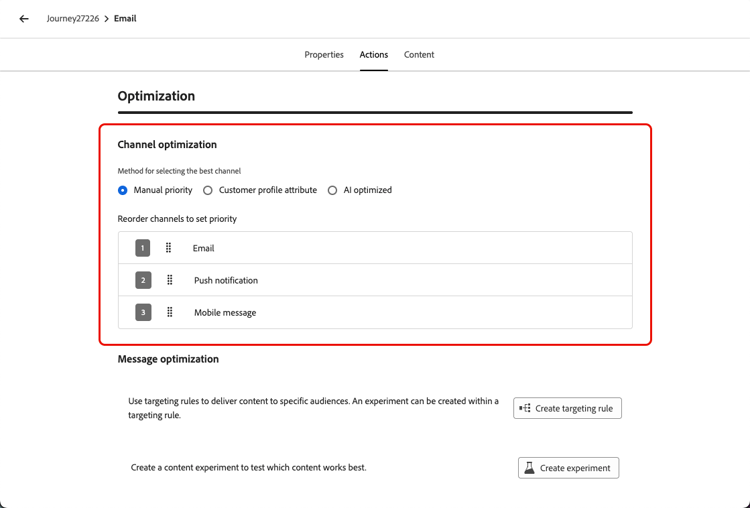
In the Channel optimization section, set the method to determine how the system selects the best channel for each customer. Learn more
-
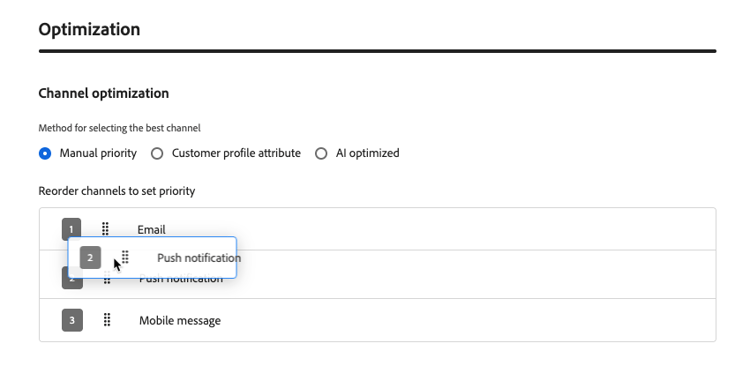
Set your fallback channel order (for manual ranking and customer preference methods) by dragging and dropping the channels into the desired order. Learn more
-
For a journey, click Validate in the journey header and resolve any errors before testing. When testing is complete and validation is current and passed, publish the journey. Learn about journey validation. For a campaign, review and activate it.
Set the channel optimization method optimization-modes
Channel optimization supports three modes, each using a different method to select the best channel for each customer at send time.
Manual ranking manual-ranking
Manual priority is the default mode. You define the preferred channel order directly in the action. Journey Optimizer delivers through the first channel in your list that the customer is opted into and is not frequency-capped, then falls back to the next channel if needed.
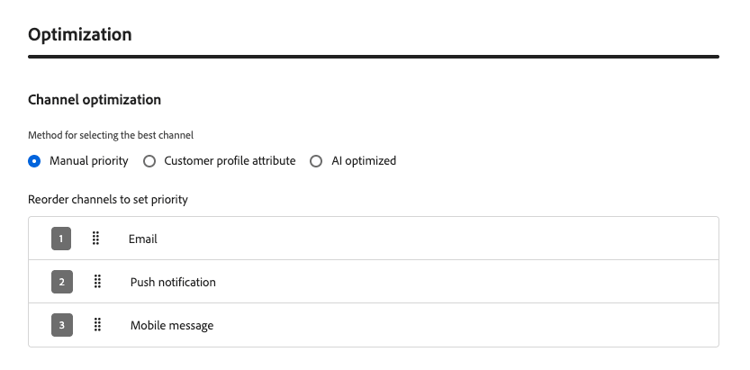
Use this mode when you have a clear, consistent channel preference and do not need per-profile personalization.
Customer preference customer-preference
With Customer profile attribute selected, Journey Optimizer reads the customer’s declared preferred channel from their profile, using the preferred attribute in the Consents and Preferences XDM field group. Supported values are email, push, and sms.
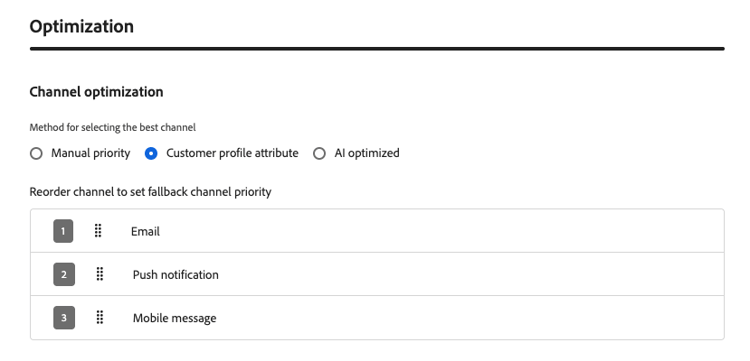
If the preferred channel is unavailable (not configured, not opted-in, or frequency-capped), Journey Optimizer falls back to the next channel in your configured fallback list.
Use this mode when customers have explicitly stated their preferred communication channel.
AI model-based ranking ai-ranking
If you select AI optimized, Journey Optimizer uses a machine learning model that computes a per-channel propensity score for each customer based on their historical engagement (opens, clicks). Scores are stored in the customer’s profile and the channel with the highest predicted propensity is selected at send time.
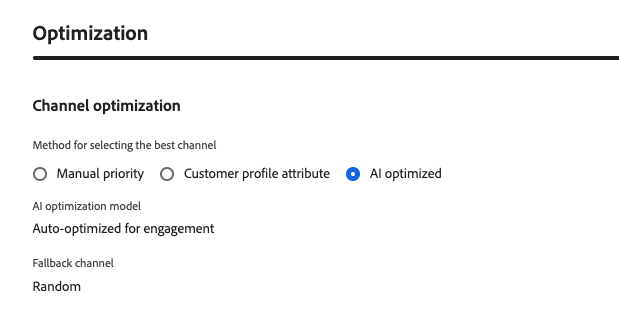
When a customer has insufficient engagement history, the system falls back to a randomly available channel.
Use this mode to let AI infer the most effective channel for each customer without any manual configuration.
Fallback behavior fallback
Regardless of the optimization mode, Journey Optimizer falls back to the next available channel when the top-ranked channel cannot be used. A channel is considered unavailable when any of the following conditions apply:
- The customer is not opted into the channel.
- The channel is not configured in the action.
- The channel has reached its frequency cap.
- The customer’s profile preference or AI model score for that channel is not populated.
Under Manual priority and Customer profile attribute modes, fallback follows the marketer’s configured channel priority list. Under AI optimized, fallback selects a random available channel.
How-to video video
Learn how Adobe Journey Optimizer’s channel optimization feature helps you reach customers on the most effective channel using manual priority, profile attributes, or Adobe’s AI model.
This section contains structured knowledge intended to support interpretation, retrieval, and question answering related to this topic.
For complete understanding, this information should be combined with the documentation on this page. Neither source is intended to stand alone; the page describes the feature, while this section provides additional context that helps disambiguate terminology, intent, applicability, and constraints.
- TL;DR: This page explains how channel optimization selects an outbound channel for each customer in a journey or campaign using manual priority, profile preferences, or AI propensity scores.
Intents:
- Configure multiple outbound channels in a journey or campaign action
- Select a channel optimization method
- Define channel priority and understand fallback behavior
- Validate and test a journey before publication
Glossary:
- Channel optimization: Selects the best outbound channel for each customer at send time (product-specific)
- Manual priority: The default mode; selects the first opted-in channel that is not frequency-capped from the configured channel order (product-specific)
- Customer profile attribute: Selects a channel using the profile’s declared preference in the
preferredattribute; supported values areemail,push, andsms(product-specific) - AI optimized: Selects the channel with the highest predicted propensity based on historical engagement; scores are stored in the customer profile (product-specific)
Guardrails:
- Channel optimization is in Limited Availability; access requires contacting an Adobe representative.
- Only native Email, Push, and Mobile message channels are supported; execution through custom actions is not supported.
- A single journey action or campaign supports up to three outbound channels (hard limit), with only one action per channel type.
- AI ranking optimizes for engagement clicks, not orders or revenue, and requires click tracking for all configured channels.
- Quiet hours priority is Mobile messaging, then Push, then Email. Separate journey actions are required for different quiet hours settings per channel.
- Send-Time Optimization and channel optimization cannot be enabled together on the same action.
- Reaction events currently reference only the first channel in a multi-channel action.
- For journeys, validation and error resolution precede testing; publication requires completed testing and current, passed validation.
Terminology:
- Do not confuse: Manual priority and Customer profile attribute use the configured priority list for fallback; AI optimized selects a random available fallback channel.
- A channel is unavailable when the customer is not opted in, the channel is not configured, its frequency cap is reached, or the profile preference or AI model score is not populated.
FAQ:
- Q: What happens when the preferred channel is unavailable? - Journey Optimizer uses the configured fallback list for Customer profile attribute.
- Q: What happens when there is insufficient engagement history for AI ranking? - The system falls back to a randomly available channel.
- Q: Can I optimize for revenue using the AI model? - The AI model optimizes for clicks only. A custom model can be trained offline and applied through the customer profile attribute feature.