On this page: Learn how to use targeting rules to deliver personalized content to specific audience segments based on profile attributes, contextual data, or audience membership.
Targeting delivers personalized content to specific audience segments based on user profile attributes or contextual attributes.
Unlike experimentation, which is a random assignment of a message’s content, targeting is deterministic in terms of delivering the content to the right audience.
With targeting, specific rules can be defined based on:
-
User profile attributes such as location (eg. geo-targeting), age, or preferences. For example, users in the US see a “Golden Gate” promotion, while users in France see an “Eiffel Tower” promotion.
-
Contextual data such as device type (eg. device-targeting), time of day, or session details. For example, desktop users receive desktop-optimized content, while mobile users receive mobile-optimized content.
-
Audiences which can be used to include or exclude profiles that have a particular audience membership.
To set up targeting, follow the steps below.
-
Create a journey or a campaign.
note NOTE If you are in a journey, add an Action activity, choose a channel activity and select Configure action. Learn more -
From the Actions tab, select at least one action.
-
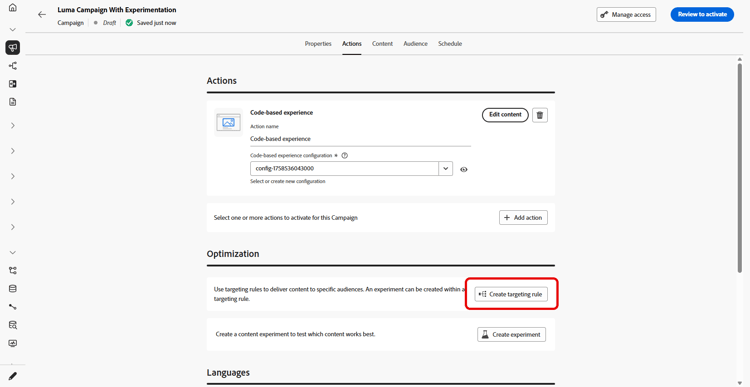
In the Optimization section, select Create targeting rule.
-
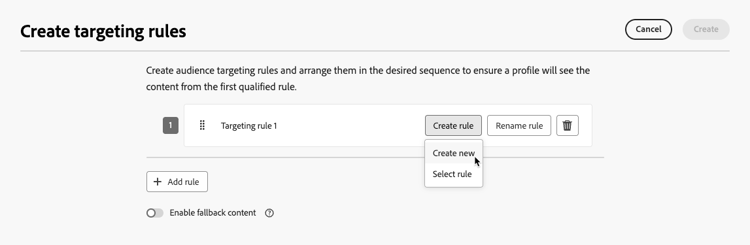
Click Create rule > Create new and use the rule builder to define your criteria on the go.
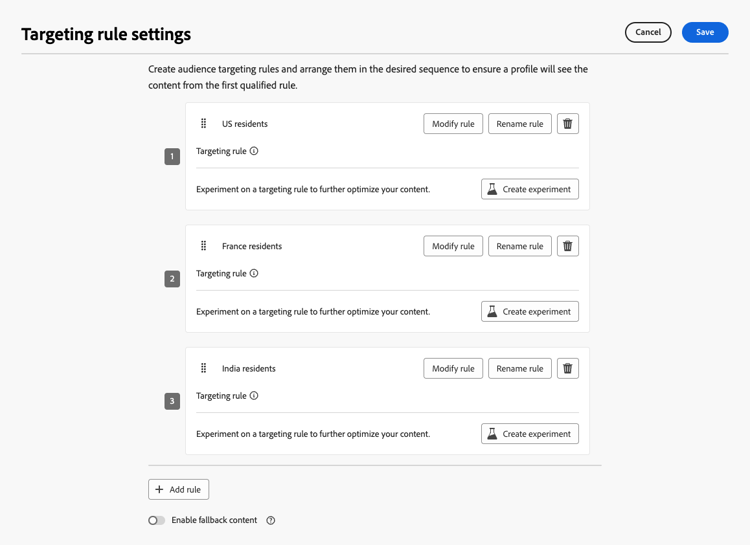
For example, define a rule for US residents, a rule for France residents, and a rule for India residents.
-
You can also click Create rule > Select rule to select an existing targeting rule created from the Rules menu. Learn more
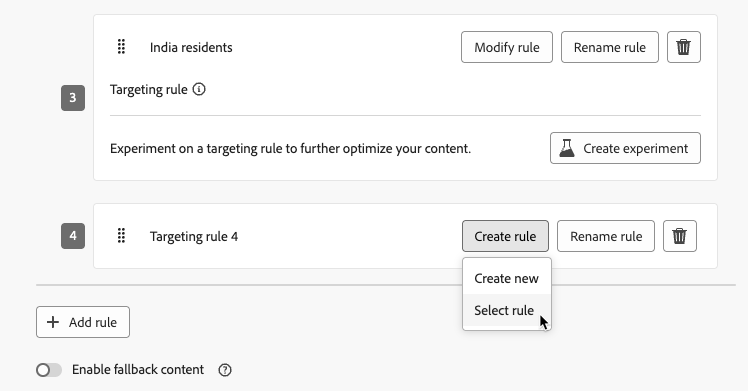
In this case, the formula that makes up the rule is simply copied into the journey or campaign. Any subsequent changes to that rule from the Rules menu will not affect the journey or campaign’s copy.
note availability AVAILABILITY Creating targeting rules from the dedicated Journey Optimizer menu is currently available to organizations that have purchased the Decisioning add-on offering, and they are available on demand for the other organizations (Limited Availability). This capacity will be progressively rolled out to all customers. In the meantime, contact your Adobe representative to gain access. -
After you added a rule, you can still modify it. Choose Edit inline to update it on the go using the rule builder, or Select rule to pick up another existing rule.
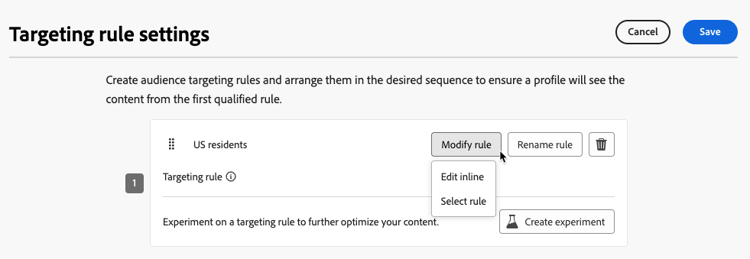
note NOTE Editing a rule inline does not affect the existing rule it originates from. -
Select the Enable fallback content option as needed. Fallback content allows your audience to receive a default content when no targeting rules are qualified.
note NOTE If you do not select this option, any audience that doesn’t qualify for a targeting rule defined above will not receive content. -
Save your targeting rule settings.
-
Back in the Actions tab, select Edit content.
-
Design appropriate content for each group defined by your targeting rule settings.
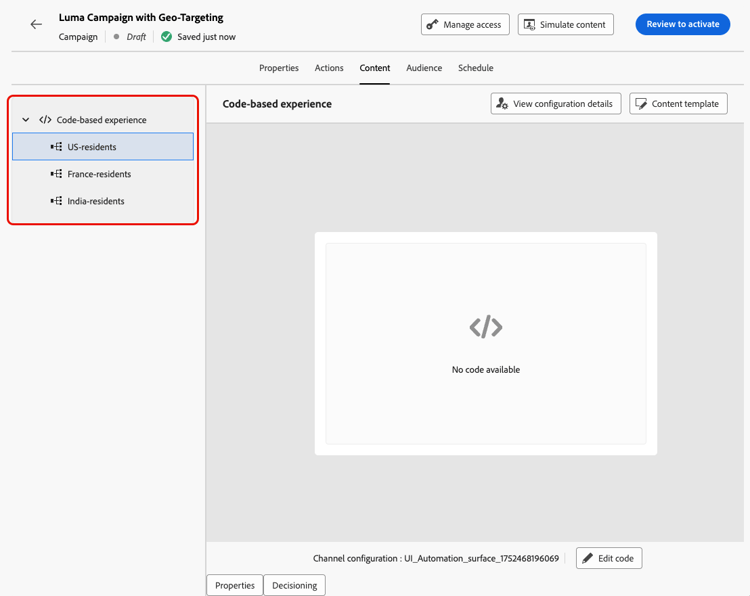
In this example, design a specific content for US residents, a different content for French residents and another content for India residents.
-
Activate your journey or campaign.
Once the journey/campaign is live, content tailored for each target is sent so that US residents get a specific message, France residents a different message, and so on.