Table of content:
Overview
The Integrations feature links Adobe Journey Optimizer to third-party systems whose data and composable content you already manage elsewhere. You can surface that material during authoring and at send time, which supports more responsive, personalized experiences across the channels you use in Journey Optimizer.
You can use this feature to access external data and pull content from third-party tools such as:
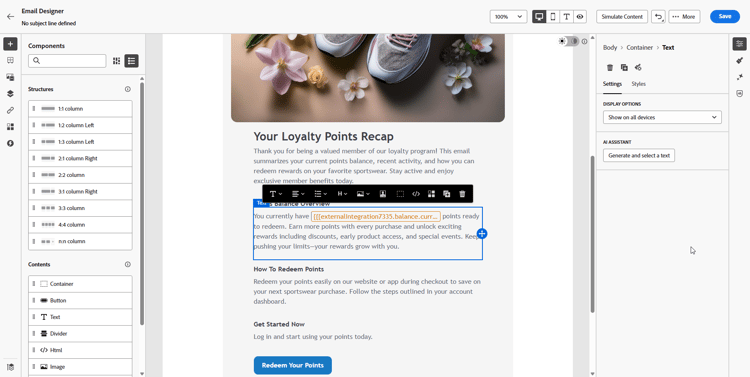
- Rewards Points from loyalty systems.
- Price Information for products.
- Product Recommendations from recommendation engines.
- Logistics Updates like delivery status.
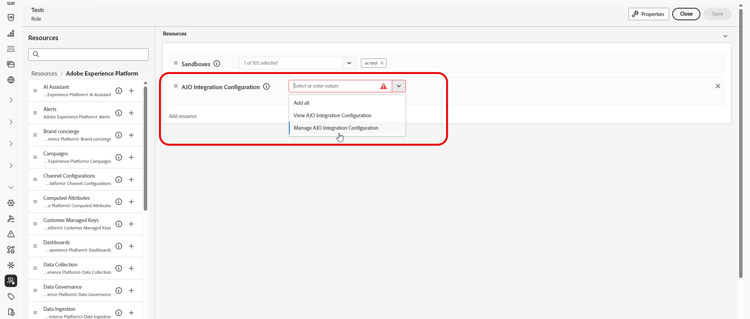
To start using Integrations, users need to be granted the Manage AJO integration configuration and View AJO integration permissions. Learn more on permissions
-
In the Permissions product, go to the Roles tab and select the desired Role.
-
Click Edit to modify the permissions.
-
Add the AJO Integration Configuration resource, then select the appropriate Integrations permissions from the drop-down menu.
-
Click Save to apply changes.
Any users already assigned to this role will have their permissions automatically updated.
-
To assign this role to new users, navigate to the Users tab within the Roles dashboard and click Add User.
-
Enter the user’s name, email address, or choose from the list, then click Save.
If the user was not previously created, refer to this documentation.
Configure your Integration configure
As an administrator, you can set up external integrations by following these steps:
-
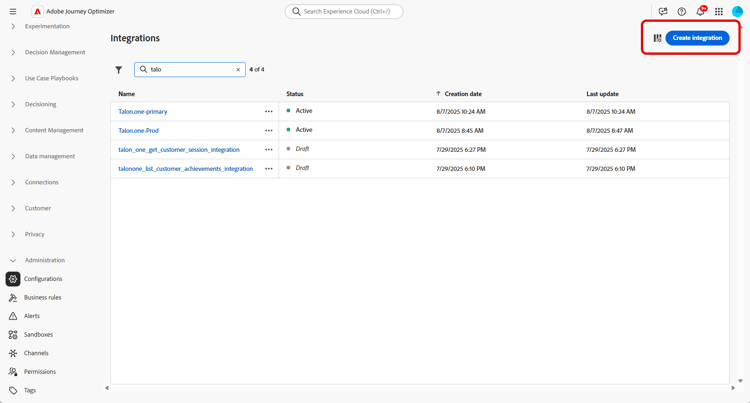
Navigate to the Configurations section in the left menu and click Manage from the Integrations card.
Then, click Create Integration to start a new configuration.
-
Optionally, paste a cURL command to auto-fill the URL, HTTP method, headers, and query parameters.
-
Provide a Name and Description for your integration.
note NOTE These fields cannot contain spaces. -
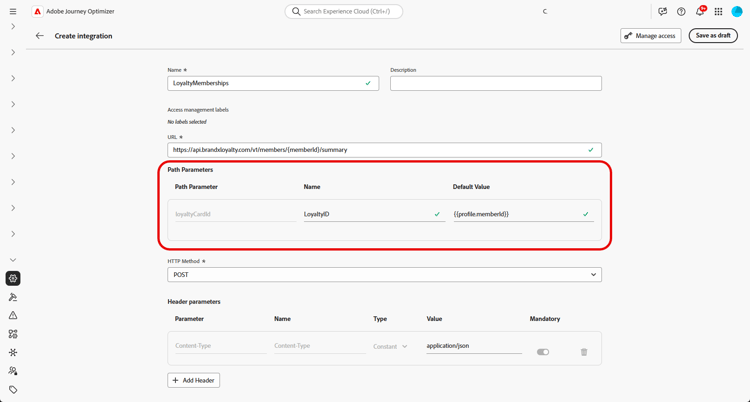
Enter the API endpoint URL, which may include path parameters with variables that can be defined using labels and default values.
-
Configure the Path Template with Name and Default value.
-
Select the HTTP Method between GET and POST.
-
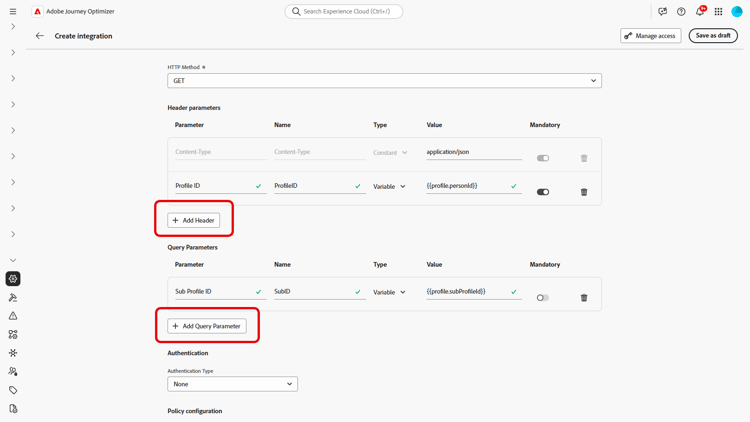
Click Add Header and/or Add Query Parameters as needed for your integration. For each parameter, provide the following details:
-
Parameter:: A unique identifier used internally to reference the parameter.
-
Name: The actual name of the parameter as expected by the API.
-
Type: Choose Constant for a fixed value or Variable for dynamic input.
-
Value: Enter the value directly for constants, or select a variable mapping.
-
Mandatory: Specify whether this parameter is required.
-
-
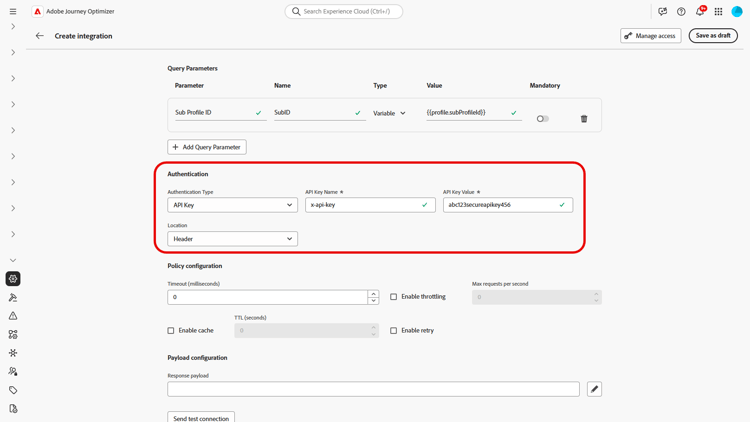
Choose an Authentication Type:
-
No Authentication: For open APIs that do not require any credentials.
-
API key: Authenticate requests using a static API key. Enter your API Key Name , API Key Value and specify your Location.
-
Basic Auth: Use standard HTTP Basic Authentication. Enter Username and Password.
-
OAuth 2.0: Authenticate using the OAuth 2.0 protocol. Click the

-
-
Set Policy configuration such as Timeout period for API requests and choose to enable throttling, cache and/or retry.
When throttling is enabled, supported rates range from 50 TPS (minimum) to 5000 TPS (maximum).
When retry is enabled, other failures follow three retries by default, with 200 ms, 400 ms, and 800 ms between successive attempts. -
With the Response payload field, you can decide which fields of the sample output needs to be used for message personalization.
Click the
-
Choose the fields to expose for personalization and specify their corresponding data types.
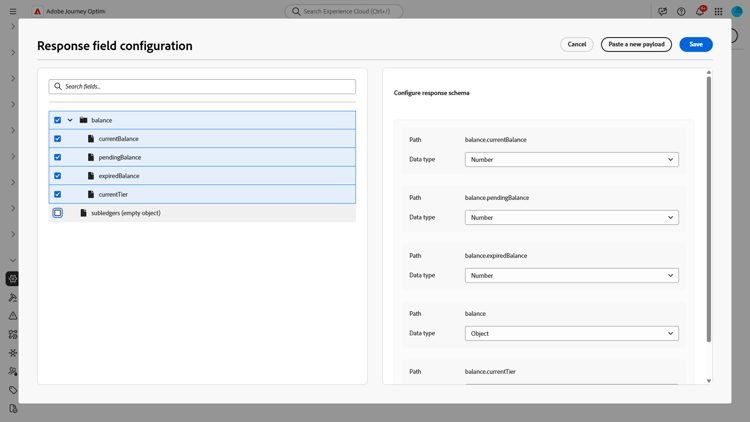
note NOTE The Response payload configuration defines the expected response for authoring including any schema applied in that step. Marketers may reference only exposed fields, tokens for other paths fail validation in the editor. -
Use Send test connection to validate the integration.
Once validated, click Activate.
Send-time limits and behavior configure-send-time
At send time, responses from the external API may be up to 4 MB by default. Anything larger is treated as an integration error, and retries are not attempted when the failure is caused by response size.
Calls honor the throttling rate you configured: Journey Optimizer schedules attempts up to that limit even when the external system is down or returning errors. If cache is enabled, only successful responses are stored and reused until the cache TTL you defined expires; failed responses are never cached.
Each queued message also carries a validity window (TTL). If processing falls behind and a message sits past that window, the system discards it and emits a MessageValidityExclusion event so stale work clears from the queue and resources stay available.
Using External integrations for personalization personalization
Before you use external integrations for personalization, note that the scheduling and isolation of integration calls depend on execution context:
-
Batch execution (batch campaigns, orchestrated campaigns, and API-triggered marketing campaigns): each batch run operates in a dedicated, isolated environment. Concurrent batch executions that call external systems therefore do not contend with or obstruct one another.
-
Unitary execution (unitary journeys, batch journeys, and API-triggered transactional campaigns): integration traffic is isolated per brand sandbox, so a slow external API for one brand does not delay another. Within your sandbox, concurrent integrations can briefly delay other integration-backed messages; each message is attempted for up to 12 hours before expiration.
As a marketer, you can use configured integrations to personalize your content. Follow these steps:
-
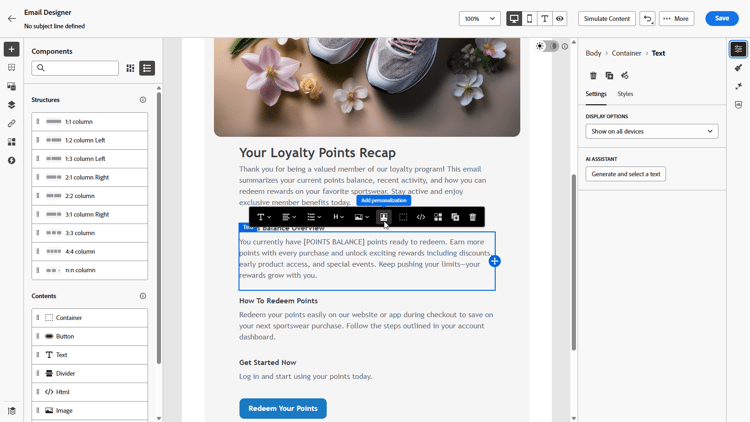
Access your campaign content and click Add personalization from your Text or HTML Components.
-
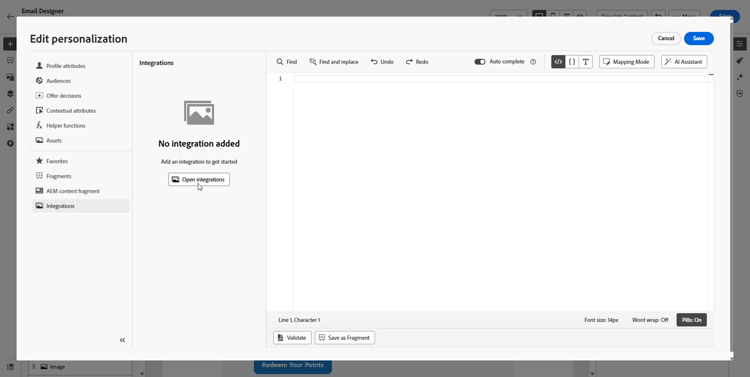
Navigate to the Integrations section and click Open integrations to view all active integrations.
Note that Content Fragments is available with Integrations but support outbound channels only, inbound publication will not succeed. Once a fragment is published, adding and saving new integrations is disabled to avoid impact on existing journeys and campaigns.
-
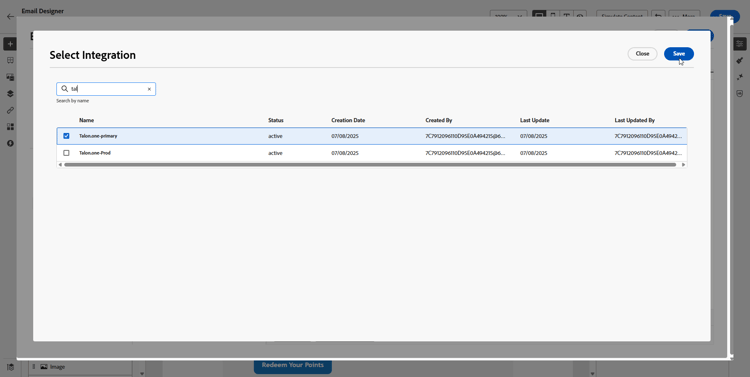
Select an integration and click Save.
-
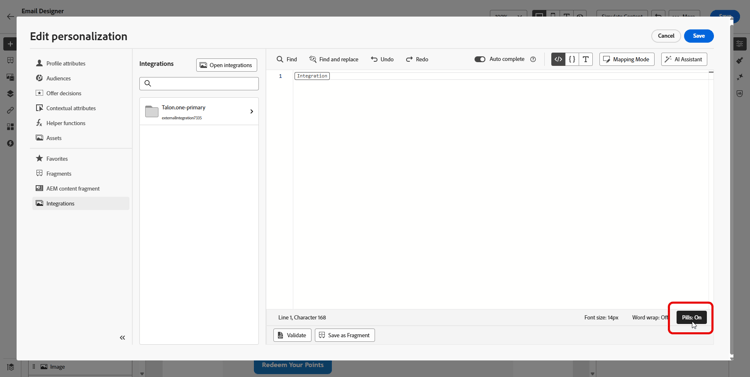
Enable the Pills mode to unlock the advanced integration menu.
-
When you author integration personalization, the Integrations helper includes a
requiredfield that defines how failures or missing data interact with default content:-
required=true(default): Rendering stops for that message. The send is excluded withExternalDataLookupExclusion, and that exclusion is recorded in the message feedback dataset. -
required=false: The result variable is set tonulland rendering continues. Use default text, fallbacks, or conditional logic in your template so profiles do not receive empty content when the integration does not return data.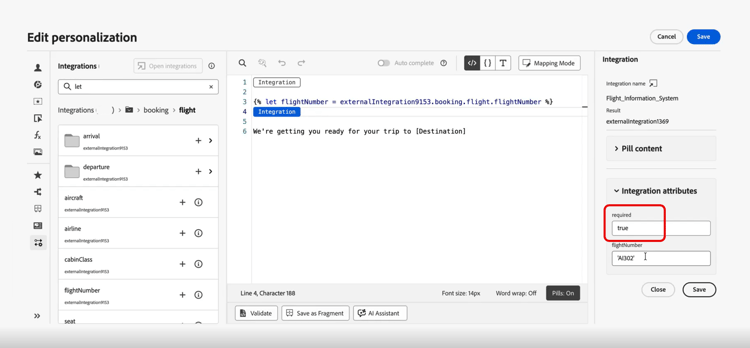
-
-
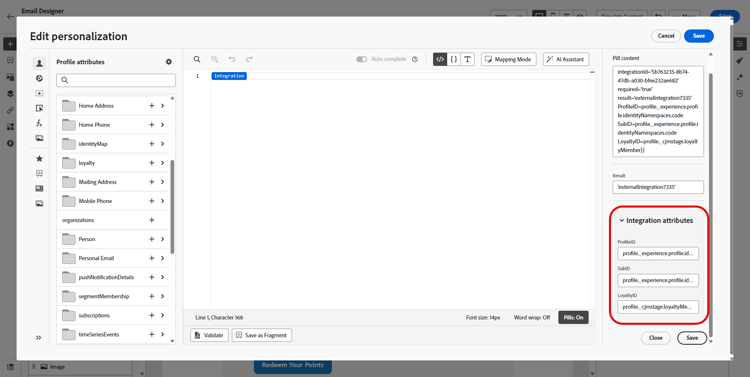
To complete your integration setup, define your integration attributes, which were previously specified during configuration.
You can assign values to these attributes using either static values, which remain constant, or profile attributes, which dynamically pull information from user profiles.
-
Once integration attributes are defined, you can now use the integration fields in your content for personalized messaging by clicking the

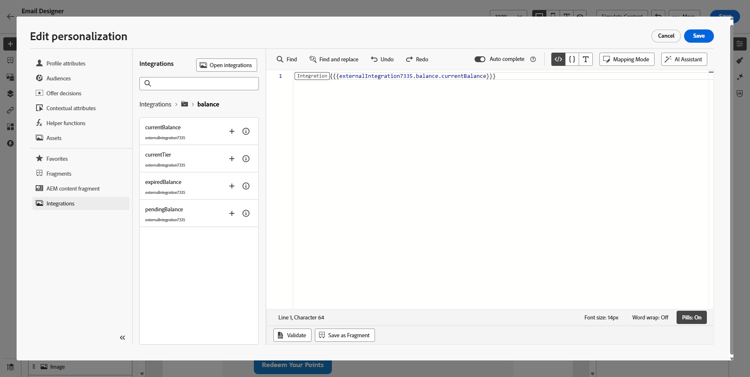
note NOTE Tokens in your template must use only fields the administrator exposed in the integration configuration. For example, {{weatherResponse.temperature}}is valid whentemperatureis exposed;{{weatherResponse.humidity}}is rejected in the editor ifhumiditywas not exposed. -
Click Save.
Your integration personalization is now successfully applied to your content, ensuring each recipient receives a tailored, relevant experience based on the attributes you have configured.