On this page: Learn how to create inbound and feedback SMS webhooks in Adobe Journey Optimizer to capture opt-in and opt-out consent responses and delivery events for Sinch, Infobip, and custom providers.
When new API credentials are created in Journey Optimizer, SMS webhooks are now the way to capture both inbound keywords and feedback events like deliveries and errors. Because each provider has different capabilities, there are separate instructions to enable webhooks.
With webhooks now supporting Custom provider, it is now possible to gather feedback and inbound keyword collection from any provider to be reported and acted upon in Journey Optimizer.
-
New customers: The instructions here can be followed to configure SMS webhooks correctly.
-
Existing customers: You can migrate from information stored in API Credentials to Webhooks and there is no timeline for customers to migrate. For existing customers that do want to migrate to SMS Webhooks, the migration steps need to be performed as documented in the migration guide.
Overview overview
Once your API credentials have been successfully created, you can now configure webhooks to capture inbound responses for managing opt-in and opt-out consent, and to receive delivery reports including read receipts where available.
When setting up a webhook, you can define its purpose based on the type of data you want to capture:
-
Inbound: Use this option if you want to capture consent responses, such as opt-ins or opt-outs, and collect user preferences.
-
Feedback: Choose this option to track delivery and engagement events, including deliveries, outbound errors, read receipts (if applicable) to support reporting and analysis.
Depending on your provider, there will be different expectations on what needs to be set up to have a successful mobile implementation:
-
Sinch and Sinch Conversational: Create one webhook that handles both inbound and feedback events. No payload configuration is required.
-
Infobip: Create two separate webhooks, one for inbound events and one for feedback events. No payload configuration is required for either webhook.
-
Twilio: Webhooks are not available. Inbound and feedback data collection is not supported.
-
Custom provider: Create two separate webhooks, one for inbound events and one for feedback events. Payload configuration is required for both webhooks to function properly.
Provider support provider-support
The following table shows which providers support inbound and feedback webhooks, and whether payload creation is required:
For customers moving from API credentials to SMS webhooks, information about the migration path is found in the migration guide.
Create webhook
For Sinch and Sinch Conversational create-webhook-sinch
For Sinch and Sinch Conversational, create a single webhook that handles both inbound and feedback events. No custom payload configuration is required.
-
In the left rail, navigate to Administration
>Channels, select the SMS Webhooks menu under SMS settings, and click the Create Webhook button.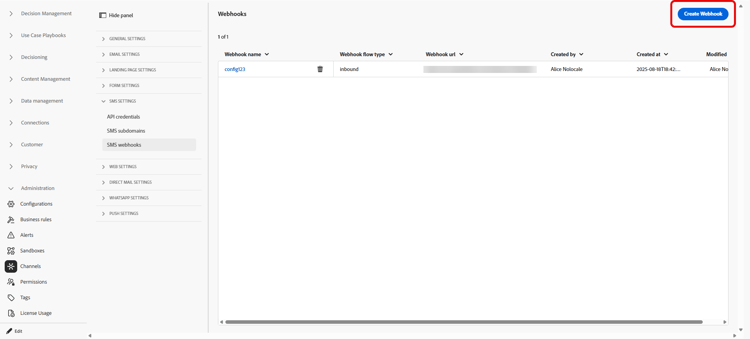
-
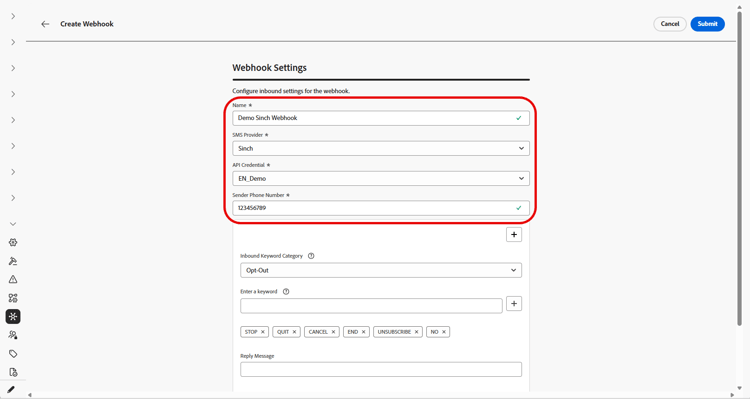
Configure your webhook settings, as detailed below:
-
Name: Enter a name for your webhook.
-
Select SMS vendor: Sinch or Sinch Conversational.
-
API credentials: Choose from the drop-down you previously configured API credentials.
-
Sender Phone Number: Enter the sender phone number you want to use for your communications.
-
-
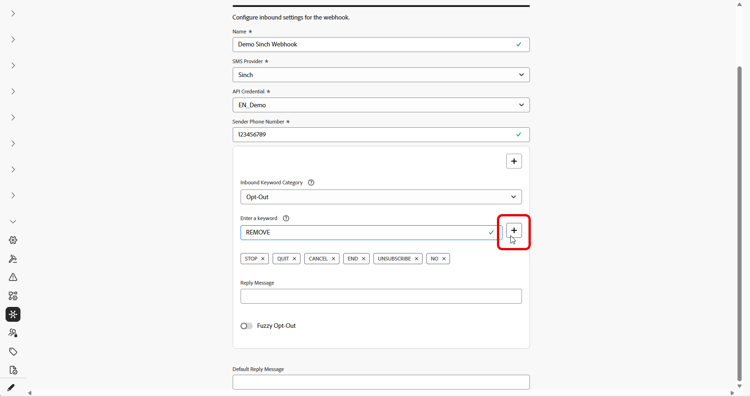
Start setting up the inbound keywords by entering keywords in the Enter a Keyword field. Multiple keywords can be added and removed. Note that keywords are not case sensitive.
-
Select a keyword category from the Inbound Keyword Category drop-down to configure:
accordion Opt-In -
Enable keywords that opt in users with their consent. When a user’s message matches a configured keyword, their phone number is opted in to receive SMS messages.
-
By default, the following keywords are enabled: Subscribe, Yes, Unstop, Continue, Resume, and Begin. Remove any default keywords by clicking

-
Use the Reply Message field to create a message that is automatically sent when a user’s inbound message matches an Opt-In keyword.
accordion Opt-Out -
Enable keywords that opt out users and remove consent to send Mobile messages. When a user’s message matches a configured keyword, their phone number is opted out from receiving SMS messages.
-
By default, the following keywords are enabled: Stop, Quit, Cancel, End, Unsubscribe, No. Remove any default keywords by clicking
-
Use the Reply Message field to create a message that is automatically sent when a user’s inbound message matches an Opt-Out keyword.
-
Enable Fuzzy Logic to detect similar keywords to configured Opt-Out keywords. If a user’s response is close but not exact, the message entered in the Fuzzy Auto Response field is sent. Typically, this message indicates the opt-out did not occur and specifies the exact keyword needed to unsubscribe.
accordion Double Opt-In -
Enable keywords for the double opt-in requirement. When a user’s message matches a configured keyword, they are not fully opted-in at this stage. This two-step consent workflow requires users to confirm their opt-in with a second keyword.
-
Use the Reply Message field to create a message that is automatically sent when a double opt-in keyword is matched. This message instructs the user to enter an Opt-In keyword to complete the opt-in process.
accordion Help -
Enable keywords that provide a standard response when help is requested. When a user’s message matches a configured keyword, they receive the Help reply message.
-
By default, the following keywords are enabled: Help, Info, Information. Remove any default keywords by clicking
-
Use the Reply Message field to create a message that is automatically sent when a user’s inbound message matches a Help keyword.
accordion Custom -
Configure a single custom keyword. When a user’s message matches this keyword, the keyword is written to the Message Feedback tracking dataset for reporting and audience building.
-
Build an Audience (streaming or batch) that references this keyword for use in your journeys and campaigns.
-
-
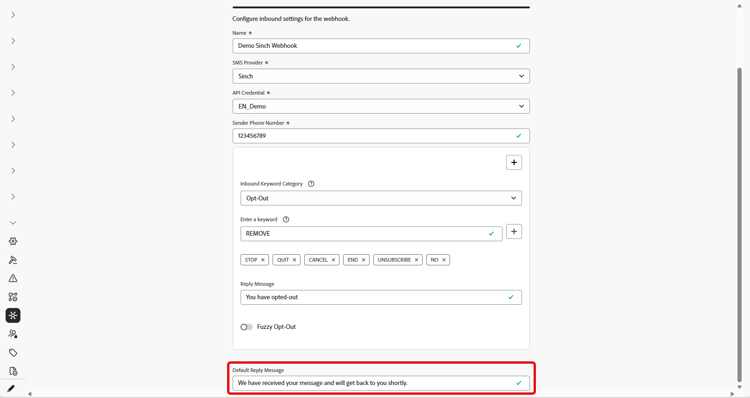
Enter a Default Reply Message. This message is automatically sent when a user’s response does not match any configured keyword.
-
Click Submit to save your webhook configuration.
-
From the Webhooks menu, you can edit or delete existing webhooks.
-
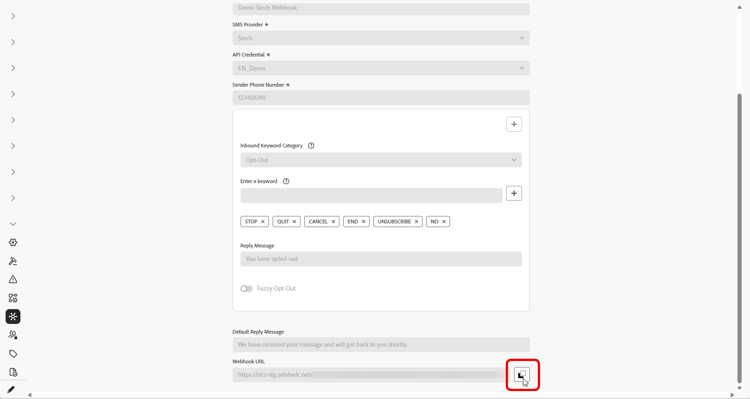
Access your newly created Webhook and copy the Webhook URL.
-
Use your Webhook URL to enable the Feedback and Inbound events to come into Journey Optimizer.
-
For the SMS channel, learn more in Sinch documentation
-
For the MMS channel, learn more in Sinch documentation
-
For customers who purchased SMS directly via Journey Optimizer, file a Support ticket with Adobe support. The Adobe account team will configure the webhook URL for you.
-
If your webhook uses API credentials attached to an existing channel configuration, the webhook takes effect immediately. Otherwise, create a new channel configuration.
For Infobip create-webhook-infobip
For Infobip, create two separate webhooks: one for Feedback events and one for Inbound events.
-
In the left rail, navigate to Administration
>Channels, select the SMS Webhooks menu under SMS settings, and click the Create Webhook button.
-
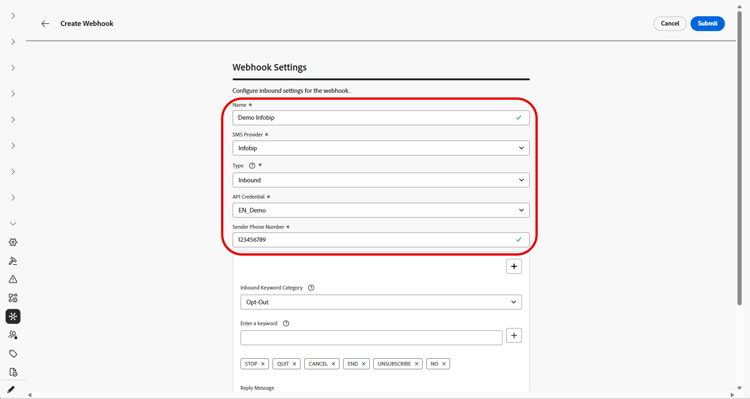
Configure your webhook settings, as detailed below:
-
Name: Enter a name for your webhook.
-
Select SMS vendor: Infobip.
-
Type: Choose either Feedback or Inbound. You need to create both separately, here, we start with Inbound.
-
API credentials: Choose from the drop-down you previously configured API credentials.
-
Sender Phone Number: Enter the sender phone number you want to use for your communications.
-
-
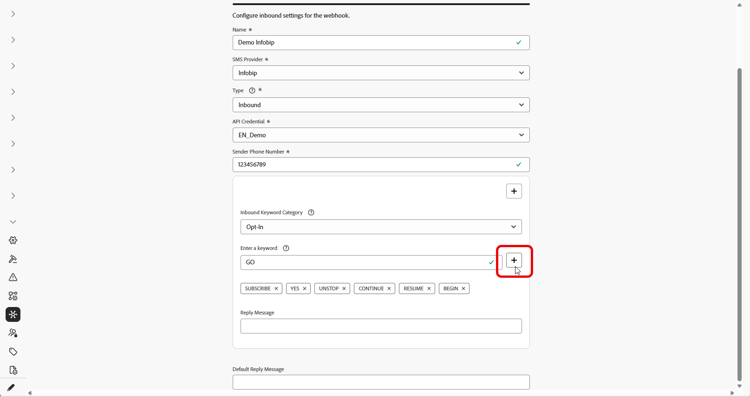
Start setting up the inbound keywords by entering keywords in the Enter a Keyword field. Multiple keywords can be added and removed. Note that keywords are not case sensitive.
-
Select a keyword category from the Inbound Keyword Category drop-down to configure:
accordion Opt-In -
Enable keywords that opt in users with their consent. When a user’s message matches a configured keyword, their phone number is opted in to receive SMS messages.
-
By default, the following keywords are enabled: Subscribe, Yes, Unstop, Continue, Resume, and Begin. Remove any default keywords by clicking
-
Use the Reply Message field to create a message that is automatically sent when a user’s inbound message matches an Opt-In keyword.
accordion Opt-Out -
Enable keywords that opt out users and remove consent to send Mobile messages. When a user’s message matches a configured keyword, their phone number is opted out from receiving SMS messages.
-
By default, the following keywords are enabled: Stop, Quit, Cancel, End, Unsubscribe, No. Remove any default keywords by clicking
-
Use the Reply Message field to create a message that is automatically sent when a user’s inbound message matches an Opt-Out keyword.
-
Enable Fuzzy Logic to detect similar keywords to configured Opt-Out keywords. If a user’s response is close but not exact, the message entered in the Fuzzy Auto Response field is sent. Typically, this message indicates the opt-out did not occur and specifies the exact keyword needed to unsubscribe.
accordion Double Opt-In -
Enable keywords for the double opt-in requirement. When a user’s message matches a configured keyword, they are not fully opted-in at this stage. This two-step consent workflow requires users to confirm their opt-in with a second keyword.
-
Use the Reply Message field to create a message that is automatically sent when a double opt-in keyword is matched. This message instructs the user to enter an Opt-In keyword to complete the opt-in process.
accordion Help -
Enable keywords that provide a standard response when help is requested. When a user’s message matches a configured keyword, they receive the Help reply message.
-
By default, the following keywords are enabled: Help, Info, Information. Remove any default keywords by clicking
-
Use the Reply Message field to create a message that is automatically sent when a user’s inbound message matches a Help keyword.
accordion Custom -
Configure a single custom keyword. When a user’s message matches this keyword, the keyword is written to the AJO Email Tracking Dataset for reporting and audience building.
-
Build an Audience (streaming or batch) that references this keyword for use in your journeys and campaigns.
-
-
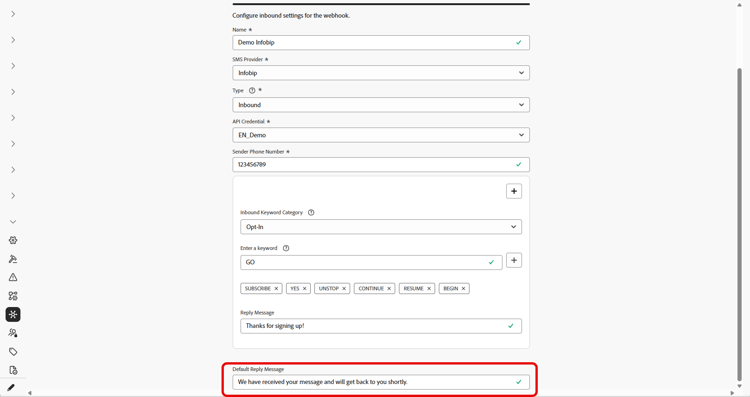
Enter a Default Reply Message. This message is automatically sent when a user’s response does not match any configured keyword.
-
Click Submit to save your webhook configuration.
-
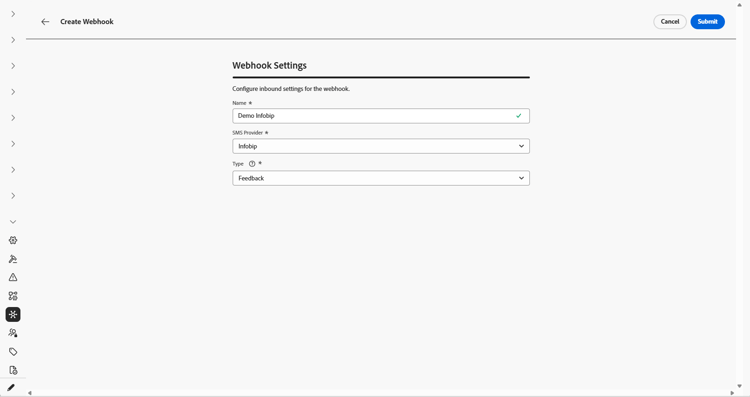
In the Webhooks menu, you now need to create a Feedback webhook for Infobip.
-
Configure your webhook settings, as detailed below:
-
Name: Enter a name for your webhook.
-
Select SMS vendor: Infobip.
-
Type: Choose Feedback.
-
-
Click Submit to save your Feedback webhook configuration.
-
From the Webhooks menu, you can edit or delete existing webhooks.
-
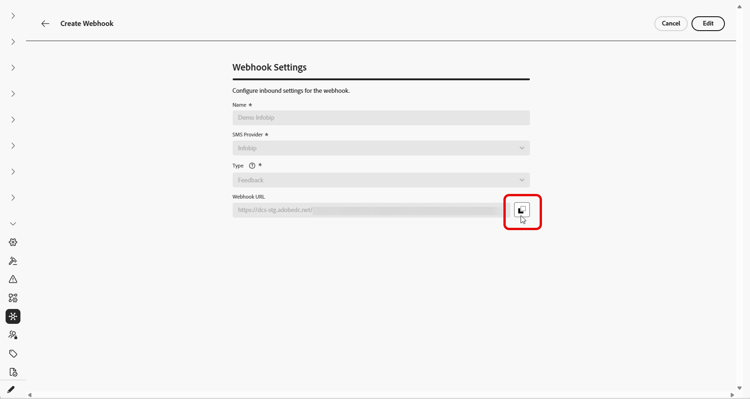
Access your newly created Webhooks and copy the Webhook URL from each of your Webhooks.
-
You can now use those URLs to enable both Callback URLs to bring Feedback and Inbound events into Journey Optimizer.
If your webhook uses API credentials attached to an existing channel configuration, the webhook takes effect immediately. Otherwise, create a new channel configuration.
For custom provider create-webhook-custom
For Custom SMS providers, create two separate webhooks: one for Feedback events and one for Inbound events.
-
In the left rail, navigate to Administration
>Channels, select the SMS Webhooks menu under SMS settings, and click the Create Webhook button.
-
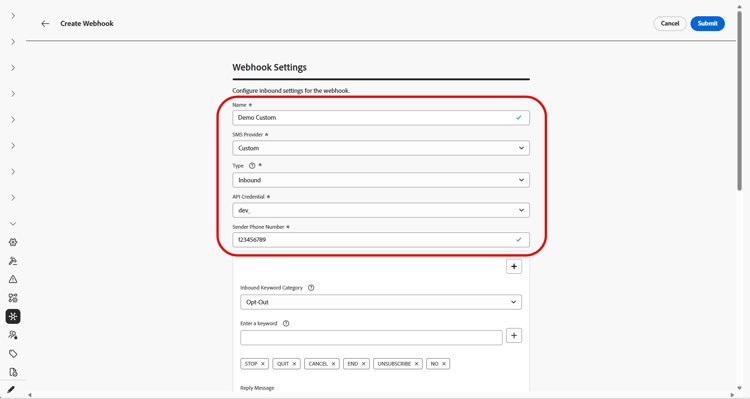
Configure your webhook settings, as detailed below:
-
Name: Enter a name for your webhook.
-
Select SMS vendor: Custom.
-
Type: Choose either Feedback or Inbound. You need to create both separately, here, we start with Inbound.
-
API credentials: Choose from the drop-down you previously configured API credentials.
-
Sender Phone Number: Enter the sender phone number you want to use for your communications.
-
-
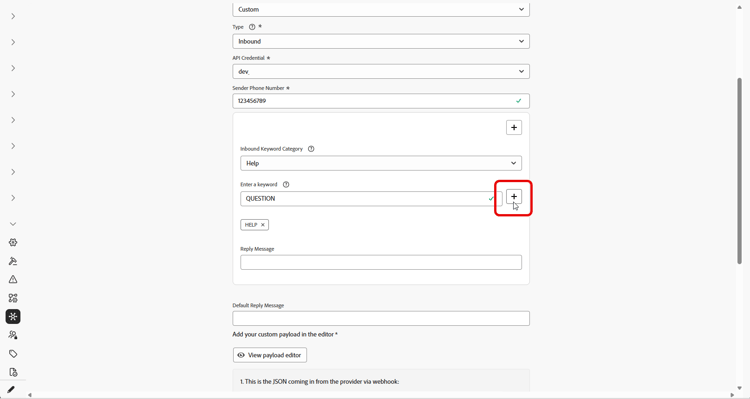
Start setting up the inbound keywords by entering keywords in the Enter a Keyword field. Multiple keywords can be added and removed. Note that keywords are not case sensitive.
-
Select a keyword category from the Inbound Keyword Category drop-down to configure:
accordion Opt-In -
Enable keywords that opt in users with their consent. When a user’s message matches a configured keyword, their phone number is opted in to receive SMS messages.
-
By default, the following keywords are enabled: Subscribe, Yes, Unstop, Continue, Resume, and Begin. Remove any default keywords by clicking
-
Use the Reply Message field to create a message that is automatically sent when a user’s inbound message matches an Opt-In keyword.
accordion Opt-Out -
Enable keywords that opt out users and remove consent to send Mobile messages. When a user’s message matches a configured keyword, their phone number is opted out from receiving SMS messages.
-
By default, the following keywords are enabled: Stop, Quit, Cancel, End, Unsubscribe, No. Remove any default keywords by clicking
-
Use the Reply Message field to create a message that is automatically sent when a user’s inbound message matches an Opt-Out keyword.
-
Enable Fuzzy Logic to detect similar keywords to configured Opt-Out keywords. If a user’s response is close but not exact, the message entered in the Fuzzy Auto Response field is sent. Typically, this message indicates the opt-out did not occur and specifies the exact keyword needed to unsubscribe.
accordion Double Opt-In -
Enable keywords for the double opt-in requirement. When a user’s message matches a configured keyword, they are not fully opted-in at this stage. This two-step consent workflow requires users to confirm their opt-in with a second keyword.
-
Use the Reply Message field to create a message that is automatically sent when a double opt-in keyword is matched. This message instructs the user to enter an Opt-In keyword to complete the opt-in process.
accordion Help -
Enable keywords that provide a standard response when help is requested. When a user’s message matches a configured keyword, they receive the Help reply message.
-
By default, the following keywords are enabled: Help, Info, Information. Remove any default keywords by clicking
-
Use the Reply Message field to create a message that is automatically sent when a user’s inbound message matches a Help keyword.
accordion Custom -
Configure a single custom keyword. When a user’s message matches this keyword, the keyword is written to the Message Feedback tracking dataset for reporting and audience building.
-
Build an Audience (streaming or batch) that references this keyword for use in your journeys and campaigns.
-
-
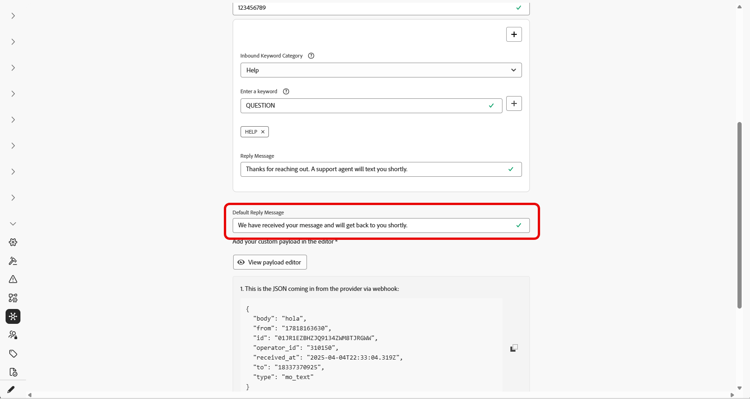
Enter a Default Reply Message. This message is automatically sent when a user’s response does not match any configured keyword.
-
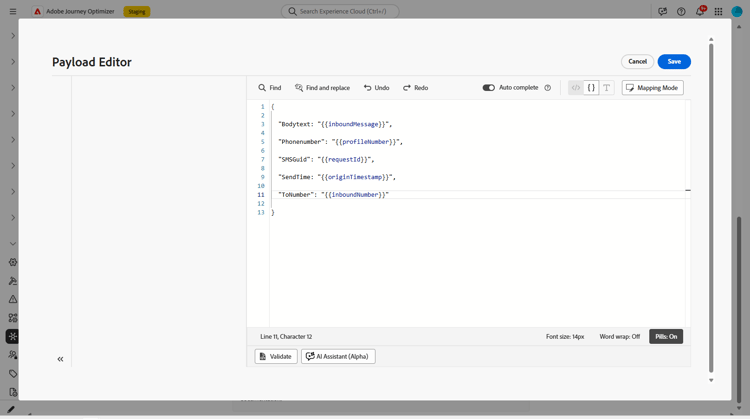
Create a custom payload that matches the JSON coming from the provider. Note that the only webhook format supported is JSON. Form-data for webhooks is not supported.
The inbound webhook requires the following fields to receive values from your provider’s webhook:
- InboundMessage: The inbound message or keyword received from the user.
- ProfileNumber: The phone number of the user who sent the message.
- RequestID: A unique identifier provided by your SMS provider to identify a specific transaction.
- OriginTimestamp: The timestamp when the message was received, in UTC format.
- InboundNumber: The phone number used for this webhook configuration.
note tip TIP Open the Setup guide for a sample JSON payload and step-by-step guidance. -
When your JSON file is created, click View payload editor, then copy and paste your JSON payload into the editor and save it.
-
Click Submit to save your webhook configuration.
-
In the Webhooks menu, you now need to create a Feedback webhook for the custom provider.
-
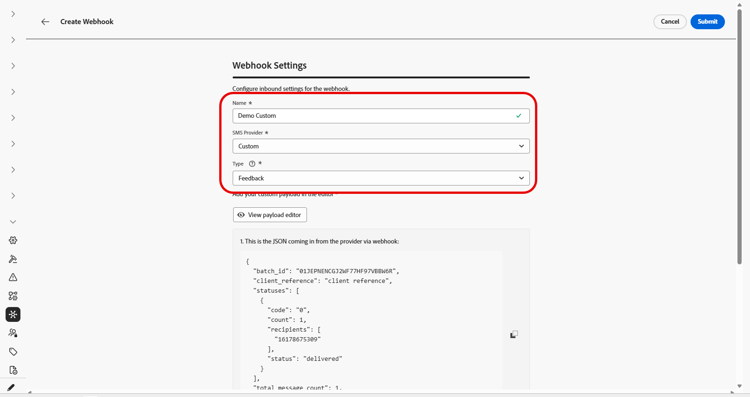
Configure your webhook settings, as detailed below:
-
Name: Enter a name for your webhook.
-
Select SMS vendor: Custom.
-
Type: Choose Feedback.
-
-
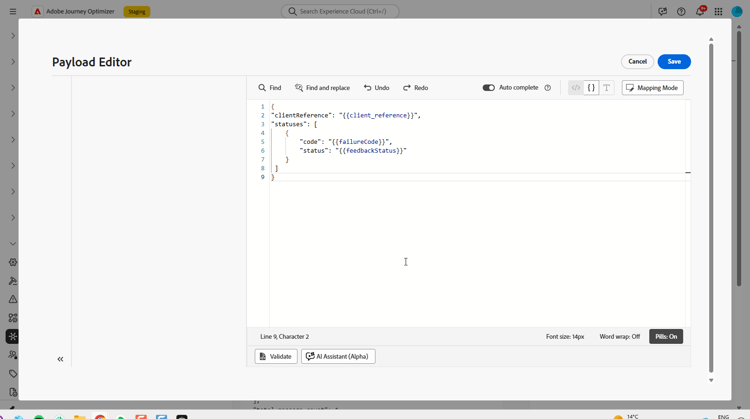
Create a custom payload that matches the JSON format from your provider. Note that the only webhook format supported is JSON. Form-data for webhooks is not supported.
The feedback webhook requires the following fields to receive values from your provider’s webhook:
- Client Reference: A unique identifier returned in the payload for logging purposes.
- Code: The failure code provided by your SMS provider.
- Status: The failure status provided by your SMS provider.
accordion Payload example code language-json { "clientReference": "\{\{client_reference\}\}", "statuses": [ { "code": "\{\{failureCode\}\}", "status": "\{\{feedbackStatus\}\}" } ] } -
Click View payload editor, then copy and paste your JSON payload into the editor and save it.
-
Click Submit to save your Feedback webhook configuration.
-
From the Webhooks menu, you can edit or delete existing webhooks.
-
Access your newly created Webhooks and copy the Webhook URL from each of your Webhooks.
-
Configure your SMS provider to send Feedback and Inbound events to these webhook URLs in Journey Optimizer.
Configuration instructions vary by SMS provider. Refer to your provider’s documentation for details on setting up callback URLs.
If your webhook uses API credentials attached to an existing channel configuration, the webhook takes effect immediately. Otherwise, create a new channel configuration.
➡️Learn more on channel configuration
This section contains structured knowledge intended to support interpretation, retrieval, and question answering related to this topic.
For complete understanding, this information should be combined with the documentation on this page. Neither source is intended to stand alone; the page describes the feature, while this section provides additional context that helps disambiguate terminology, intent, applicability, and constraints.
- TL;DR: This page explains how to create inbound and feedback SMS webhooks in Adobe Journey Optimizer to capture opt-in and opt-out consent responses and delivery events for Sinch, Sinch Conversational, Infobip, and custom providers.
Intents:
- Create an SMS webhook to capture inbound consent responses and user preferences
- Create a feedback webhook to track delivery and engagement events
- Configure inbound keyword categories such as Opt-In, Opt-Out, Double Opt-In, Help, and Custom
- Configure custom JSON payloads for a custom provider’s inbound and feedback webhooks
- Copy the webhook URL to bring inbound and feedback events into Journey Optimizer
Glossary:
- Inbound webhook: Webhook type used to capture consent responses, such as opt-ins or opt-outs, and to collect user preferences (product-specific)
- Feedback webhook: Webhook type used to track delivery and engagement events, including deliveries, outbound errors, and read receipts where applicable (product-specific)
- Inbound Keyword Category: The drop-down grouping keywords into Opt-In, Opt-Out, Double Opt-In, Help, and Custom (product-specific)
- Double Opt-In: A two-step consent workflow where matching a keyword does not fully opt in the user until they confirm with a second keyword (product-specific)
- Fuzzy Logic: An Opt-Out option that detects keywords similar to configured Opt-Out keywords and sends the Fuzzy Auto Response when a response is close but not exact (product-specific)
- Default Reply Message: The message automatically sent when a user’s response does not match any configured keyword (product-specific)
Guardrails:
- The only webhook format supported is JSON; form-data for webhooks is not supported.
- Inbound keyword data is stored in the AJO Email Tracking Dataset system dataset, unless a custom dataset is configured.
- A profile must have at least one message sent from Journey Optimizer before incoming messages are captured.
- Sinch and Sinch Conversational use a single webhook that handles both inbound and feedback events, with no payload configuration required.
- Infobip uses two separate webhooks, one for inbound and one for feedback events, with no payload configuration required.
- Twilio webhooks are not available; inbound and feedback data collection is not supported.
- A custom provider uses two separate webhooks, one for inbound and one for feedback events, and payload configuration is required for both to function.
- Default enabled keywords are Opt-In (Subscribe, Yes, Unstop, Continue, Resume, Begin), Opt-Out (Stop, Quit, Cancel, End, Unsubscribe, No), and Help (Help, Info, Information).
- Keywords are not case sensitive.
- The Custom keyword category configures a single custom keyword.
- The custom inbound webhook payload requires the fields InboundMessage, ProfileNumber, RequestID, OriginTimestamp, and InboundNumber.
- The custom feedback webhook payload requires the fields Client Reference, Code, and Status.
- If the webhook uses API credentials attached to an existing channel configuration, it takes effect immediately; otherwise you must create a new channel configuration.
Terminology:
- Canonical name: SMS Webhook — variants: SMS webhooks, Callback URL
- Do not confuse: “Inbound” webhook (captures consent responses and user preferences) ≠ “Feedback” webhook (tracks delivery and engagement events)
- Do not confuse: “Opt-In” (grants consent) ≠ “Double Opt-In” (two-step consent requiring confirmation with a second keyword)
- Do not confuse: “Reply Message” (sent when an inbound message matches a configured keyword) ≠ “Default Reply Message” (sent when the response does not match any configured keyword) ≠ “Fuzzy Auto Response” (sent when a response is close but not an exact Opt-Out keyword)
FAQ:
- Q: What is the difference between an inbound and a feedback webhook? — An inbound webhook captures consent responses such as opt-ins and opt-outs and collects user preferences, while a feedback webhook tracks delivery and engagement events such as deliveries, outbound errors, and read receipts where applicable.
- Q: How many webhooks do I create for each provider? — Sinch and Sinch Conversational use one webhook for both event types; Infobip and custom providers use two separate webhooks; Twilio webhooks are not available.
- Q: Which webhook format is supported? — Only JSON is supported; form-data for webhooks is not supported.
- Q: Which fields must a custom inbound payload include? — InboundMessage, ProfileNumber, RequestID, OriginTimestamp, and InboundNumber.
- Q: When does a webhook take effect? — If it uses API credentials attached to an existing channel configuration, it takes effect immediately; otherwise you must create a new channel configuration.
- Q: Why are incoming messages not captured for a profile? — A profile must have at least one message sent from Journey Optimizer before incoming messages are captured.