On this page: Learn how to configure the web push notification channel in Adobe Journey Optimizer, including permissions, datasets, push credentials, channel configuration, and testing your setup.
Journey Optimizer allows you to create your journeys and send messages to targeted audience. Before beginning to send Web push notifications with Journey Optimizer, you need to ensure configurations and integrations are in place in Adobe Experience Platform. To understand the Push Notifications data flow in Adobe Journey Optimizer please refer to this page.
Before starting start-push
Set up permissions setup-permissions
Before creating a mobile application, you first need to make sure that you have or assign the correct user permissions for tags in Adobe Experience Platform. Learn more in Tags documentation.
To assign Property and Company rights, follow the steps below:
-
Access the Admin Console.
-
From the Products tab, select the Adobe Experience Platform Data Collection card.

-
Select an existing Product Profile or create a new one with the New profile button. Learn how to create a new New profile in the Admin console documentation.
-
From the Permissions tab, select Property rights.

-
Click Add all. This will add the following right to your product profile:
- Approve
- Develop
- Manage Environments
- Manage Extensions
- Publish
These permissions are required to install and publish the Adobe Journey Optimizer extension and publish the app property in Adobe Experience Platform Mobile SDK.
-
Then, select Company rights in the left-hand menu.

-
Add the following rights:
- Manage App Configurations
- Manage Properties
These permissions are required for the mobile app developer to set up push credentials in Adobe Experience Platform Data Collection and define Push Notification channel configurations (i.e. message presets) in Adobe Journey Optimizer.

-
Click Save.
To assign this Product profile to users, follow the steps below:
-
Access the Admin Console.
-
From the Products tab, select the Adobe Experience Platform Data Collection card.
-
Select your previously configured Product profile.
-
From the Users tab, click Add user.

-
Type in your user’s name or email address and select the user. Then, click Save.
note NOTE If the user was not previously created in the Admin console, refer to the Add users documentation. 
Check your datasets push-datasets
The following schemas and datasets are available with the push notification channel:
Dataset
CJM Push Profile Dataset
Adobe CJM ExperienceEvent - Message Profile Details
Adobe CJM ExperienceEvent - Message Execution Details
Application Details
Environment Details
CJM Push Tracking Experience Event Dataset
Configure the pushNotification property push-property
To enable Web push notifications, you must first ensure that the pushNotifications property is properly configured within the Web SDK. This property controls how push notifications are handled by your web application.
Additionally, you need to generate VAPID keys, required to configure your app push credentials in Journey Optimizer.
Step 1: Add your app push credentials in Journey Optimizer push-credentials-launch
After granting the correct user permissions, you now need to add your mobile application push credentials in Journey Optimizer.
The mobile app push credential registration is required to authorize Adobe to send push notifications on your behalf. Refer to the steps detailed below:
-
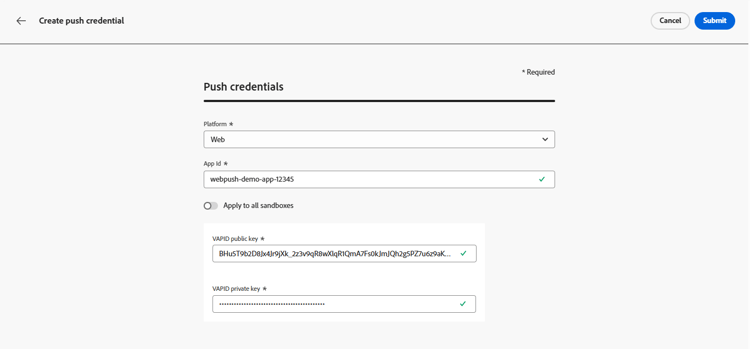
Access the Channels > Push settings > Push credentials menu.
-
Click Create push credential.
-
From the Platform drop-don, select Web.
-
Provide the App ID.
-
Enter your VAPID public key and private key.
-
Click Submit to create your app configuration.
Step 2: Create a channel configuration for push message-preset
Once creating your push credentials, you need to create a configuration to be able to send push notifications from Journey Optimizer.
-
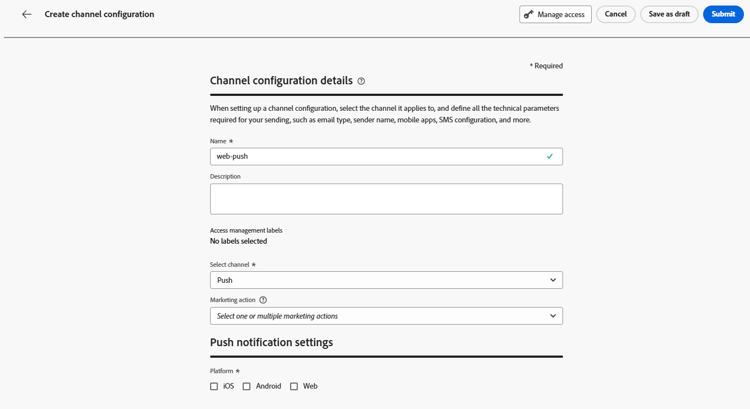
Access the Channels > General settings > Channel configurations menu, then click Create channel configuration.

-
Enter a name and a description (optional) for the configuration.
note NOTE Names must begin with a letter (A-Z). It can only contain alpha-numeric characters. You can also use underscore _, dot.and hyphen-characters. -
To assign custom or core data usage labels to the configuration, you can select Manage access. Learn more about Object Level Access Control (OLAC).
-
Select Push channel.
-
Select Marketing action(s) to associate consent policies to the messages using this configuration. All consent policies associated with the marketing action are leveraged in order to respect the preferences of your customers. Learn more
-
Choose your Platform: Android, iOS and/or Web.
-
Select the same App id as for your push credential configured above.
-
Save your changes.
You can now select your configuration when creating your push notifications.
Step 3: Configure the sendPushSubscription property sendPushSubscription-property
Once your push credentials and channel configuration are set up, you need to implement the sendPushSubscription command in your web application. This command registers user push subscriptions with Adobe Experience Platform, enabling the system to track which users have opted in to receive push notifications and maintain their subscription status. This registration is essential for Journey Optimizer to send targeted push notifications to your users.
Step 4: Test your mobile app with an event mobile-app-test
After completing the web push configuration in both Adobe Experience Platform and Adobe Experience Platform Data Collection, you can test your implementation before sending web push notifications to your profiles. Testing ensures that subscriptions are properly registered and that notifications are delivered correctly to your users’ browsers.
For detailed instructions on creating a test journey with events to validate your web push setup, refer to the mobile app push notification configuration documentation, which provides a comprehensive testing workflow applicable to both mobile and web push channels.
This section contains structured knowledge intended to support interpretation, retrieval, and question answering related to this topic.
For complete understanding, this information should be combined with the documentation on this page. Neither source is intended to stand alone; the page describes the feature, while this section provides additional context that helps disambiguate terminology, intent, applicability, and constraints.
- TL;DR: This page explains how to configure the web push notification channel in Journey Optimizer, covering permissions, datasets, the pushNotifications property and VAPID keys, adding Web push credentials, creating a Push channel configuration, the sendPushSubscription command, and testing the setup.
Intents:
- Set up the tags user permissions (Property and Company rights) required for web push configuration
- Add Web app push credentials in Journey Optimizer using a VAPID public and private key
- Create a Push channel configuration and associate marketing actions and platforms
- Configure the pushNotifications property and the sendPushSubscription command in the Web SDK
- Test the web push implementation before sending to profiles
Glossary:
- Web push notification channel: The Journey Optimizer channel used to send push notifications to users’ browsers (product-specific)
- Push credential: The app push credential registered in Journey Optimizer that authorizes Adobe to send push notifications on your behalf (product-specific)
- Channel configuration: A configuration (i.e. message preset) created so you can send push notifications from Journey Optimizer (product-specific)
- VAPID keys: The public and private keys required to configure the Web app push credentials (product-specific)
- pushNotifications property: A Web SDK property that controls how push notifications are handled by your web application (product-specific)
- sendPushSubscription command: A Web SDK command that registers user push subscriptions with Adobe Experience Platform and maintains their subscription status (product-specific)
Guardrails:
- Push configuration must be performed by an expert user; you may need to assign the full set of permissions to a single product profile or share permissions between the app developer and the Adobe Journey Optimizer administrator.
- Property rights require the Approve, Develop, Manage Environments, Manage Extensions, and Publish rights; Company rights require Manage App Configurations and Manage Properties.
- Configuration names must begin with a letter (A-Z), can only contain alpha-numeric characters, and may also use underscore, dot, and hyphen characters.
- The pushNotifications property must be configured in the Web SDK, and VAPID keys must be generated, before adding Web app push credentials.
- When selecting the App id in the channel configuration, use the same App id as the push credential configured earlier.
- When push tracking events are ingested into the CJM Push Tracking Experience Event dataset, missing mapped fields cause warnings that appear as ‘failed’ in batch status but reflect partial ingestion success and do not prevent ingestion of valid data.
Terminology:
- Canonical name: Web push notification channel — Acronym: n/a — variants: web push, web push notifications
- Synonyms: “channel configuration” = “message preset”
- Do not confuse: “Push credentials” (authorize Adobe to send push) ≠ “Channel configuration” (message preset used to send push)
- Do not confuse: “Warnings” (logged, do not prevent ingestion) ≠ ingestion failure (valid data is still ingested)
FAQ:
- Q: What keys do I need to add Web push credentials? — A VAPID public key and private key, along with the App ID; VAPID keys must be generated beforehand.
- Q: Where do I add Web push credentials? — Under Channels > Push settings > Push credentials, then Create push credential and select the Web platform.
- Q: What does the sendPushSubscription command do? — It registers user push subscriptions with Adobe Experience Platform, tracking which users have opted in and maintaining their subscription status.
- Q: Which schemas and datasets are used? — CJM Push Profile Schema/Dataset (Register Push Token) and CJM Push Tracking Experience Event Schema/Dataset (track interactions and provide reporting data).
- Q: Where can I find the testing workflow for web push? — Refer to the mobile app push notification configuration documentation, which provides a testing workflow applicable to both mobile and web push channels.