On this page: Learn how to configure Sinch as your provider in Adobe Journey Optimizer by setting up separate API credentials for SMS, MMS, and RCS messages.
When using the Sinch provider with Journey Optimizer, you can find three distinct options:
-
SMS Configuration: Set up your Sinch API credentials to send SMS messages seamlessly.
-
MMS Configuration: For multimedia messaging (MMS), configure your Sinch MMS API credentials. Note that tracking and responding to inbound messages, are handled by the SMS configuration. MMS setup is only for outbound delivery of the MMS message.
-
RCS Configuration: Set up your Sinch API credentials to send RCS messages seamlessly.
To configure your Sinch provider, follow the steps below:
Configure API credentials for SMS create-api
To configure your Sinch provider to send SMS messages and MMS with Journey Optimizer, follow these steps:
-
In the left rail, browse to Administration > Channels
>SMS Settings and select the API Credentials menu. Click the Create new API credentials button. -
Configure your SMS API credentials, as detailed below:
accordion List of SMS credentials for configuration table 0-row-2 1-row-2 2-row-2 3-row-2 4-row-2 5-row-2 Configuration fields Description SMS vendor Sinch Name Choose a name for your API Credential. Service ID and API Token Access the APIs page, you can find your credentials under the SMS tab. Learn more in Sinch Documentation. Inbound Number Add your unique inbound number or short code. This allows you to use the same API credentials across different sandboxes, each with its own inbound number or short code. Override URL Enter your custom URL to replace the default endpoints for SMS delivery reports, feedback data, inbound messages or event notifications. Sinch will send all relevant updates to this URL instead of the predefined ones.
-
Select Use custom dataset for inbound to route this credential’s inbound SMS to a pre-created dataset you choose from the dropdown. Learn more about using a custom dataset for inbound keywords
note NOTE The dataset schema must be XDM ExperienceEvent and include at least these field groups: - Adobe CJM ExperienceEvent - Message interaction details
- Adobe CJM ExperienceEvent - Message Execution Details
- Adobe CJM ExperienceEvent - Message Profile Details
The schema and dataset must be enabled for Profile. -
Click Submit when you finished the configuration of your API credentials.
-
In the API Credentials menu, click the bin icon to delete your API credentials.
-
To modify existing credentials, locate the desired API credentials and click the Edit option to make the necessary changes.
-
Click Verify SMS connection, from your existing API credentials, to test and verify your SMS API credentials by sending a sample message to a designated device.
-
Fill in the Number and Message fields and click Verify connection.
note important IMPORTANT The message must be structured to align with the provider’s payload format. 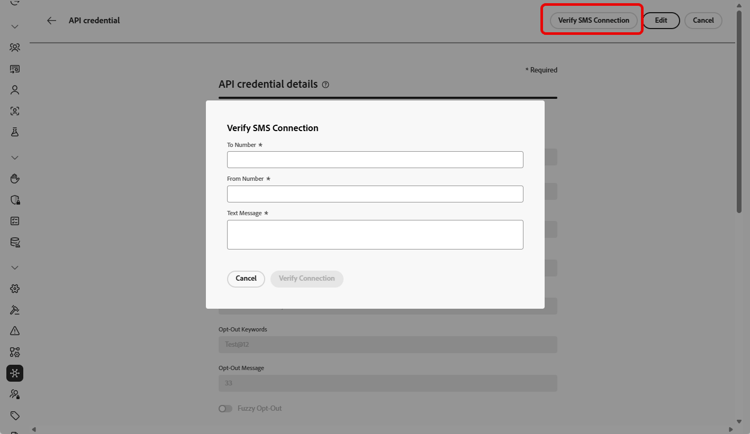
After creating and configuring your API credential, you now need to create your Webhook and a channel configuration for your RCS messages. Learn more
Configure API credentials for MMS sinch-mms
To configure Sinch MMS to send MMS with Journey Optimizer, follow these steps:
-
In the left rail, browse to Administration > Channels
>SMS Settings and select the API Credentials menu. Click the Create new API credentials button. -
Configure your MMS API credentials, as detailed below:
-
SMS vendor: Sinch MMS.
-
Name: enter a name for your API credential.
-
Project ID, App ID and API Token: follow the steps below to gather your MMS API credentials.
- For Project ID and App ID: Access the Conversation API Overview page of your Sinch project on your Sinch Dashboard.
- For API Token: Obtain the Access keys for your Sinch Project and generate a Base64 API Token out of your Sinch Project Access keys.
-
-
Click Submit when you finished the configuration of your API credentials.
-
In the API Credentials menu, click the bin icon to delete your API credentials.
-
To modify existing credentials, locate the desired API credentials and click the Edit option to make the necessary changes.
After creating and configuring your API credential, you now need to create your Webhook and a channel configuration for your RCS messages. Learn more
Configure API credential for RCS
RCS (Rich Communication Services) messaging is supported in Journey Optimizer through Sinch, allowing the sending of basic messages using verified business profiles with branding elements such as logos and sender names.
Native RCS authoring requires Sinch RCS. Twilio, Infobip, and other providers must use a custom provider integration.
Note that messages automatically fall back to SMS when the profile’s device does not support RCS or is temporarily unreachable via RCS.
To configure Sinch RCS to send RCS with Journey Optimizer, follow these steps:
-
In the left rail, browse to Administration > Channels
>SMS Settings and select the API Credentials menu. Click the Create new API credentials button. -
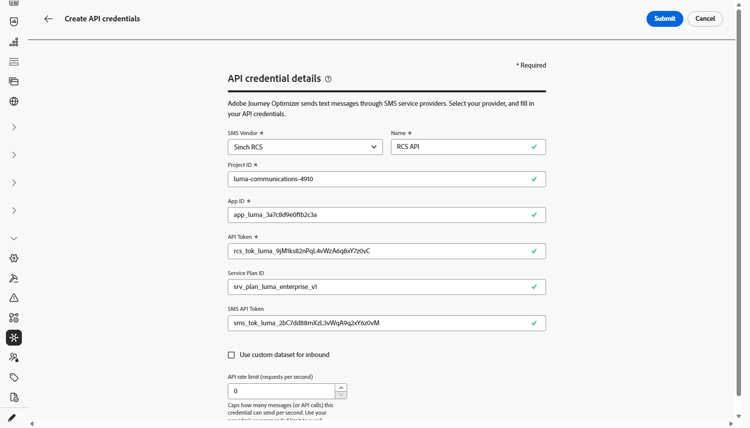
Configure your RCS API credentials, as detailed below:
-
SMS vendor: Sinch RCS.
-
Name: enter a name for your API credential.
-
Project ID, App ID and API Token: enter the project ID, app ID, and API token from your Sinch RCS account.
-
Service Plan ID: enter the service plan ID associated with your Sinch account.
-
SMS API Token: enter the SMS API token from your Sinch account.
-
-
Optionally, enable the Use custom dataset for inbound option to store inbound RCS messages in a custom dataset. Learn more
-
Set the API rate limit (requests per second) to cap the maximum number of API calls per second, use your provider’s recommended value to avoid throttling, or leave it at 0 for unlimited requests.
-
Click Submit when you finished the configuration of your API credentials.
-
In the API Credentials menu, click the bin icon to delete your API credentials.
-
To modify existing credentials, locate the desired API credentials and click the Edit option to make the necessary changes.
After creating and configuring your API credential, you now need to create your Webhook and a channel configuration for your RCS messages. Learn more
This section contains structured knowledge intended to support interpretation, retrieval, and question answering related to this topic.
For complete understanding, this information should be combined with the documentation on this page. Neither source is intended to stand alone; the page describes the feature, while this section provides additional context that helps disambiguate terminology, intent, applicability, and constraints.
- TL;DR: This page explains how to configure Sinch as your provider in Journey Optimizer by setting up separate API credentials for SMS, MMS, and RCS messages.
Intents:
- Configure Sinch API credentials to send SMS messages
- Configure Sinch MMS API credentials for outbound MMS delivery
- Configure Sinch RCS API credentials to send RCS messages
- Verify the SMS connection by sending a sample message to a designated device
- Route inbound SMS or RCS messages to a custom dataset
- Set an API rate limit for RCS API requests
Glossary:
- SMS Configuration: The Sinch option used to set up API credentials for sending SMS messages (product-specific)
- MMS Configuration: The Sinch option for multimedia messaging; used only for outbound delivery of the MMS message, while tracking and responding to inbound messages are handled by the SMS configuration (product-specific)
- RCS Configuration: The Sinch option used to set up API credentials for sending RCS messages (product-specific)
- Inbound Number: A unique inbound number or short code that lets you use the same API credentials across different sandboxes, each with its own inbound number or short code (product-specific)
- Override URL: A custom URL that replaces the default endpoints for SMS delivery reports, feedback data, inbound messages, or event notifications (product-specific)
- API rate limit (requests per second): A cap on the maximum number of API calls per second for RCS (product-specific)
- Use custom dataset for inbound: An option that routes a credential’s inbound messages to a pre-created dataset selected from a dropdown (product-specific)
- Verify SMS connection: An action on existing API credentials that tests them by sending a sample message to a designated device (product-specific)
Guardrails:
- MMS setup is only for outbound delivery of the MMS message; tracking and responding to inbound messages are handled by the SMS configuration.
- Along with MMS setup, you must also create Sinch API credentials specifically for tracking inbound messages and managing consent requests.
- Native RCS authoring requires Sinch RCS; Twilio, Infobip, and other providers must use a custom provider integration.
- Messages automatically fall back to SMS when the profile’s device does not support RCS or is temporarily unreachable via RCS.
- API rate limit (requests per second) for RCS: use your provider’s recommended value to avoid throttling (recommended), or leave it at 0 for unlimited requests.
- The custom dataset for inbound schema must be XDM ExperienceEvent and include at least the Message interaction details, Message Execution Details, and Message Profile Details field groups; the schema and dataset must be enabled for Profile.
- The Verify connection sample message must be structured to align with the provider’s payload format.
Terminology:
- Canonical name: Sinch provider — Acronym: n/a — variants: Sinch configuration
- Do not confuse: “SMS Configuration” ≠ “MMS Configuration” ≠ “RCS Configuration” (three distinct Sinch options)
- Do not confuse: “Sinch” (SMS vendor value for SMS) ≠ “Sinch MMS” (SMS vendor value for MMS) ≠ “Sinch RCS” (SMS vendor value for RCS)
FAQ:
- Q: Which credentials handle inbound tracking for MMS? — The SMS configuration handles tracking and responding to inbound messages; MMS setup is only for outbound delivery, and you must also create Sinch API credentials specifically for tracking inbound messages and managing consent requests.
- Q: Can I author RCS natively with Twilio or Infobip? — No; native RCS authoring requires Sinch RCS, and Twilio, Infobip, and other providers must use a custom provider integration.
- Q: What happens when a recipient’s device does not support RCS? — Messages automatically fall back to SMS when the profile’s device does not support RCS or is temporarily unreachable via RCS.
- Q: How do I test my SMS API credentials? — Click Verify SMS connection, fill in the Number and Message fields, and click Verify connection to send a sample message to a designated device.
- Q: What does the API rate limit setting do for RCS? — It caps the maximum number of API calls per second; use your provider’s recommended value to avoid throttling, or leave it at 0 for unlimited requests.