On this page: Learn how to integrate a custom messaging provider in Adobe Journey Optimizer by creating API credentials, choosing an authentication method, and configuring headers, payloads, and inbound settings to send SMS and RCS messages.
This feature empowers you to integrate and configure your own messaging providers, offering flexibility beyond the default options (Sinch, Twilio, and Infobip). This enables seamless authoring, delivery, reporting, and consent management for Mobile messages.
With custom provider configuration, you can connect third-party messaging services directly within Journey Optimizer, customize message payloads for dynamic content, and manage opt-in/opt-out preferences to ensure compliance across both SMS and RCS channels.
To configure your custom provider, follow the steps below:
Create your API credential api-credential
To send Mobile message in Journey Optimizer using a custom provider not available out of the box by Adobe (e.g., Sinch, Infobip, Twilio), follow these steps:
-
In the left rail, navigate to Administration
>Channels, select the API Credentials menu under SMS settings, and click the Create new API credentials button.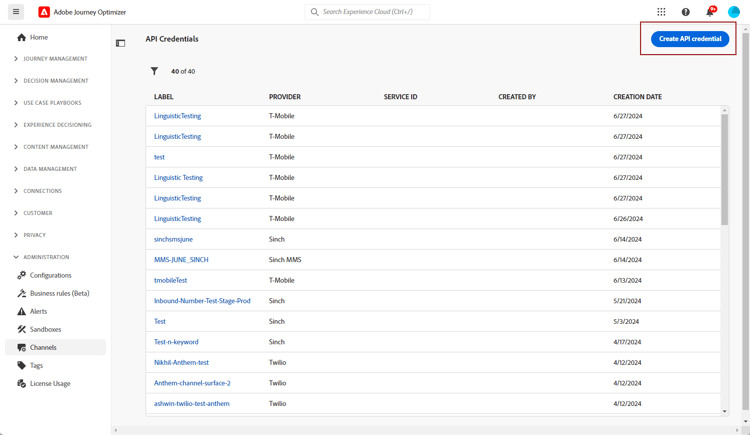
-
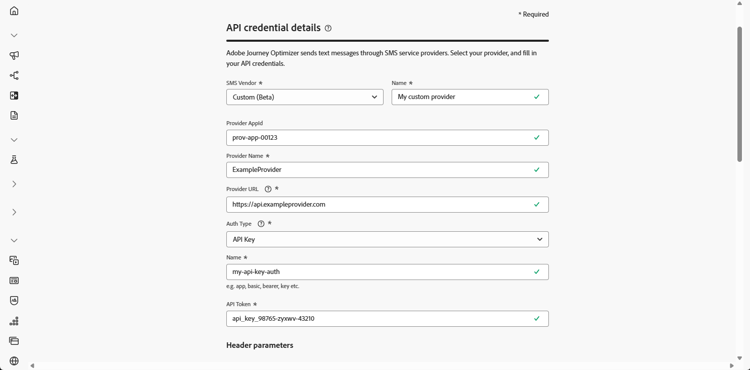
Configure your SMS API credentials, as detailed below:
-
SMS vendor: Custom.
-
Name: Enter a name for your API Credential.
-
Provider AppId: Enter the application ID provided by your SMS provider.
-
Provider Name: Enter the name of your SMS provider.
-
Provider URL: Enter the URL of your SMS provider.
-
Channel Type: Optional. Indicate which mobile channel this credential represents, i.e. SMS, RCS, or MMS.
-
Auth Type: Select your authorization type and complete the corresponding fields based on the chosen authentication method.
-
-
Enable the mTLS support option, which ensures that both the client and server authenticate each other before establishing a secure connection.
To use mTLS only, select No Authentication from the Auth Type drop-down and then enable mTLS support.
Note that mTLS applies only to the SMS provider (message sending) endpoint. The OAuth token endpoint must not use mTLS. Ensure mTLS is disabled on the token endpoint before testing.
note important IMPORTANT Configure your SMS send endpoint to trust the Adobe Experience Platform certificate authority chain by downloading the public certificate from the MTLS Public Certificate API and adding it to your server trust store (expected client CN: ajo-sms.aep-mtls.adobe.com), otherwise Journey Optimizer omits the client certificate and SMS delivery fails. -
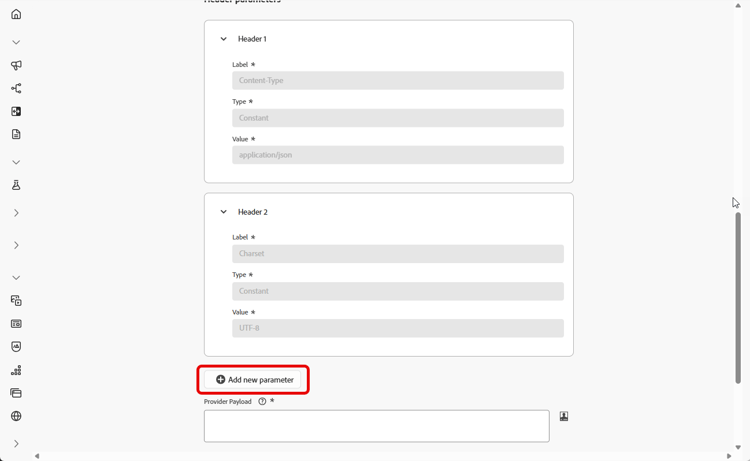
In the Headers section, click Add new parameter to specify the HTTP headers for the request message that will be sent to the external service.
The Content-Type and Charset header fields are set by default and cannot be deleted, though you can edit the default Content-Type value. You can add up to 10 custom header parameters.
-
Add your Provider Payload to validate and customize your request payloads.
For RCS messages, this payload is later used during content design.
note NOTE When configuring a custom SMS provider with Basic or Bearer authentication, you must include the authOptionparameter in the JSON payload. In addition, the Provider Payload must reference the template variables{{fromNumber}},{{toNumber}}, and{{message}}.The Provider Payload also supports Adobe Journey Optimizer personalization helper functions, including encode64. -
Select Use custom dataset for inbound to route this credential’s inbound SMS to a pre-created dataset you choose from the dropdown. Learn more about using a custom dataset for inbound keywords
note NOTE The dataset schema must be XDM ExperienceEvent and include at least these field groups: - Adobe CJM ExperienceEvent - Message interaction details
- Adobe CJM ExperienceEvent - Message Execution Details
- Adobe CJM ExperienceEvent - Message Profile Details
The schema and dataset must be enabled for Profile. -
Click Submit when you finished the configuration of your API credentials.
-
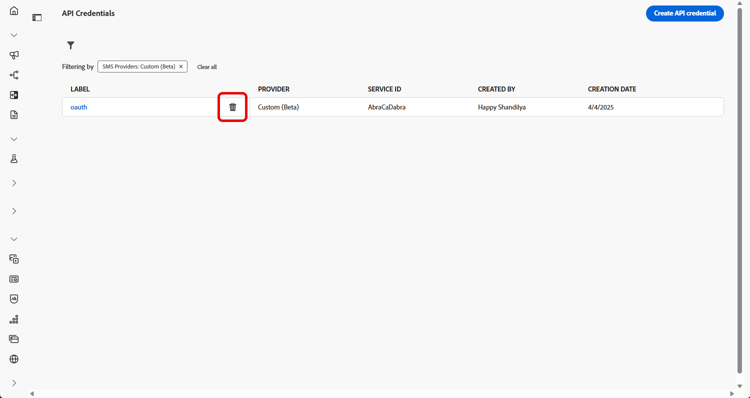
In the API Credentials menu, click the

-
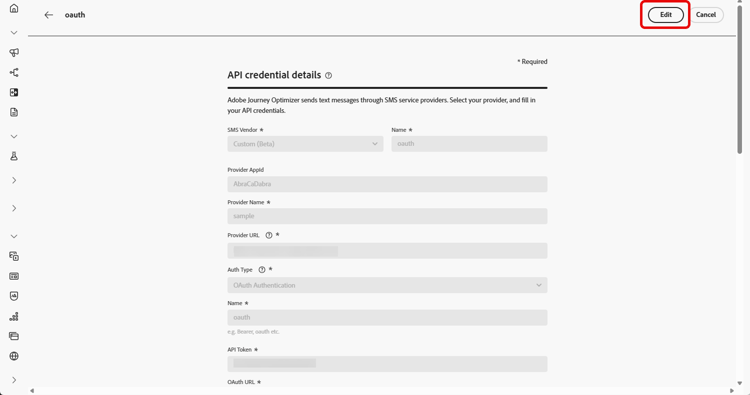
To modify existing credentials, locate the desired API credentials and click the Edit option to make the necessary changes.
-
Click Verify SMS connection, from your existing API credentials, to test and verify your SMS API credentials by sending a sample message to a designated device.
-
Fill in the Number and Message fields and click Verify connection.
note important IMPORTANT The message must be structured to align with the provider’s payload format. 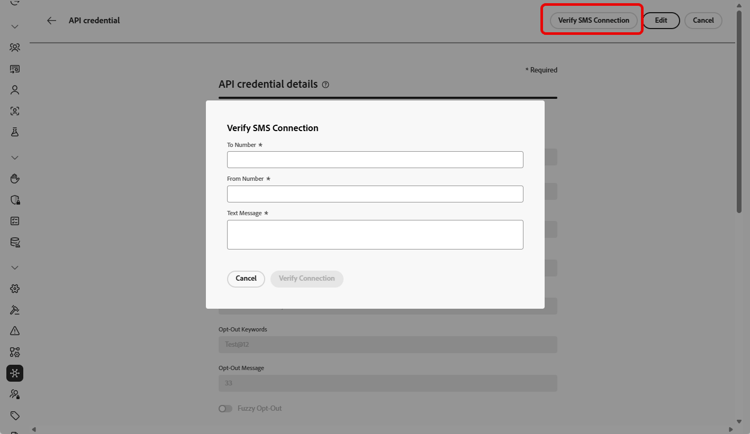
After creating and configuring your API credential, you now need to set up the inbound settings for the Webhook for SMS messages.
Authentication options for custom SMS Providers auth-options
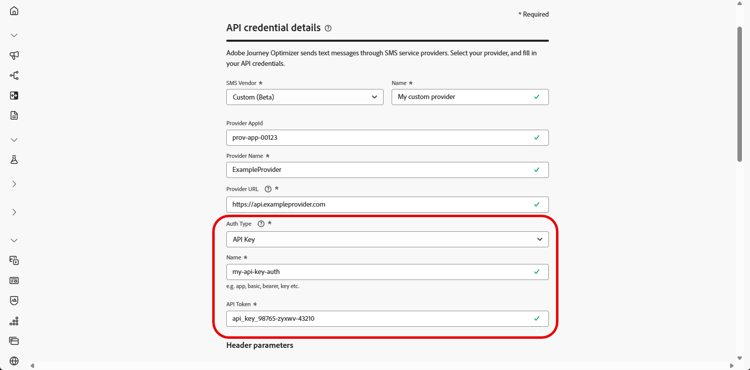
Once your API credential is created, complete the fields required for API key authentication:
- Name: Enter a name for your API key configuration.
- API Token: Enter the API Token provided by your SMS provider.
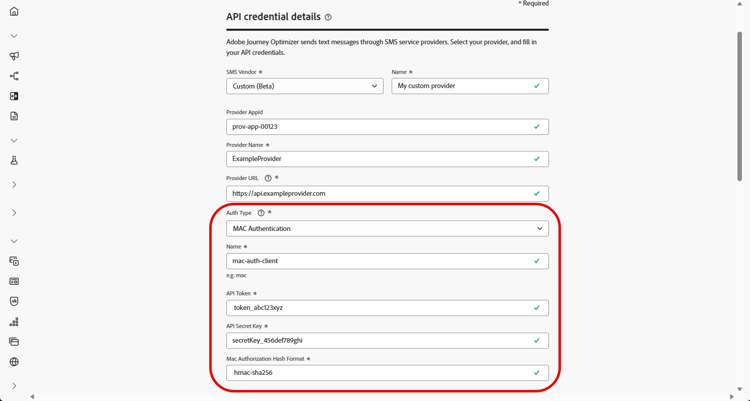
Once your API credential is created, complete the fields required for MAC authentication:
- Name: Enter a name for your MAC authentication configuration.
- API Token: Enter the API Token provided by your SMS provider.
- API Secret Key: Enter the API Secret Key provided by your SMS provider. This key is used to generate the MAC (Message Authentication Code) for secure communication.
- Mac Authorization Hash Format: Choose the hash format for the MAC authentication.
Once your API credential is created, complete the fields required for OAuth authentication:
-
Name: Enter a name for your OAuth authentication configuration.
-
API Token: Enter the API Token provided by your SMS provider.
-
OAuth URL: Enter the URL for obtaining the OAuth token.
-
OAuth Body: Provide the OAuth request body in JSON format, including parameters such as
grant_type,client_id, andclient_secret.
Journey Optimizer refreshes OAuth tokens dynamically upon expiry for the custom SMS connector.
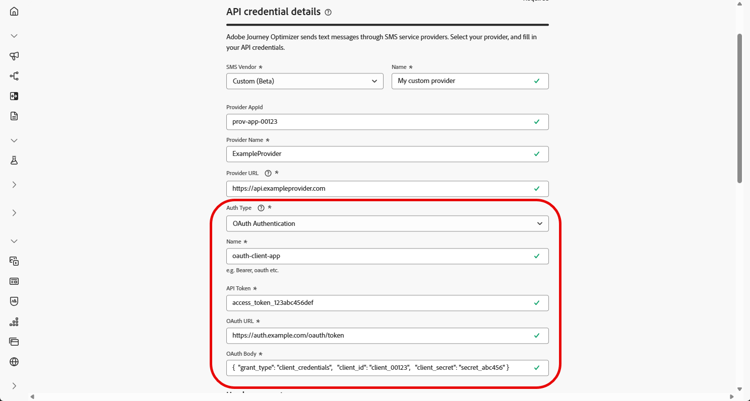
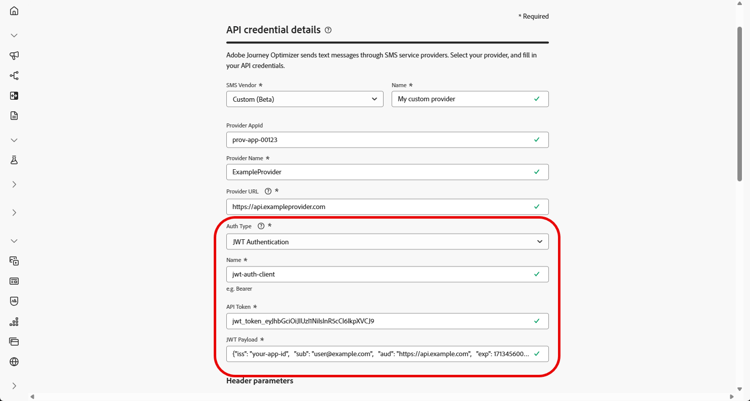
Once your API credential is created, complete the fields required for JWT authentication:
-
Name: Enter a name for your JWT authentication configuration.
-
API Token: Enter the API Token provided by your SMS provider.
-
JWT Payload: Enter the JSON payload containing the claims required for JWT, such as the issuer, subject, audience, and expiration.
How-to video video
This section contains structured knowledge intended to support interpretation, retrieval, and question answering related to this topic.
For complete understanding, this information should be combined with the documentation on this page. Neither source is intended to stand alone; the page describes the feature, while this section provides additional context that helps disambiguate terminology, intent, applicability, and constraints.
- TL;DR: This page explains how to integrate a custom messaging provider in Journey Optimizer by creating API credentials, choosing an authentication method, and configuring headers, payloads, mTLS, and inbound settings to send SMS and RCS messages beyond the default Sinch, Twilio, and Infobip options.
Intents:
- Create a custom provider API credential with SMS vendor set to Custom
- Choose and complete an authentication method (API key, MAC, OAuth, or JWT)
- Configure HTTP headers and the Provider Payload for the request
- Enable mTLS support for mutual client and server authentication
- Route a credential’s inbound SMS to a custom dataset
- Verify the SMS connection by sending a sample message to a designated device
Glossary:
- Custom provider: A third-party messaging provider integrated beyond the default options (Sinch, Twilio, and Infobip) by selecting Custom as the SMS vendor (product-specific)
- Provider Payload: The request payload used to validate and customize requests, later used during RCS content design (product-specific)
- Channel Type: An optional classification (SMS, RCS, or MMS) written to XDM experience events for reporting and tracking by channel (product-specific)
- mTLS support: An option ensuring that both the client and server authenticate each other before establishing a secure connection (product-specific)
- Verify SMS connection: An action that tests and verifies the API credentials by sending a sample message to a designated device (product-specific)
Guardrails:
- You can add up to 10 custom header parameters.
- The Content-Type and Charset header fields are set by default and cannot be deleted, though the default Content-Type value can be edited.
- mTLS applies only to the Mobile message provider (message sending) endpoint; the OAuth token endpoint must not use mTLS and mTLS must be disabled on the token endpoint before testing.
- With Basic or Bearer authentication, the authOption parameter must be included in the JSON payload, and the Provider Payload must reference the template variables {{fromNumber}}, {{toNumber}}, and {{message}}.
- The custom inbound dataset schema must be XDM ExperienceEvent, include the Adobe CJM ExperienceEvent Message interaction details, Message Execution Details, and Message Profile Details field groups, and be enabled for Profile.
- Do not reuse the same API credentials, webhooks, or provider callback URLs (including RCS agents) across sandboxes; create separate agent configurations for each sandbox.
Terminology:
- Canonical name: Custom provider — Acronym: n/a — variants: custom messaging provider, custom SMS provider, Bring Your Own Provider
- Do not confuse: “Mobile message provider (message sending) endpoint” (uses mTLS) ≠ “OAuth token endpoint” (must not use mTLS)
- Do not confuse: “API key” ≠ “MAC authentication” ≠ “OAuth authentication” ≠ “JWT authentication” (the four Auth Type options)
FAQ:
- Q: How many custom header parameters can I add? — Up to 10 custom header parameters.
- Q: Which authentication types are supported? — API key, MAC authentication, OAuth authentication, and JWT authentication.
- Q: Which endpoint uses mTLS? — mTLS applies only to the Mobile message provider (message sending) endpoint; the OAuth token endpoint must not use mTLS.
- Q: What must the Provider Payload include for Basic or Bearer authentication? — The authOption parameter in the JSON payload, plus references to the template variables {{fromNumber}}, {{toNumber}}, and {{message}}.
- Q: How do I test the credential? — Click Verify SMS connection, fill in the Number and Message fields structured to align with the provider’s payload format, then click Verify connection to send a sample message to a designated device.