On this page: Learn how to use audience composition to combine existing Adobe Experience Platform audiences in a visual canvas and apply activities such as split, exclude, enrich, and rank to create new audiences.
This documentation provides detailed information on how to work with audience composition within Adobe Journey Optimizer. If you are a Real-time Customer Profile only customer and are not using Adobe Journey Optimizer, click here.
Audience composition allows you to create composition workflows, where you can combine existing Adobe Experience Platform audiences into a visual canvas and leverage various activities (split, exclude…) to create new audiences.
Once done, the resulting audiences are saved back into Adobe Experience Platform along with existing audiences and can be leveraged in Journey Optimizer campaigns and journeys to target customers. Learn how to target audiences in Journey Optimizer

-
The use of audiences and attributes from audience composition is currently unavailable for use with Healthcare Shield or Privacy and Security Shield.
-
Enrichment attributes are not yet integrated with the policy enforcement service. Therefore, any data usage labels you apply to your enrichment attributes will not be enforced in Journey Optimizer campaigns or journeys.
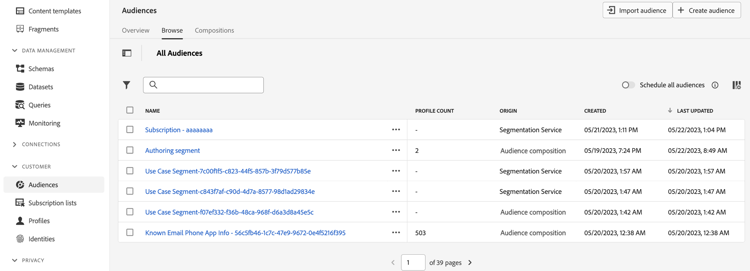
Audience composition is accessible from Adobe Journey Optimizer Audiences menu:
-
The Overview tab provides a dedicated dashboard with key metrics related to your organization’s audience data. To learn more, refer to Adobe Experience Platform Dashboards guide.
-
The Browse tab lists all existing audiences stored into Adobe Experience Platform.
-
The Compositions tab allows you to create composition workflows where you can combine and arrange audiences to create new ones.
Create a composition workflow create
To create a composition workflow, follow these steps:
-
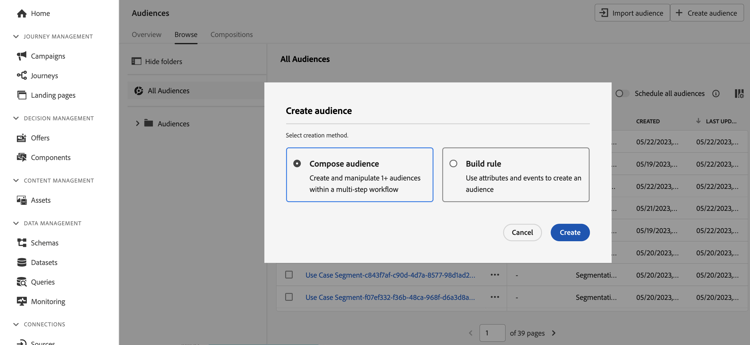
Access the Audiences menu and select Create Audience.
-
Select Compose Audience.
-
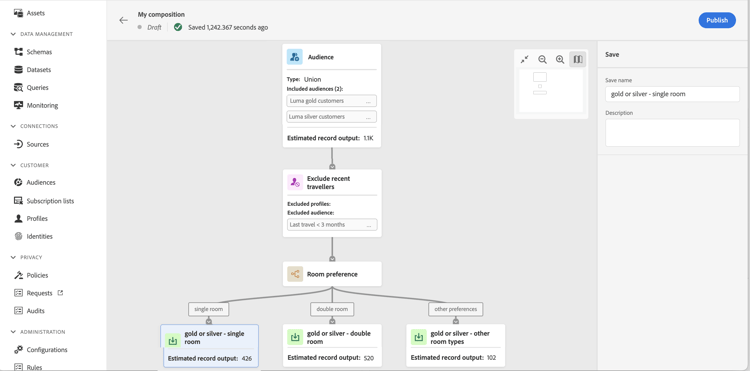
The composition canvas displays with two default activities:
-
Audience: the starting point of your composition. This activity allows you to select one or multiple audiences as a basis for your workflow,
-
Save: the last step of your composition. This activity allows you to save the result of your workflow into a new audience.
-
-
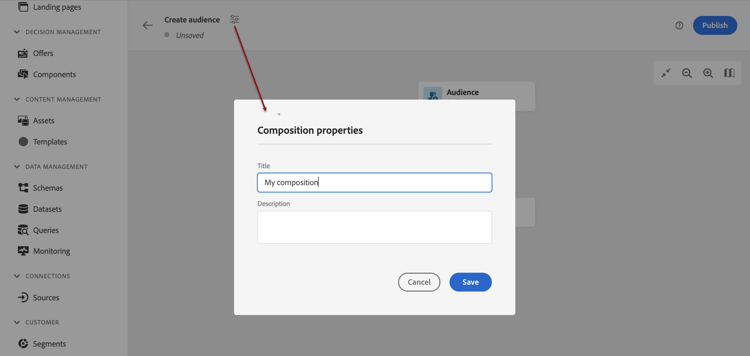
Open the composition properties to specify a title and a description.
If no title is defined in the properties, the composition’s label is set to “Composition” followed by its creation date and time.
-
Configure your composition by adding as many activities as needed between the Audience and Save activities. For more information on how to create a composition, refer to the Audience composition documentation.
With the Enrich activity, the enrichment dataset must be 1 GB or smaller, and its schema must define a primary identity. Learn more
-
Once your composition is ready, click the Publish button to publish the composition and save the resulting audiences into Adobe Experience Platform.
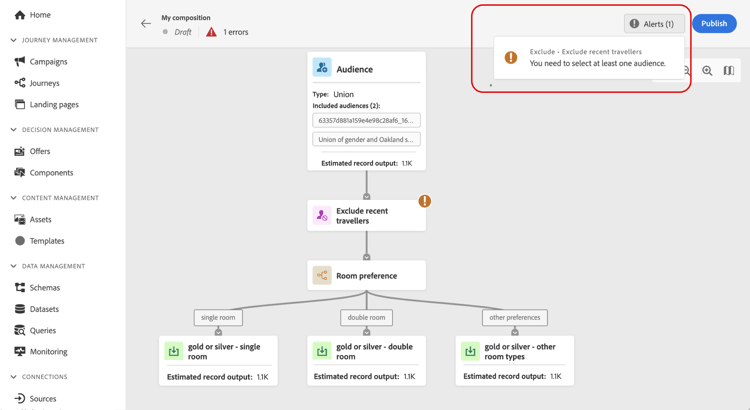
note important IMPORTANT You can publish up to 50 compositions in a given sandbox. Compositions created with Federated audience composition are not counted. If you have reached this threshold, you need to delete a composition to free up space and publish a new one. If any error occurs during publishing, alerts will display with information on how to resolve the issue.
-
The composition is published. The resulting audiences are saved into Adobe Experience Platform and are ready to be targeted in Journey Optimizer. Learn how to target audiences in Journey Optimizer
Access compositions access
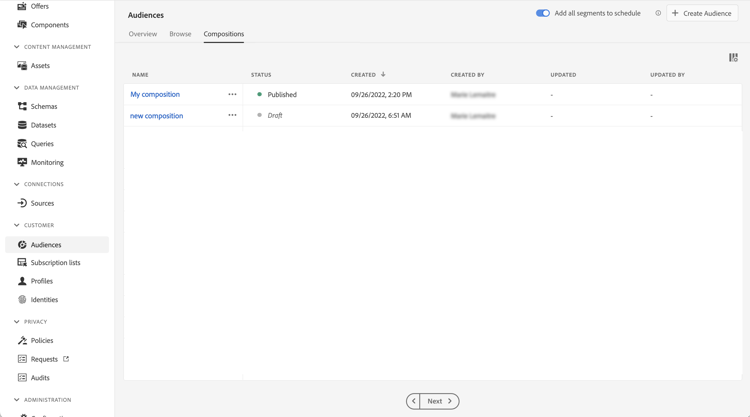
All created compositions can be accessed from the Compositions tab. You can duplicate or delete an existing composition at any time using the ellipsis button in the list.
Compositions can have multiple statuses:
- Draft: the composition is in progress and has not been published.
- Published: the composition has been published, resulting audiences have been saved and are available for use.
If an audience composition returns an error code, see Audience composition errors.
This section contains structured knowledge intended to support interpretation, retrieval, and question answering related to this topic.
For complete understanding, this information should be combined with the documentation on this page. Neither source is intended to stand alone; the page describes the feature, while this section provides additional context that helps disambiguate terminology, intent, applicability, and constraints.
- TL;DR: Audience composition lets you create composition workflows that combine existing Adobe Experience Platform audiences in a visual canvas and apply activities such as split, exclude, enrich, and rank to produce new audiences that are saved back into Adobe Experience Platform for use in Journey Optimizer campaigns and journeys.
Intents:
- Create a composition workflow that combines existing Adobe Experience Platform audiences
- Add activities between the Audience and Save activities to build new audiences
- Publish a composition to save the resulting audiences into Adobe Experience Platform
- Access, duplicate, or delete existing compositions and track their status
Glossary:
- Audience composition: Capability to create composition workflows that combine existing Adobe Experience Platform audiences in a visual canvas to create new audiences (product-specific)
- Composition workflow: A workflow on the composition canvas where audiences are combined and arranged using activities to create new audiences (product-specific)
- Resulting audiences: The new audiences produced by a composition, saved back into Adobe Experience Platform once published (product-specific)
- Audience activity: The starting-point activity that selects one or multiple audiences as the basis for the workflow (product-specific)
- Save activity: The last-step activity that saves the result of the workflow into a new audience (product-specific)
Guardrails:
- You can publish up to 50 compositions in a given sandbox (hard limit); compositions created with Federated audience composition are not counted; if you reach this threshold you must delete a composition to free up space before publishing a new one.
- Audiences from audience composition are executed daily, so you may need to wait up to 24 hours before using them in Journey Optimizer.
- Enriched attributes in audience composition audiences are as fresh as the last composition run, which can be up to 24 hours in the past.
- The use of audiences and attributes from audience composition is currently unavailable with Healthcare Shield or Privacy and Security Shield.
- Enrichment attributes are not yet integrated with the policy enforcement service, so data usage labels applied to enrichment attributes are not enforced in Journey Optimizer campaigns or journeys.
- With the Enrich activity, the enrichment dataset must be 1 GB or smaller, and its schema must define a primary identity.
- Audience composition is not integrated with the sandbox reset capability; you must delete compositions manually before a sandbox reset so associated audience data is cleaned up.
- If any error occurs during publishing, alerts display with information on how to resolve the issue.
Terminology:
- Canonical name: Audience composition — variants: composition, composition workflow
- Do not confuse: “Draft” (composition in progress, not published) ≠ “Published” (composition published, resulting audiences saved and available)
- Do not confuse: “Audience activity” (starting point of the composition) ≠ “Save activity” (last step that saves the result)
FAQ:
- Q: How do I create a new audience with audience composition? — Access the Audiences menu, select Create Audience then Compose Audience, add activities between the Audience and Save activities, then Publish.
- Q: How many compositions can I publish in a sandbox? — Up to 50 in a given sandbox (compositions created with Federated audience composition are not counted); if you reach the threshold you must delete one to publish another.
- Q: How soon can I use an audience from a composition? — Audiences from audience composition are executed daily, so it may take up to 24 hours.
- Q: What statuses can a composition have? — Draft (in progress, not published) and Published (resulting audiences saved and available for use).
- Q: Can I use audience composition with Healthcare Shield or Privacy and Security Shield? — No, use of audiences and attributes from audience composition is currently unavailable with Healthcare Shield or Privacy and Security Shield.