[Beta]{class="badge informative" title="This feature is currently in a limited beta release on the simplified architecture"}
XDM field management
Experience Data Model (XDM) fields are schema elements that provide data to the Journey Optimizer B2B Edition application. Use XDM fields as filters and constraints in journey nodes, buying groups, and for content features, such as email personalization and conditional content.
Schemas define fields based on standard XDM classes. Standard XDM classes include Individual Profile, Business Account, and Experience Event. Relational schemas also define fields that allow you to model structured data similarly to traditional relational databases.
Adobe Experience Platform (AEP) schemas typically contain many fields in complex hierarchies. Traversing XDM schema trees takes time. XDM field management streamlines field selection by displaying only the fields that are relevant to your journeys, buying groups, and personalization. Administrators enable these fields for use in Journey Optimizer B2B Edition, including which are read-only or editable.
Administrators who understand XDM and collaborate with data engineers or B2B customer data platform (CDP) data modeling stakeholders should use the following steps to configure XDM classes for Journey Optimizer B2B Edition.
Access XDM classes
-
In the left navigation, choose Administration > Configuration.
-
Click XDM Classes on the intermediate panel.
-
Use the Standard and Relational tabs to add new fields and make them available in Journey Optimizer B2B Edition.
-
Use the Events tab to select specific AEP Experience Events and their associated fields to use for journey event nodes.
-
Field selections
Use the following guideline for making field selections:
- You can add new fields only after a schema is actively being used in a journey.
- Deleting, renaming, or changing field types can cause journey functionality issues. Take care when manipulating schemas.
- Do not rename or delete schemas or modify keys in relational schemas.
Standard classes
In the Standard tab, you can edit Managed fields and Updatable fields for the standard classes:
- Managed fields appear in journeys, buying groups, and personalization features.
- Updatable fields serve as constraints for the Update Account Profile and Update Person Profile journey nodes.
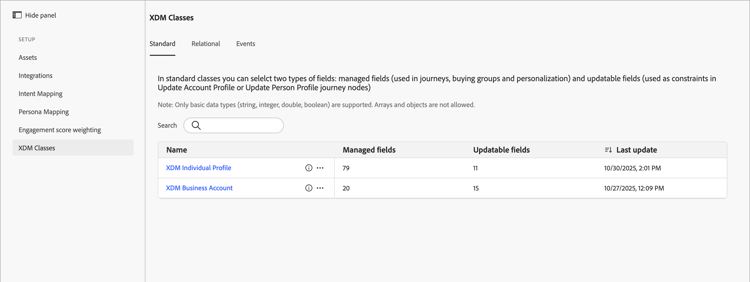
The list includes two classes:
- XDM Individual Profile
- XDM Business Account
The displayed class information includes:
- Number of Managed fields
- Number of Updatable fields
- Last update time
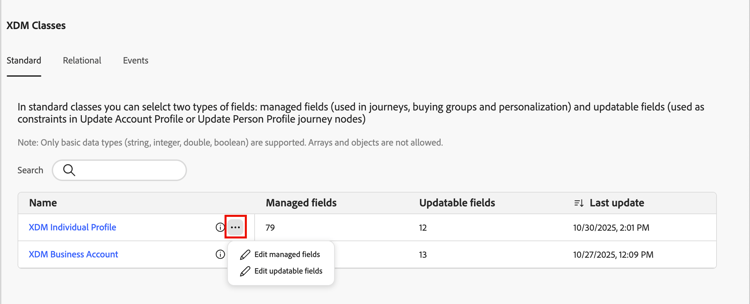
To select fields from the union schema for standard XDM classes, click the class name to open the Managed fields selection dialog, or click the More menu ( … ) icon to choose between Managed fields and Updatable fields.
Managed fields
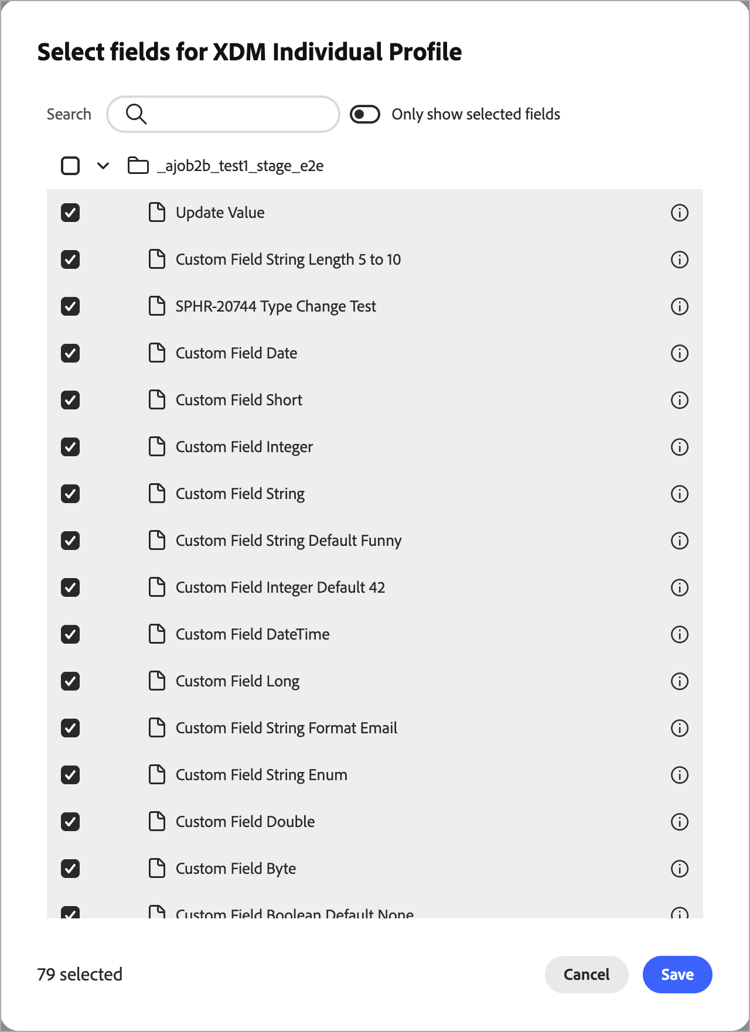
When you choose Managed fields, the Select fields dialog lists all configurable fields.
-
Select up to 100 fields for each XDM class.
Use the Search field to filter the displayed list by name. Use the Only show selected fields slider to review the current selections.
-
Click Save to confirm your selections.
Updatable fields
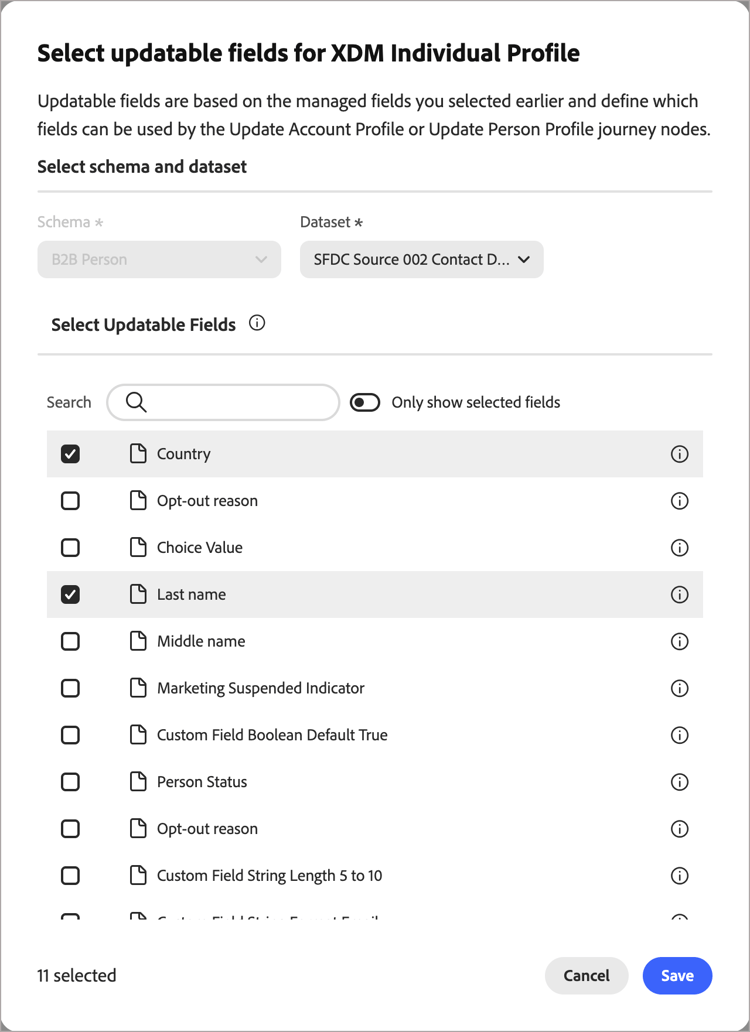
Set the updatable fields to choose which fields can be modified through Update Account Profile or Update Person Profile journey actions.
Before you configure updatable fields, they must reside in a custom dataset. For a walkthrough of the custom dataset workflow, see Create datasets and ingest data, and use the Create dataset from schema option. This dataset is used to isolate updatable fields. All updatable fields must be in this dataset.
- Schemas - On the XDM Individual Profile class, any required fields in the schema must be system-defined, such as
identityMaporpersonID. - Datasets - Do not use a dataset that is already in use for another purpose. As a best practice, create dedicated datasets specifically for storing updatable fields. Use a separate dataset for each XDM class.
Create a dataset for Individual Profile, and another for Business Account. Select each new dataset during the configuration process:
-
For Datasets, select the new data source that you created.
-
Choose the fields from the selected dataset.
-
Click Save to apply your changes.
Relational schemas
Relational schemas allow you to create custom data classes. With access to multiple datasets, you can create classes specifically tailored to your data needs. Use relational schemas for business entities such as purchases, licenses, and event registrations in journey decisions and email personalization. You can select up to 20 schemas and up to 50 fields per schema.
For information about how you can use the selected fields for advanced email personalization, see Content personalization. For information about how you can use the selected fields for journey decisioning (split paths by account or people), see Custom data filtering.
You can create relational schemas using the schema editor (go to Data Management > Schemas in the left navigation).
Schema requirements
When creating a schema for use with Journey Optimizer B2B Edition, the following configurations values are required:
- Behavior: Record
- Segmentation: Enabled
- Relationship type: Many-to-one
- Reference schema: B2B Account
- Required fields: Primary key, foreign key, and version descriptor
- Associated dataset: Defined and mapped to the schema
To select relational schema fields for use in Journey Optimizer B2B Edition:
-
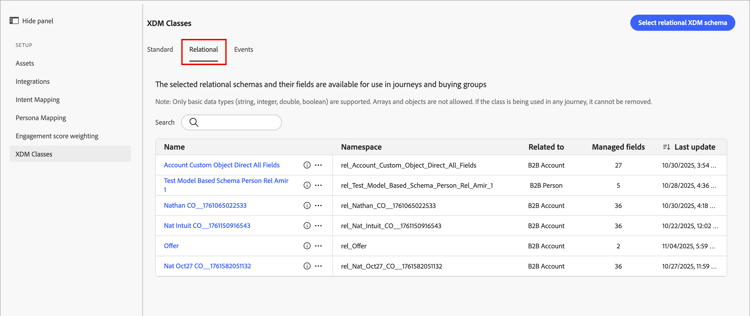
Select the Relational tab to view your schemas.
-
Click Select relational XDM schema.
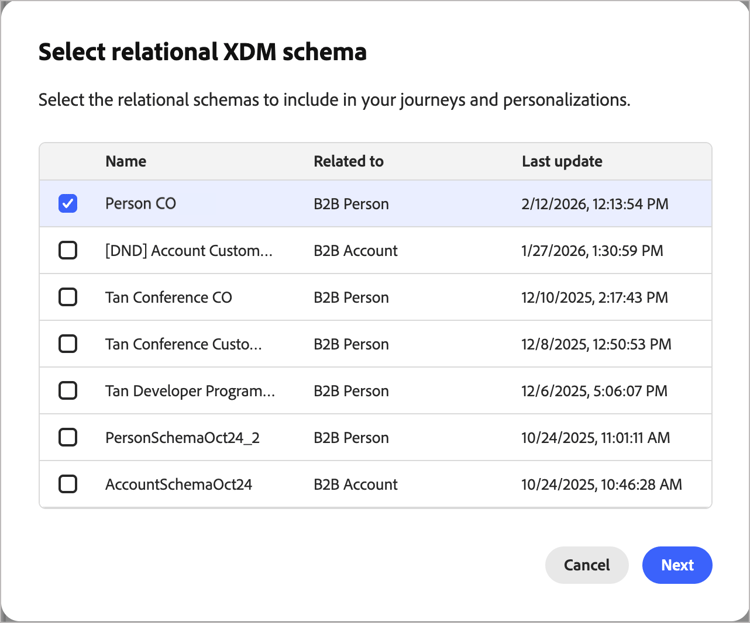
note note NOTE In this beta feature release, only Account and People many-to-one Custom Objects are supported. -
Select a relational schema and click Next.
-
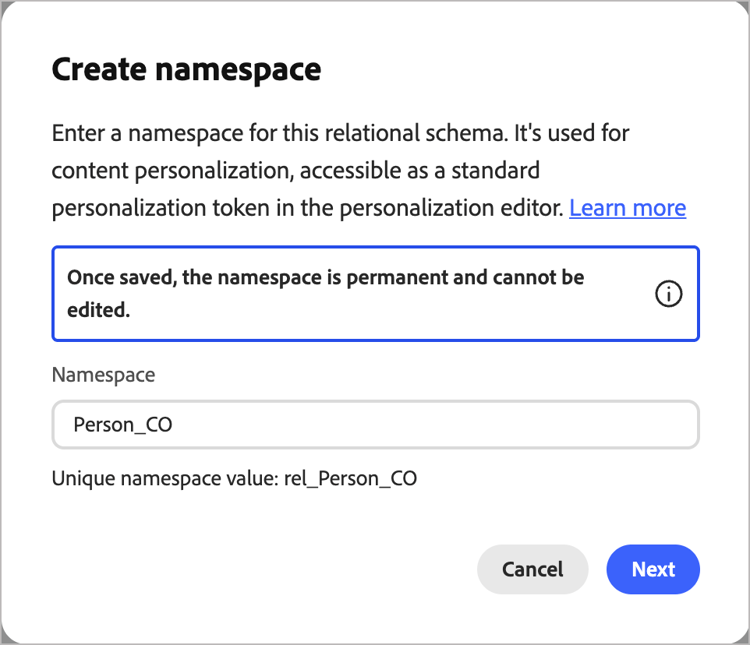
Enter a namespace or use the default namespace. Click Next.
You can only set the namespace once, and cannot reverse this action.
-
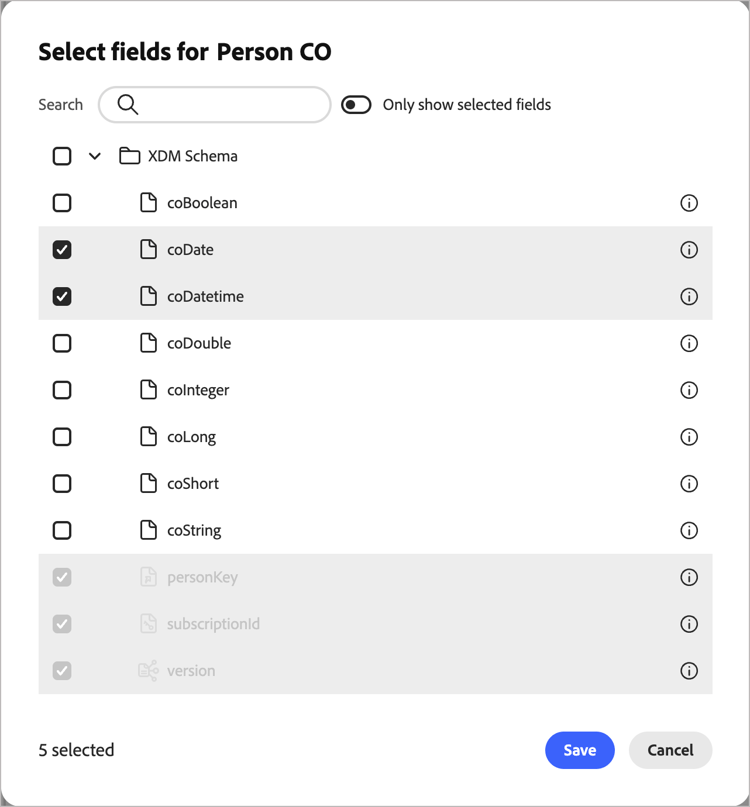
Review the relational schema fields.
Click the Info

-
Select the fields to enable for journeys and personalization.
The platform automatically selects the following required fields:
- Foreign key
- Primary key
- Version descriptor
Use the Search field to filter the displayed list by name. Use the Only show selected fields slider to review the current selections.
-
Click Save.