Split and merge paths split-paths
Use split and merge path nodes to segment people or accounts according to the conditions that you define. Create paths for the audience or accounts list according to conditions, define each path with action and event nodes for the segment, and then combine the paths and continue the journey.

A Split paths node defines one or more segmented paths based on either account or people filters. A split based on a people filter is automatically closed with a merge paths node so that all people can move forward to the next step without losing their account context.
Split paths by accounts split-paths-by-accounts
(Account journeys only)
Split by accounts paths can include both account and people actions and events. These paths can be split further.
How a split path by accounts node works
- Each path that you add includes an end node with the ability to add nodes to each edge.
- Split by account nodes can be nested (you can split the path by accounts repeatedly).
- Evaluation of each path is from top to bottom. If an account matches the first and second paths, it proceeds along the first path only.
- Two or more paths can be combined using a merge node.
- The node supports the definition of an Other accounts path, where you can add actions or events for accounts that do not match one of the defined segments/paths.
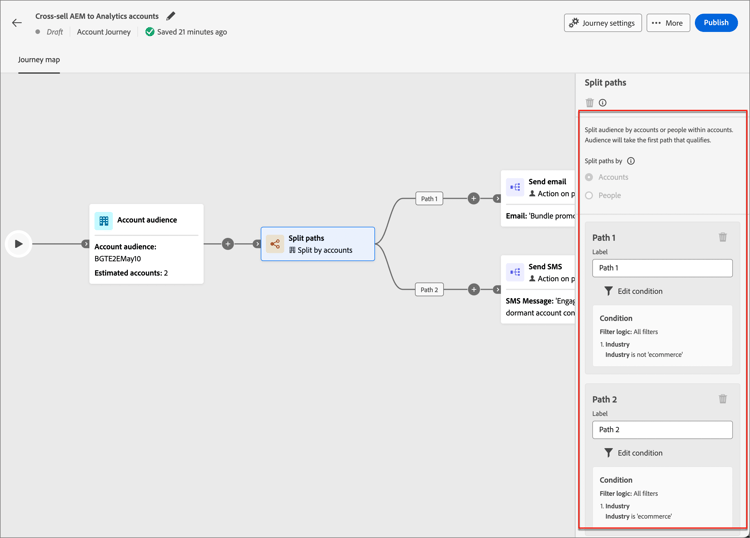
Account path conditions account-path-filters
Attributes from the account profile, including:
-
Annual revenue
-
City
-
Country
-
Employee size
-
Industry
-
Name
-
SIC code
-
State
<custom object>The account is matched with one or more buying groups. It can be evaluated against one or more of the following constraints for a matched buying group:
-
Solution Interest
-
Buying Group stage
-
Buying Group status
-
Engagement Score
-
Completeness Score
-
Number of people in buying group role
Add a split path by account node
-
Navigate to the journey map.
-
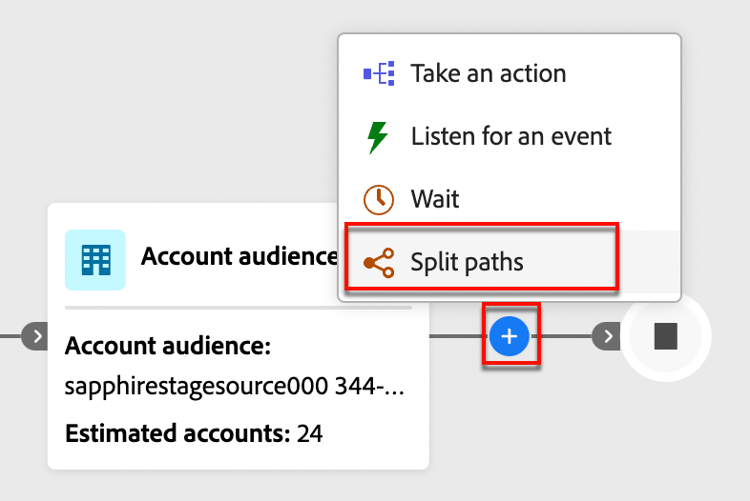
Click the plus ( + ) icon on a path and choose Split paths.
-
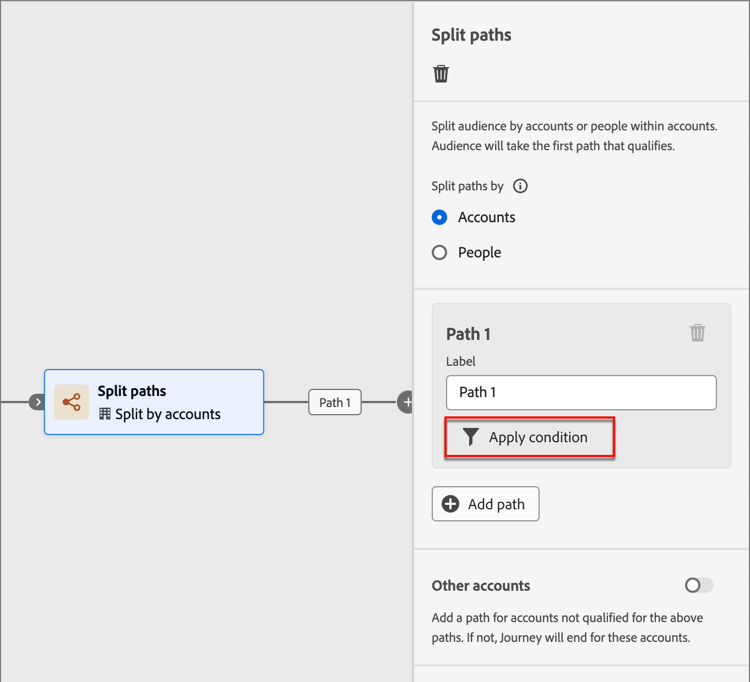
In the node properties on the right, choose Accounts for the split.
-
To define a condition applicable to Path 1, click Apply condition.
-
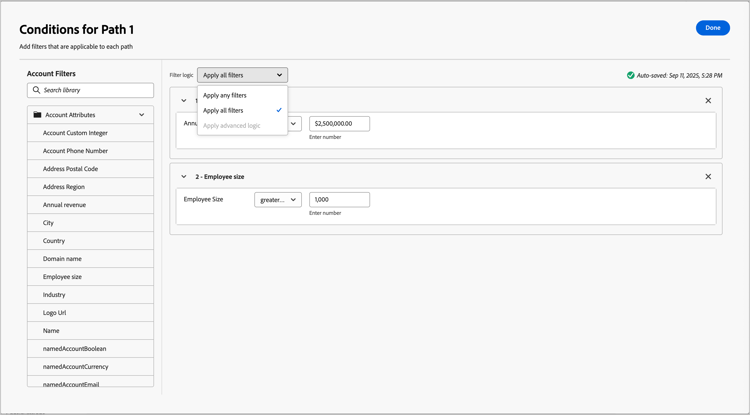
To define the split path, add one or more filters in the conditions editor.
-
Drag and drop filter attributes from the left navigation and complete the match definition.
-
Refine your conditions by applying the Filter logic at the top. You choose to match all filters or any filter.
-
Click Done.
-
-
To add more paths, click Add path and repeat the previous steps to add conditions applicable to this path.
You can also label each path based on these conditions or use the default labels.
-
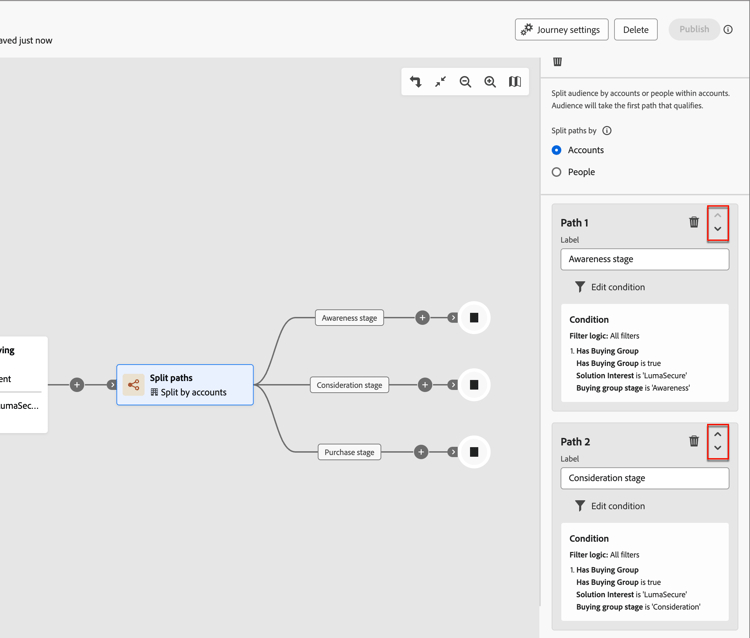
If needed, reorder the paths according to the priority that you want for the split.
Path filtering is evaluated in top-down order. Each account proceeds along the first path that matches.
Click the up and down arrows at the top right of each path card to move it higher or lower in the list of paths.
-
Enable the Other accounts option to define the default path for accounts that are not a match for the defined segments/paths.
When this option is not enabled, the journey ends for accounts that do not match a defined segment/path within the split.
Buying group filtering for accounts buying-group-filtering-accounts
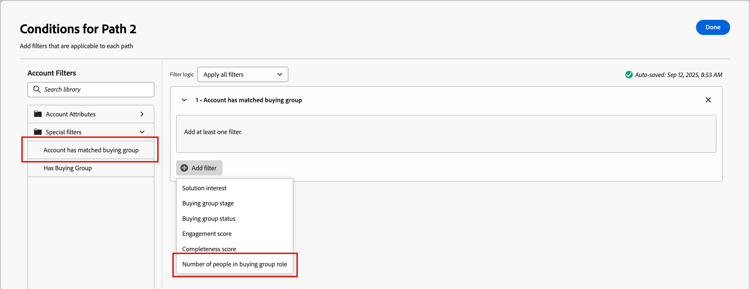
You can define a path for accounts associated with buying groups and filter the path using buying group criteria. Use the Account has matched buying group filter to define the path segment using a matched buying group. This filter also includes the option to identify accounts based on the number of assigned roles within a matched buying group.
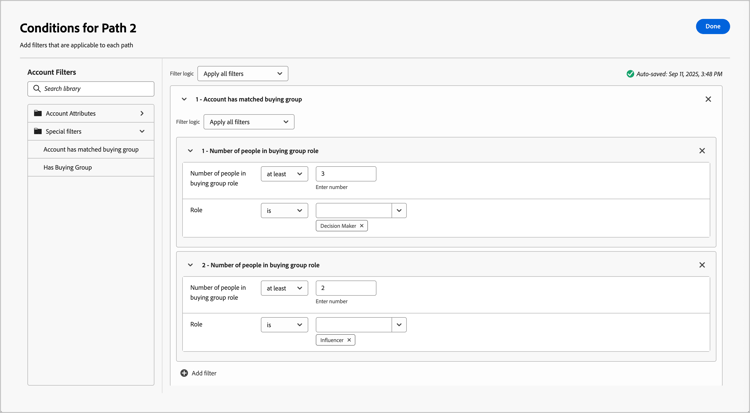
For example, evaluate buying group readiness based on the depth (number of people) it has in different roles, such as three decision-makers and two influencers. In this case, set the condition to target accounts with a minimum of three (3) Decision Makers and two (2) Influencers in a matched buying group:
-
Click Add filter and choose the Number of people in buying group role filter.
-
Define the first role parameter.
- Set the number of people evaluation to
at leastwith a value of3. - Set the role evaluation to
isand chooseDecision Makerfrom the list of roles.
- Set the number of people evaluation to
-
Repeat step 1 to add another buying group role parameter.
-
Define the second role parameter.
- Set the number of people evaluation to
at leastwith a value of2. - Set the role evaluation to
isand chooseInfluencerfrom the list of roles.
- Set the number of people evaluation to
-
Click Done when you have all conditions defined for the path.
To update the status of the buying group or stage for the identified accounts, add an action node in the path.
Split paths by people
(Account and person journeys)
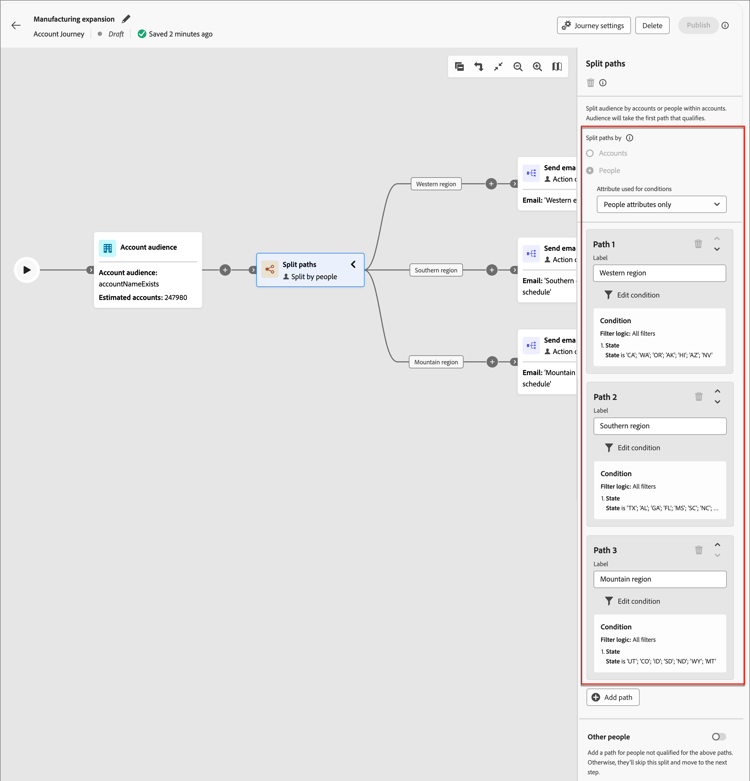
Split by people paths can include only people actions. These paths cannot be split again and automatically join back.
How a split path by people node works
- Split by people nodes function within a grouped node split-merge combination. The split paths automatically merge so that all people can move forward to the next step without losing their account context.
- Split by people nodes cannot be nested (you cannot add a split path for people on a path that is in this grouped node).
- Evaluation of each path is from top to bottom. If a person matches the first and second paths, they proceed along the first path only.
- The node supports the use of account-person relationships, which allows you to filter people based on their role (such as contractor or full-time employee) as defined in the relationship.
- The node supports the definition of an Other people path, where you can add actions or events for people that do not match one of the defined segments/paths.
People path filters people-path-filters
<custom object>Attributes from the person profile, including:
-
City
-
Country
-
Email address
-
Email invalid
-
Email suspended
-
First name
-
Inferred state region
-
Job title
-
Last name
-
Mobile phone number
-
Person engagement score
-
Phone number
-
Postal code
-
State
The person is or is not a buying group member evaluated against one or more of the following criteria:
-
Solution Interest
-
Buying Group status
-
Completeness Score
-
Engagement Score
-
Is Removed
-
Role
Account-person path conditions
The person is or is not assigned a role in the account. Optional constraints:
- Role name
Add a split path by people node add-a-split-path-by-people-node
-
Navigate to the journey map.
-
Click the plus ( + ) icon on a path and choose Split paths.
-
In the node properties on the right, choose People for the split.
-
(Account journeys only) Set the Attributes used for conditions.
- Choose People attributes only to use conditions related to the person profile.
- Choose Account-person attributes only to use conditions related to the person’s role membership within an account.
-
To define a condition applicable to Path 1, click Apply condition.
-
To define the split path, add one or more filters in the conditions editor.
-
Drag and drop any of the people filters from the left navigation and complete the match definition.
note NOTE If you have custom person fields defined in the account audience schema in Experience Platform, these fields are also available to use as person attributes in conditions. -
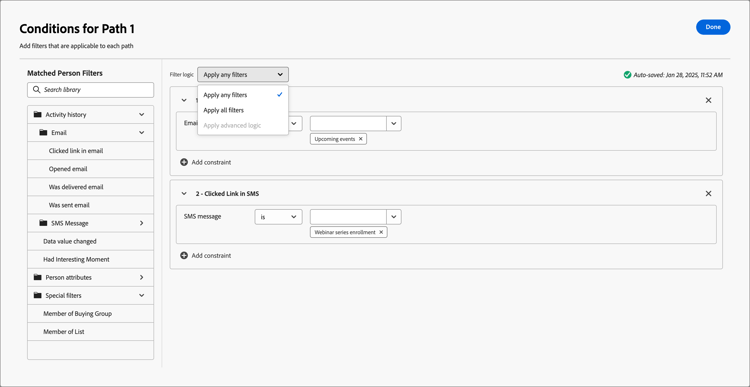
Refine your conditions by applying the Filter logic at the top. You choose to match all attribute conditions or any condition.
-
Click Done.
-
-
To add more paths, click Add path and repeat the previous steps to add conditions applicable to this path.
You can also label each path based on these conditions or use the default labels.
-
If needed, reorder the paths according to the priority that you want for the split.
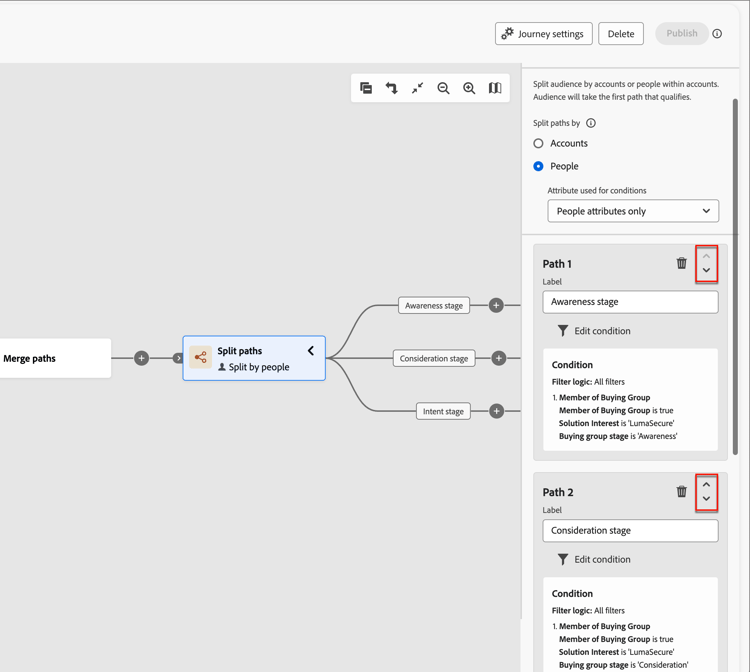
Path filtering is evaluated in top-down order. Each person proceeds along the first path that matches.
Click the up and down arrows at the top right of each path card to move it higher or lower in the list of paths.
-
Enable the Other people option to add a default path for people that are not a match for the defined paths.
When this option is not enabled, people that do not match a defined segment/path move past the split and proceed to the next step in the journey.
When you have conditions defined for each path for splitting your audience on the people level, you can add actions that you want to take on people.
Experience event history filtering experience-event-history-filtering
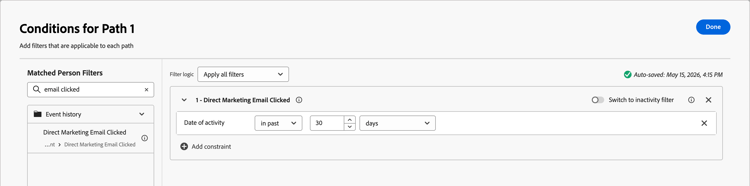
For a split path by people, you can define a path based on experience events that occurred before the person entered the journey. To see a list of all event types configured by your administrator, expand the Event history folder in the conditions editor. Select an event type to add it as a filter condition.
The lookback time window for event history is measured backward from the moment the person enters the journey. For example, a 30-day window evaluates whether the qualifying event occurred within the 30 days prior to journey entry.
You can further refine the filter using constraints specific to the selected event’s fields. The optional Minimum number of times and Date of activity constraints are both evaluated within the defined lookback window. Because event history data is synced from Adobe Experience Platform, there may be a brief delay before a recently occurring event becomes available to this filter.
Example: To route people who clicked a link in a marketing email before entering the journey, select the email click event from the Event history folder, set the lookback window to cover the relevant time period, and apply any field-level constraints (such as a specific link URL) as needed.
Inactivity filtering
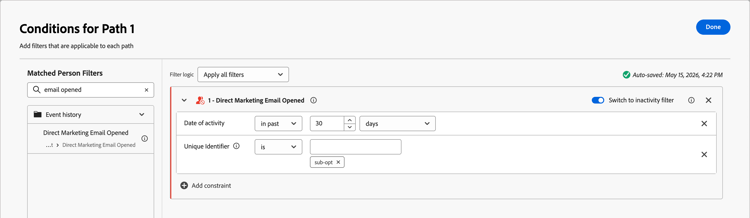
For each of the Event history filters, you can enable the Switch to inactivity filter option. This option changes the filter to an evaluation for an absence of that activity type. To create a path for people who did not open an email, add the Direct Marketing Email Opened filter. Enable the inactivity option and specify the email.
Membership filtering
Within the Special Filters section, there are multiple filters that you can use to evaluate a person’s membership in a buying group.
For example, if you want to create a path for people who are members of a buying group and are assigned a particular role, add the Special filters > Member of Buying group filter. For the filter, set the membership as true and select a Solution interest that is associated with one or more buying groups.
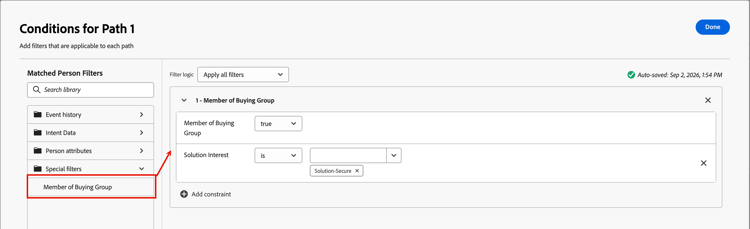
Click Add constraint to include additional buying group membership constraints:
- Buying group stage
- Buying group status
- Completeness score
- Engagement score
- Is Removed
- Role
false. You can also explicitly include removed members by setting this constraint to true.Custom data filtering custom-data-filtering
[Beta]{class="badge informative" title="Beta feature"}
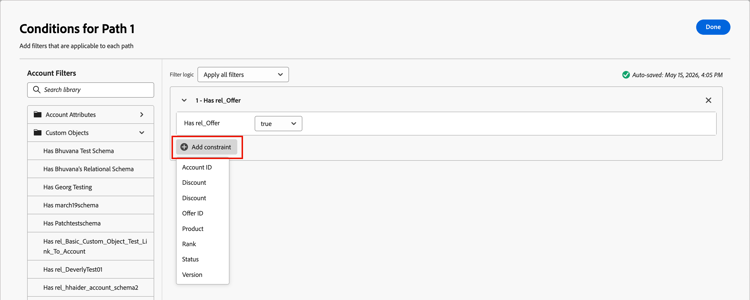
You can use relational schemas (model-based classes) to split paths by account or people. The custom objects are defined within relational schemas, and a product administrator can configure relational schema fields in Journey Optimizer B2B Edition. The selected schema fields are available in the condition editor for use in split path by account and split path by people nodes.
For a Split path by account or Split path by people condition, expand Custom Objects. Add the condition and set the value to true or false. Click Add constraint to use the field values for filtering.
Merge paths merge-paths
To combine different split paths by account in your journey, add a Merge paths node.
-
In a journey map with a split node that has three or more paths, add a combination of actions and events to each path.
-
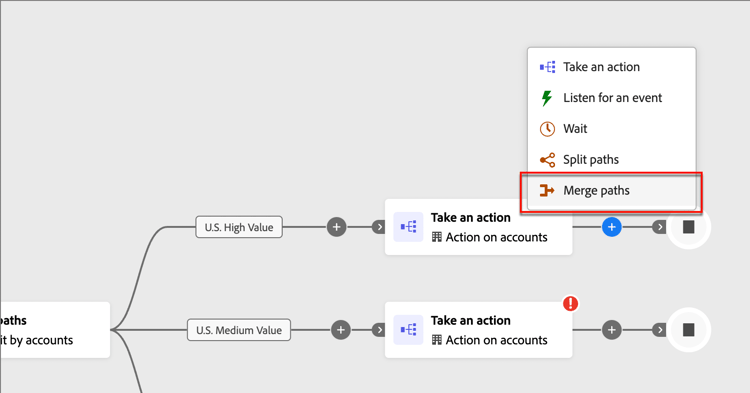
Click the plus ( + ) icon for any one of these paths and choose Merge from the displayed options.
-
In the merge paths node properties, select the paths you want to merge.
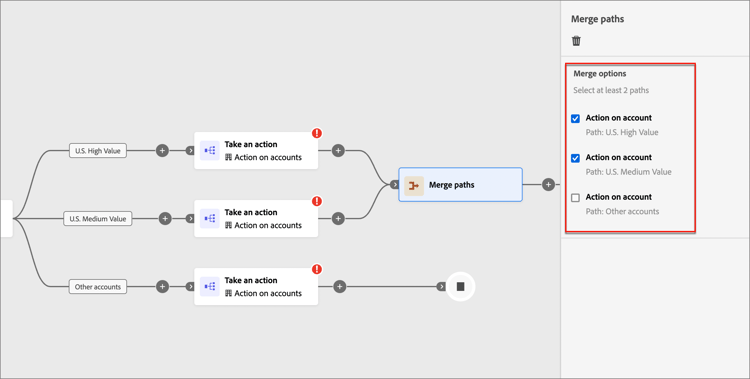
At this point, the paths are merged so that accounts from the selected paths combine to a single path that can continue to progress through the journey.
-
If needed, you can unmerge paths by navigating back to the merge paths node properties and clearing the checkbox for any paths that you want to remove.