Adobe Advertising DSP connection
Overview overview
The Adobe Advertising Demand-Side Platform (DSP) destination allows users to share both authenticated and unauthenticated first-party audiences with a DSP account or specific advertiser within an account.
This destination allows customers to share first-party audiences with any or all of these IDs:
-
Hashed email ID, which is converted to a LiveRamp RampID or Unified ID 2.0 (UID2.0) for targeting in DSP
-
Experience Cloud ID (ECID) and Adobe Advertising third-party cookies
-
Mobile advertising IDs (MAIDs):
-
Google Advertising IDs (GAIDs) for Android devices
-
Identifiers for Advertisers (IDFAs) for Apple iOS devices
-
This connection replaces the Legacy Adobe Advertising DSP connection, which supports only hashed email addresses.
adcloud_support@adobe.com.Use cases use-cases
This destination allows advertisers to reach their audience across browsers with cookies and without cookies.
Advertisers have the choice to share audiences either with authenticated first-party identifiers (such as RampID and UID2.0) or as unauthenticated IDs (such as cookies and MAIDs).
Prerequisites prerequisites
-
For RampID activation, DSP account-level and campaign-level settings to enable audience sharing with LiveRamp RampID, which translates customer data to RampIDs to create targetable audiences. Your Adobe Account Team will perform this configuration. RampID is available via a partnership between DSP and LiveRamp, and you do not need your own LiveRamp membership to use it.
-
Audience IDs:
-
For RampID and UID2.0, profiles must contain hashed email IDs.
-
For cookies, set up a cookie sync process with either Web SDK datastreams or the Visitor ID Service. See Set up ID syncing to share cookies below.
-
For profiles with MAIDs:
-
For each GAID, include the value
GAIDin an IdentityMap column. -
For each IDFA, include the value
IDFAin an IdentityMap column.
-
-
-
The Experience Cloud organization ID for the Experience Platform account. You can find your ID on your Adobe Real-Time Customer Data Platform (Real-Time CDP) user profile page.
-
A Real-Time CDP source in DSP to receive audiences for campaign activation. Your Adobe Account Team will create the source using your Experience Cloud organization ID.
-
The source key for the DSP account or advertiser, which is generated when a Real-Time CDP source is created in DSP. Your DSP account team will share this key with you. You will use it within Experience Platform to create a destination connection to the Advertising DSP destination, as explained below.
Set up ID syncing to share cookies cookie-sync
ID syncing is a prerequisite to share third-party cookies. Set up a cookie sync process with either Web SDK datastreams or the Visitor ID Service. For more context about identity handling for third-party cookies, see Advertising destinations relying on third-party cookie integrations.
Enable third-party ID syncing with Web SDK
If you are using Experience Platform Web SDK, enable third-party ID syncing on your datastream by configuring the Third Party ID Sync option in the advanced settings. For instructions, see Configure advanced options in the datastreams documentation.
Enable third-party ID syncing with the Visitor ID Service
If you are using Experience Platform tags with the Visitor ID Service, configure the third-party ID sync using the Experience Cloud ID Service extension. This allows the matched Adobe Advertising cookie for the given ECID to be available when you activate the audience from Real-Time CDP.
Supported identities supported-identities
The Adobe Advertising DSP destination supports the activation of identities described in the table below. Learn more about identities.
email_lc_sha256ECIDadcloudGAIDIDFASupported audiences supported-audiences
This section describes which types of audiences you can export to this destination.
This category includes all audience origins outside of audiences generated through the Segmentation Service. Read about the various audience origins. Some examples include:
- custom upload audiences imported into Experience Platform from CSV files,
- look-alike audiences,
- federated audiences,
- audiences generated in other Experience Platform apps such as Adobe Journey Optimizer,
- and more.
Supported audiences by audience data type:
Export type and frequency export-type-frequency
Refer to the following table for information about the destination export type and frequency.
Connect to the destination connect
To connect to the destination, follow the instructions to create a destination connection using the Experience Platform user interface. In the destination configuration workflow, fill in the fields listed in the subsections below.
Authenticate to destination authenticate
To connect to the destination, provide the following parameter in the Connection type section, and then select Connect to destination:
- Account or Advertiser Key: This Source Key is generated when a Real-Time CDP source is created in the DSP user interface. Your Adobe Account Team will share this key with you after they create the source.
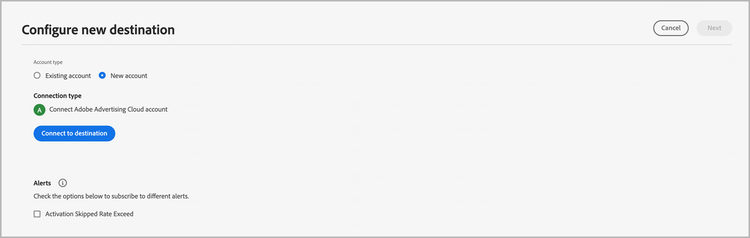
Fill in destination details destination-details
To configure details for the destination, fill in the required and optional fields below. An asterisk next to a field in the UI indicates that the field is required.
- Name: A name by which you will recognize this destination in the future.
- Description: A description that will help you identify this destination in the future.
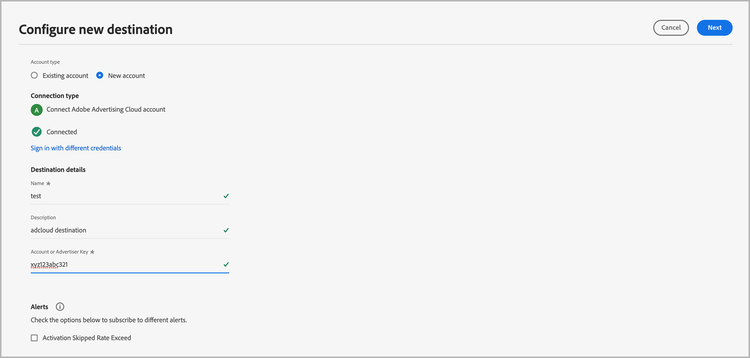
Enable alerts enable-alerts
You can enable alerts to receive notifications on the status of the dataflow to your destination. Select an alert from the list to subscribe to receive notifications on the status of your dataflow. For more information on alerts, see the guide on subscribing to destinations alerts using the UI.
When you are finished providing details for your destination connection, select Next.
Activate audiences to this destination activate
- To activate data, you need the View Destinations, Activate Destinations, View Profiles, and View Segments access control permissions. Read the access control overview or contact your product administrator to obtain the required permissions.
- To export identities, you need the View Identity Graph access control permission.
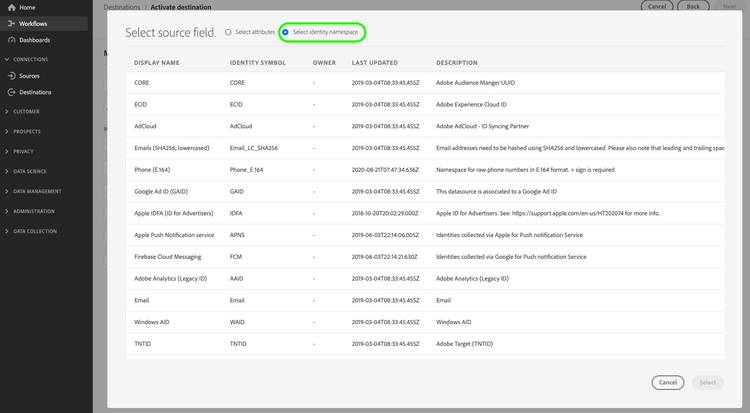
Read Activate profiles and audiences to streaming audience export destinations for instructions on activating audiences to this destination.
Map attributes and identities map
The identity mappings for this destination are partially preconfigured. Review the preconfigured mappings below and add any optional identities you want to include.
Preconfigured mappings preconfigured-mappings
The following identity mappings are preconfigured and automatically populated during the audience activation workflow:
ECID(Experience Cloud ID)adcloud(Adobe Advertising third-party cookie)
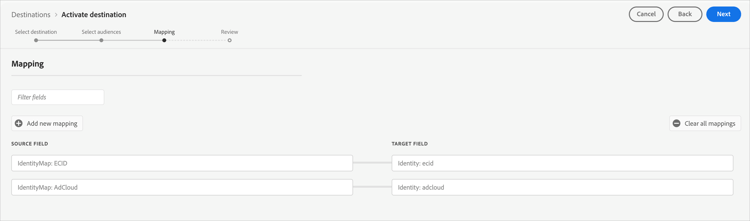
These mappings are grayed out and read-only. You do not need to configure anything in this step. You can optionally add the following mappings:
email_lc_sha256(Hashed Email)- IDFA (Apple iOS device ID)
- GAID (Android device ID)
Select Next to continue.
For instructions, see Map attributes and identities.
Validate data export exported-data
To verify that the audience data was shared with Adobe Advertising, check the following:
-
The data flow in your Real-Time CDP destination is successful.
-
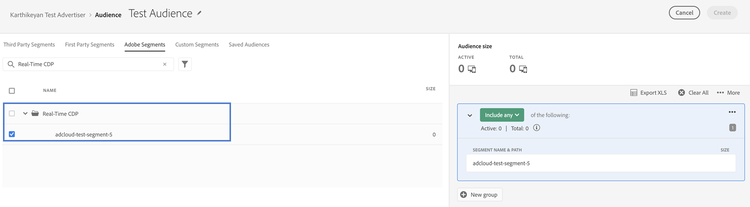
In DSP, the audience is available when you create or edit an audience from Audiences > All Audiences or from within the Audience Targeting section of placement settings. The audience should be visible in the Adobe Segments tab under the Real-Time CDP folder.
Data usage and governance data-usage-governance
All Adobe Experience Platform destinations are compliant with data usage policies when handling your data. For detailed information about how Adobe Experience Platform enforces data governance, see the Data Governance overview.