[AEM Forms]{class="badge positive" title="Applies to AEM Forms."}
Integrate Associate UI in Your Application
This article explains how to integrate the Associate UI with your application, enabling customer-facing professionals such as field associates and service representatives to generate personalized Interactive Communications in real-time on Publish instances.
Prerequisites
Before integrating the Associate UI with your application, ensure you have:
- Interactive Communication created and published
- Browser with popup support enabled
- Associate users must be part of the forms-associates group
- Authentication configured using any authentication mechanism supported by AEM (for example, SAML 2.0, OAuth, or custom authentication handlers)
- This article demonstrates authentication configuration using SAML 2.0 with Microsoft Entra ID (Azure AD) as the Identity Provider.
- For Associate UI, additional SAML configurations are required beyond the standard setup explained in the SAML 2.0 authentication article. See the Additional SAML configurations for Associate UI section for details.
Additional SAML configurations for Associate UI
When configuring SAML 2.0 authentication for the Associate UI, you must apply the following specific settings in your OSGi configuration files.
SAML Authentication Handler
The SAML Authentication Handler is an OSGi factory configuration that allows multiple SAML configurations for different resource trees. This enables multi-site AEM deployments and allows you to add Associate UI resources to your existing SAML setup.
Create the file com.adobe.granite.auth.saml.SamlAuthenticationHandler~saml.cfg.json in ui.config/src/main/content/jcr_root/apps/<project-name>/osgiconfig/config.publish:
  {
    "path": ["/libs/fd/associate"],
    "serviceProviderEntityId": "https://publish-p{program-id}-e{env-id}.adobeaemcloud.com",
    "assertionConsumerServiceURL": "https://publish-p{program-id}-e{env-id}.adobeaemcloud.com/libs/fd/associate/saml_login"
    "idpUrl": "https://login.microsoftonline.com/{azure-tenant-id}/saml2",
    "idpCertAlias": "{your-certificate-alias}",
    "idpIdentifier": "https://sts.windows.net/{azure-tenant-id}/",
    "userIDAttribute": "http://schemas.xmlsoap.org/ws/2005/05/identity/claims/name",
    "createUser": true,
    "userIntermediatePath": "saml",
    "synchronizeAttributes": [
      "http://schemas.xmlsoap.org/ws/2005/05/identity/claims/givenname=profile/givenName",
      "http://schemas.xmlsoap.org/ws/2005/05/identity/claims/surname=profile/familyName",
      "http://schemas.xmlsoap.org/ws/2005/05/identity/claims/emailaddress=profile/email"
      ],
      "addGroupMemberships": true,
      "defaultGroups": ["forms-associates"],
      "defaultRedirectUrl": "/libs/fd/associate/ui.html",
      "idpHttpRedirect": false,
      "service.ranking": 5002
  }
path/libs/fd/associate for Associate UIdefaultGroupsforms-associates to automatically assign users to the required groupdefaultRedirectUrlidpHttpRedirectfalse for SP-initiated flowidpCertAliasSling Authenticator
The Sling Authenticator enforces authentication for accessing Associate UI resources on Publish.
Update the file org.apache.sling.engine.impl.auth.SlingAuthenticator~saml.cfg.json in ui.config/src/main/content/jcr_root/apps/<project-name>/osgiconfig/config.publish:
{
  "sling.auth.requirements": ["+/libs/fd/associate/ui.html"],
  "sling.auth.anonymous": false
}
Dispatcher Filter
Add the following rules to ensure that Interactive Communications APIs and Associate UI function correctly on the Publish instance.
If not already present, add the following rules to your dispatcher/src/conf.dispatcher.d/filters/filters.any file:
  # Allow Interactive Communications APIs and Associate UI
  /XXXX { /type "allow" /method '(GET|OPTIONS)' /url "/adobe/communications" }
  /XXXX { /type "allow" /method '(GET|POST|OPTIONS)' /url "/adobe/communications/*" }
  /XXXX { /type "allow" /method "GET" /url "/content/dam/fd:fonts/*" }
  /XXXX { /type "allow" /method '(GET|OPTIONS)' /url "/libs/fd/associate/*" }
XXXX with the appropriate numerical sequence used in your existing filters.any file.Invoking Associate UI on Publish instance
This section walks you through launching the Associate UI from your own application. Follow these steps to get started quickly—beginning with a ready-to-use sample HTML page, then configuring it for your environment.
Step 1: Start with the Sample HTML Page
To quickly test and understand how the Associate UI integration works, use the following sample HTML page. Copy this code into an HTML file and open it in your browser.
The HTML sample provides a simple form interface where you can enter your Interactive Communication details and launch the Associate UI with a single click.
<!DOCTYPE html>
<html>
<head>
  <title>Associate UI Integration</title>
  <style>
    body {
      font-family: sans-serif;
      max-width: 600px;
      margin: 50px auto;
      padding: 20px;
    }
    .form-group {
      margin: 20px 0;
    }
    label {
      display: block;
      margin-bottom: 5px;
      font-weight: bold;
    }
    input, textarea {
      width: 100%;
      padding: 8px;
      border: 1px solid #ccc;
      border-radius: 4px;
      box-sizing: border-box;
    }
    textarea {
      height: 80px;
      font-family: monospace;
    }
    button {
      padding: 10px 20px;
      margin: 5px;
      cursor: pointer;
      border-radius: 4px;
    }
    .btn-primary {
      background: #007bff;
      color: white;
      border: none;
    }
    .btn-primary:hover {
      background: #0056b3;
    }
    .error {
      color: red;
      font-size: 12px;
      display: none;
    }
  </style>
</head>
<body>
  <h1>Launch Associate UI</h1>

  <form id="form">
    <div class="form-group">
      <label>IC ID *</label>
      <input type="text" id="icId" placeholder="Enter Interactive Communication ID" required>
    </div>

    <div class="form-group">
      <label>Prefill Service</label>
      <input type="text" id="serviceName" placeholder="e.g., CustomerDataService">
    </div>

    <div class="form-group">
      <label>Service Parameters (JSON)</label>
      <textarea id="serviceParams" placeholder='{"customerId": "12345"}'>{}</textarea>
      <span id="paramsError" class="error">Invalid JSON format</span>
    </div>

    <div class="form-group">
      <label>Options (JSON)</label>
      <textarea id="options" placeholder='{"mode": "edit", "locale": "en_US"}'>{}</textarea>
      <span id="optionsError" class="error">Invalid JSON format</span>
    </div>

    <button type="button" onclick="reset()">Reset</button>
    <button type="button" class="btn-primary" onclick="launch()">Launch Associate UI</button>
  </form>

  <script>
    // Replace with your AEM Publish instance URL
    const AEM_URL = 'https://publish-p{program-id}-e{env-id}.adobeaemcloud.com/libs/fd/associate/ui.html';

    function validateJSON(str, errorId) {
      const err = document.getElementById(errorId);
      try {
        const obj = JSON.parse(str || '{}');
        err.style.display = 'none';
        return obj;
      } catch (e) {
        err.style.display = 'block';
        return null;
      }
    }

    function launch() {
      const icId = document.getElementById('icId').value.trim();
      if (!icId) {
        alert('IC ID is required');
        return;
      }

      const params = validateJSON(document.getElementById('serviceParams').value, 'paramsError');
      const opts = validateJSON(document.getElementById('options').value, 'optionsError');

      if (!params || !opts) {
        alert('Please fix JSON errors before launching');
        return;
      }

      const data = {
        id: icId,
        prefill: {
          serviceName: document.getElementById('serviceName').value.trim(),
          serviceParams: params
        },
        options: opts
      };

      const win = window.open(AEM_URL, '_blank');
      if (!win) {
        alert('Pop-up blocked. Please enable pop-ups for this site.');
        return;
      }

      const handler = (e) => {
        if (e.data && e.data.type === 'READY' && e.data.source === 'APP') {
          win.postMessage({ type: 'INIT', source: 'PORTAL', data }, '*');
          window.removeEventListener('message', handler);
        }
      };

      window.addEventListener('message', handler);

      // Fallback timeout in case READY message is missed
      setTimeout(() => {
        if (win && !win.closed) {
          win.postMessage({ type: 'INIT', source: 'PORTAL', data }, '*');
          window.removeEventListener('message', handler);
        }
      }, 1000);
    }

    function reset() {
      document.getElementById('form').reset();
      document.getElementById('serviceParams').value = '{}';
      document.getElementById('options').value = '{}';
      document.getElementById('paramsError').style.display = 'none';
      document.getElementById('optionsError').style.display = 'none';
    }
  </script>
</body>
</html>
Step 2: Configure Your Publish Instance URL
Before you can launch the Associate UI, you need to point the sample to your AEM Forms Cloud Service Publish instance.
In the HTML sample above, locate the following line in the <script> section:
const AEM_URL = 'https://publish-p{program-id}-e{env-id}.adobeaemcloud.com/libs/fd/associate/ui.html';
Replace the placeholder values with your actual environment details:
{program-id}: Your AEM Cloud Service program ID{env-id}: Your environment ID
For example, if your program ID is 12345 and environment ID is 67890, the URL becomes:
const AEM_URL = 'https://publish-p12345`-e67890.adobeaemcloud.com/libs/fd/associate/ui.html';
postMessage API.Step 3: Understand the JavaScript Integration Function
The sample HTML uses the following JavaScript function to launch the Associate UI. This function validates the IC ID, constructs the data payload, opens the Associate UI in a new browser window, and sends the data using the browser’s postMessage API.
function launchAssociateUI(icId, prefillService, prefillParams, options) {
  if (!icId) {
    console.error('IC ID required');
    return;
  }

  const data = {
    id: icId,
    prefill: {
      serviceName: prefillService || '',
      serviceParams: prefillParams || {}
    },
    options: options || {}
  };

  const AEM_URL = 'https://your-aem.adobeaemcloud.com/libs/fd/associate/ui.html';
  const win = window.open(AEM_URL, '_blank');

  if (!win) {
    alert('Please enable pop-ups for this site');
    return;
  }

  const readyHandler = (event) => {
    if (event.data && event.data.type === 'READY' && event.data.source === 'APP') {
      win.postMessage({ type: 'INIT', source: 'PORTAL', data: data }, '*');
      window.removeEventListener('message', readyHandler);
    }
  };

  window.addEventListener('message', readyHandler);

  // Fallback timeout in case READY message is missed
  setTimeout(() => {
    if (win && !win.closed) {
      win.postMessage({ type: 'INIT', source: 'PORTAL', data: data }, '*');
      window.removeEventListener('message', readyHandler);
    }
  }, 1000);
}
The function accepts four parameters: the IC ID (required), the prefill service name, prefill service parameters, and additional options. These parameters are structured into the data payload as described below.
Step 4: Understand the Data Payload Structure
Payload Format:
const data = {
  id: "your-ic-id",              // Required: Interactive Communication ID
  prefill: {                      // Optional: Data to prefill the IC
    serviceName: "YourService",
    serviceParams: { key: "value" }
  },
  options: {}                     // Optional: Additional configuration options
};
Payload Components:
idprefillprefill.serviceNameprefill.serviceParamsoptionsData Payload Examples
Minimal Payload (IC ID Only)
Use this when no prefill data is required:
{
  "id": "12345",
  "prefill": {
    "serviceName": "",
    "serviceParams": {}
  },
  "options": {}
}
With Prefill Data
Use this to dynamically populate the IC with customer data:
{
  "id": "12345",
  "prefill": {
    "serviceName": "IC_FDM",
    "serviceParams": {
      "customerId": "101",
      "accountNumber": "ACC-98765"
    }
  },
  "options": {}
}
With PDF Rendering Options
Use this to specify additional rendering options:
{
  "id": "12345",
  "prefill": {
    "serviceName": "IC_FDM",
    "serviceParams": {
      "customerId": "101",
      "accountNumber": "ACC-98765"
    }
  },
  "options": {
      "locale": "en_US",
      "includeAttachments": "true",
      "webOptimized": "false",
      "embedFonts": "false",
      "makeAccessible": "false"
  }
}
Step 5: Enter the IC ID and Launch the Associate UI
Now you’re ready to launch the Associate UI using the sample HTML page:
-
Enter the IC ID: In the IC ID field, enter the identifier of your published Interactive Communication. This is the only required field.
-
Configure Prefill Service: If you want to prefill the IC with dynamic data, enter the Form Data Model service name in the Prefill Service field. For example, use
FdmTestDatafor sample data.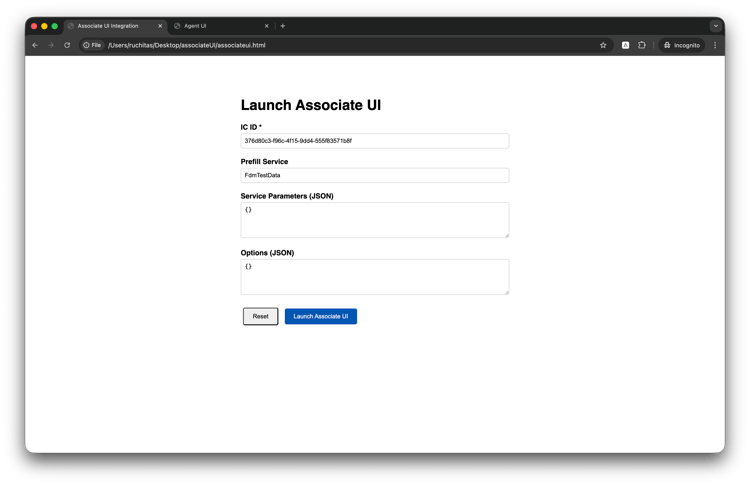
-
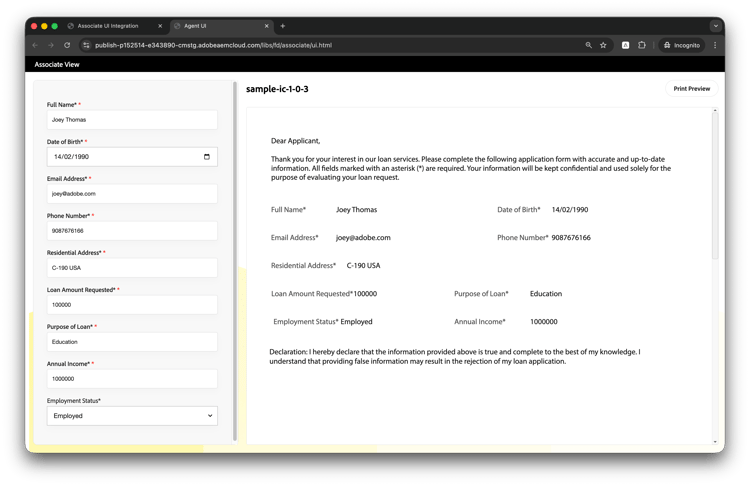
Click Launch Associate UI: Click the Launch Associate UI button. A new browser window opens with the Associate UI, pre-loaded with your Interactive Communication.
Enter the data, and the Associate UI will appear as shown below:
Troubleshooting
Pop-up Blocked
Problem: The Associate UI window doesn’t open.
Solution:
- Enable pop-ups for your domain in browser settings
- Ensure
window.open()is called from a user action (e.g., button click) - Test with different browsers to identify blocking behavior
Data Not Loading
Problem: The Interactive Communication opens but data doesn’t populate.
Solution:
- Verify the IC ID is correct and the IC is published
- Check browser console for JavaScript errors
- Ensure the
postMessagestructure matches the specification exactly - Verify the Form Data Model service is configured correctly
Authentication Error
Problem: User receives an authentication error when the Associate UI opens.
Solution:
- Configure SAML 2.0 authentication on the Publish instance
- Verify the user is part of the forms-associates group
- Check session timeout settings
CORS Errors
Problem: Cross-Origin Resource Sharing errors in console.
Solution:
- For development: Use
'*'as target origin inpostMessage - For production: Specify the exact origin URL of your application
- Ensure the Publish instance CORS settings allow your application domain