Enable and configure Associate UI for Interactive Communications
This article describes how to enable the Associate UI for an Interactive Communication (IC) and optionally configure an AEM workflow for submissions. Authors perform these steps in Interactive Communication Settings.
For an overview of the Associate UI and user roles, see Associate UI in Interactive Communication Editor.
Prerequisites
Before enabling and configuring the Associate UI, ensure you have:
- Author access to the Interactive Communication editor.
- An Interactive Communication created with the required layout and data bindings.
- Associate users added to the forms-associates group (required for associates to access the Associate UI).
- Authors added to the forms-associates group (required for authors to access the Associate UI).
When you are ready to integrate the Associate UI with your application and invoke it on the Publish instance, you will also need a browser with popup support enabled and the IC published. See Integrate Associate UI in Your Application for full integration prerequisites.
Enable Associate View (Associate UI)
Enable the Associate UI at the document level so the Interactive Communications can be used by associates.
-
Open your Interactive Communication in the editor.
-
From the top action bar or document options, open Interactive Communication Settings (or Settings).
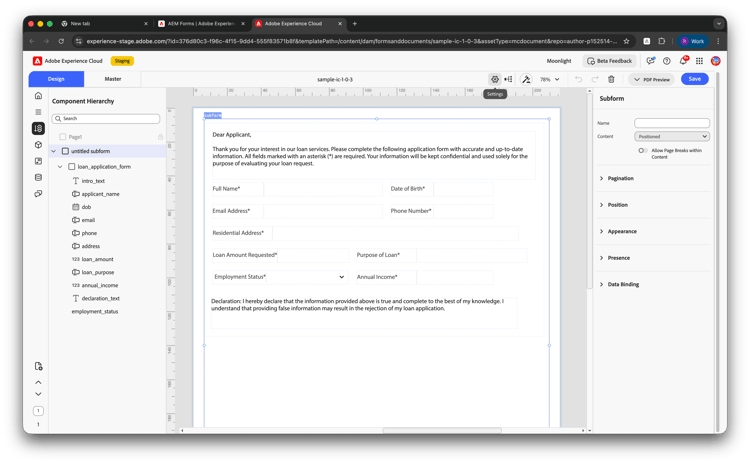
-
In the left panel, ensure Associate Properties is selected.
-
On the right, check Enable Associate View Editing.
-
Click Apply Changes, then save the document.
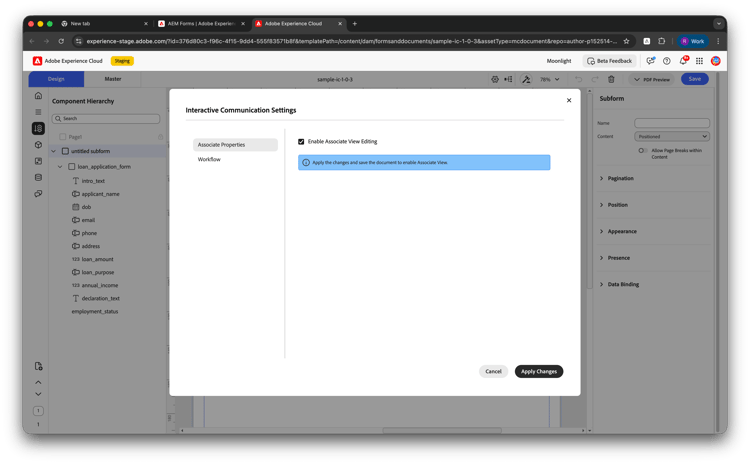
A message may remind you to apply changes and save the document to enable Associate View. After saving, the IC is available for associate-driven use.
Allow Associate UI editing per component
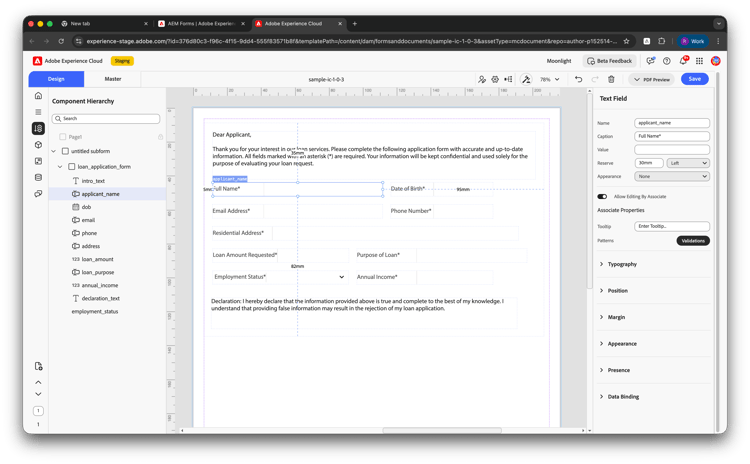
Once Associate View is enabled for the IC, you must turn on Allow Editing By Associate for each component that associates should be able to edit. Components without this setting turned on remain read-only in the Associate UI.
- In the IC editor, select the component (for example, a text field) in the canvas or in the Component Hierarchy.
- In the right-hand Properties panel, expand Associate Properties.
- Turn Allow Editing By Associate On for that component.
- Repeat for every component that associates need to edit, then save the document.
Configure workflow for Associate UI
To run an AEM workflow when users submit or update data from the Associate UI, configure the following:
-
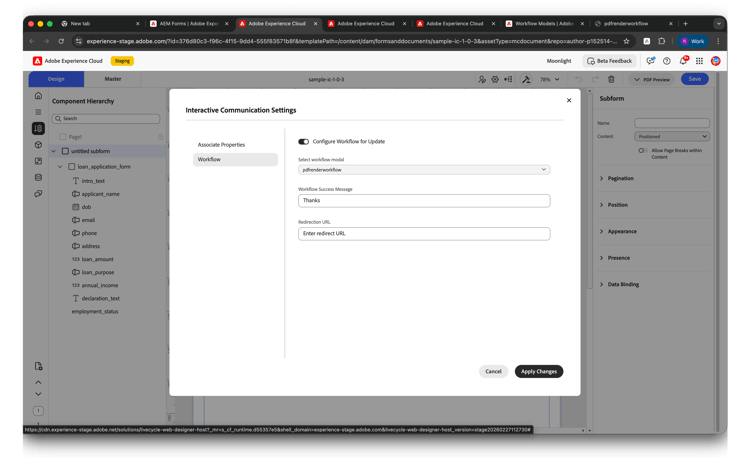
In Interactive Communication Settings, select Workflow in the left panel (under Associate Properties).
-
Turn Configure Workflow for Update On.
-
In Select workflow model, choose the AEM workflow model to run (for example,
conversionWorkflowor a path such as/var/workflow/models/submit-workflow-1). -
Optionally set Workflow Success Message (shown to the user after the workflow completes).
-
Optionally set Redirection URL to send the user to a specific page after submission.
-
Click Apply Changes and save the document.
When you enable a workflow, it runs whenever users submit from the Associate UI. For how submission and workflow work—where they run, who uses which instance, and key considerations—see Submission workflow for Associate UI. That article also includes an example of a workflow that generates PDF from IC submissions.
Complete the Associate UI setup
After enabling Associate View and optionally configuring workflow:
- Enable editable fields: In the required sections of the IC, enable the fields that associates are allowed to edit. Set validations and mandatory/read-only behavior as needed.
- Publish the IC so it is available on the Publish instance for associates.
- Share the published IC link with associates. They authenticate (for example, via Microsoft Entra ID) and open the Associate UI, enter or confirm customer data, and generate the final communication. If you configured a workflow, it runs on submission. For how submission and workflow work, see Submission workflow for Associate UI.
See also
- Associate UI in Interactive Communication Editor
- Integrate Associate UI in Your Application
- Submission workflow for Associate UI — IC Generate PDF Output — how submission and workflow work, plus an example workflow that generates PDF from IC submissions.