Submission workflow for Associate UI
This article explains how submission and workflow work when you enable a workflow for the Associate UI. It then walks through how to configure a submission workflow. The walkthrough uses generating a PDF from the Interactive Communication (IC) payload as an example; you can adapt the steps for other workflow types.
Configure a submission workflow
The following steps show how to create a workflow that runs when users submit from the Associate UI. Here we use rendering the IC to PDF as an example, with the out-of-box IC Render PDF Output step. When a user submits from the Associate UI, the payload is sent to the workflow; this step uses the communicationDom (IC-JSON) from the payload to produce the PDF.
Payload structure
The workflow receives a JSON payload. The communicationDom field holds the IC-JSON used for PDF generation. The IC Render PDF Output step uses it as the template input.
Create the workflow model
-
Basic: Create a workflow model (for example, add a workflow as pdfrenderworkflow).
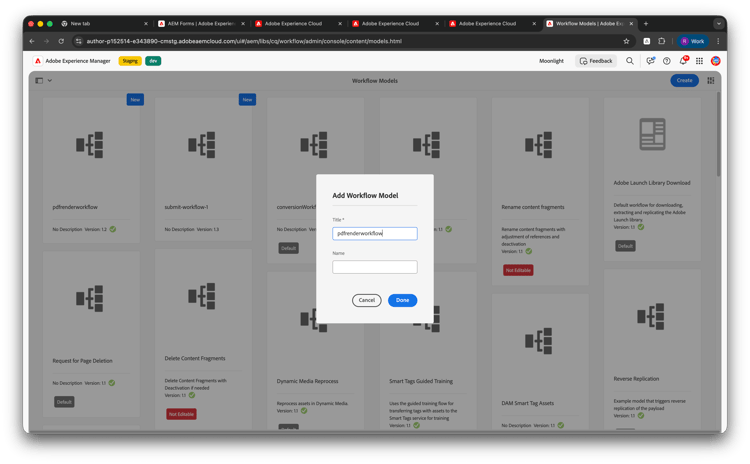
-
Variables: Add variables that match the payload and step: communicationDom (JSON), auditMetadata (JSON), outputDocument (Document).
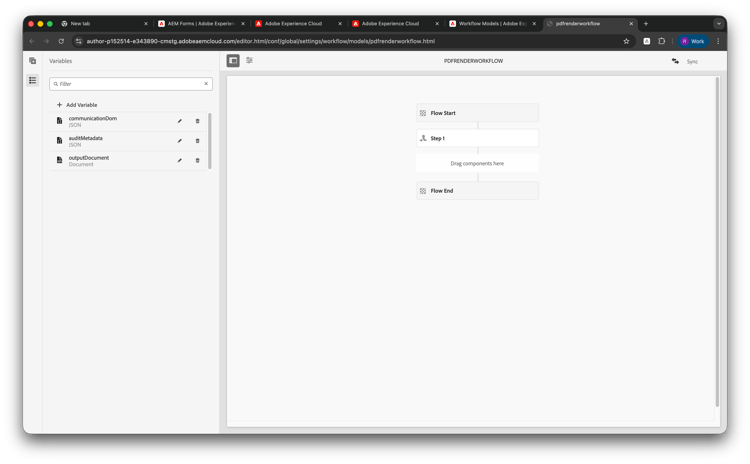
-
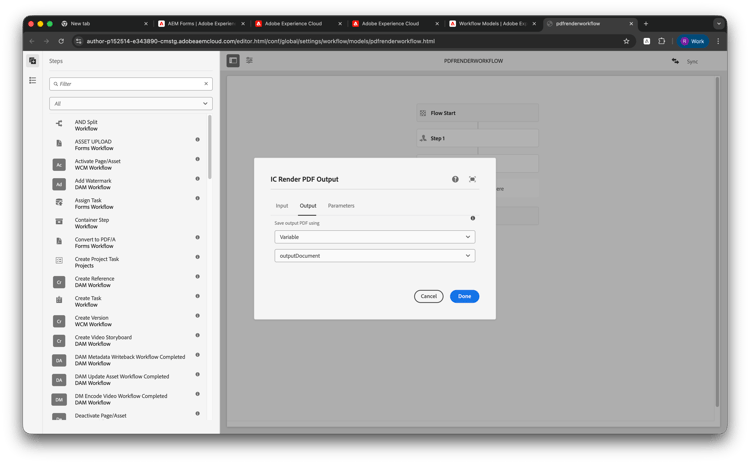
Step: Add the IC Render PDF Output step.
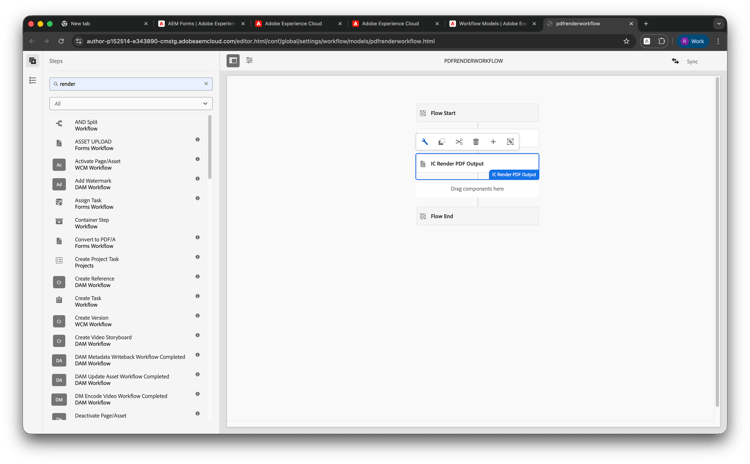
-
In its Input tab, set Select template (JsonObject) to Variable → communicationDom. Save the step and the model.
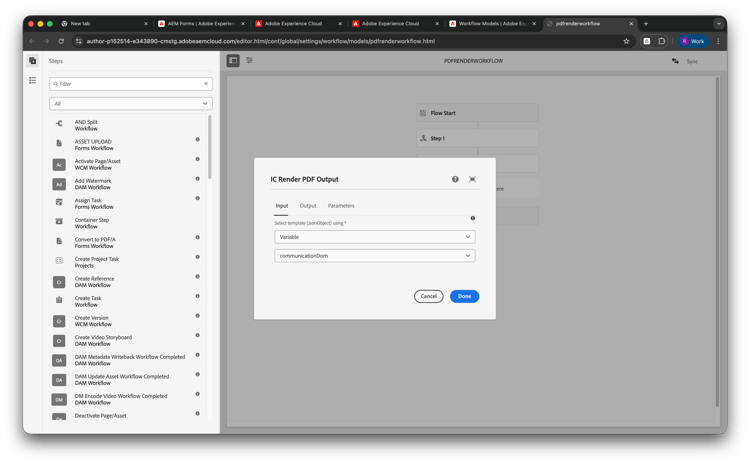
-
In its Output tab, set Select template (JsonObject) to Variable → communicationDom. Save the step and the model.
Wire the workflow to Associate UI
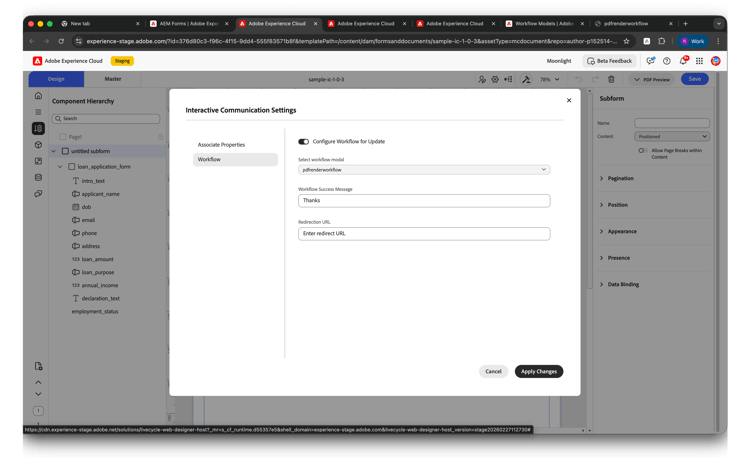
In Enable and configure Associate UI, enable Associate View and in Workflow set Configure Workflow for Update to On and select this workflow model. Publish the IC and integrate the Associate UI so submissions trigger this workflow.
When Externalize workflow data storage is enabled, configure the externaliser so workflow data is stored in your external storage (for example, Azure). See Externalize workflow data.