Create production programs create-production-program
A production program is for users familiar with Adobe Experience Manager (AEM) and Cloud Manager, ready to write, build, and test code, with the goal of deploying it to handle live traffic.
Learn more about program types in the document Understanding Program and Program Types.
Create a production program create
Depending on your organization’s entitlements, you may see additional production program options when adding your program.
See Additional production program options.
To create a production program:
-
Log into Cloud Manager at my.cloudmanager.adobe.com and select the appropriate organization.
-
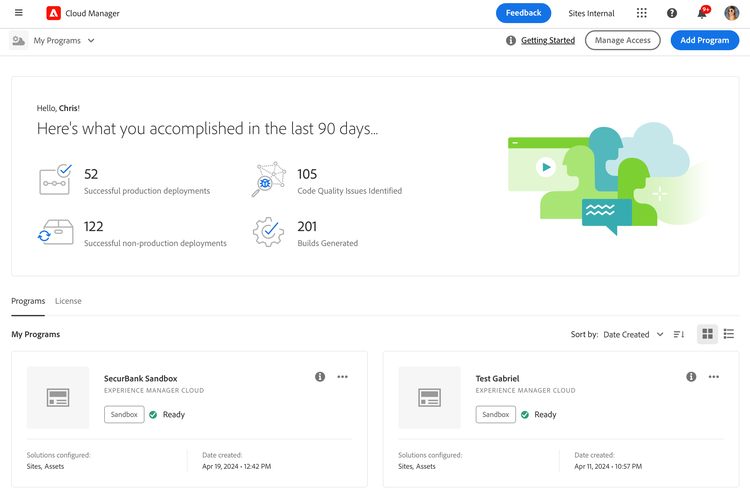
On the My Programs console, near the upper-right corner, click Add Program.
-
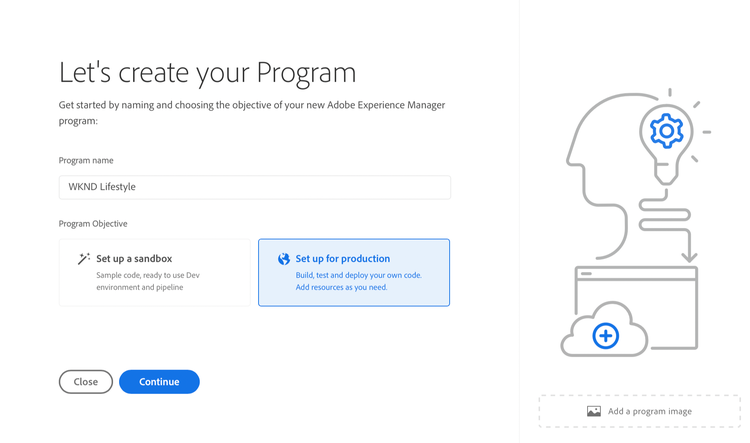
In the Let’s create your Program wizard, in the Program name text field, type the name you want for the program.
-
Under Program Objective, select

-
(Optional) In the lower-right corner of the wizard dialog box, do either one of the following:
- Drag and drop an image file onto the

- Click
- Click

- Drag and drop an image file onto the
-
Click Continue.
-
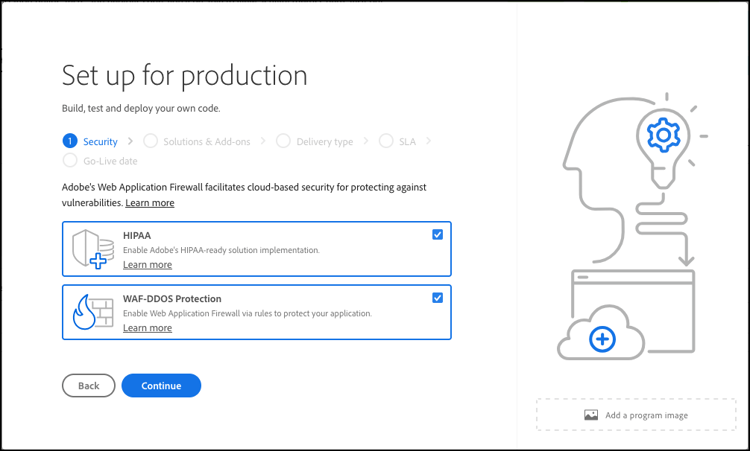
On the Security tab, select the security options you want to use. See Security.
-
Click Continue.
-
In the Solutions & Add-ons list box, select one or more solutions to include in the program.
-
If you are not sure if you need one or more programs for the various solutions you have available, select the one most of interest to you. You can activate additional solutions by editing the program later. See the Introduction to Production Programs document for more program setup recommendations.
-
It is required that you select at least one solution for program creation. For example, you can choose to select Edge Delivery Services for a fully managed CDN solution that optimizes digital experiences. See About using Edge Delivery Services to deliver your Cloud Manager project.
-
Click

-
<div class="extension note">
<div>NOTE</div>
<div>
<p>If your program uses Edge Delivery Services for delivery, a publish tier may not be required. With the flexible publish tier feature (Beta), you can configure whether to provision a publish tier on the Solutions & Add-ons tab. See <a href="https://experienceleague.adobe.com/docs/experience-manager-cloud-service/content/implementing/using-cloud-manager/programs/creating-production-programs.html?lang=en#flexible-publish-tier">Flexible Publish Tier (Beta)</a>.</p>
</div>
</div>

-
Click Continue.
-
In the Delivery type tab, note that it is pre-filled based on the solutions and add-ons that were chosen in the previous step. If you select AEM Publish, you can later provision it on demand.
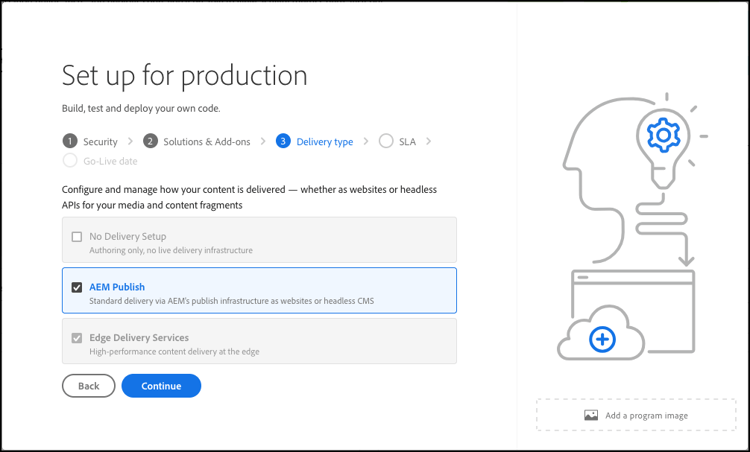
-
Click Continue.
-
If you have the necessary entitlements, the SLA tab is shown as the second or third tab in the
Set up for productiondialog box. See SLA.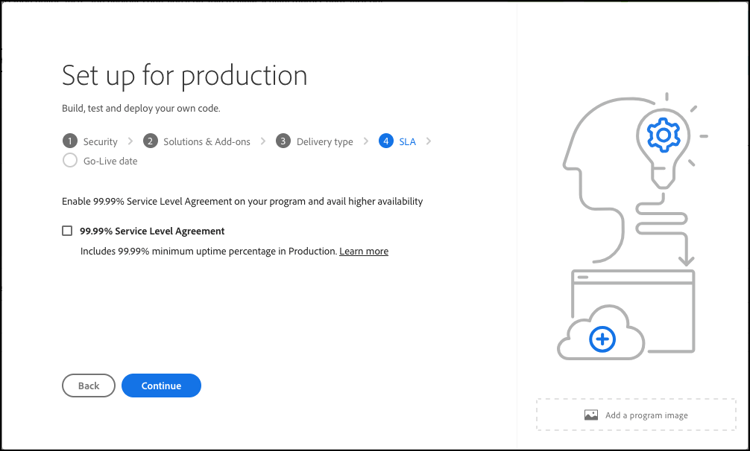
Sites and Forms offer a standard 99.9% service level agreement (SLA).
-
Click Continue.
-
On the Go-Live date tab, enter the date that you plan to have your production program Go Live.
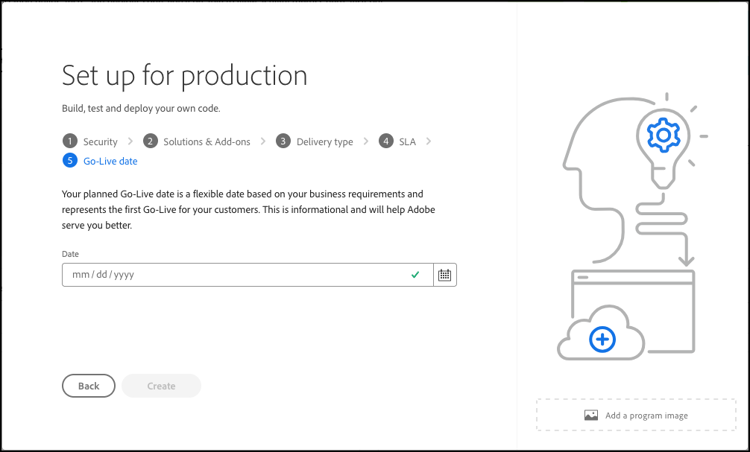
- You can edit this date at any time.
- The date serves informational purposes and triggers the Go Live widget on the Program Overview page. This functionality provides timely in-product links to AEM as a Cloud Service best practices to support a smooth Go Live experience.
-
Click Create. Cloud Manager creates your program and displays it on the landing page for selection.
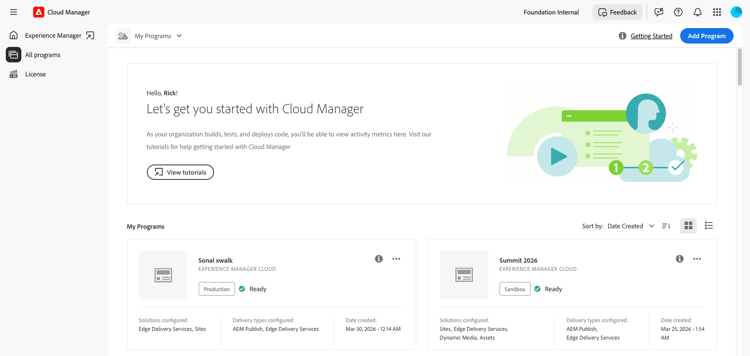
Additional production program options options
Depending on what entitlements are available to your organization, you may have the following additional options available to you when you create a production program.
Security security
If you have the necessary entitlements, the Security tab is shown as the first tab in the Set up for production dialog box.
The Security tab provides the options to activate HIPAA, or WAF-DDOS Protection, or both, for your production program.
Adobe HIPAA Compliant and WAF-DDOS (Web Application Firewall - Distributed Denial of Service) facilitates cloud-based security as part of a multi-layered approach for protecting against vulnerabilities.
-
HIPAA - This option enables Adobe’s HIPAA-ready solution implementation.
- Learn more about HIPAA readiness for Adobe Experience Manager as a Cloud Serviceand Adobe’s HIPAA ready solution implementation.
- HIPAA cannot be enabled or disabled after program creation.
-
WAF-DDOS Protection - This option enables the Web Application Firewall by way of rules to protect your application.
- Once activated, WAF-DDOS protection can then be configured by setting up a non-production pipeline.
- See Traffic Filter Rules including WAF Rules to learn how to manage traffic filter rules in your repository so they are deployed properly.
Flexible Publish Tier (Beta) flexible-publish-tier
If your organization has the flexible publish tier feature enabled, you can configure whether a publish tier is required for your program’s environments. This option appears in the Delivery type tab of the Set up for production dialog box (during program creation).
It also appears in the Edit Program dialog box (when you edit a program).
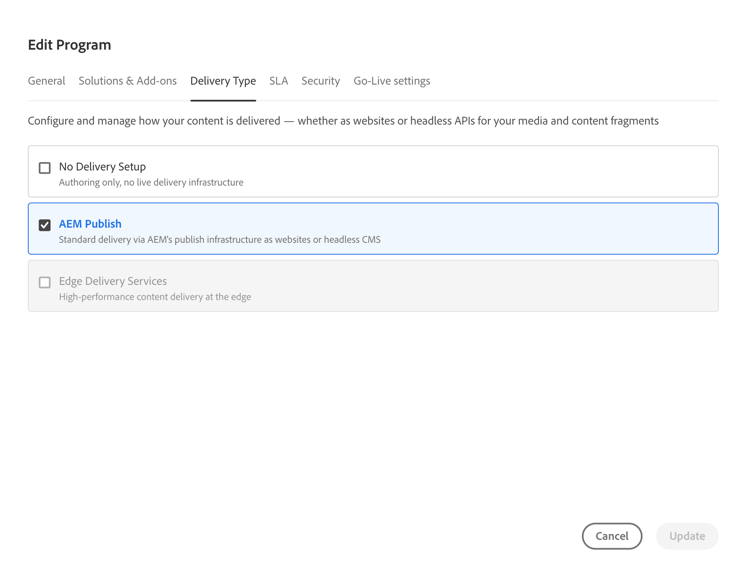
Not all architectures require a publish tier. The following table shows which architectures require a publish tier and which do not:
By enabling the publish tier only when it is needed, teams can do the following:
- Provision environments faster.
- Simplify infrastructure.
- Reduce unnecessary components.
How it works
When the flexible publish tier feature is enabled for your organization:
- All new environments in the program are provisioned with the Author tier only by default. An informational message displayed in the user interface confirms this behavior.
- If the user selects AEM Publish during the creation of a program, the publish tier is activated and provisioned with new environments.
- The publish tier can also be activated later by editing the program. See Edit programs.
SLA sla
If you have the necessary entitlements, the SLA tab is shown as the second or third tab in the Set up for production dialog box.
Sites and Forms offer a standard 99.9% service level agreement (SLA). The 99.99% Service Level Agreement option guarantees a 99.99% minimum uptime for your production environments, whether for Sites, Forms, Edge Delivery Services, or all three.
99.99% SLA offers benefits including higher availability and lower latency.
For Sites and Forms programs, the 99.99% SLA requires an additional publish region to be applied to the production environment in the program. When the requirements for enabling 99.99% SLA are met, you must run a full stack pipeline to activate it.
For Edge Delivery Services, there is no requirement other than configuring the 99.99% SLA license on the program.
Requirements for 99.99% SLA sla-requirements
In addition to the required entitlements, using the 99.99% SLA for Sites or Forms programs comes with the following additional requirements:
- The organization must have 99.99% SLA and additional publish region entitlements available when applying 99.99% SLA to the program.
- Cloud Manager verifies that an unused additional publish region entitlement is available before applying 99.99% SLA to the program.
- When editing a program, if it already contains a production environment with at least one additional publish region, then Cloud Manager checks only for the availability of a 99.99% SLA entitlement.
- For activation of 99.99% SLA and reporting, the production / stage environment must have been created and at least one additional publish region must have been applied on the production / stage environment.
- If using advanced networking, make sure to check the Adding Multiple Publish Regions to a New Environment document for recommendations so that connectivity is maintained if there is regional failure.
- Your 99.99% SLA program must always include at least one additional publish region. Users are not allowed to delete the last remaining additional publish region from the program.
- Your 99.99% SLA is supported for production programs that have the Sites or Forms solution enabled.
- Run a full stack pipeline to activate or — when editing a program — deactivate the 99.99% SLA.
Access your program accessing
-
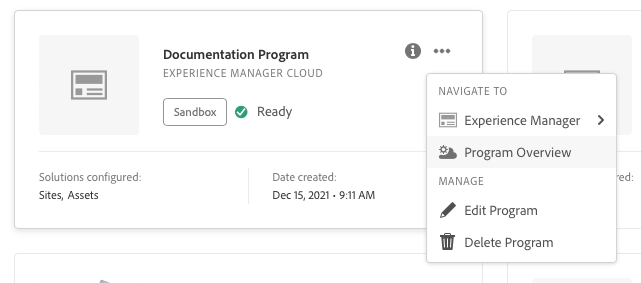
When you see your program card on the landing page, click

-
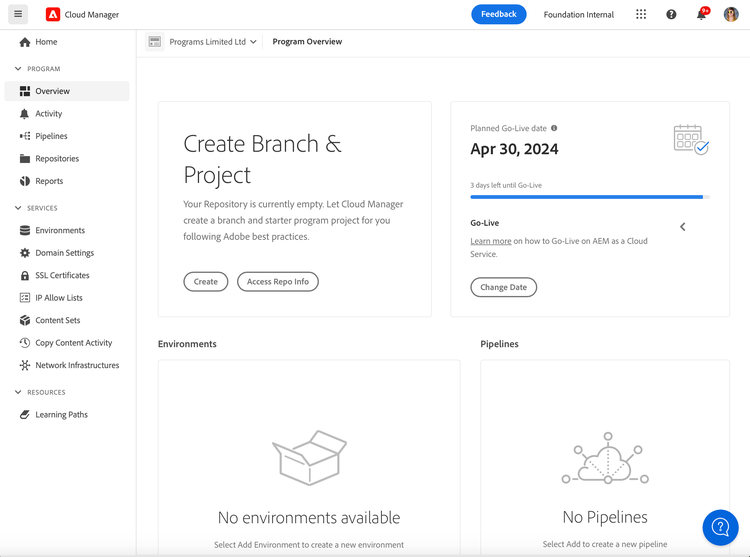
Select Program Overview to navigate to the Cloud Manager’s Overview page.
-
The main call-to-action card on the overview page guides you through creating an environment, a non-production pipeline, and finally a production pipeline.