[AEM Assets]{class="badge positive" title="Applies to AEM Assets)."}
Search Assets in Content Hub search-assets
When you have a large number of assets in your repository, searching for the right asset is time-consuming. The Content Hub search provides you with the capability to look for the approved assets so that you can perform additional actions on them, such as download, share, or create collections. You can utilize various capabilities to narrow down your search results, such as performing text-based search, using filters, performing tags or smart tags-specific search, searching for a particular file format, and so on.
Prerequisites prerequisites
Content Hub users can perform actions mentioned in this article.
What you can search for what-you-can-search
The Content Hub search provides results based on:
-
Matching text: The Content Hub search allows you to search for an asset using its name or description. You can perform keyword-based search, which compares the keyword to the text available in the properties of an asset.
-
Matching context: Content Hub search results list contains proximate results of assets that you get based on the matching context. For example, if you type
coolin the search bar, the assets related towinter,snow,cold surroundings, display in the search list. -
Asset information (title, tags, or smart tags): Content Hub uses smart search algorithm to rank search results accurately and as relevant as possible. Metadata is the collection of all the data available for an asset, but it may not necessarily be contained in that asset. It helps you further categorize assets and is helpful as the amount of digital information grows.
-
Last modified date: The assets that were modified recently appear on the top of search results list. You can also filter the date range as per your requirement.
-
Usage: The commonly used assets appear on the top of the search list.
-
Search history: Click inside the search box without typing a character to get your search history. You can also remove any particular keyword from history. The search history is saved in the cache memory of a web browser, which means, if you access the Content Hub search in a different browser or clear cache memory of the browser, you cannot view the search history anymore.
-
Search while you type: The Content Hub search enhances your search experience by providing autocomplete suggestions as you start typing.
Basic search basic-search
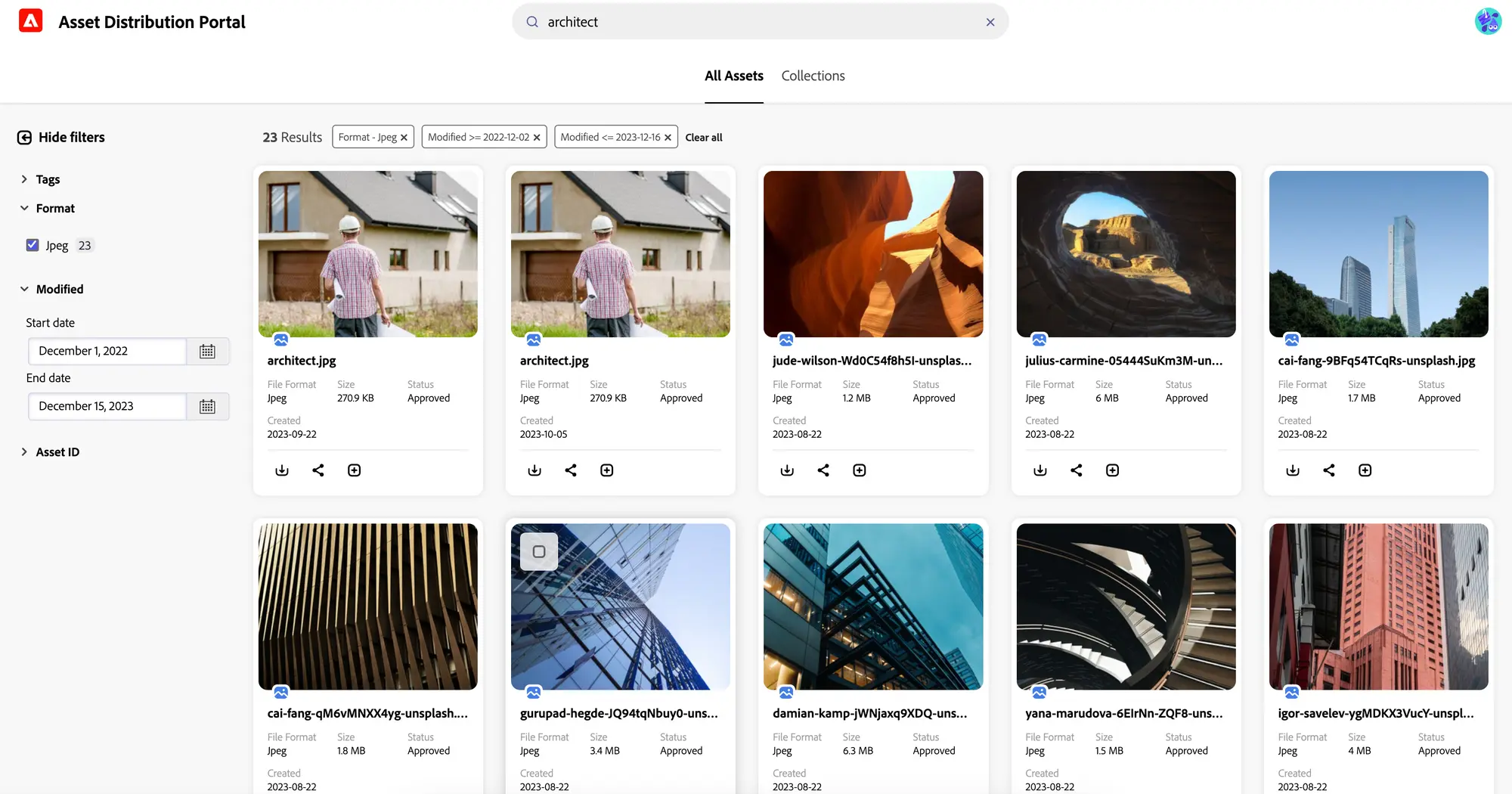
To perform basic search on the Content Hub, navigate to the search bar and specify the keyword that you need to search. Navigate to filters available in the left pane and apply them to narrow down your search results.
For example, search for all the JPEG images with keyword architect in it, which is modified within the last year. To execute this scenario, execute the following steps:
-
Specify
architectas the search keyword. -
Navigate to filters panel > Format > select JPEG.
-
Navigate to Modified > specify the date range.
Narrow your search results using filters narrow-down-search-results
Use the Filters panel to search for assets based on metadata. You can filter search results based on various search predicates. You can select all the appropriate predicates to minimize or narrow down your search results. You can choose more than 10 predicates while filtering your search results. When you select multiple options within a filter, Content Hub displays the assets that match any of the options selected within a filter. However, when you select multiple options across filters, Content Hub only displays the assets that match all options selected across filters to narrow down your search results.
The default filters include file format, approved by, date approved, expired and not expired assets, and expiration date. Administrators can also configure the filters that display in the list of filters. For more information, see Configure Content Hub user interface.
Bulk search bulk-search
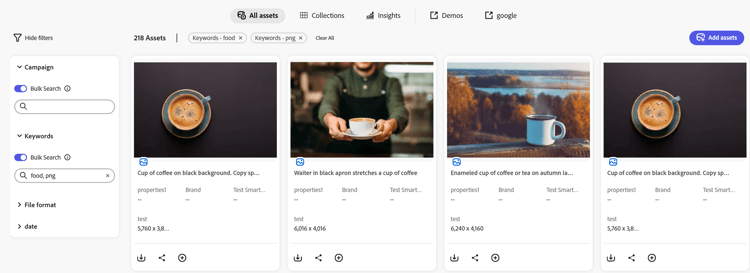
Bulk Search of assets allows you to look up multiple assets simultaneously by entering a list of identifiers (such as names, file formats, colors, tags, and more). Instead of searching assets one by one, Content Hub Bulk Search makes it faster to discover the assets you need. With this capability, you can enter multiple values for any filter property—separated by a delimiter (for example, multiple SKU IDs)—and instantly retrieve all matching assets with a single search.
To search for multiple assets at once, enter multiple values in a single query by separating them with delimiters [ , | \t | \r | \n | \r\n ]. You can also add more delimiters depending upon your use case. See Configure Bulk Search.
To perform Bulk Search in the Content Hub, execute the following steps:
-
Once Bulk Search is configured, you can see Bulk Search toggle on the Content Hub filter properties which you configured. You can enable or disable it as per the requirement.
-
Add a search query containing delimiters that are specified in the configuration. The search query should contain a string accompanied by multiple comma-separated values.
Do more with search do-more-with-search
The Content Hub is not limited to search, instead it allows you to perform additional actions, such as download, share, and add assets to collection, right from the search or preview interface. Select the assets on the search results page to view these options.
Learn more about configuring assets in the Content Hub.
Frequently asked questions faqs-deploy-content-hub
How can I narrow down my search results in AEM Assets Content Hub?
You can narrow down search results in AEM Assets Content Hub by using text-based search, applying various filters (such as file format, approval status, modification date, etc.), searching by tags or smart tags, and using the filters panel. Combining multiple predicates or filter options helps you precisely target the assets you need.
Can I perform a bulk search in AEM Assets Content Hub for multiple assets at once?
Yes, you can perform a Bulk Search in AEM Assets Content Hub by entering multiple values (such as names, file formats, tags) separated by specified delimiters. The Bulk Search feature allows you to quickly find several assets in a single query, making it more efficient than searching assets one by one.
Can administrators customize the filters available in AEM Assets Content Hub search?
Yes, administrators can use the AEM Assets Content Hub Configuration User Interface to configure which filters are available in search interface. While default filters include file format, approval status, expiration date, and more, administrators can tailor these options to fit organizational needs.