Close content performance gaps with data-driven updates
Select to zoom.
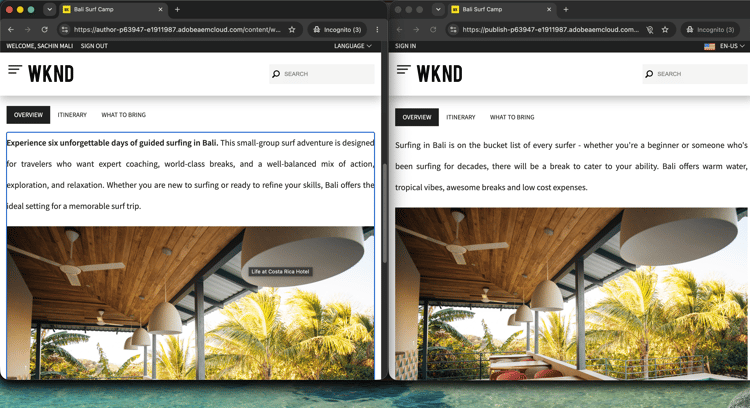
Content performance gaps cost campaigns results, and closing them usually means switching between your analytics tool and your CMS. This walkthrough shows how to do it in a single AI session: surface campaigns with conversion gaps in Customer Journey Analytics, diagnose the cause, inspect the underperforming content in AEM, and apply updates without leaving your conversation.
Each step shows one representative prompt and an example AI response. A More you can accomplish section follows for additional exploration in the same session.
Before you begin
CX Enterprise Coworker covers this entire walkthrough, with no server setup required. Try CX Enterprise Coworker
If you’d rather connect your own AI client directly, connect both MCP servers using the tabs below.
Connect both MCP servers as custom connectors. Add each one separately.
- Go to Settings > Integrations in Claude.ai.
- Select Add custom connector, enter a server URL, and select Connect.
- Sign in with your Adobe ID, then repeat for the second server.
| table 0-row-2 1-row-2 2-row-2 | |
|---|---|
| Server | Endpoint |
| Customer Journey Analytics MCP Server | https://cja-mcp.adobe.io/mcp |
| AEM MCP Server | https://mcp.adobeaemcloud.com/adobe/mcp/aem |
Full setup: Claude.ai Custom Connectors documentation
Connect both MCP servers using ChatGPT Developer Mode (Pro, Plus, Business, Enterprise, or Education plan required). Add each server separately.
- Enable Developer Mode in ChatGPT Settings.
- Go to Settings > Integrations and select Add custom connector > Remote MCP server.
- Enter a server URL, select Connect, and sign in with your Adobe ID.
- Repeat for the second server.
| table 0-row-2 1-row-2 2-row-2 | |
|---|---|
| Server | Endpoint |
| Customer Journey Analytics MCP Server | https://cja-mcp.adobe.io/mcp |
| AEM MCP Server | https://mcp.adobeaemcloud.com/adobe/mcp/aem |
Full setup: ChatGPT MCP documentation
Using Gemini, Microsoft Copilot, Cursor, Claude Code, or another MCP-compatible environment? Connect to both MCP servers using these endpoints:
| table 0-row-2 1-row-2 2-row-2 | |
|---|---|
| Server | Endpoint |
| Customer Journey Analytics MCP Server | https://cja-mcp.adobe.io/mcp |
| AEM MCP Server | https://mcp.adobeaemcloud.com/adobe/mcp/aem |
Full setup instructions for all supported clients: Connect to your AI client
Step 1: Find campaigns with a conversion gap
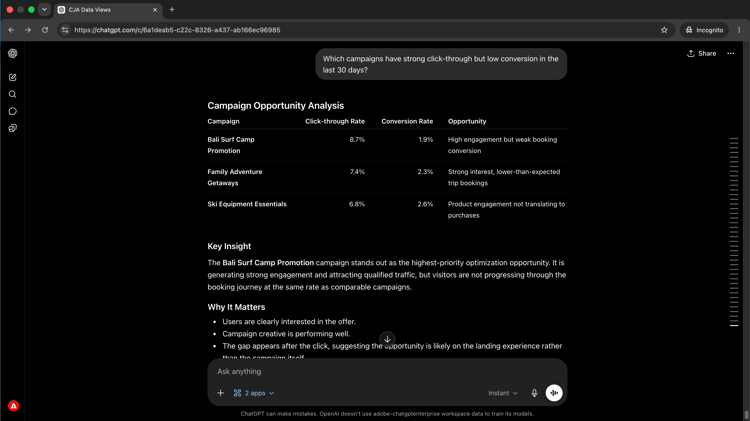
Use CJA to surface campaigns where click-through is strong but conversion rate is low. This pattern (high intent, low completion) typically points to a content or experience problem on the landing page.
Which campaigns have strong click-through but low conversion in the last 30 days?
Select to zoom.
Step 2: Diagnose the root cause
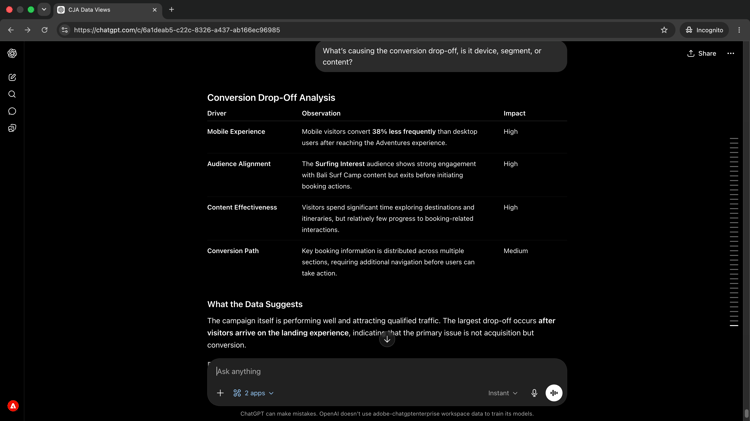
Follow up to understand what is driving the gap. Ask whether the drop-off is concentrated on a specific device type, audience segment, or content interaction.
What's causing the conversion drop-off, is it device, segment, or content?
Select to zoom.
Step 3: Review the content in AEM
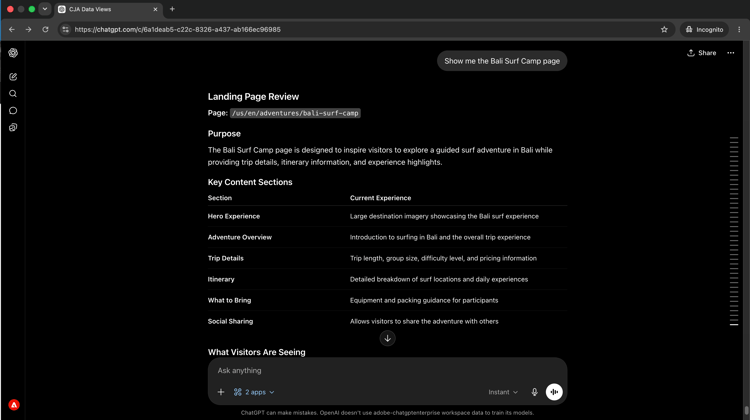
With the underperforming campaign identified, pull the landing page from AEM in the same session. Seeing what the page currently says is the starting point for understanding what to change.
Show me the Bali Surf Camp page.
Select to zoom.
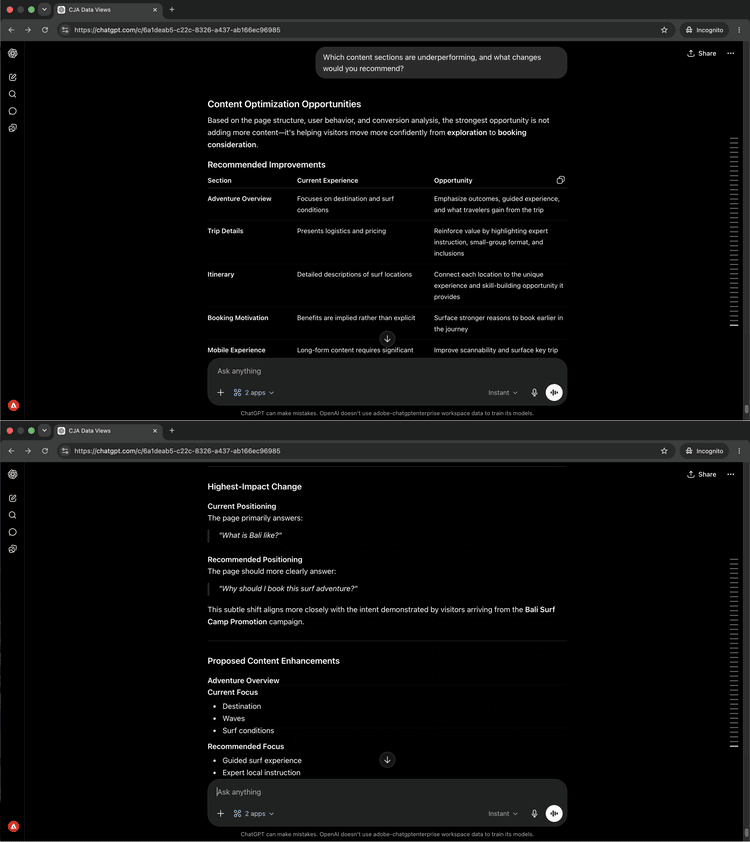
Step 4: Get targeted recommendations
Ask your AI client to connect what the data showed with what is on the page. The AI reasons across both sources to identify which content sections are likely causing the drop-off and what to change.
Which content sections are underperforming, and what changes would you recommend?
Select to zoom.
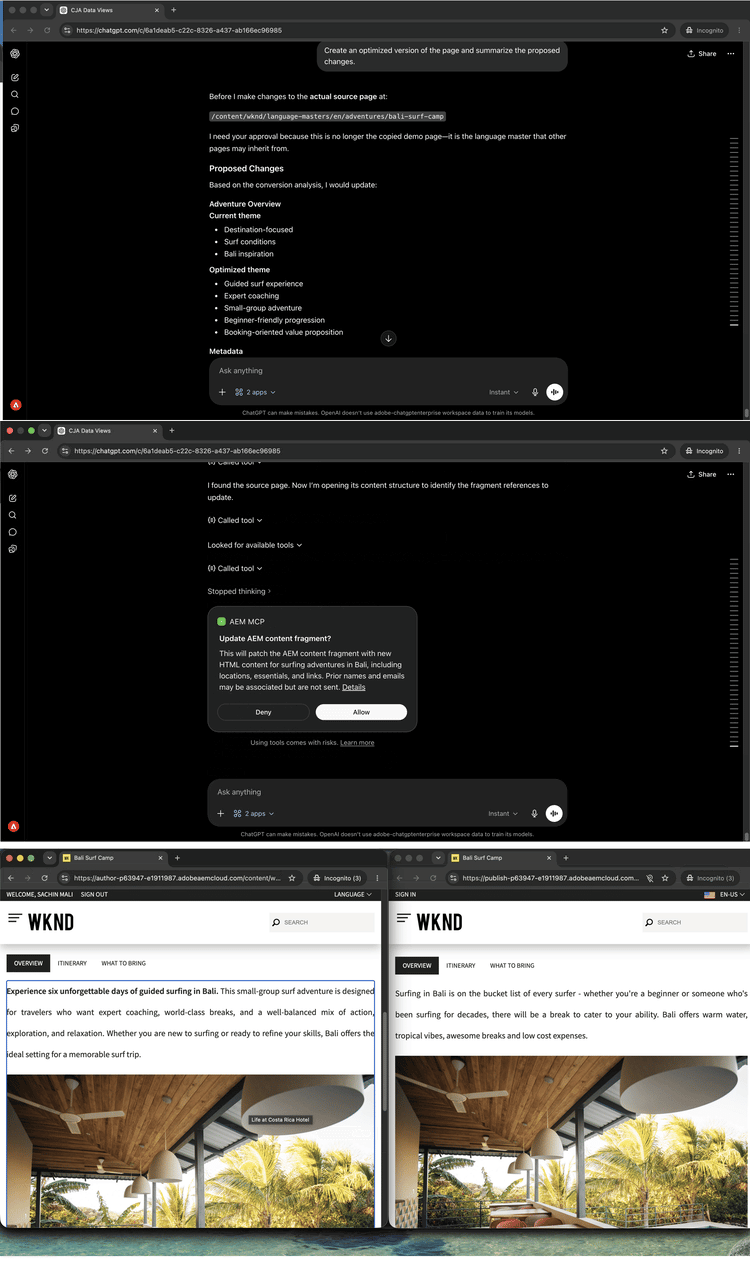
Step 5: Apply and review the changes
Ask your AI client to create an optimized version of the page based on the recommendations and summarize what changed and why.
Create an optimized version of the Bali Surf Camp page and summarize the proposed changes.
Select to zoom.
What you accomplished
You connected Customer Journey Analytics and AEM in a single AI session and moved from campaign data to deployed content changes without switching tools. You identified campaigns with conversion gaps, diagnosed the root cause, inspected the landing page, received targeted recommendations grounded in both data and content, and applied the changes in the same conversation. This shortens the feedback loop between analytics insight and published content, and scales to any number of underperforming pages in the same session.
More you can accomplish
With CJA and AEM connected in the same session, you can cover the full cycle from identifying problems to shipping fixes. Expand a scenario below to see prompts you can try.
High traffic with low engagement signals a content problem, not a traffic problem. These prompts help you surface specific pages and patterns that need attention before a campaign deadline forces the issue.
Prompts
| code language-none |
|---|
|
| code language-none |
|---|
|
| code language-none |
|---|
|
| code language-none |
|---|
|
Once you know what’s underperforming, make targeted changes grounded in what the performance data revealed. These prompts let you update specific sections based on the diagnosis.
Prompts
| code language-none |
|---|
|
| code language-none |
|---|
|
| code language-none |
|---|
|
| code language-none |
|---|
|
Changes made mid-session can pile up quickly. These prompts help you review what is ready, group updates for review, and promote cleanly before a campaign goes live.
Prompts
| code language-none |
|---|
|
| code language-none |
|---|
|
| code language-none |
|---|
|
| code language-none |
|---|
|