Adobe CX Enterprise Coworker for AI Platforms
Use Adobe CX Enterprise Coworker for AI Platforms to get marketing insights in the AI tools you already use. Ask questions in natural language without switching tools. Find the product listed as Adobe CX Enterprise Coworker in each platform.
Find available platforms and their setup instructions in Set up Coworker.
There’s no additional cost to use Coworker in AI platforms. It’s included in your CX Enterprise Coworker license, and usage draws from the same AI credits as other Coworker features. For more information, see Adobe Experience Platform agent jobs and AI credits consumption.
Prerequisites prerequisites
Before you can use Coworker in an AI platform, confirm you have the following.
- Adobe CX Enterprise Coworker provisioned for your organization, and your own access to it in Adobe.
- Adobe Experience Platform and at least one of Adobe Real-Time CDP, Adobe Journey Optimizer, or Adobe Customer Journey Analytics.
- Access to an AI platform listed in Set up Coworker.
Data access and permissions data-access-and-permissions
Coworker in AI platforms reflects the same data and access level tied to your Adobe identity. What you can query and see matches what you’re already entitled to in Experience Platform and its associated solutions. Coworker inherits those permissions, so no separate permissions setup is required for the AI platform integration. Coworker returns read-only insights and does not modify your customer data. Review any generated summaries and analyses before you use them to make business decisions.
Key use cases key-use-cases
Use Coworker in AI platforms to speed up common marketing workflows without leaving your everyday tools.
Set up Coworker set-up-coworker
Select an available platform for setup instructions. After setup, try the example prompts.
Use Adobe CX Enterprise Coworker for Copilot to get marketing insights in Microsoft 365 Copilot.
Before you begin, confirm you have access to Microsoft 365 Copilot.
Set up Coworker for your organization
An administrator must complete these steps before end users can access Coworker in Microsoft 365 Copilot.
- In the Microsoft 365 admin center, confirm that your tenant settings allow apps and agents built by external publishers.
- Approve Adobe CX Enterprise Coworker in both the Microsoft 365 admin center and the Teams admin center. You can typically find the agent through the Microsoft Commercial Marketplace or your organization’s Integrated Apps list.
- Deploy the agent to end users. You can deploy it to specific users or groups, or to your entire organization. The number of users you enable does not affect setup or cost.
| note |
|---|
| NOTE |
| If Microsoft releases an update to Coworker that requires new permissions, your administrator must approve the update in the Agent Registry before it rolls out to your users. |
Access Coworker in Copilot
Once your administrator enables Coworker, you can access it across Microsoft 365 Copilot surfaces, including Teams, Word, Excel, PowerPoint, and web chat.
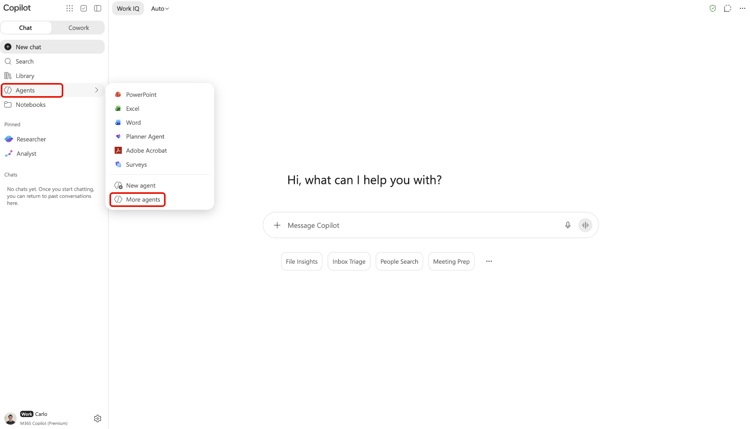
In Microsoft 365 Copilot, select Agents, then select More agents.
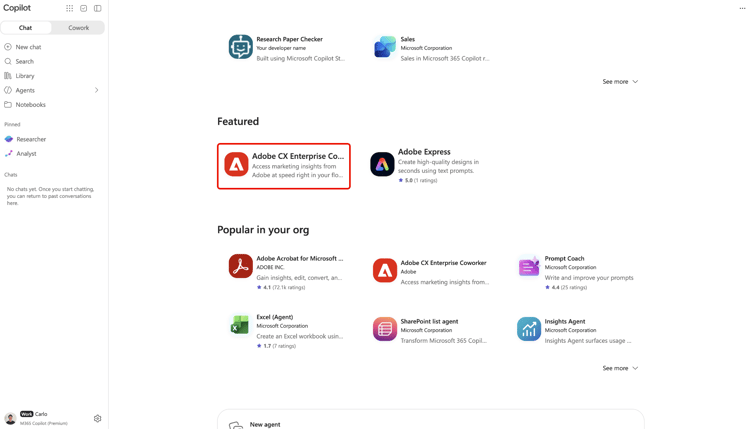
Next, select Adobe CX Enterprise Coworker in the agent catalog.
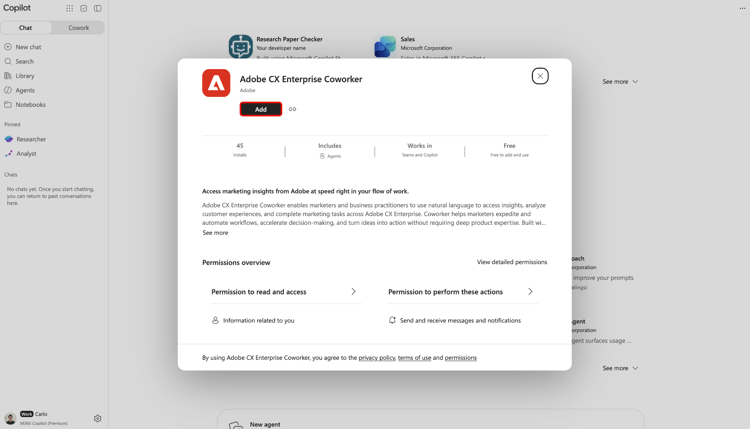
Finally, select Add to add Coworker to your agents.
Use Adobe CX Enterprise Coworker for ChatGPT to get marketing insights in ChatGPT.
Before you begin, confirm you have access to ChatGPT.
Set up Coworker for your organization
- Ask your ChatGPT administrator to approve Adobe CX Enterprise Coworker for selected users or your entire organization.
Access Coworker in ChatGPT
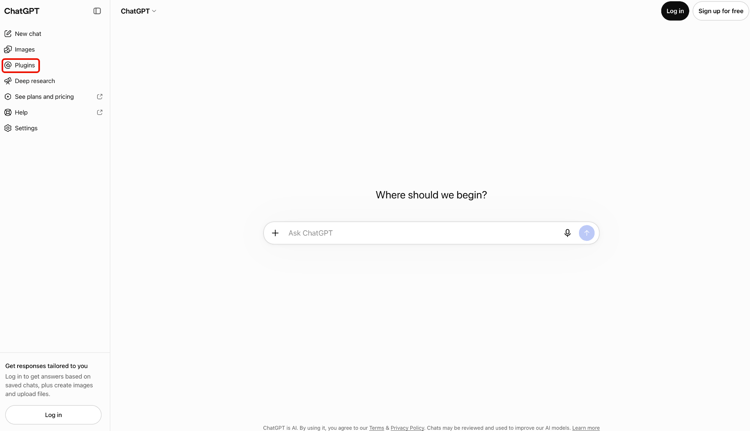
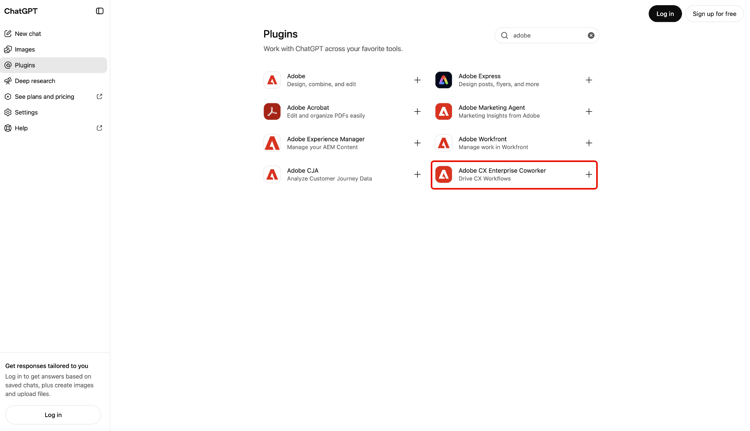
In ChatGPT, select Plugins.
Next, find and select Adobe CX Enterprise Coworker in the plugin catalog.
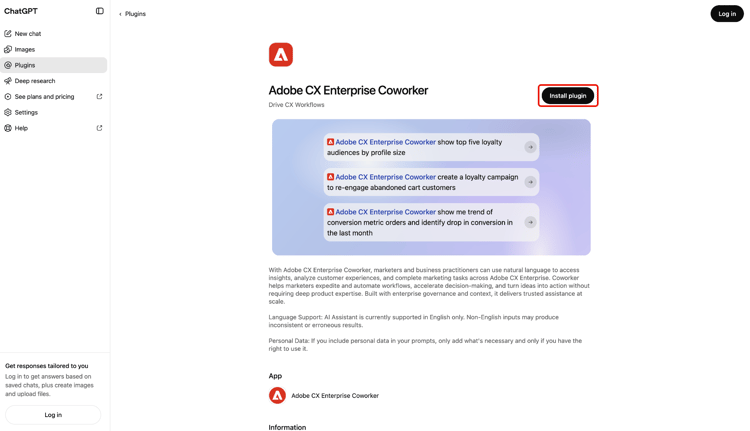
Finally, select Install plugin to add Coworker to ChatGPT.
Use Coworker to get marketing insights in Claude.
Before you begin, confirm you have access to Claude.
Set up Coworker for your organization
- Ask your Claude administrator to approve Adobe CX Enterprise Coworker for selected users or your entire organization.
Access Coworker in Claude
-
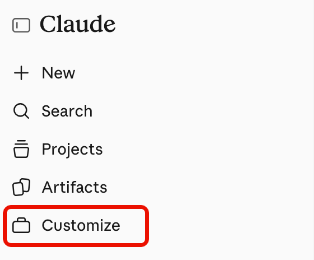
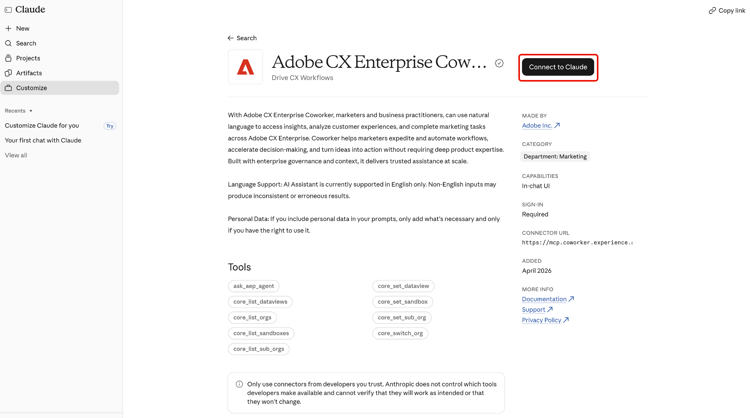
In Claude, select Customize.
-
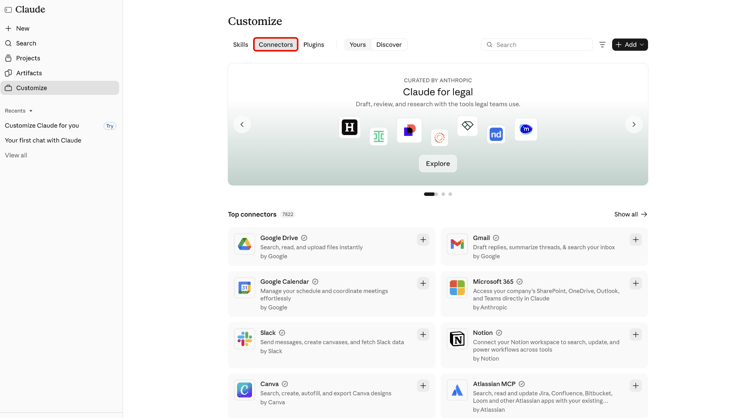
Select Connectors, then Discover, and use Search to find Adobe CX Enterprise Coworker.
-
Select Adobe CX Enterprise Coworker, then select Connect to Claude.
-
Sign in with your Adobe credentials to connect Coworker to Claude.
Example prompts example-prompts
After you set up Coworker in a supported platform, try these prompts, or write your own in natural language.
- Show your top five audiences.
- Show a metric for the last month.
- Show your active Workfront projects.
- Show journeys with loyalty audiences.
Known limitations known-limitations
Coworker in AI platforms does not support every integration pattern.
- You cannot connect Coworker to your own agentic harness using MCP.
Troubleshoot Coworker in AI platforms troubleshoot
Try these steps if you run into issues using Coworker in an AI platform.
- If you see an error, sign out and sign in again with your Adobe credentials. Re-authenticating resolves most issues.
- If you cannot access Coworker or specific data, contact your Adobe administrator to confirm your product access and permissions.