Enable and Configure Catalog Events with Adobe I/O
Catalog events are machine-generated notifications that describe supported catalog changes made available through Catalog Service. They enable event-driven workflows such as:
- Keeping external caches or services in sync with catalog updates.
- Triggering downstream processes when products, variants, prices, or categories change.
- Powering Experience Edge and Edge Delivery Services use cases that require near real-time catalog updates.
For the end-to-end path from Adobe Commerce to your event consumers, see Event delivery through Adobe I/O Events.
Supported event types supported-event-types
Catalog events focus on storefront-relevant changes exposed through Adobe Developer Console. The following subscriptions are currently supported.
Each event includes:
- An event identifier that describes the change type.
- Entity and environment context, such as instance ID and SKU.
- A payload that describes the changed entity and relevant scope information.
Example event payloads
ProductUpdated event
{
  "imsOrgId": "aaa-0",
  "instanceId": "instance-9",
  "eventCode": "productUpdated",
  "sku": "1234",
  "links": [
    {"type":  "variantOf", "sku": "5678"}
   ],
  "scope": [
    { "storeViewCode": "US-us" },
    { "storeViewCode": "FR-fr" },
    { "storeViewCode": "DE-de" }
  ]
}
PriceUpdated event
{
  "imsOrgId": "aaa-0",
  "instanceId": "instance-9",
  "eventCode": "priceUpdated",
  "sku": "1234",
  "scope": [
    {
      "websiteCode": "website1",
      "customerGroupCode": "customer-group-code1"
    },
    {
      "websiteCode": "website2",
      "customerGroupCode": "customer-group-code2"
    }
  ]
}
Event delivery through Adobe I/O Events event-delivery-through-adobe-io-events
Adobe I/O Events delivers catalog events to your integrations. The following diagram shows the high-level flow of catalog changes from Adobe Commerce through Catalog Service and Adobe I/O Events to subscribed consumers:
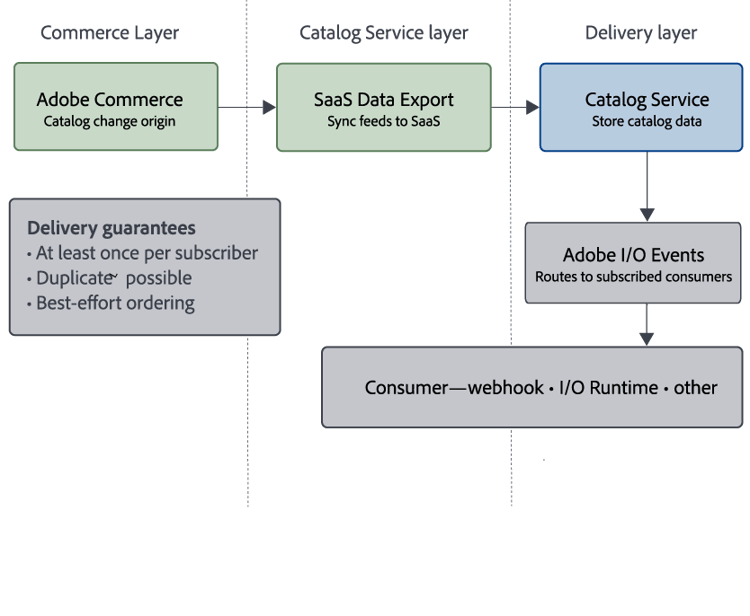
The following steps explain each handoff in more detail:
- Adobe Commerce → Catalog Service
Adobe Commerce exports catalog data to Catalog Service using the supported SaaS Data Export extensions.
-
Catalog Service processing
- Catalog Service processes supported catalog changes and prepares them for event delivery.
-
Catalog Service → Adobe I/O Events
- Catalog events are published to Adobe I/O Events.
- Consumers subscribe using Journaling, webhooks, Adobe I/O Runtime, Amazon EventBridge, or other supported delivery mechanisms.
Adobe I/O Events provides:
- At-least-once delivery per subscriber (duplicate events are possible).
- No ordering guarantees across deliveries.
Your consumers must handle duplicate events and out-of-order delivery. See Idempotency for implementation guidance.
Use cases use-cases
You can use Catalog events in multiple scenarios.
Static site and edge delivery
- Regenerate or invalidate catalog pages and storefront fragments when catalog data changes.
- Avoid frequent polling of Catalog Service APIs.
Search indexing and caching
- Trigger incremental updates in downstream search indexes.
- Update cache layers or external views of the catalog when product or category data changes.
Integration with external systems
- Forward catalog changes to external systems such as PIM, pricing engines, or other line-of-business systems.
- Keep downstream applications synchronized without direct database access.
Monitoring and observability
Combine Catalog events with existing monitoring (for example, Grafana and Prometheus) to:
- Monitor event throughput.
- Detect anomalies in catalog update volume.
Enable catalog events enable-catalog-events
To enable catalog events end to end, follow these steps.
- A supported Adobe Commerce environment with Catalog Service enabled.
- The Adobe I/O connection is configured for Adobe Commerce.
- Access to Adobe Developer Console in the same IMS organization where the Commerce environment is provisioned.
- To verify sync to Commerce SaaS services, use the Data Management Dashboard in the Admin.
- Product Recommendations v6.0, Live Search v4.1.0+, or Catalog Service v1.17+ is required for dashboard verification. Adobe recommends updating your Commerce project to the latest supported versions of these services. For earlier service versions, use Catalog Sync for sync verification.
Verify catalog data verify-catalog-data
Verify that Catalog Service has current catalog data from your Commerce instance before you configure. Catalog events depend on SaaS Data Export completing two stages—confirm both:
-
Confirm successful feed export from Commerce.
From the Adobe Commerce Admin, open the Data Feed Sync Status page (System > Data Transfer > Data Feed Sync Status) and confirm that the last export status is successful for each Catalog Service feed.
-
Confirm successful sync to connected Commerce services from the Adobe Commerce Admin.
From the Adobe Commerce Admin, open the Data Management Dashboard (System > Data Transfer > Data Management Dashboard) and verify that the synced products data includes the expected products.
Register and subscribe to Adobe I/O Events register-events
Define which Commerce events to subscribe to, then register them in the project.
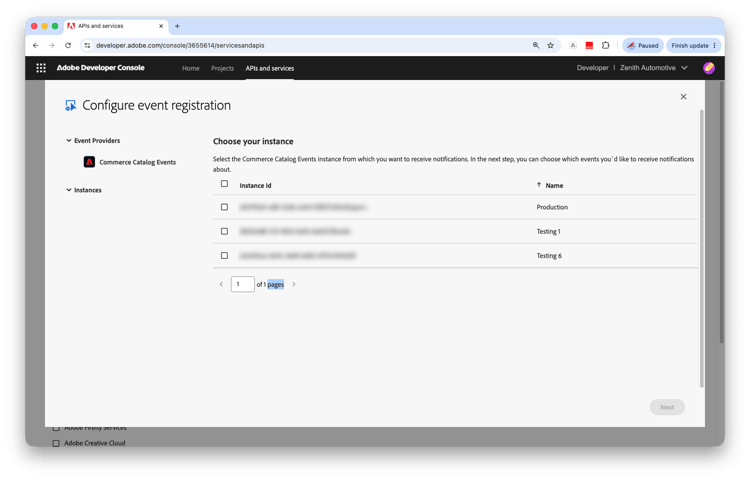
If your instance is not in the selection list, then it is not connected to Adobe I/O. For instructions to fix the issue, see Configure the Adobe I/O connection in the Adobe Commerce Developer documentation.
-
From the Adobe Developer Console, sign in to the same IMS organization used for the Commerce project.
-
Create a project for Commerce Catalog Events, or add the events API to an existing project.
-
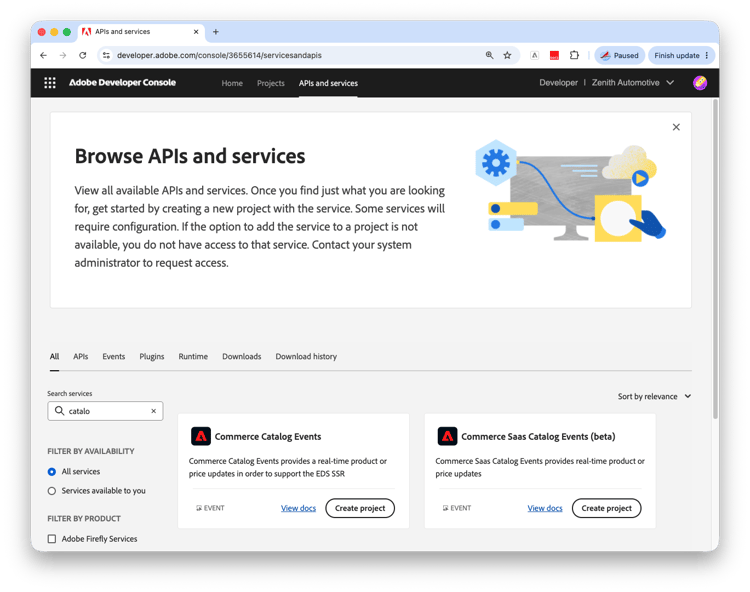
Select APIs and services in the top navigation.
-
On the Browse APIs and services page, select the Events tab.
-
Quickly find Commerce Catalog Events APIs. Type Catalog in the search box, or filter by the Commerce product.
-
On the Commerce Catalog Events card, select Project.
-
-
Configure event registration.
Select the Commerce instance to receive event notifications from. Then, select Next.
-
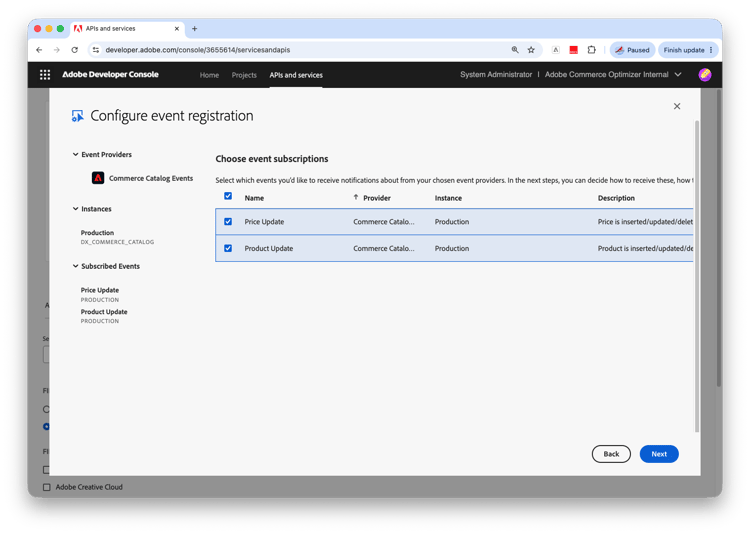
Choose the events to subscribe to.
Select the supported event subscriptions that you want to receive, such as Product Update or Price Update. Then, select Next.
-
Add OAuth server-to-server credentials.
Enter a Credential name. Then, select Next.
-
Enter an Event registration name and an Event registration description. Then, select Next.
-
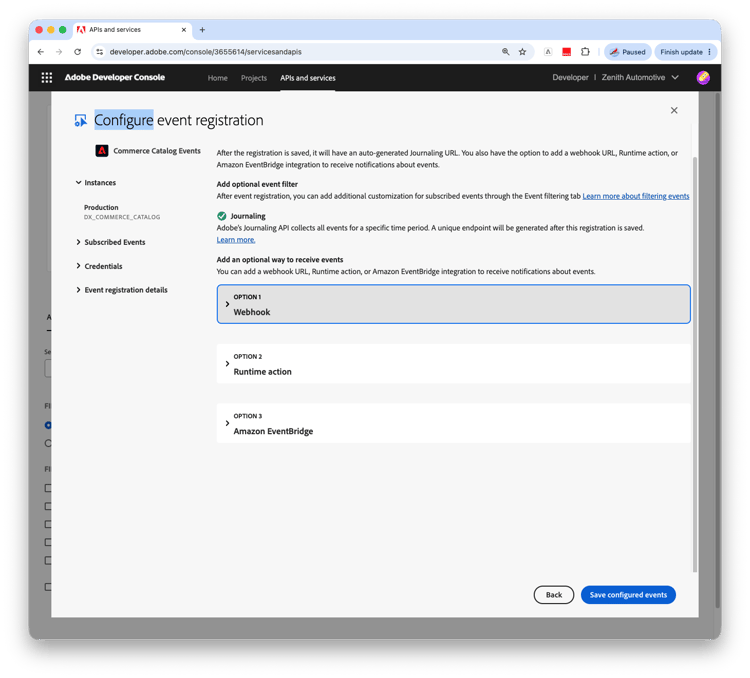
On the final registration screen, accept the default consumer, the Journaling API.
The default Journaling API consumer lets you test event registration and confirm that events are delivered. If you already configured a webhook or Adobe I/O Runtime action consumer, select it here. Otherwise, edit the event registration later when your consumer is ready.
-
Select Complete registration.
Configure event consumer configure-consumer
-
Configure a consumer, such as:
- A webhook endpoint
- An Adobe I/O Runtime action
- Another supported destination
-
If you did not select a consumer during registration, edit the event registration to add the consumer details.
-
From the Adobe Developer Console, edit your project. Then, select the event registration you created.
-
On the event registration details page, select Edit Events Registration.
-
Select Next until you reach the consumer selection screen. Then, select the consumer that you configured.
-
Update the consumer to your configured destination. Then, select Save configured events.
-
Validate the event flow validate-event-flow
Catalog events are enabled for your environment. When catalog data changes in Commerce, updates flow through Catalog Service to Adobe I/O Events, and your subscribed consumer receives the corresponding catalog event. Review Limits and best practices before you build production integrations.
-
Make a simple supported catalog change, such as updating a product name or changing a price.
-
Confirm the following outcomes:
- The change is visible through Catalog Service APIs.
- Your Adobe I/O Events consumer receives the corresponding product or price event.
Limits and best practices limits-and-best-practices
When building on Catalog events, follow these best practices.
Idempotency idempotency
Adobe I/O Events can deliver the same catalog event more than once, and events for a single product can arrive out of order. Design consumers to be idempotent by:
- Using entity IDs with a version or timestamp field.
- Safely ignoring duplicate notifications for the same change.
Throughput and backpressure
Large catalogs with high update rates can generate significant event volume. Ensure that:
- Consumers can process events at peak throughput.
- You use buffering, batching, or queues where necessary.
Security and isolation
- Adobe I/O Events enforces tenant isolation.
- Your organization receives events only for its own environments and entitlements.
Schema evolution
Catalog event payloads follow the same conceptual model as Catalog Service APIs. To remain forward-compatible:
- Avoid strict schema enforcement where possible.
- Ignore unknown fields instead of failing.
Troubleshoot catalog events troubleshoot-catalog-events
If catalog events are missing or delayed, work through these steps.
-
Check Catalog Service data
Use the Catalog Service API to confirm that the catalog change is stored successfully.
-
Verify SaaS Data Export
Catalog events require current data in Catalog Service. Confirm both stages of the export path:
-
Feed export from Commerce — On the Data Feed Sync Status page or in
var/log/saas-export.log, confirm that Catalog Service feeds exported successfully from Commerce. -
Sync to connected Commerce SaaS services — On the Data Management Dashboard, Catalog Sync, or in export logs, confirm that data synced successfully to Catalog Service.
For troubleshooting export and sync jobs, see Synchronize data with SaaS Data Export and Logging and troubleshooting.
-
-
Validate Adobe I/O Events configuration
Confirm that:
- You are signed in to the correct IMS organization in Adobe Developer Console.
- The Commerce Catalog Events provider is enabled.
- The expected Commerce Catalog Events provider and environment are visible.
- The subscription is active.
- Your endpoint, action, or journal consumer can receive and process test events.
-
Contact Adobe Support
When opening a support ticket, select the issue reason that corresponds to Adobe Commerce application and include the following information:
- Catalog Service details (environment, region).
- Adobe I/O Events Subscription details.
- Approximate time and description of missing events.
For additional help, see Support tickets.