View and manage the synchronization process
Most synchronization activities are processed automatically using full sync, partial sync, or retry failed items sync. See Synchronization types for details on when each type runs. SaaS Data Export also provides tools to monitor, manage, and troubleshoot the process. You can view the synchronization status and manage the data sync process using the dashboards for your deployment.
For Adobe Commerce on cloud, on-premises, or Adobe Commerce as a Cloud Service deployments, view and manage the synchronization process from these Commerce Admin resources:
-
Data Feed Sync Status page—Check the feed export status for deployments connected with Live Search, Product Recommendations, or Catalog Service. This dashboard shows the feed export status for each feed including any errors encountered. A detail view displays feed export status for individual feed items.
-
Data Management dashboard—Admin users can view and track data successfully exported and synchronized to connected Commerce Services. This dashboard shows the product data synced to Commerce Services.
| note |
|---|
| NOTE |
| The Data Management dashboard and Data Feed Sync Status page are available only if you have Live Search, Product Recommendations, or Catalog Service installed. |
For Commerce on cloud or on-premises deployments integrated with Commerce Optimizer, view and manage the synchronization process using the following resources:
-
Data Feed Sync Status page—Monitor connector feed export status from the Commerce Admin. This page shows whether catalog data exported successfully from Adobe Commerce, including per-feed and per-item error details.
-
Data Sync page—The Data Sync page gives an overview of synchronization status for product data coming from your upstream catalog source into Commerce Optimizer.
For details on how to use these dashboards to verify that data sync is working and to manually resync data, see Manage synchronization in the Adobe Commerce Optimizer Connector Guide.
Verify that the data sync is working verify-that-the-data-sync-is-working
To verify that the data sync is working, confirm that data exported successfully from Adobe Commerce and that the data was successfully delivered to the connected Commerce service. Use the dashboards for your deployment to check both steps.
Start with export, then confirm delivery.
-
Check the sync status in the Commerce Admin.
Go to System > Data Transfer > Data Feed Sync Status.
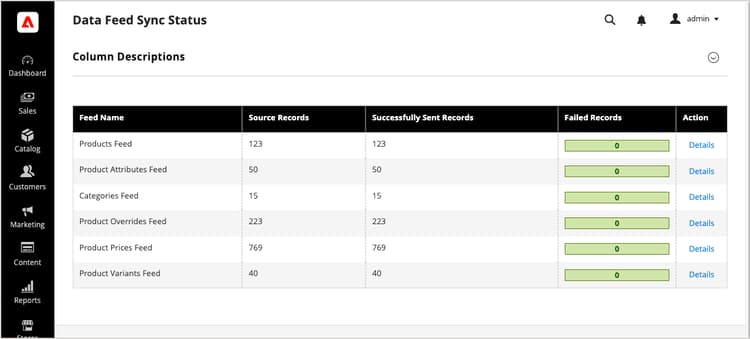
When the sync is running, the feed data shows successfully sent records. Select a feed to view details or troubleshoot sync issues.
-
Confirm the data was delivered to connected Commerce Services.
From the Commerce Admin, go to System > Data Transfer > Data Management Dashboard.
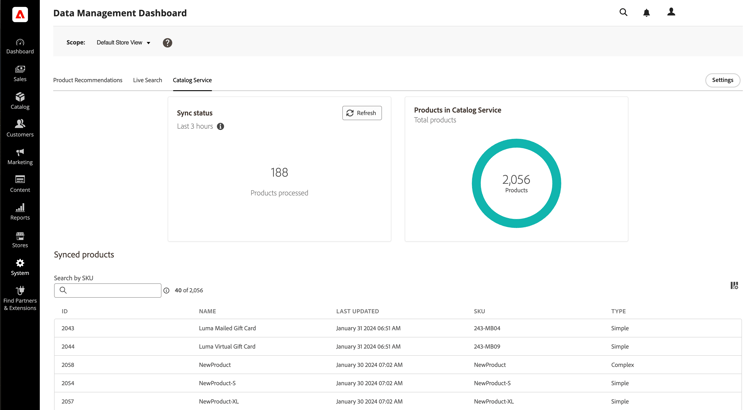
Verify that the expected products, prices, and attributes appear.
Manually resync data
When partial sync and automatic retry do not resolve synchronization issues, you can manually resync data from the Commerce Admin or by using Commerce CLI commands. Available options depend on your deployment.
Available manual resync options manual-resync-options-commerce
Use the following options to manually resync feed data.
saas:resync command for targeted feed resyncs. See Sync feeds using the Commerce CLI.