Synchronize data with SaaS Data Export
When you install an Adobe Commerce service that requires data export such as Catalog Service, Live Search, or Product Recommendations, a collection of SaaS data export modules is installed to manage the data collection and synchronization process.
SaaS data export moves product data from an Adobe Commerce instance to the Commerce Services platform on an ongoing basis to keep the data up to date. For example, Product Recommendations requires current catalog information to accurately return recommendations with correct names, pricing, and availability. For details on monitoring the synchronization process, see View and manage the synchronization process.
The following diagram shows the SaaS data export flow.
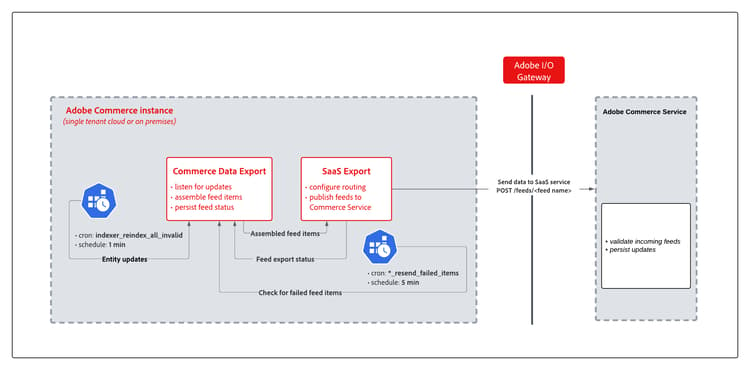
When catalog data changes in Adobe Commerce, synchronization moves through these stages.
- Entity change detection - Magento’s Mview system detects row changes in subscribed database tables (for example,
catalog_product_entity) and writes entries to a changelog table. - Feed indexing - The feed indexer reads the changelog, loads entity data from the source tables, and assembles feed items.
- Data collection and transformation - Providers registered in the feed schema
et_schema.xmlcollect field data. - Hash deduplication - A content hash is computed for each feed item. Items whose hash has not changed since the last export are skipped, so only modified data is transmitted.
- HTTP submission - Feed items are sent as authenticated HTTP POST batches to the Adobe SaaS Feed Ingestion Service.
- Status persist - The API response status is written back to the feed table for each item.
- Failure retry - Items that failed to export are automatically retried by a scheduled cron job.
Synchronization modes
SaaS data export has two modes to process entity feeds:
-
Immediate export mode—In this mode, data is collected and sent immediately to the Commerce Service in a single iteration. This mode speeds up delivery of entity updates to the Commerce Service and reduces the storage size of the feed tables.
-
Legacy export mode—In this mode, data is collected in a single process. Then, a cron job sends the collected data to the connected commerce services. In data export log entries, feeds that use the legacy mode are labeled
(legacy).
Synchronization types
SaaS data export supports three synchronization types–full sync, partial sync, and retry failed items sync.
Full sync
After connecting an Adobe Commerce instance to Commerce Service, perform a full sync to send entity feed data from Adobe Commerce to the connected service.
saas:resync command only transmits new items, updated items, and items that previously failed to export. Items whose content hash has not changed since the last export are skipped.Partial sync partial-sync
With partial sync, SaaS data export automatically sends updates from the Commerce application, such as product name changes or price updates, to connected commerce services.
For partial sync to work, the Commerce application requires the following configuration:
- Task scheduling is enabled via cron jobs
- All SaaS data export indexers are configured in
Update by Schedulemode.
Retry failed items sync retry-failed-items-sync
The Retry failed items sync uses a separate process to resend items that failed to sync due to errors during the synchronization process, for example an application error, network disruption, or SaaS service error. The *_resend_failed_items cron jobs in the resync_failed_feeds_data_exporter group handle this automatically every 5 minutes.
Scheduled cron jobs
The following cron groups automate the pipeline on a fixed schedule.
indexindexer_update_all_viewsindexindexer_reindex_all_invalidresync_failed_feeds_data_exporter*_resend_failed_itemscommerce_data_exportsaas_data_exportercommerce_data_exportcleanup_deleted_feed_itemsFeed submission and HTTP error handling feed-submission-and-http-error-handling
Feed items are submitted as authenticated gzip-compressed JSON batches over HTTP POST. The following table shows how HTTP response codes map to export status and retry behavior.
var/log/saas-export-errors.log for details.In addition to HTTP-level failures, application-level errors such as local processing failures or network disruptions are also scheduled for automatic retry by the *_resend_failed_items cron jobs.
Monitor per-feed status from the Data Feed Sync Status page in the Commerce Admin.