Monitor catalog view synchronization for B2B shared catalogs
Track B2B catalog view synchronization from Adobe Commerce to Adobe Commerce Optimizer using the Catalog View Sync Status dashboard in the Commerce Admin.
Catalog View Sync Status verifies that the catalog view, policy, price book reference, and restricted access key configurations for each B2B shared catalog exist in Adobe Commerce Optimizer and match your Adobe Commerce configuration. To track product, price, and category feed synchronization instead, see Manage data synchronization.
Access the sync status page access-the-sync-status-page
From the Commerce Admin, go to System > Data Transfer > Catalog View Sync Status.

The page has three tabs: Catalog Views, Orphaned in ACO, and Deleted.
Interpret sync status for your shared catalogs interpret-sync-status
On the Catalog View tab, each row represents one custom shared catalog view projected from a shared catalog and store view combination. The projection is the catalog view, policy, price book reference, and restricted access key configuration data that Commerce Optimizer Connector exports to Adobe Commerce Optimizer for the shared catalog. Use the status information to determine whether the data delivered to the company’s storefront experience is complete and correct. The following table summarizes the most common status values and what they mean for your shared catalog:
Failed, the company cannot access this shared catalog’s storefront experience.Healthy, Pending, and Deleted are informational states that do not require action. See Sync status values in the Commerce Admin Guide for the full list.
Configure ACO catalog view sync settings configure-aco-catalog-view-sync-settings
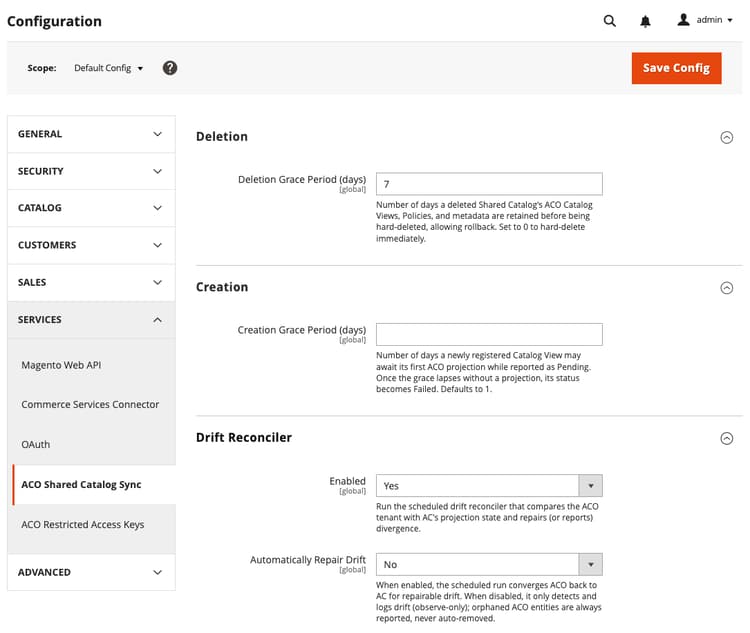
From the Adobe Commerce Admin (not Adobe Commerce Optimizer Studio), go to Stores > Configuration > Services > ACO Catalog View Sync to control how the connector times deletions and creations, and whether it repairs drift automatically.
-
Deletion Grace Period (days)—Number of days a deleted shared catalog’s catalog view, policy, and metadata are retained in Adobe Commerce Optimizer before being removed. Defaults to seven days. Set to
0to remove the projection immediately, with no grace period. -
Creation Grace Period (days)—Number of days a newly registered catalog view can wait for its first projection to Adobe Commerce Optimizer while reported as Pending. If the grace period lapses without a projection, the status becomes Failed. Defaults to 1.
-
Enabled (Drift Reconciler)—Runs the scheduled drift reconciler that compares Adobe Commerce Optimizer with the Adobe Commerce projection state and repairs or reports divergence.
-
Automatically Repair Drift—When set to Yes, the scheduled run converges Adobe Commerce Optimizer back to Adobe Commerce for repairable drift. When set to No, the scheduled run only detects and logs drift; orphaned entries are always reported, never removed automatically. This setting only affects the scheduled reconciler. The Reconcile & Repair action on this page always repairs drift. See Choose monitoring or repair.
See ACO Catalog View Sync configuration in the Commerce Admin Guide for details on each setting.
Choose monitoring or repair choose-monitoring-or-repair
Adobe Commerce is always the source of truth for the catalog view, policy, price book, and key configurations for B2B shared catalogs. If you or another administrator changed a policy, price book, or key configuration setting directly in Adobe Commerce Optimizer Studio, reconciliation reports the configuration differences as drift.
- Select Reconcile to check for drift without changing anything, so you can review differences before acting.
- Select Reconcile & Repair to restore the expected configuration for any repairable drift.
To review what changed and why, open a catalog view’s detail page and check its drift history.
Review orphaned and deleted entries review-orphaned-and-deleted-entries
The Orphaned in ACO and Deleted tabs cover two cases that the connector cannot repair automatically because there is no Adobe Commerce shared catalog to reconcile against:
-
Orphaned in ACO—The connector reports orphaned entities in sync status and during drift reconciliation. It does not adopt or automatically delete them even if reconciliation runs with repair enabled.
An entity is orphaned when it exists in Adobe Commerce Optimizer but the connector does not track it or associate it with a tracked catalog view. This can happen when an entity is created manually, by another integration, or left behind after an interrupted connector operation.
-
Catalog views—The connector does not track the view. Select the catalog view link to open the Catalog View details page in Adobe Commerce Optimizer Studio. If the catalog view is no longer needed, remove it.
-
Restricted access keys—No live catalog view references the key. Select the catalog view link to open the Catalog View details page in Adobe Commerce Optimizer Studio. Review the configured access key and remove it if it is no longer needed.
-
Policies—The connector does not track the policy, and no live catalog view references it. Select the policy link to open it in Adobe Commerce Optimizer Studio. Review it and remove it if it is no longer needed.
-
-
Deleted—You deleted a shared catalog in Adobe Commerce, and its catalog view projection was subsequently removed. These rows are kept for 90 days as a record of what was removed.