Get started
Install and configure the Adobe Commerce Optimizer Connector to sync your Adobe Commerce catalog data with Adobe Commerce Optimizer, then monitor the data sync status to ensure your storefront is up to date.
Requirements to use the integration requirements-to-use-the-integration
-
Adobe Commerce 2.4.7+. For detailed requirements, see System requirements.
-
Commerce Optimizer license with a provisioned sandbox instance.
-
Authentication keys to download the connector metapackage using Composer.
-
Admin access to an Commerce Optimizer sandbox instance.
The Adobe Commerce user configuring the integration must have:
-
Administrator access to the Commerce Admin.
-
Command line access to the Adobe Commerce application server.
-
Developer access to the IMS Organization where the Commerce Optimizer project is provisioned.
Remove conflicting extensions remove-conflicting-extensions
If you have any of the following extensions installed, uninstall them before installing the Adobe Commerce Optimizer Connector:
- Adobe Commerce Live Search (
magento/live-search) - Adobe Commerce Product Recommendations (
magento/product-recommendations) - Adobe Commerce Catalog Service (
magento/catalog-service,magento/catalog-service-installer) - Data Management Dashboard (
magento-catalog-sync-admin)
Data associated with these extensions is still available in the Commerce database. However, it is not exported to Commerce Optimizer when the connector is enabled. To implement the Adobe Commerce search and merchandising capabilities provided by these extensions after enabling the connector, configure them from the Commerce Optimizer Admin UI.
Configuration steps configuration-steps
To enable the Adobe Commerce Optimizer Connector and begin synchronizing data from Adobe Commerce to your Commerce Optimizer instance, follow these steps.
-
Install the Adobe Commerce Optimizer Connector package using Composer to connect your Adobe Commerce instance to Commerce Optimizer.
-
Customize the Commerce scopes export configuration from the Admin.
Install the Adobe Commerce Optimizer Connector package install-the-adobe-commerce-optimizer-connector-package
The Adobe Commerce Optimizer Connector is delivered as a Composer metapackage available to all Commerce merchants with an active license for Commerce Optimizer.
Installation steps
-
Add the
adobe-commerce/commerce-data-export-aco-adaptermodule using Composer:code language-shell composer require adobe-commerce/commerce-data-export-aco-adapter -
Deploy the changes to your Adobe Commerce staging environment.
After deployment completes, the Commerce Optimizer option is available from the Commerce Admin menu. Select Commerce Optimizer to open your Commerce Optimizer instance directly from the Commerce Admin.
Customize the Commerce scopes export configuration customize-the-commerce-scopes-export-configuration
By default, catalog data sync is enabled for all Commerce scopes (websites, customer groups, and store views). You can customize the export settings to sync data only for specific scopes based on your business needs. For example, if multiple store views share the same language, you can export data for one store view and use it as the catalog source for multiple catalog views in Commerce Optimizer.
The following table describes what data is exported at each scope level:
<website>::<SHA1 of customer group ID>. All customer groups for the website are included.
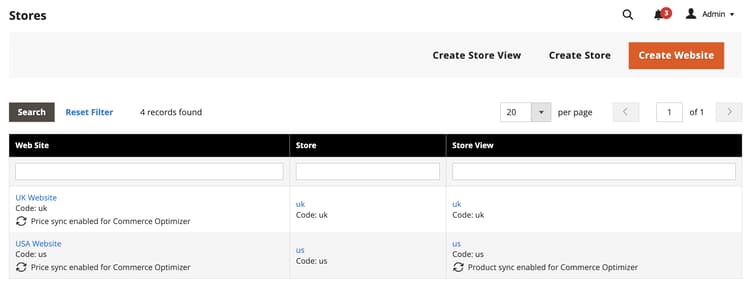
To change scope export settings
-
In the Commerce Admin, go to Stores > Settings > All Stores.
-
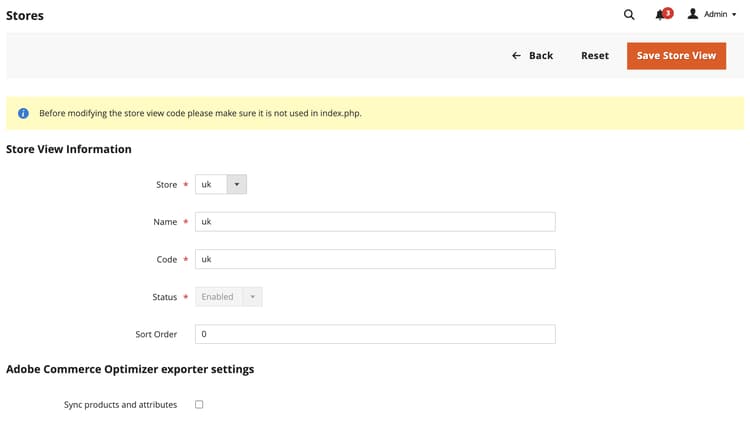
Select the website or store view you want to configure.
-
In the Commerce Optimizer exporter settings, use the checkbox to enable or disable the data sync as needed.
-
Save your changes.
Enable and disable behavior
Enable the Commerce Optimizer integration enable-the-adobe-commerce-optimizer-integration
You enable the integration and initiate the data sync by running the aco:config:init CLI command. This command completes the following steps:
- Obtains an IMS access token using credentials supplied as command line arguments.
- Calls the Commerce Cloud Manager (CCM) service at
https://ccm.api.commerce.adobe.com/api/v1/tenants/{tenantId}/owner/{orgId}to validate the tenant and extract the ingestion URL and Commerce Optimizer Studio URL. - Saves all configuration (client secret encrypted) to
core_config_data. - Schedules the initial full sync by invalidating all Commerce Optimizer feed indexers.
Get required connection details
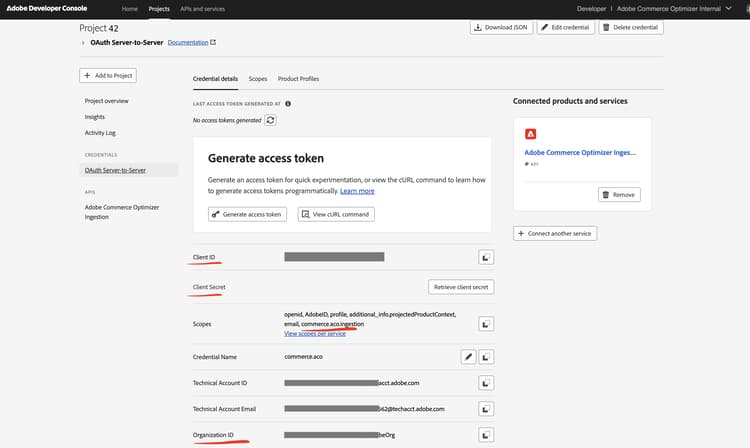
From the Adobe Developer Console, create a new project enabled for the Commerce Optimizer Ingestion service and generate OAuth Server-to-Server credentials. For detailed instructions, see Obtain IMS Credentials in the Merchandising Developer Guide for Adobe Commerce Optimizer.
Save the following values from the credentials page:
- Organization ID (
org_id) - Client ID (
client_id) - Client Secret (
client_secret)
Get Commerce Optimizer instance details
Get the tenant ID from the Instance Id field on the Commerce Optimizer instance Instance details page, or from the URL used to access the instance. For example, in https://experience.adobe.com/#/@<your organization>/in:<tenant ID>/commerce-optimizer-studio/home.
-
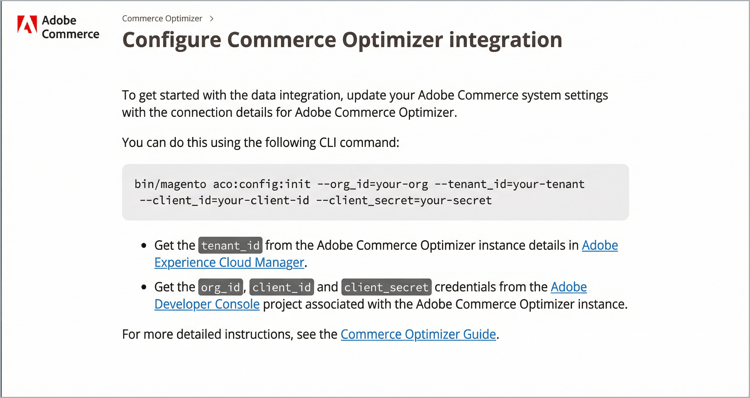
From the Commerce Admin, select Adobe Commerce Optimizer to display the configuration page with instructions.
-
From the command line, use SSH to connect to the Adobe Commerce staging environment.
-
To configure the integration, run the following Adobe Commerce CLI command, replacing the placeholder values with the values for your Commerce Optimizer project:
code language-shell bin/magento aco:config:init --org_id=your-org --tenant_id=your-tenant --client_id=your-client-id --client_secret=your-secret -
Verify the connection by returning to the Commerce Admin and selecting the Adobe Commerce Optimizer option.
When you select the option, it opens the Commerce Optimizer UI in a new tab.
Verify that the data sync is working verify-that-the-data-sync-is-working
Confirm that data exported successfully from the Commerce Admin and that the data was successfully delivered to Commerce Optimizer. Start with export in the Commerce Admin, then confirm delivery in Commerce Optimizer.
-
Check sync status in the Commerce Admin:
Go to System > Data Transfer > Data Feed Sync Status.
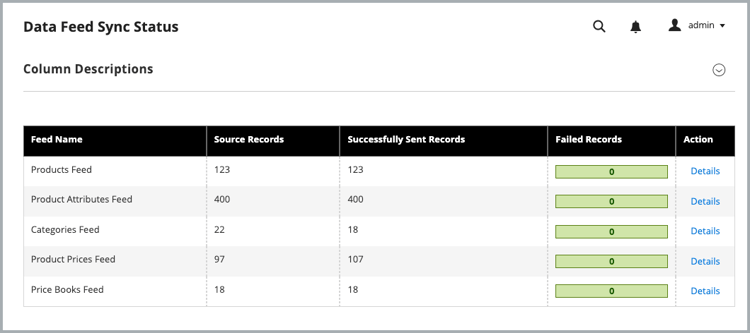
When the sync is running, the feed data shows successfully sent records. Select a feed to view details or troubleshoot sync issues.
-
Confirm data was delivered to Commerce Optimizer:
From the Commerce Optimizer menu, select Data Sync.
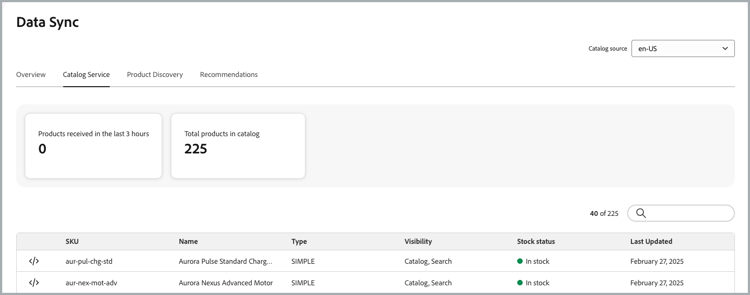
Verify that the expected products, prices, and attributes appear.
When sync is working as expected:
- Data Feed Sync Status shows successfully sent records for connector feeds, with no unresolved item-level errors.
- Data Sync in Commerce Optimizer lists the expected catalog sources, products, prices, and attributes.
Next steps
-
Configure Commerce Optimizer catalog views and policies
Create catalog views and policies in the Commerce Optimizer UI. Note that price books are created automatically from Adobe Commerce customer groups. For instructions, see the Catalog views and Policies documentation in the Commerce Optimizer User Guide. To restrict access to a catalog view, see Private catalog views.
-
Set up a Commerce Storefront on Edge Delivery Services
To connect your storefront to the Commerce Optimizer instance and start delivering personalized commerce experiences, follow the Storefront setup documentation.