Access and configure schemas access
Schemas are accessible from the Administration > Schemas menu.
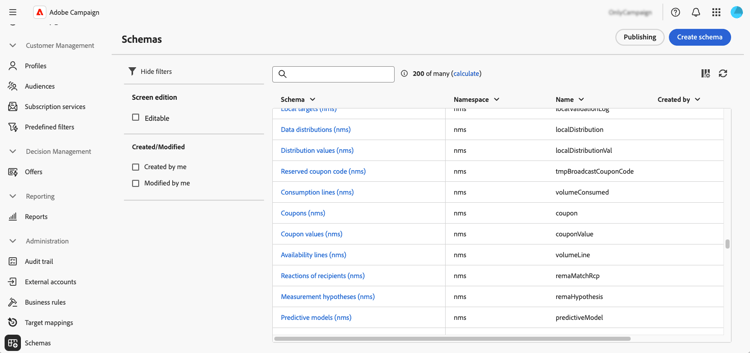
From this screen, you can view all existing schemas. Filters are available to help refine the list, such as displaying only editable schemas.
To open a schema, select its name. A detailed schema view displays.
Schema overview overview
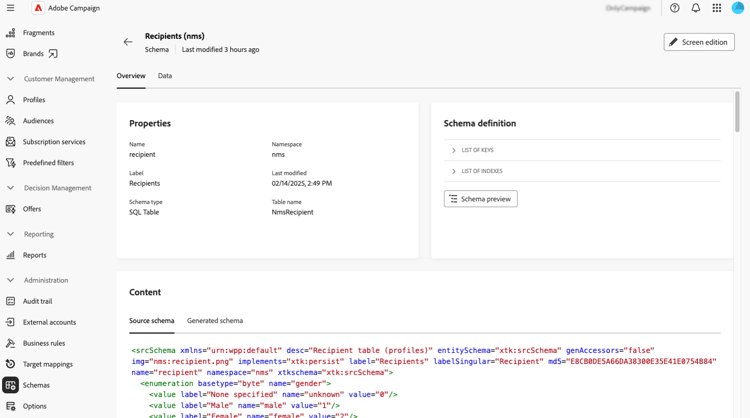
The Overview tab provides a general view of the schema:
-
The Properties section displays key information, such as the schema name, namespace, and associated table name.
-
The Schema definition section shows details about the schema definition, including the primary key used for data reconciliation and its links with other tables.
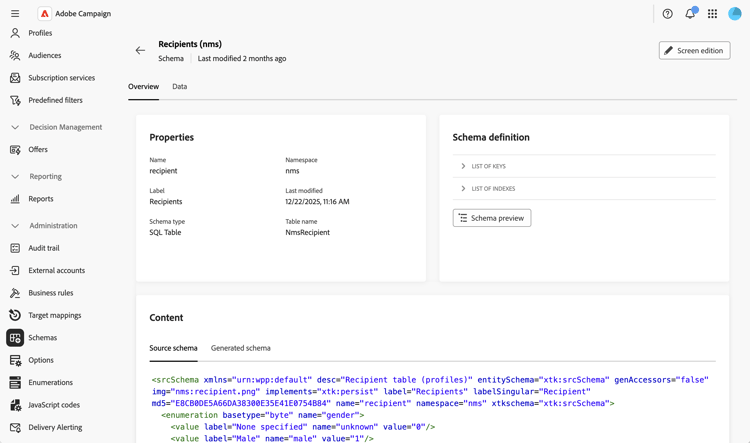
Click the Schema preview button to view the different fields and links composing the schema. This allows you to check the complete structure of a schema. If the schema has been extended with custom fields, you can visualize all its extensions.
-
The Content section displays the XML content of the schema, allowing you to switch between the source and the generated syntax.
Schema data data
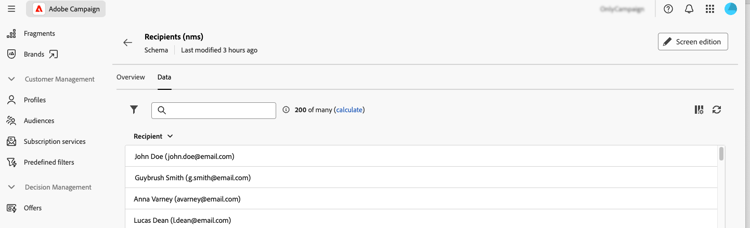
The Data tab provides information on the schema data.
Customize screen display screen-def
The screen definition allows you to configure how schema fields are displayed and edited in the interface. You can configure default columns for list views, customize which custom fields are displayed in detail screens, add collection lists to show related data, and organize fields into sections with separators and visibility criteria.
To access the screen definition:
-
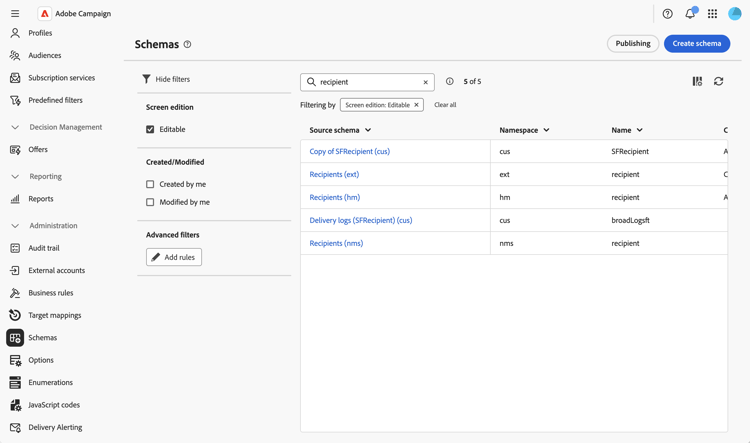
Browse to the Schemas menu, and locate editable schemas using the filters.
-
Select the schema name in the list to open it and click the Screen edition button in the schema details view to access the screen definition.
The different lists allow you to reorder elements by using the up and down arrow icons or drag and dropping them. To remove items, click the trash icon on a specific row or select Delete all from the ellipsis icon.
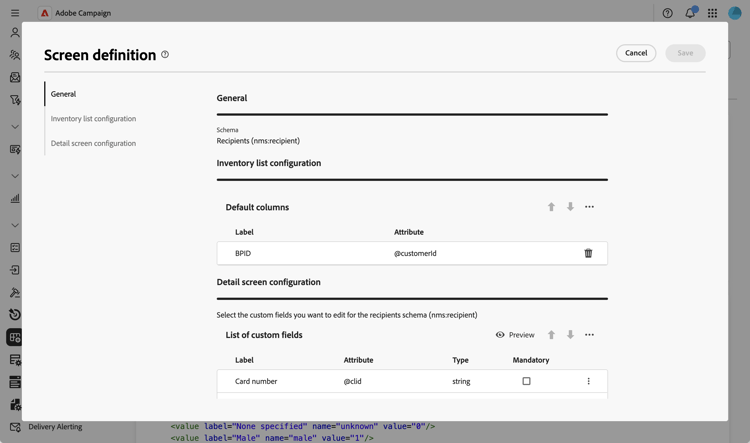
From the screen definition, you can:
- Configure default list columns - Configure which columns are displayed by default in list views.
- Add custom filters - Add quick-access filter fields in the filters pane of a list view.
- Edit custom fields - Configure which custom fields are displayed in detail screens and organize them into sections.
- Add collection lists - Add collection lists to show related data in profile screens.
- Control actions on data - Restrict create, edit, and delete actions for custom schemas.
For schemas that power one or more entries in the left navigation, such as nms:delivery or xtk:workflow, the screen definition also displays a Side navigation access section. Select the Remove menu access for checkbox corresponding to a menu entry to hide it from the left navigation, for all users on the instance, regardless of their individual access rights. Some schemas power several menu entries: for example, nms:delivery is shared by the Deliveries and Transactional messages entries, so a checkbox is displayed for each of them.