Edit custom fields fields
Custom fields are additional attributes added to out-of-the-box schemas through the Adobe Campaign console. They allow you to customize schemas by including new attributes to suit your organization’s needs.
Custom fields can be displayed in various screens, such as profile details in the interface. You can control which fields are visible and how they appear in the interface.
For more information on the screen definition screen and how to access it, refer to the Access the screen definition section.
To add custom fields to the list:
-
Browse to the Schemas menu, and locate editable schemas using the filters.
-
Select the schema name in the list to open it and click the Screen edition button in the schema details view to access the screen definition.
-
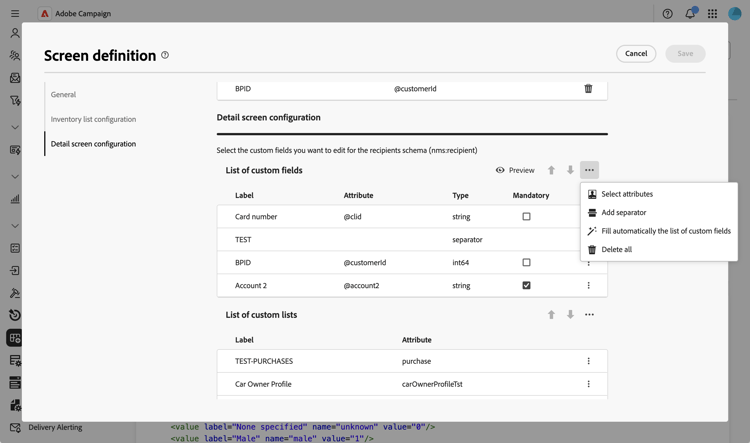
Click the ellipsis icon above the List of custom fields table and choose Select attributes to select one or multiple custom fields to display in the interface.
-
Select the custom fields you want to add and confirm.
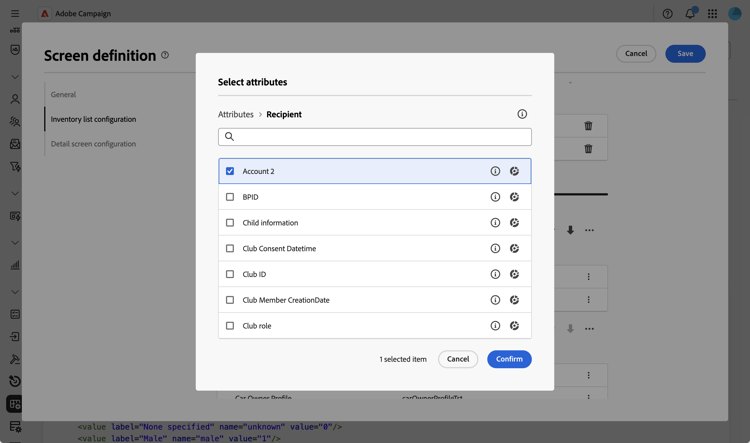
note NOTE You can also select Fill automatically the list of custom fields to add all custom fields defined for the schema to the interface.
Once custom fields are added, you can preview them, reorder them, make them mandatory, edit their settings or organize them into sub-sections.
Configure field settings field-settings
To configure specific settings for each custom field, click the ellipsis icon on a field row in the list and select Edit.
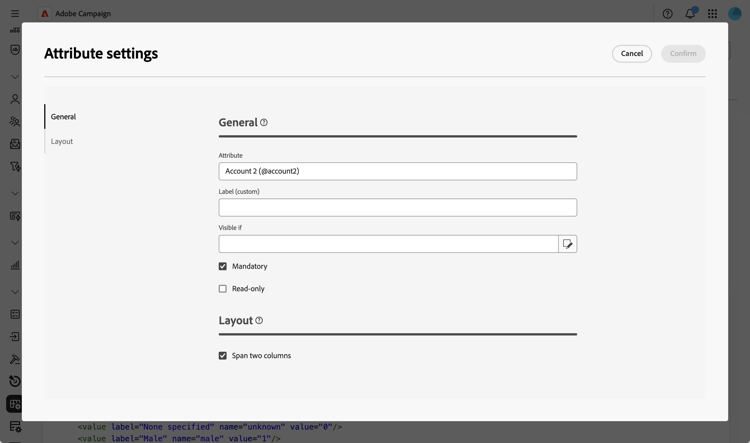
Available settings are:
-
Attribute: The name of the custom field (read-only).
-
Label (custom): The label to display in the interface. If no label is provided, the label defined in the schema will display.
-
Visible if: Define a condition using an xtk expression that controls when the field is displayed. For example, hide this field if another field is empty.
-
Mandatory: Make the field mandatory in the interface.
-
Read-only: Make the field read-only in the interface. Users will not be able to edit the field’s value.
-
Filter settings (for link-type fields): Use the query modeler to specify rules for displaying a link-type custom field. For example, restrict list values based on another field’s input.
accordion View example You can also reference the value entered into other fields in your conditions using the syntax
$(<field-name>). This allows you to reference the current value of a field as entered in the form, even if it has not yet been saved to the database.In the example below, the condition checks if the value of the @ref field matches the value entered in the @refCom field. In contrast, using
@refCominstead of$(@refCom)would reference the value of the @ref field as it exists in the database.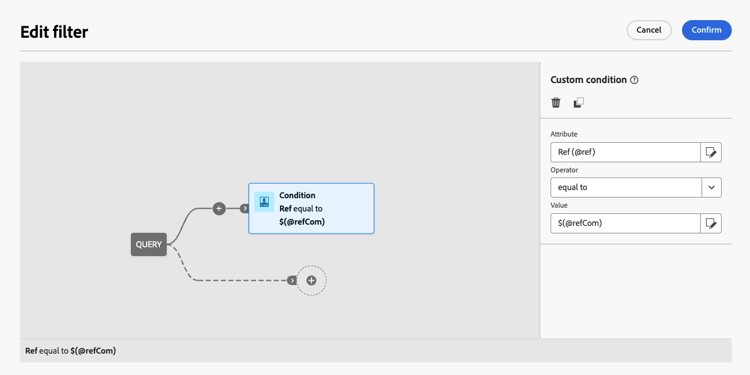
-
Span two columns: By default, custom fields display in the interface in two columns. Toggle on this option to display the custom field across the full width of the screen instead of two columns.
Preview custom fields preview
Click Preview to display the custom fields in a sample screen. This allows you to see how the fields will appear in the interface, including which fields are marked as mandatory.
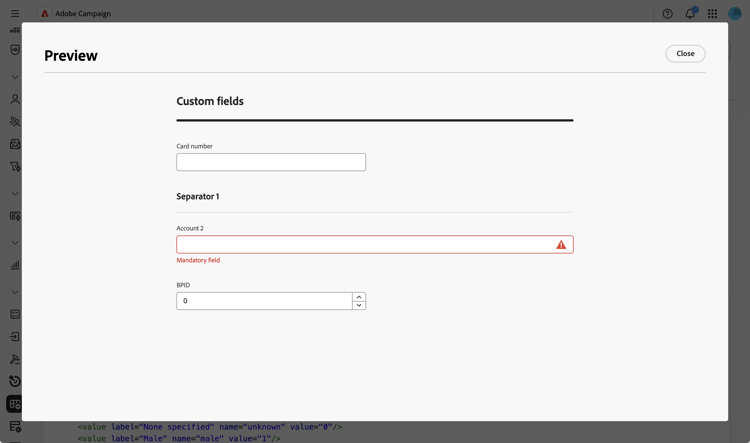
Organize fields in sub-sections separator
You can add separators to group custom fields in the interface for better readability. To do so, follow these steps:
-
Click the ellipsis icon above the List of custom fields table and choose Add separator.
-
A new line representing the separator is added to the list. Click the ellipsis icon on the separator row and choose Edit.
-
Enter a Label for the separator and (optional) set a Visible if condition to control when the separator is displayed.
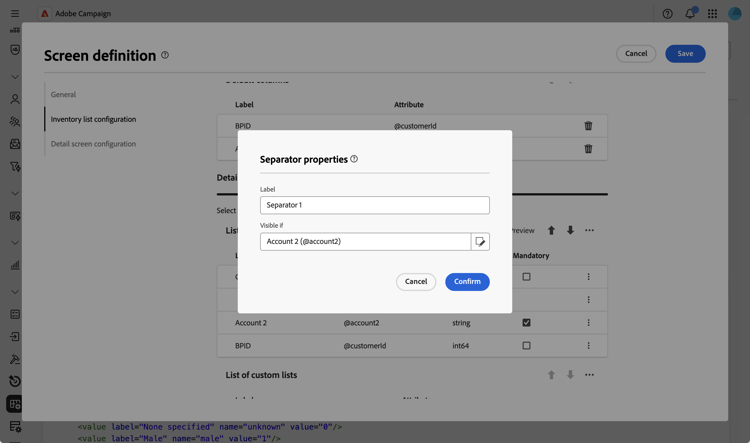
-
Use the up and down arrows to move the separator to the desired location. Fields listed below the separator will be grouped under it.
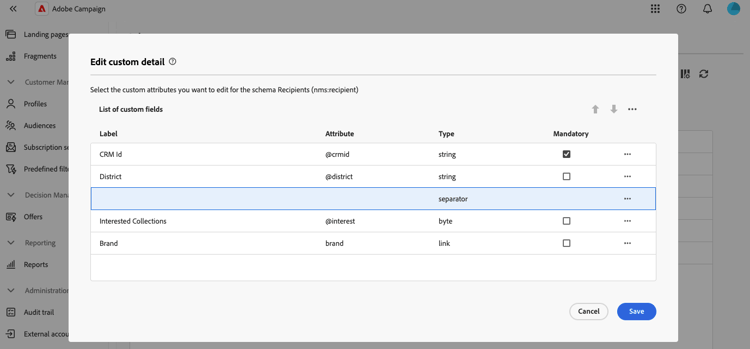
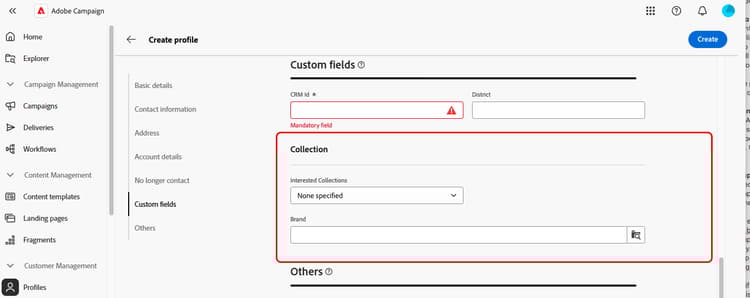
In this example, the “Interested Collections” and “Brand” fields are grouped into a “Collection” sub-section.
table 0-row-2 1-row-2 Custom fields configuration Rendering in the interface