Configure list columns list-columns
The Inventory list configuration section allows you to configure which columns are displayed by default in list views. Each column shows its label and the corresponding attribute.
For more information on the screen definition screen and how to access it, refer to the Access the screen definition section.
To add new columns to the default list:
-
Browse to the Schemas menu, and locate editable schemas using the filters.
-
Select the schema name in the list to open it and click the Screen edition button in the schema details view to access the screen definition.
-
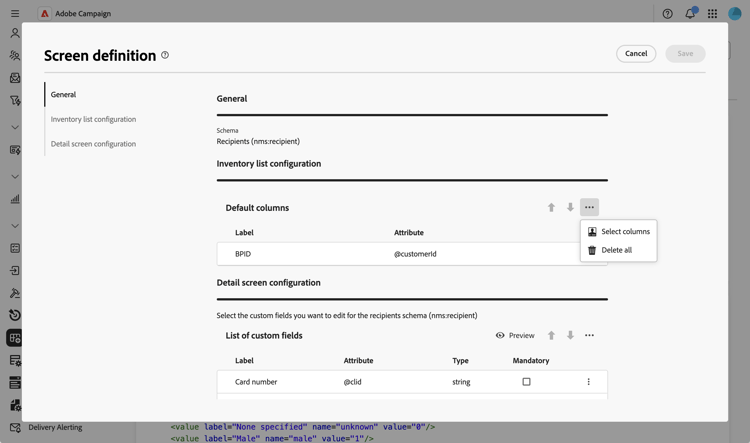
Click the ellipsis icon (three dots).
-
Choose Select columns.
-
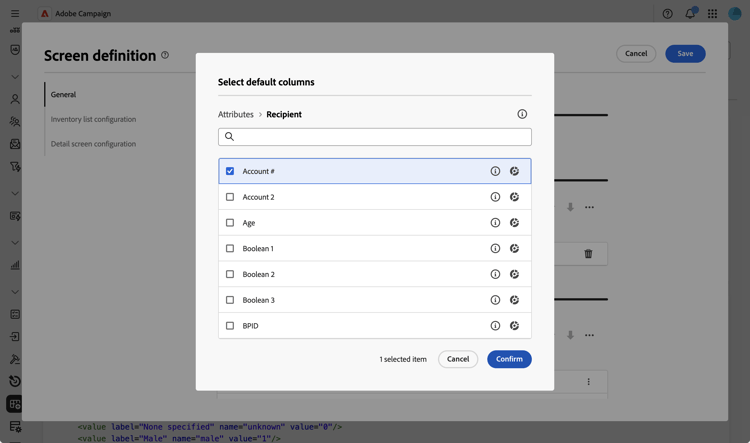
Select the attributes you want to display in list views and confirm.
-
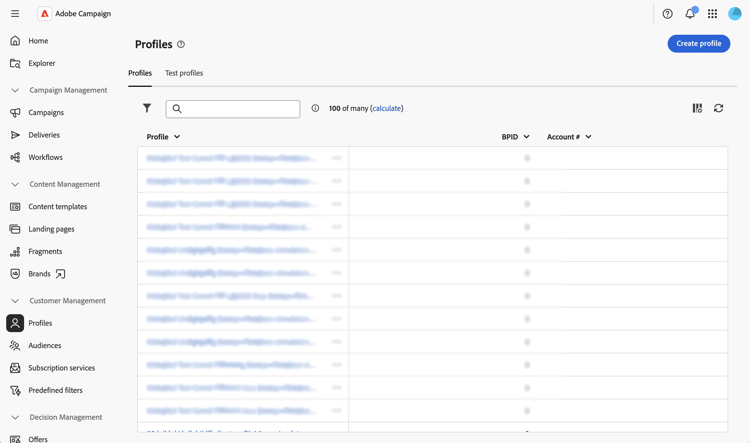
Browse to the Profiles menu to access the profiles list view. You notice that the new tabs are displayed. You can add more columns if needed.