Analyze Conversation Insights
AVAILABILITY
The functionality described in this article is in the Limited Testing phase of release and might not be available yet in your environment. This note will be removed when the functionality is generally available. For information about the Customer Journey Analytics release process, see Customer Journey Analytics feature releases.
To analyze Conversation Insights you create or edit a project in Analysis Workspace and use one of the configured data views as the data view for one or more of the panels in your project.
Simple analysis
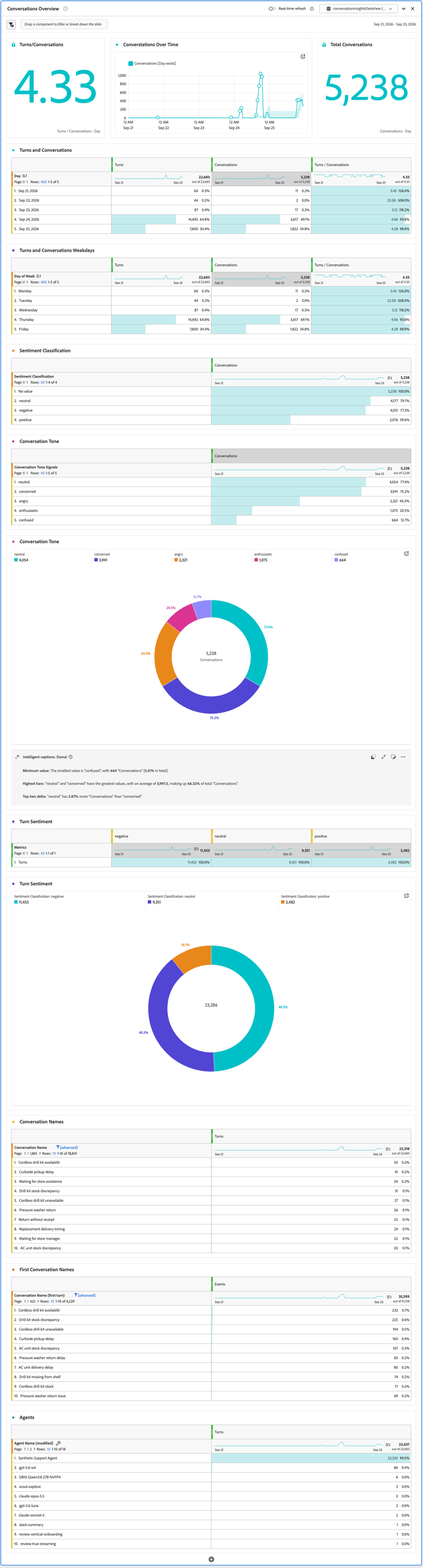
To create freeform tables or visualizations, use the conversation metrics (Turns, Conversations, Sentiment, Conversation Tone, and more) to show an overview of the conversations.
Example project
Detailed analysis
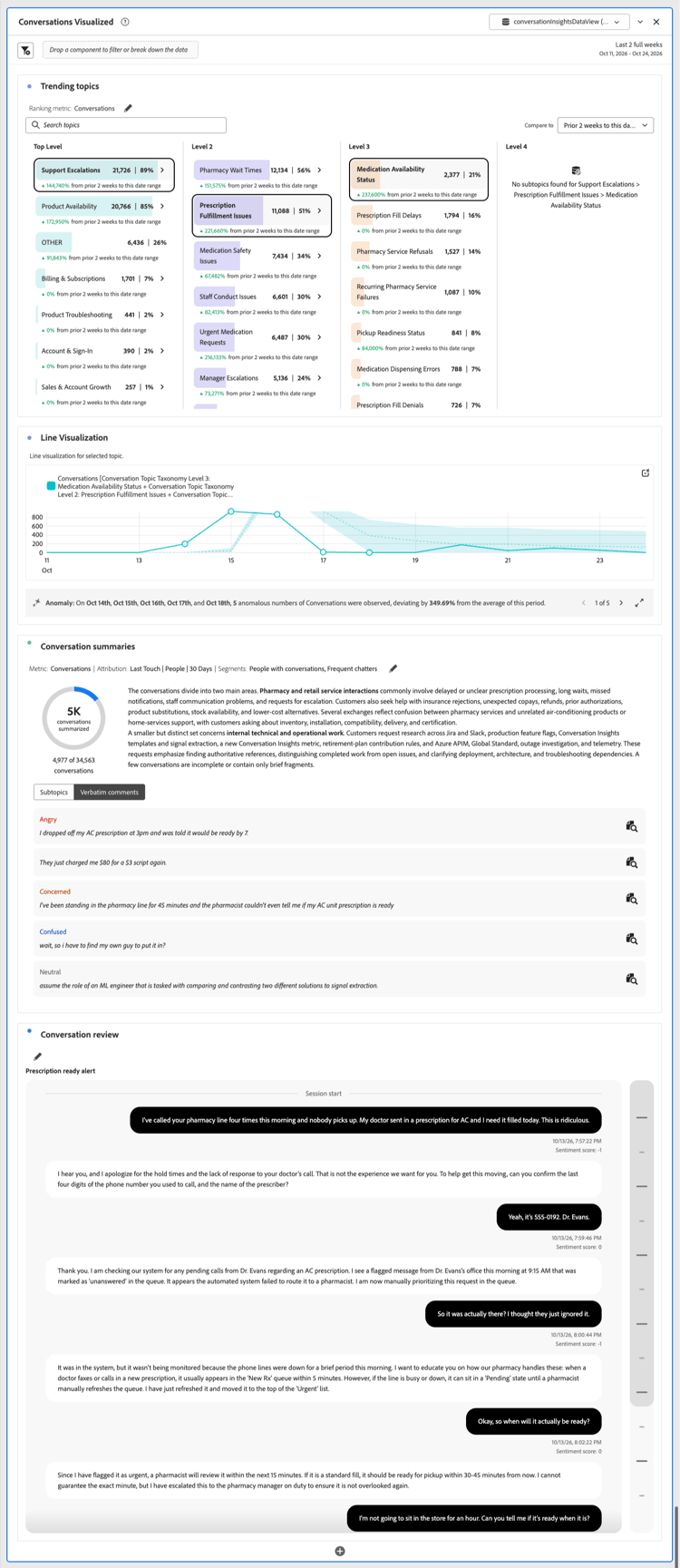
To perform a detailed analysis of conversations, use the Trending topics, Conversation summaries, and Conversation review visualizations. These visualizations provide different perspectives on the conversation data.
Example project
Analyzing conversations at scale and in context
To analyze conversations at scale and provide context for these conversations within the full customer journey:
- Combine your Conversation Insights events with other event datasets and additional profile and lookup datasets. Add these datasets to the connection that you selected for the Conversation Insights configuration.
- Add additional components (metrics and dimensions) to the data views that you selected for the Conversation Insights configuration.
Example project
Pending.
recommendation-more-help
analytics-platform-help-main