Conversation summaries conversation-summaries
The

The visualization shows a summary of the selected metric (for example, Conversations) and displays subtopics or verbatim comments when you have configured the visualization to include subtopics.
Create and configure conversation-summaries-create-configure
To create and configure a Conversation summaries visualization:
-
Add a
-
In the Conversation summaries visualization configuration:
- Select a Metric. For example: Conversations.
- Optionally if you want to use a non-default attribution model on the metric, select Use non-default attribution model, and select Model, Container, and Lookback window.
- Optionally you can apply a segment to the visualization. Select a segment from the Segments dropdown menu.
-
Select Build to build the visualization. Select Reset to reset the configuration values to defaults. Select Cancel to cancel the configuration.
To reconfigure the Conversation summaries visualization, select

Use
To use the visualization:
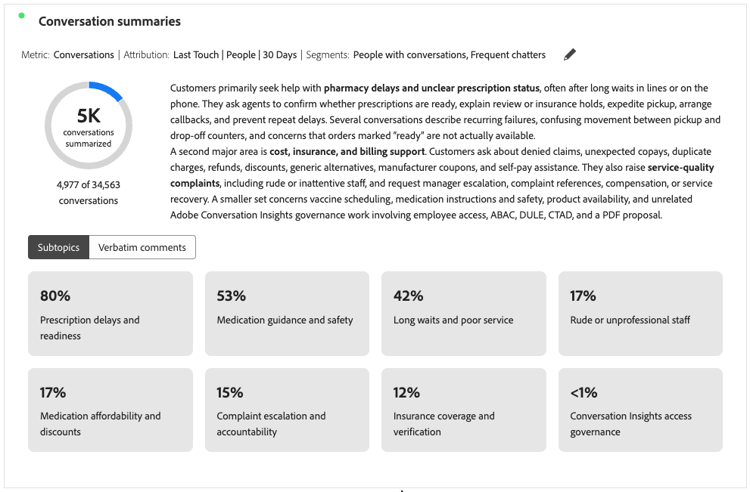
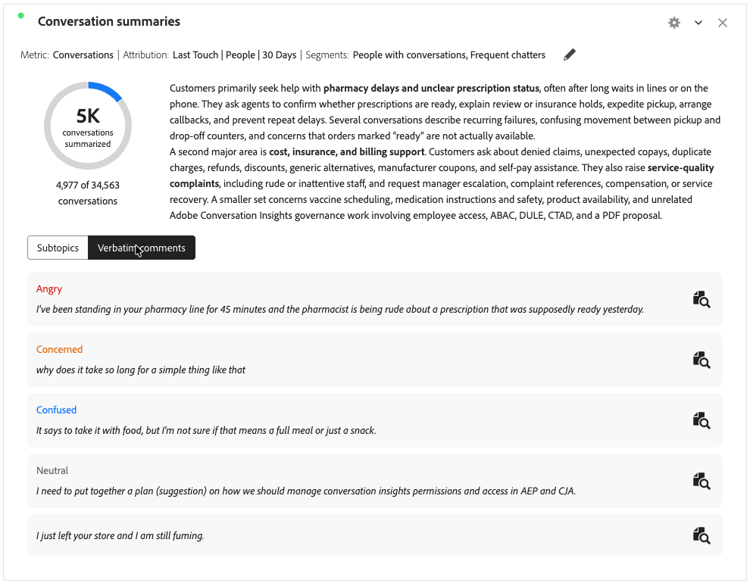
- If you have included subtopics, select Subtopics to display subtopics or Verbatim comments to display verbatim comments.
- When you have selected Verbatim comments, select

To quickly browse through multiple conversation reviews:
- Create a freeform table with Conversation ID and Conversation Name as dimensions.
- Select the freeform table as the data source for the Conversation review visualization.
Select a conversation in the freeform table to update the Conversation review automatically with details of that selected conversation.
Settings
The following specific visualization settings are available.