You want to understand the transformations of Customer Journey Analytics objects like dimensions, metrics, filters, calculated metrics, and date ranges by the various BI tools.
Customer Journey Analytics
In Customer Journey Analytics, you define in a data view, which and how components of your datasets are exposed as dimensions and metrics. That definition of dimension and metrics is exposed to the BI tools using the BI extension. You use components like Filters, Calculated metrics, and Date ranges as part of your Workspace projects. These components are also exposed to the BI tools using the BI extension.
The Customer Journey Analytics objects are available in the Data pane and are retrieved from the table you have selected in Power BI Desktop. For example, public.cc_data_view. The name of the table is the same as the External ID that you have defined for your data view in Customer Journey Analytics. For example, data view with TitleC&C - Data View and External IDcc_data_view.
Dimensions Dimensions from Customer Journey Analytics are identified by the Component ID. The Component ID is defined in your Customer Journey Analytics data view. For example, dimension Product Name in Customer Journey Analytics has a Component ID product_name, which is the name for the dimension in Power BI Desktop. Date range dimensions from Customer Journey Analytics, like Day, Week, Month, and more are available as daterangeday, daterangeweek, daterangemonth, and more.
Metrics Metrics from Customer Journey Analytics are identified by the Component ID. The Component ID is defined in your Customer Journey Analytics data view. For example, metric Purchase Revenue in Customer Journey Analytics has a Component ID purchase_revenue, which is the name for the metric in Power BI Desktop. A ∑ indicates metrics. When you use a metric in any visualization, the metric is renamed to Sum of metric.
Filters Filters that you define in Customer Journey Analytics are available as part of the filterName field. When you use a filterName field in Power BI Desktop, you can specify which filter to use.
Calculated metrics Calculated metrics that you define in Customer Journey Analytics are identified by the External ID you have defined for the calculated metric. For example, calculated metric Product Name (Count Distinct) has External ID product_name_count_distinct and is shown as cm_product_name_count_distinct in Power BI Desktop.
Date ranges Date ranges that you define in Customer Journey Analytics are available as part of the daterangeName field. When you use a daterangeName field, you can specify which date range to use.
Custom transformations Power BI Desktop provides custom transformation functionality using Data Analysis Expressions (DAX). As an example, you want to execute the Single dimension ranked use case with product names in lower case.
In the report view, select the bar visualization.
Select product_name in the Data pane.
Select New column in the toolbar.
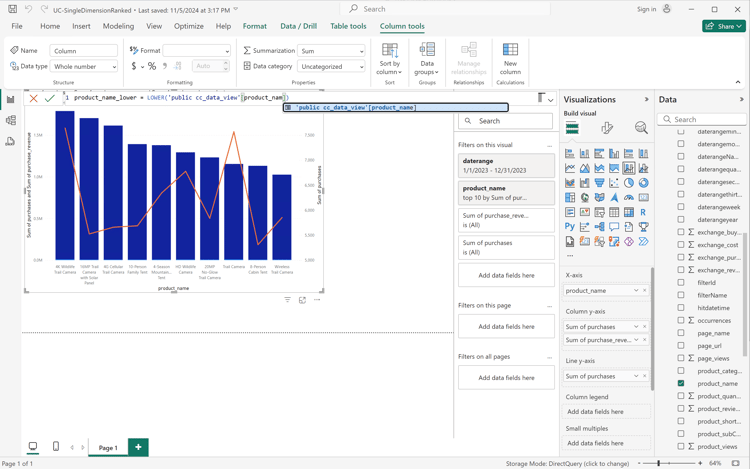
In the formula editor, define a new column named product_name_lower, like product_name_lower = LOWER('public.cc_data_view[product_name]).
Ensure you select the new product_name_lower column in the Data pane instead of the product_name column.
Select Report as Table from
in the table visualization.
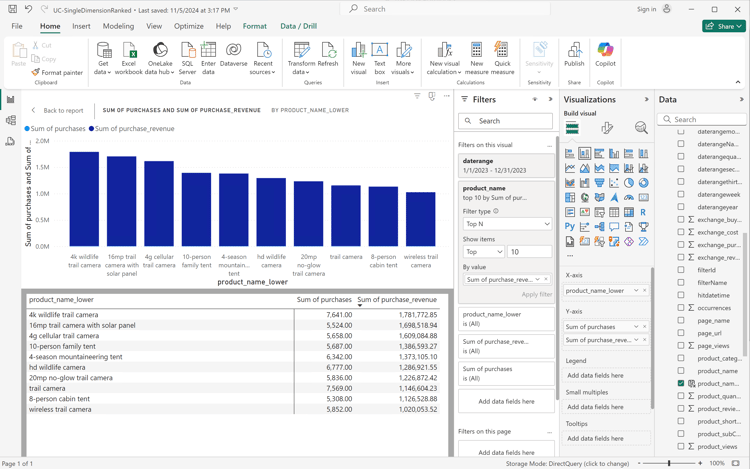
Your Power BI Desktop should look like below.
The custom transformation result in an update to SQL queries. See the use of the lower function in the SQL example below:
code language-sql
select "_"."product_name_lower",
    "_"."a0",
    "_"."a1"
from
(
    select "rows"."product_name_lower" as "product_name_lower",
        sum("rows"."purchases") as "a0",
        sum("rows"."purchase_revenue") as "a1"
    from
    (
        select "_"."daterange" as "daterange",
            "_"."product_name" as "product_name",
            "_"."purchase_revenue" as "purchase_revenue",
            "_"."purchases" as "purchases",
            lower("_"."product_name") as "product_name_lower"
        from
        (
            select "_"."daterange",
                "_"."product_name",
                "_"."purchase_revenue",
                "_"."purchases"
            from
            (
                select "daterange",
                    "product_name",
                    "purchase_revenue",
                    "purchases"
                from "public"."cc_data_view" "$Table"
            ) "_"
            where ("_"."daterange" < date '2024-01-01' and "_"."daterange" >= date '2023-01-01') and ("_"."product_name" in ('4G Cellular Trail Camera', '4K Wildlife Trail Camera', 'Wireless Trail Camera', '8-Person Cabin Tent', '20MP No-Glow Trail Camera', 'HD Wildlife Camera', '4-Season Mountaineering Tent', 'Trail Camera', '16MP Trail Camera with Solar Panel', '10-Person Family Tent'))
        ) "_"
    ) "rows"
    group by "product_name_lower"
) "_"
where not "_"."a0" is null or not "_"."a1" is null
limit 1000001
Tableau Desktop
The Customer Journey Analytics objects are available in the Data side bar whenever you work in a sheet. And are retrieved from the table that you have selected as part of the Data source page in Tableau. For example, cc_data_view. The name of the table is the same as the External ID that you have defined for your data view in Customer Journey Analytics. For example, data view with TitleC&C - Data View and External IDcc_data_view.
Dimensions Dimensions from Customer Journey Analytics are identified by the Component name. The Component name is defined in your Customer Journey Analytics data view. For example, dimension Product Name in Customer Journey Analytics has a Component name Product Name, which is the name for the dimension in Tableau. All dimensions are identified by Abc. Date range dimensions from Customer Journey Analytics, like Day, Week, Month, and more are available as Daterangeday, Daterangeweek, Daterangemonth, and more. When you use a date range dimension, you have to select an appropriate definition of date or time to apply to that date range dimension from the drop-down menu. For example, Year, Quarter, Month, Day.
Metrics Metrics from Customer Journey Analytics are identified by the Component Name. The Component Name is defined in your Customer Journey Analytics data view. For example, metric Purchase Revenue in Customer Journey Analytics has a Component Name Purchase Revenue, which is the name for the metric in Tableau. All metrics are identified by #. When you use a metric in any visualization, the metric is renamed to Sum(metric).
Filters Filters that you define in Customer Journey Analytics are available as part of the Filter Name field. When you use a Filter Name field in Tableau, you can specify which filter to use.
Calculated metrics Calculated metrics that you define in Customer Journey Analytics are identified by the Title you have defined for the calculated metric. For example, calculated metric Product Name (Count Distinct) has Title Product Name (Count Distinct) and is shown as Cm Product Name Count Distinct in Tableau.
Date ranges Date ranges that you define in Customer Journey Analytics are available as part of the Daterange Name field. When you use a Daterange Name field, you can specify which date range to use.
Custom transformations Tableau Desktop provides custom transformation functionality using Calculated Fields. As an example, you want to execute the Single dimension ranked use case with product names in lower case.
Select Analysis > Create Calculated Field from the main menu.
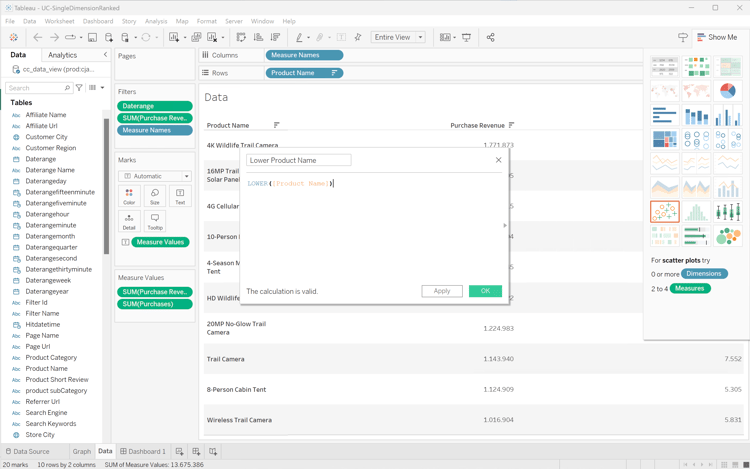
Define Lowercase Product Name using the function LOWER([Product Name]).
Select OK.
Select the Data sheet.
Drag Lowercase Product Name from Tables and drop the entry in the field next to Rows.
Remove Product Name from Rows.
Select Dashboard 1 view.
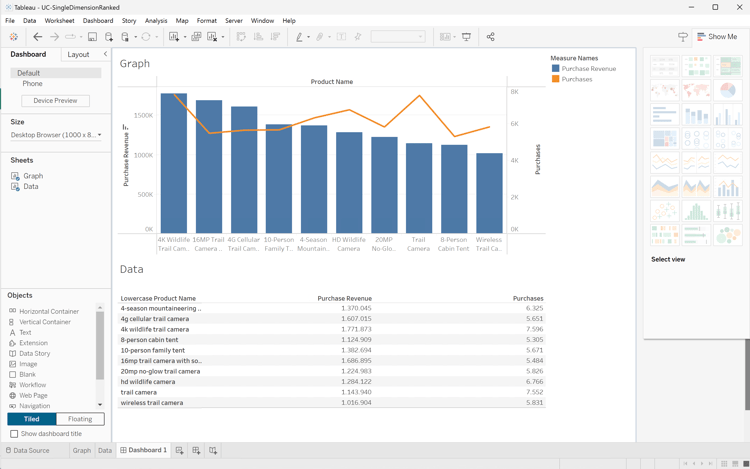
Your Tableau Desktop should look like below.
The custom transformation result in an updates to SQL queries. See the use of the LOWER function in the SQL example below:
code language-sql
SELECT LOWER(CAST(CAST("cc_data_view"."product_name" AS TEXT) AS TEXT)) AS "Calculation_1562467608097775616",
  SUM("cc_data_view"."purchase_revenue") AS "sum:purchase_revenue:ok",
  SUM("cc_data_view"."purchases") AS "sum:purchases:ok"
FROM "public"."cc_data_view" "cc_data_view"
WHERE (("cc_data_view"."daterange" >= (DATE '2023-01-01')) AND ("cc_data_view"."daterange" <= (DATE '2023-12-31')))
GROUP BY 1
HAVING ((SUM("cc_data_view"."purchase_revenue") >= 999999.99999998999) AND (SUM("cc_data_view"."purchase_revenue") <= 2000000.00000002))
Looker
The Customer Journey Analytics objects are available in the Explore interface. And are retrieved as part of setting up your connection, project, and model in Looker. For example, cc_data_view. The name of the view is the same as the External ID that you have defined for your data view in Customer Journey Analytics. For example, data view with TitleC&C - Data View and External IDcc_data_view.
Dimensions Dimensions from Customer Journey Analytics are listed as DIMENSION in the Cc Data View left rail. The dimension is defined in your Customer Journey Analytics data view. For example, dimension Product Name in Customer Journey Analytics has a DIMENSIONProduct Name, which is the name for the dimension in Looker. Date range dimensions from Customer Journey Analytics, like Day, Week, Month, and more are available as Daterangeday Date, Daterangeweek Date, Daterangemonth Date, and more. When you use a date range dimension, you have to select an appropriate definition of date or time. For example, Year, Quarter, Month, Date.
Metrics Metrics from Customer Journey Analytics are listed as DIMENSION in in the Cc Data View left rail. For example, metric Purchase Revenue in Customer Journey Analytics has a DIMENSIONPurchase Revenue. To actually use as a metric, create a custom measure field as shown in the examples above, or use the shortcut on a dimension. For example, ⋮, select Aggregate, and then select Sum…
Filters Filters that you define in Customer Journey Analytics are available as part of the Filter Name field. When you use a Filter Name field in Looker, you can specify which filter to use.
Calculated metrics Calculated metrics that you define in Customer Journey Analytics are identified by the Title you have defined for the calculated metric. For example, calculated metric Product Name (Count Distinct) has Title Product Name (Count Distinct) and is shown as Cm Product Name Count Distinct in Looker.
Date ranges Date ranges that you define in Customer Journey Analytics are available as part of the Daterange Name field. When you use a Daterange Name field, you can specify which date range to use.
Custom transformations Looker provides custom transformation functionality using custom field builders, as shown above. As an example, you want to execute the Single dimension ranked use case with product names in lower case.
From the ‣ Custom Fields section in the left rail:
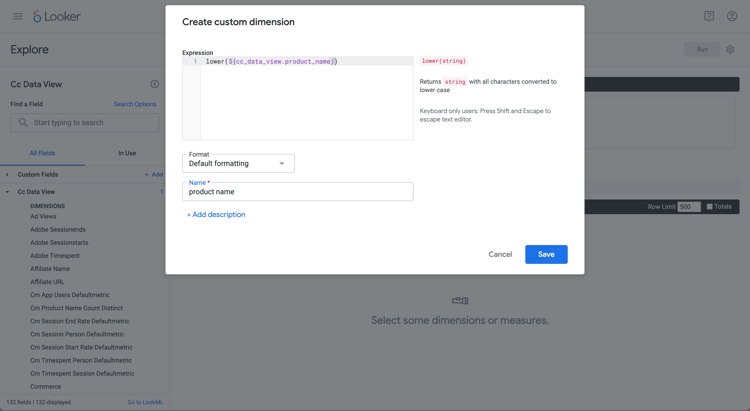
Select Custom Dimension from the + Add drop-down menu.
Enter lower(${cc_data_view.product_name}) in the Expression text area. You are assisted with the correct syntax when you start to type Product Name.
Enter product name as the Name.
Select Save.
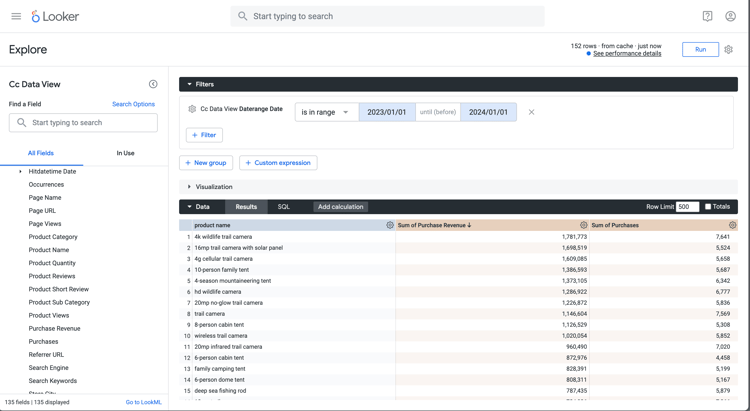
You should see a similar table as shown below.
The custom transformation result in an updates to SQL queries. See the use of the LOWER function in the SQL example below:
code language-sql
SELECT
    LOWER((cc_data_view."product_name")) AS "product_name",
    COALESCE(SUM(CAST(( cc_data_view."purchase_revenue"  ) AS DOUBLE PRECISION)), 0) AS "sum_of_purchase_revenue",
    COALESCE(SUM(CAST(( cc_data_view."purchases"  ) AS DOUBLE PRECISION)), 0) AS "sum_of_purchases"
FROM public.cc_data_view  AS cc_data_view
WHERE ((( cc_data_view."daterange"  ) >= (DATE_TRUNC('day', DATE '2023-01-01')) AND ( cc_data_view."daterange"  ) < (DATE_TRUNC('day', DATE '2024-01-01'))))
GROUP BY
    1
ORDER BY
    2 DESC
FETCH NEXT 500 ROWS ONLY
Jupyter Notebook
The Customer Journey Analytics objects (dimensions, metrics, filters, calculated metrics, and date ranges) are available as part of the embedded SQL queries you construct. See earlier examples.
Custom transformations
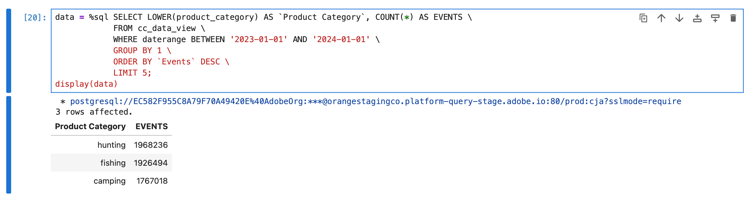
Enter the following statements in a new cell.
code language-python
data = %sql SELECT LOWER(product_category) AS `Product Category`, COUNT(*) AS EVENTS \
            FROM cc_data_view \
            WHERE daterange BETWEEN '2023-01-01' AND '2024-01-01' \
            GROUP BY 1 \
            ORDER BY `Events` DESC \
            LIMIT 5;
display(data)
Execute the cell. You should see output similar to the screenshot below.
The query is excuted by the BI extension as defined in Jupyter Notebook.
RStudio
The Customer Journey Analytics components (dimensions, metrics, filters, calculated metrics, and date ranges) are available as similar named objects in the R language. Refer to the components using the component See earlier examples.
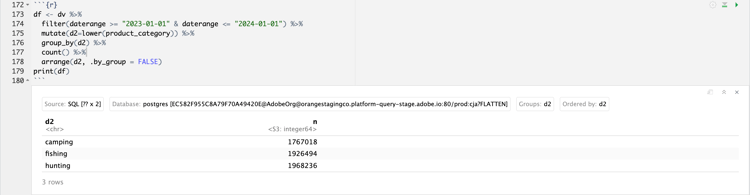
Run the chunk. You should see output similar to the screenshot below.
The query generated by RStudio using the BI extension is including lower, which implies that the custom transformation is executed by RStudio and the BI extension.
code language-sql
SELECT "d2", COUNT(*) AS "n"
FROM (
  SELECT "cc_data_view".*, lower("product_category") AS "d2"
  FROM "cc_data_view"
  WHERE ("daterange" >= '2023-01-01' AND "daterange" <= '2024-01-01')
) AS "q01"
GROUP BY "d2"
ORDER BY "d2"
LIMIT 1000