This use case sets up the connection from the BI tool to Customer Journey Analytics, lists the available data views, and selects a data view to use.
Customer Journey Analytics
The instructions refer to an example environment with the following objects:
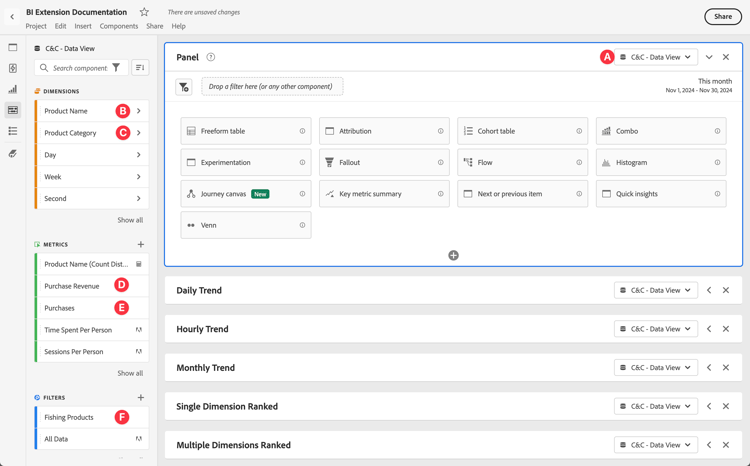
Data view: C&C - Data View 🅐.
Dimensions: Product Name 🅑 and Product Category 🅒.
Metrics: Purchase Revenue 🅓 and Purchases 🅔.
Filter: Fishing Products 🅕.
When you go through the use cases, replace these example objects with objects that are appropriate for your specific environment.
BI tools
tabs
Power BI Desktop
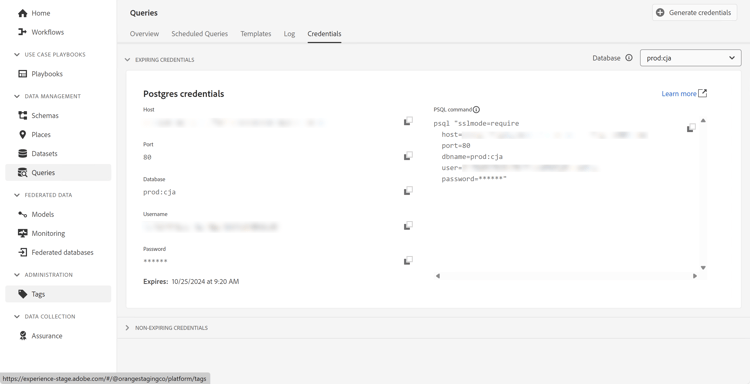
Access the required credentials and parameters from the Experience Platform Query Service UI.
Navigate to your Experience Platform sandbox.
Select
Queries from the left rail.
Select Credentials tab in the Queries interface.
Select prod:cja from the Database drop-down menu.
Start Power BI Desktop.
From the main interface, select Get data from other sources.
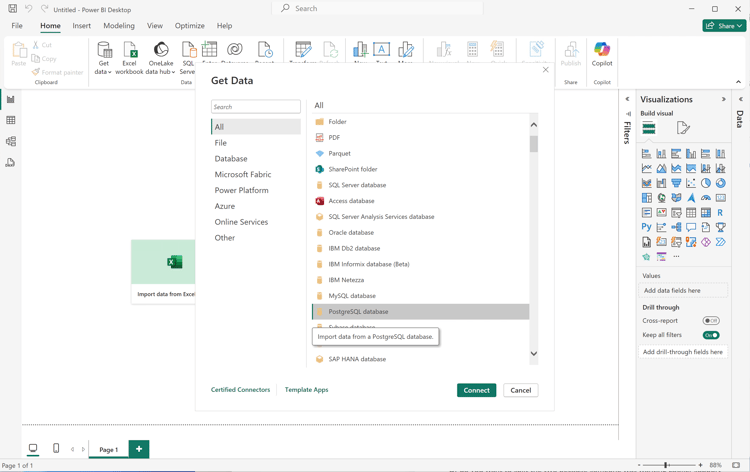
In the Get Data dialog:
Search for and select PostgreSQL database.
Select Connect.
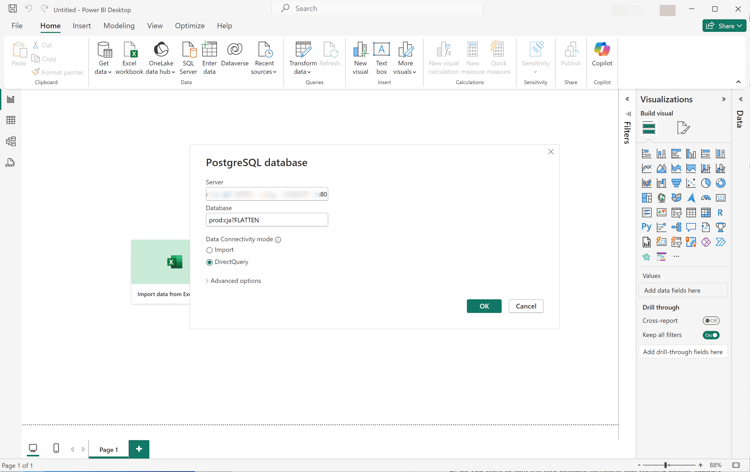
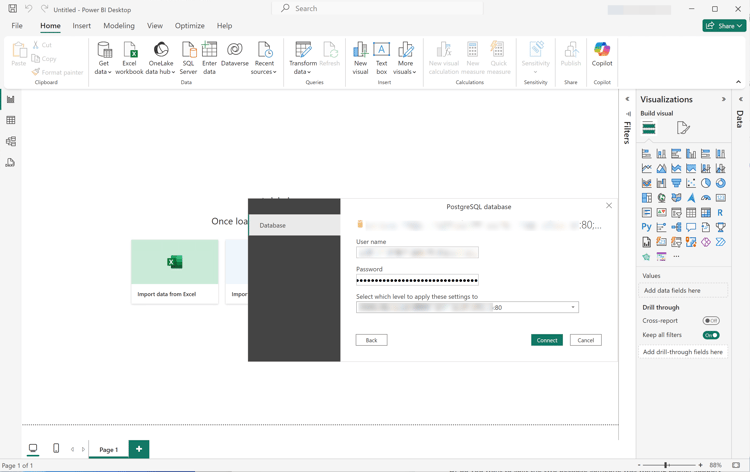
In the PostgreSQL database dialog:
Use
to copy and paste the Host and Port values from the Experience Platform QueryExpiring Credentials panel, separated by : as the value for Server. For example: examplecompany.platform-query.adobe.io:80.
Use
to copy and paste the Database value from the Experience Platform QueryExpiring Credentials panel. Add ?FLATTEN to the value that you paste. For example, prod:cja?FLATTEN.
Select DirectQuery as the Data connectivity mode.
Select OK.
In the PostgreSQL database - Database dialog:
Use
to copy the Username and Password values from the Experience Platform QueryExpiring Credentials panel in the User name and Password fields. If you are using a non-expiring credential, use the password of your non-expiring credential.
Ensure that the drop-down menu for Select which level to apply these settings to is set to the Server that you have defined earlier.
Select Connect.
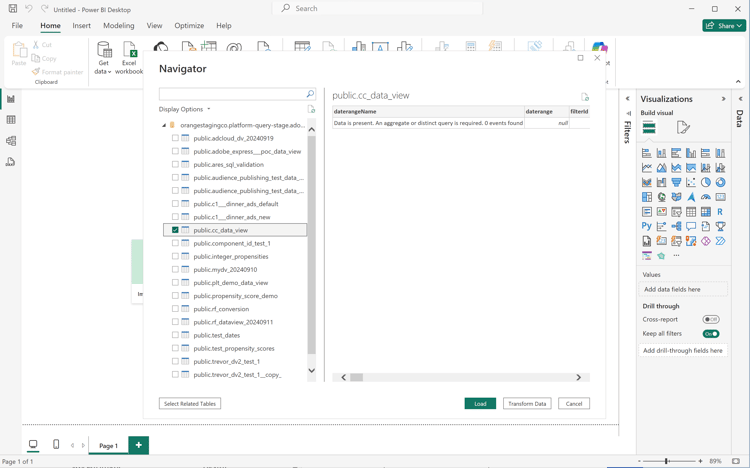
In the Navigator dialog, the data views are retrieved. This retrieval can take some time. Once retrieved, you see the following in Power BI Desktop.
Select public.cc_data_view from the list in the left panel.
You have two options:
Select Load to continue and finish the setup.
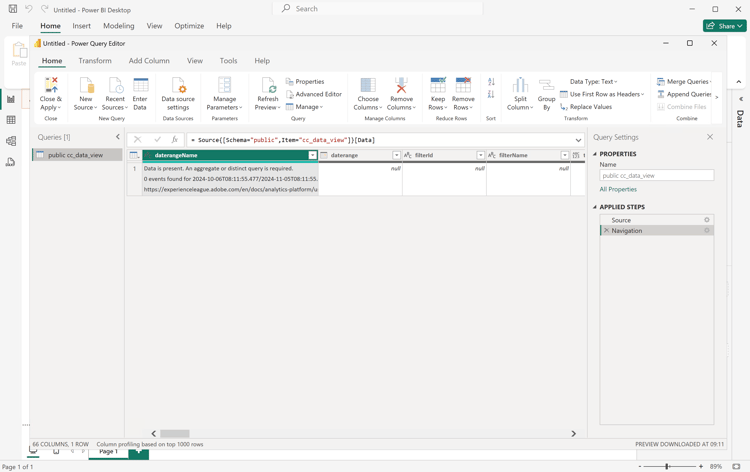
Select Transform Data. You see a dialog where you can optionally apply transformations as part of the configuration.
Select Close & Apply.
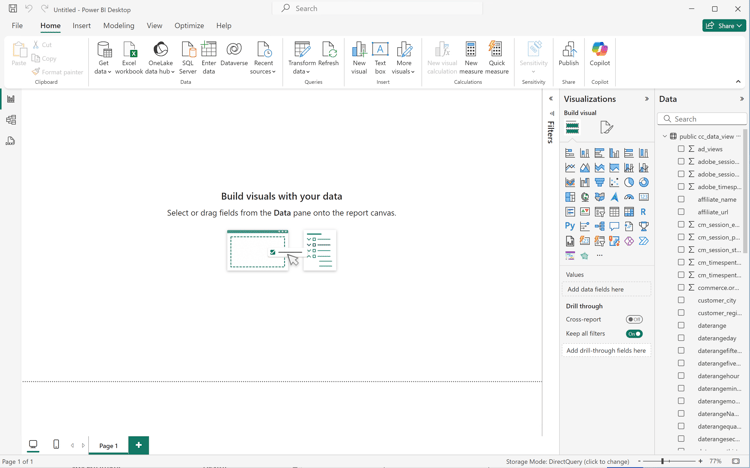
After a while, public.cc_data_view is displayed in the Data pane. Select
to show dimensions and metrics.
To FLATTEN or not
Power BI Desktop supports the following scenarios for the FLATTEN parameter. See Flatten nested data for more information.
Access the required credentials and parameters from the Experience Platform Query Service UI.
Navigate to your Experience Platform sandbox.
Select
Queries from the left rail.
Select Credentials tab in the Queries interface.
Select prod:cja from the Database drop-down menu.
Start Tableau.
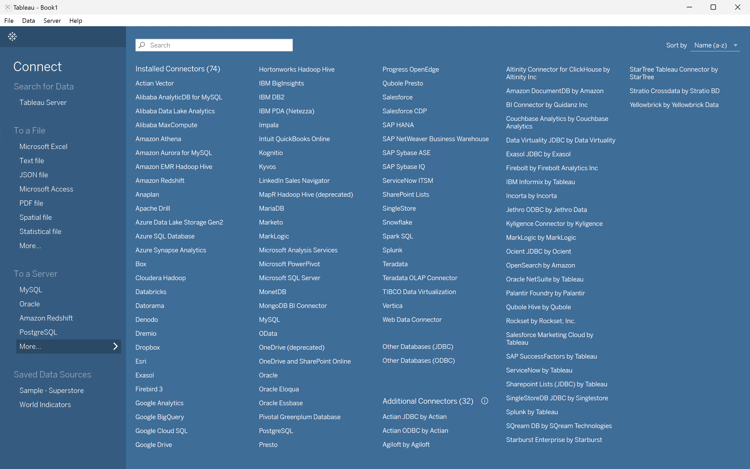
Select PostgreSQL from the left rail underneath To a Server. If not available, select More… and select PostgreSQL from the Installed Connectors.
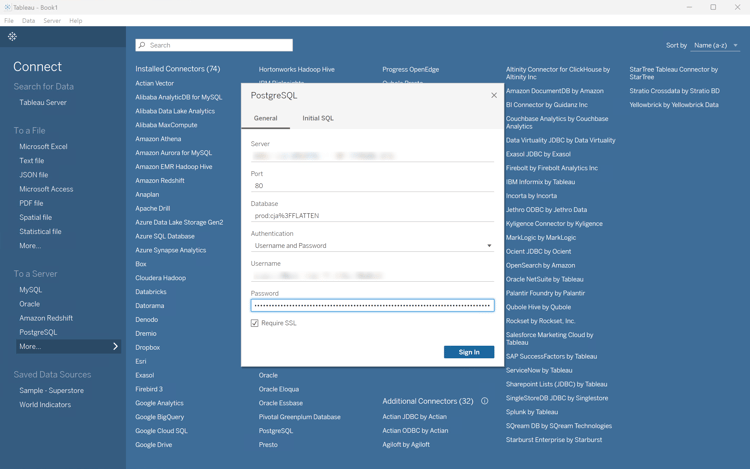
In the PostgreSQL dialog, in the General tab:
Use
to copy and paste the Host from the Experience Platform QueryExpiring Credentials panel to the Server.
Use
to copy and paste the Port from the Experience Platform QueryExpiring Credentials panel to the Port.
Use
to copy and paste the Database from the Experience Platform QueryExpiring Credentials panel to the Database. Add %3FFLATTEN to the value that you paste. For example: prod:cja%3FFLATTEN.
Select Username and Password from the Authentication drop-down menu.
Use
to copy and paste the Username from the Experience Platform QueryExpiring Credentials panel to the Username.
Use
to copy and paste the Password from the Experience Platform QueryExpiring Credentials panel to the Password. If you are using a non-expiring credential, use the password of your non-expiring credential.
Ensure that Require SSL is checked.
Select Sign In.
You see a Progressing Request dialog while Tableau Desktop validates the connection.
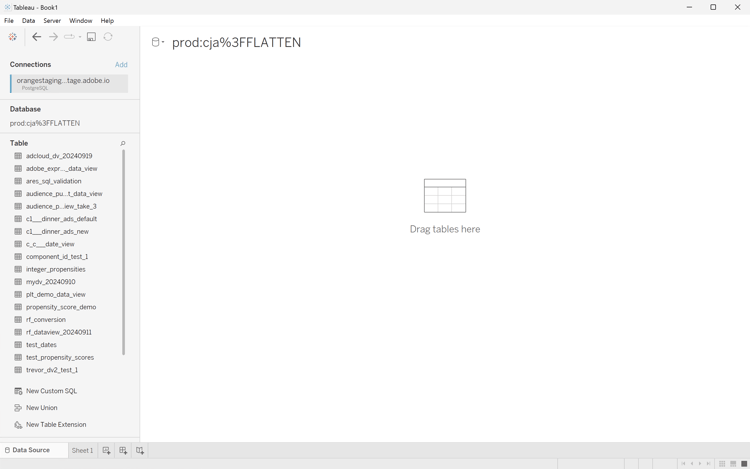
In the main window, you see in the Data Source page, in the left pane:
The name of the connection, underneath Connections.
The name of the database, underneath Database.
A list of tables, underneath Table.
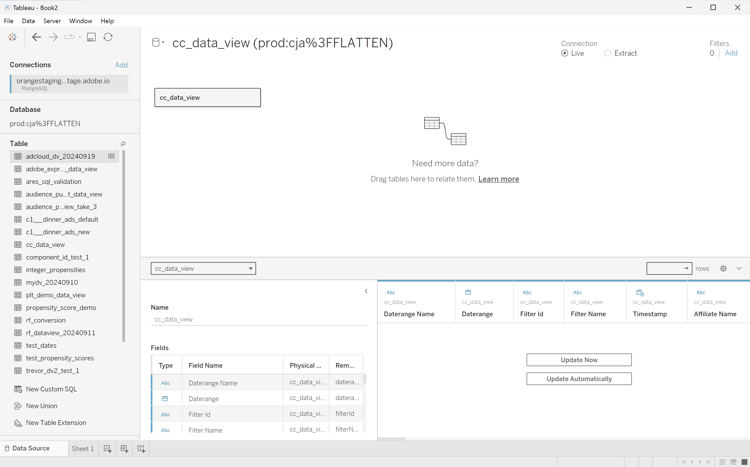
Drag the cc_data_view entry and drop the entry on the main view that reads Drag tables here.
The main window displays details of the cc_data_view data view.
To FLATTEN or not
Tableau Desktop supports the following scenarios for the FLATTEN parameter. See Flatten nested data for more information.
Access the required credentials and parameters from the Experience Platform Query Service UI.
Navigate to your Experience Platform sandbox.
Select
Queries from the left rail.
Select Credentials tab in the Queries interface.
Select prod:cja from the Database drop-down menu.
Log in to Looker
Select Admin from the left rail.
Select Connections.
Select Add Connection.
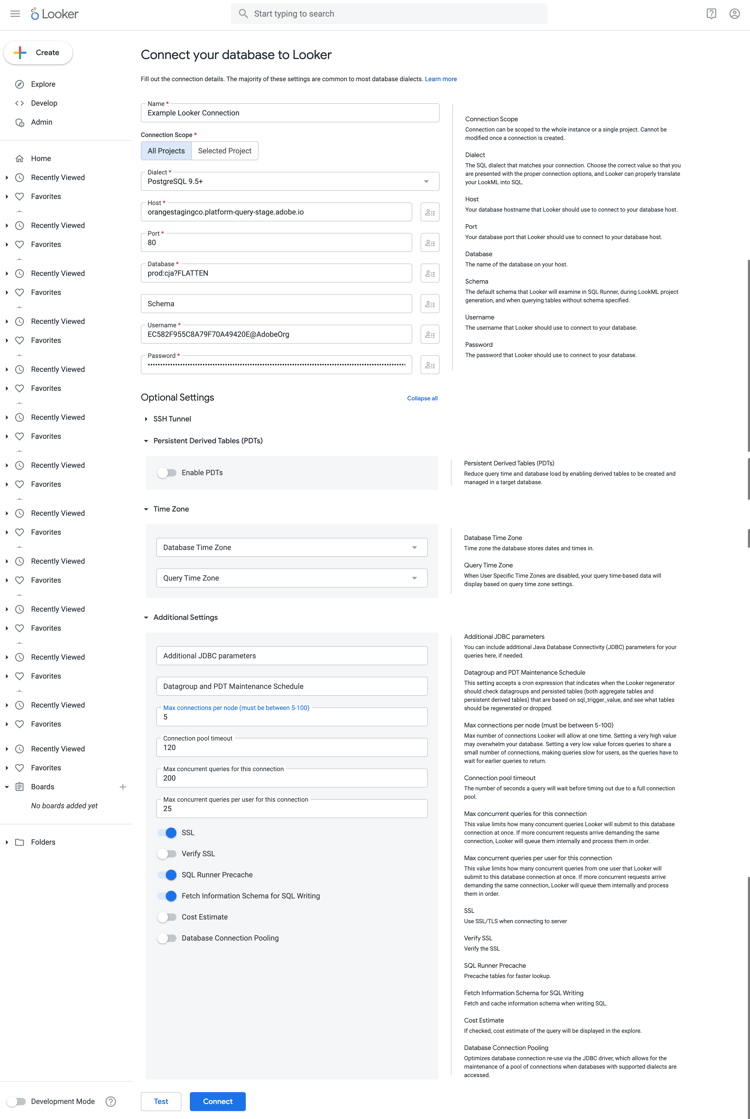
In the Connect your database to Looker screen.
Enter a Name for your connection, for example Example Looker Connection.
Ensure All Projects is selected as the Connection Scope.
Select PostgreSQL 9.5+ as the Dialect.
Use
to copy and paste the Host value from the Experience Platform QueryExpiring Credentials panel, as the value for Host. For example: examplecompany.platform-query.adobe.io.
Use
to copy and paste the Port value from the Experience Platform QueryExpiring Credentials panel, as the value for Port. For example: 80.
Use
to copy and paste the Database value from the Experience Platform QueryExpiring Credentials panel as the value for Database. Add %3FFLATTEN to the value that you paste. For example, prod:cja%3FFLATTEN.
Use
to copy and paste the Username value from the Experience Platform QueryExpiring Credentials panel as the value for Username.
Use
to copy and paste the Password value from the Experience Platform QueryExpiring Credentials panel as the value for Password.
Select Expand all at Optional Settings.
Set Max connections per node to 5.
Ensure SSL is enabled.
Select Test to test the connection. You should see a banner appear at the top of the screen with a message like Success, can connect JDBC ….
Select Connect to establish and save the connection.
You see the new connection in the Connections interface.
Select ← from Admin to go to main navigation in the left rail.
Select Develop.
Select Projects.
Select New Model in LookML Projects.
To ensure you do not affect other users. select Enter Development Mode, when prompted.
In the Create Model experience:
In ➊ Select Database Connection:
Select your database connection in Select database connection. For example: example_looker_connection.
Name your project in Create a new LookML Project for this model. For example: example_looker_project.
Select Next.
In ➋ Select Tables:
Select public and then ensure your Customer Journey Analytics data view is selected. For example:
cc_data_view.
Select Next.
In ➌ Select Primary Keys:
Select Next.
In ➍ Select Explores to Create:
Ensure you select your view. For example: cc_data_view.view.
Select Next.
In ➎ Enter Model Name:
Name your model. For example: example_looker_model.
Select Complete and Explore Data.
You are redirected to the Explore interface of Looker, ready to explore the data.
To FLATTEN or not
Looker supports the following scenarios for the FLATTEN parameter. See Flatten nested data for more information.
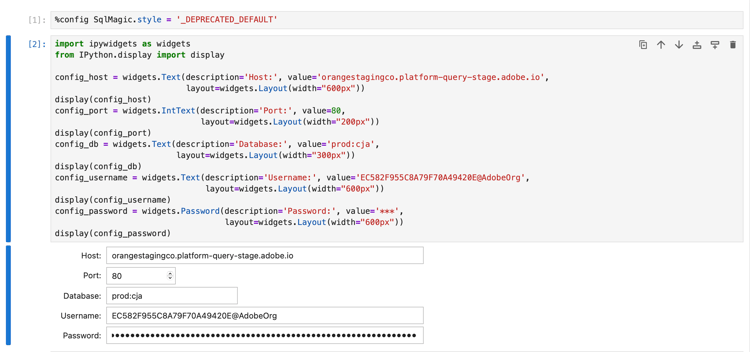
In a new cell, enter the config parameters for your connection. Use
to copy and paste values from the Experience Platform QueryExpiring Credentials panel to the values required for the config parameters. For example:
Use
to copy and paste the password from the Experience Platform QueryExpiring Credentials panel to the Password field in Jupyter Notebook.
In a new cell, enter the statements to load the SQL extension, the required library and connect with Customer Journey Analytics.
code language-python
%load_ext sql
from sqlalchemy import create_engine
%sql postgresql://{config_username.value}:{config_password.value}@{config_host.value}:{config_port.value}/{config_db.value}?sslmode=require
Execute the shell. You should see no output but the cell should execute without any warning.
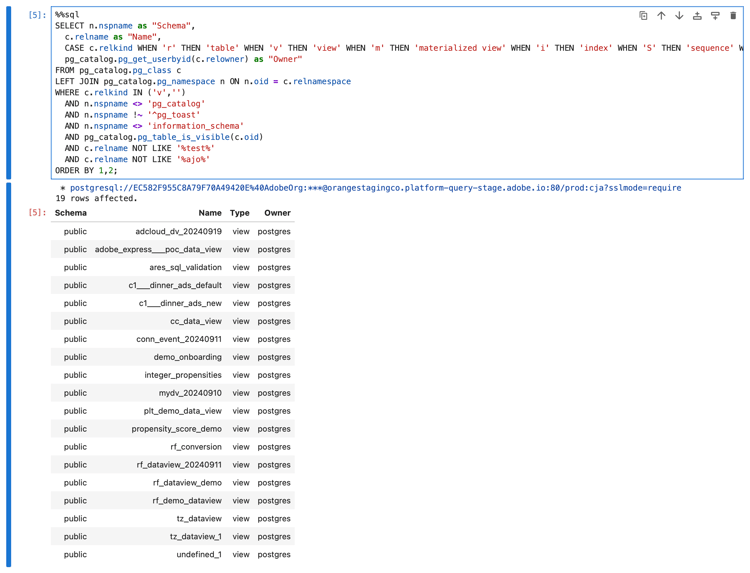
In a new call, enter the statements to get a list of available data views based on the connection.
code language-python
%%sql
SELECT n.nspname as "Schema",
   c.relname as "Name",
   CASE c.relkind WHEN 'r' THEN 'table' WHEN 'v' THEN 'view' WHEN 'm' THEN 'materialized view' WHEN 'i' THEN 'index' WHEN 'S' THEN 'sequence' WHEN 's' THEN 'special' WHEN 't' THEN 'TOAST table' WHEN 'f' THEN 'foreign table' WHEN 'p' THEN 'partitioned table' WHEN 'I' THEN 'partitioned index' END as "Type",
   pg_catalog.pg_get_userbyid(c.relowner) as "Owner"
FROM pg_catalog.pg_class c
LEFT JOIN pg_catalog.pg_namespace n ON n.oid = c.relnamespace
WHERE c.relkind IN ('v','')
   AND n.nspname <> 'pg_catalog'
   AND n.nspname !~ '^pg_toast'
   AND n.nspname <> 'information_schema'
   AND pg_catalog.pg_table_is_visible(c.oid)
   AND c.relname NOT LIKE '%test%'
   AND c.relname NOT LIKE '%ajo%'
ORDER BY 1,2;
Execute the shell. You should see output simular to the screenshot below.
You should see the cc_data_view in the list of data views.
To FLATTEN or not
Jupyter Notebook supports the following scenarios for the FLATTEN parameter. See Flatten nested data for more information.
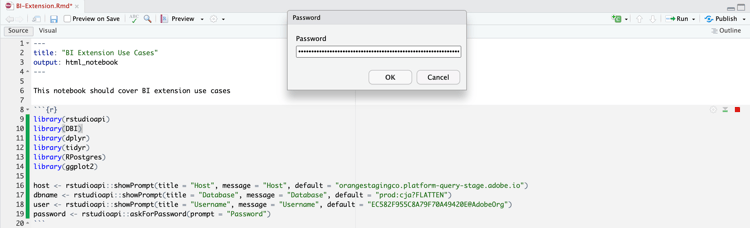
In your first chunk, enter the following statements. Use
to copy and paste values from the Experience Platform QueryExpiring Credentials panel to the values required for the various parameters, like host, dbname, and user. For example: