Auf dieser Seite: Erfahren Sie, wie Sie eine Journey erstellen, die Ihre E-Mail-Sendungen mithilfe der Optimierungsaktivität und einer Profilbegrenzung schrittweise steigert, um eine neue IP-Adresse aufzuwärmen und Ihre Absender-Reputation aufzubauen.
Wenn Sie kürzlich Ihren E-Mail-Dienstleister, Ihre IP-Adresse, Ihre E-Mail-Domain oder Ihre Subdomain gewechselt haben, müssen Sie erst Ihre Reputation als Absender aufbauen. Andernfalls könnten Ihre Sendungen blockiert oder in den Spam-Ordner des Postfachs der Empfänger verschoben werden. Im Handbuch zu Best Practices für die Zustellbarkeit finden sich Informationen dazu, wie die E-Mail-Reputation mit IP-Warming verbessert werden kann.
Um die Reputation Ihrer IP-Adresse zu verbessern, können Sie die Anzahl Ihrer Sendungen schrittweise erhöhen. Mehr dazu erfahren Sie unter Zustellbarkeit in Journey Optimizer optimieren.
In diesem Anwendungsbeispiel wird eine Journey erstellt, um die Versandaktivität Ihrer E-Mails zu steigern. Gehen Sie wie folgt vor, um diese Journey zu konfigurieren:
-
Erstellen Sie eine Journey. Weitere Informationen.
-
Fügen Sie der Journey die Aktivität Optimieren hinzu. Weitere Informationen.
-
Legen Sie in den Einstellungen für die Aktivität Bedingung die maximale Empfängeranzahl für Ihren Versand fest:
-
Wählen Sie in den Einstellungen für die Aktivität Optimieren die Methode Bedingungen aus und legen Sie das Feld Typ auf Profilbegrenzung fest. Weitere Informationen.
-
Legen Sie das Feld Limit auf die maximale Anzahl an Empfängern für diesen Versand fest.
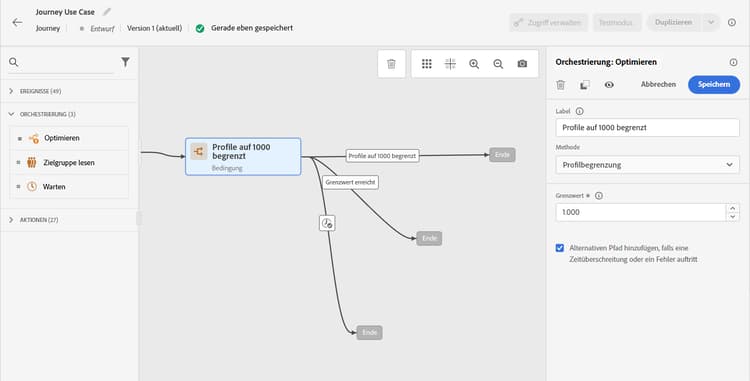
Sie können dieses Limit schrittweise auf die Gesamtzahl Ihrer Abonnenten erhöhen.
-
-
Fügen Sie im nominalen Pfad nach der Aktivität Bedingung die Aktionsaktivität E-Mail hinzu.
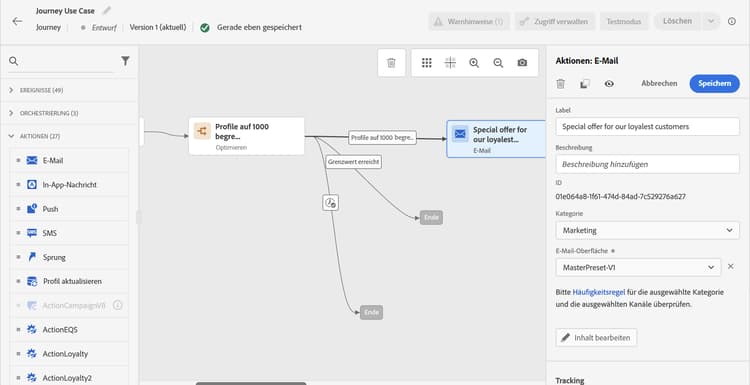
Wenn die Journey ausgeführt wird, wird die Nachricht bis zu der von Ihnen angegebenen Höchstzahl an Profilen an die eingehenden Profile gesendet. Wenn dieses Limit erreicht ist, nehmen die eingehenden Profile den alternativen Pfad.
-
Vervollständigen Sie die Journey mit den Aktivitäten Ihrer Wahl.
Nach dem Aufwärmen Ihrer IP können Sie diese Bedingung entfernen.
This section contains structured knowledge intended to support interpretation, retrieval, and question answering related to this topic.
For complete understanding, this information should be combined with the documentation on this page. Neither source is intended to stand alone; the page describes the feature, while this section provides additional context that helps disambiguate terminology, intent, applicability, and constraints.
- TL;DR: This use case describes how to build an Adobe Journey Optimizer journey that gradually ramps up email delivery volume using a Profile cap condition to protect sender reputation during IP warming.
Intents:
- Build a journey to gradually increase email delivery volume for IP warming
- Configure a Profile cap condition to limit the number of recipients per delivery run
- Protect sender reputation when switching to a new email service provider, IP address, or domain
- Remove the volume cap condition once the IP is fully warmed up
Glossary:
- IP warming: The process of gradually increasing email send volume from a new IP address or domain to build sender reputation with mailbox providers (product-specific)
- Profile cap: A condition type in the Optimize activity that limits the maximum number of profiles that receive a message in a given journey run (product-specific)
- Optimize activity: A journey canvas activity used to apply conditions, targeting rules, or experimentation to control how profiles flow through a journey (product-specific)
Guardrails:
- A Profile cap condition must be set in the Optimize activity’s Conditions method to control delivery volume.
- Profiles that exceed the cap take the alternate path defined in the journey.
- The profile cap limit should be increased gradually over time up to the total number of subscribers.
Terminology:
- Canonical name: Ramp-up deliveries — Acronym: none — variants: IP warming, IP warmup, delivery ramp-up
- Synonyms: “IP warming” = “IP warmup” = “sender reputation building”
- Do not confuse: “Profile cap” ≠ “audience size limit” (Profile cap is a per-run delivery limit; audience size is the total number of qualified profiles)
FAQ:
- Q: Why do I need to ramp up deliveries when switching to a new IP or domain? — A new IP or domain has no sending history, so mailbox providers may block or spam-folder messages until a positive reputation is established through gradual, increasing volume.
- Q: How does the Profile cap condition control delivery volume? — It sets a maximum number of profiles that can receive the message in a single journey run; profiles beyond that limit take an alternate path instead.
- Q: When can I remove the Profile cap condition? — Once the IP is fully warmed up and your sender reputation is established, you can remove the condition from the journey.
- Q: Can I increase the cap gradually over time? — Yes; you can update the Limit field in the Profile cap condition to progressively increase the number of recipients per run up to your full subscriber count.