在此頁面上:將Journey Optimizer連線至Adobe Campaign v7或v8,以便您的歷程可以透過Campaign交易訊息傳送電子郵件、推播通知和行動訊息。
如果您有Adobe Campaign Classic v7或Campaign v8,則可在您的歷程中使用特定的自訂動作,以整合Adobe Journey Optimizer和Adobe Campaign。 此整合可讓您使用Adobe Campaign異動訊息功能來傳送電子郵件、推播通知和行動訊息。 在此端對端使用案例中瞭解更多。
對於設定的每個動作,歷程設計工具浮動視窗中都會提供促銷活動動作活動。
啟用 access
提出要求時,Adobe會在布建時設定Journey Optimizer與Adobe Campaign環境之間的連線。 如果您在布建時尚未要求連線,請聯絡Adobe Journey Optimizer支援以要求啟用。 您必須提供下列詳細資料:
- 組織ID (Adobe OrgID)
- 沙箱名稱
- 行銷活動伺服器URL
- 即時伺服器URL
- 您的Adobe Campaign版本
護欄與限制 important-notes
-
沒有訊息限制。 系統會根據目前的Campaign SLA,將每5分鐘可傳送的訊息數上限設為4,000則以上。 因此,Journey Optimizer應僅用於單一使用案例(個別事件,而非對象)。
-
您必須針對要使用的每個範本,在畫布上設定一個動作。 您需要在Journey Optimizer中,為您要從Adobe Campaign使用的每個範本設定一個動作。
-
建議您針對這項整合使用專用的訊息中心託管或Managed Services執行個體,以免影響您可能進行的任何其他行銷活動作業。 行銷伺服器可以是託管或內部部署。
-
沒有驗證裝載或行銷活動訊息是否正確。
-
行銷活動動作無法與對象資格事件搭配使用。
先決條件 prerequisites
在Adobe Campaign中,您必須建立並發佈交易式訊息及其相關事件。 請參閱Adobe Campaign檔案。
您可以依照以下模式,建置與每則訊息相對應的JSON裝載。 之後,當您在Journey Optimizer中設定動作時,就會貼上此裝載(請參閱下文)。
| code language-json |
|---|
|
- 頻道:為您的Campaign交易範本定義的頻道
- eventType:您的行銷活動事件的內部名稱
- ctx:變數,根據您訊息中的個人化設定而定
設定動作 configure-action
在Journey Optimizer中,您必須為每個異動訊息設定一個動作。
若要建立Campaign動作,請遵循下列步驟:
- 建立新動作。 瞭解如何建立自訂動作。
- 輸入名稱和說明。
- 在 動作型別 欄位中,選取Adobe Campaign Classic。
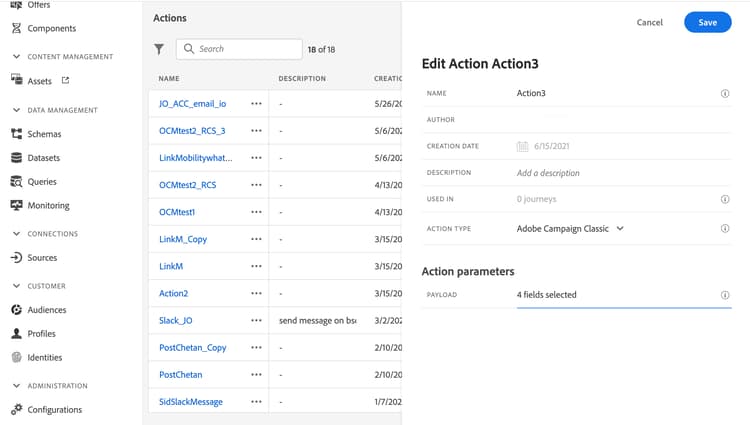
- 按一下 裝載 欄位,然後貼上與Campaign訊息相對應的JSON裝載範例。 聯絡Adobe以取得此裝載。
- 根據您想要每個欄位在歷程畫布上對應,將其設定為靜態或變數。 例如,電子郵件通道引數和個人化欄位(
ctx)等欄位通常應設定為變數,以便能夠在歷程中動態調整。 - 按一下儲存。
更新現有動作 update-action
如果您需要更新現有的Campaign v7/v8自訂動作,例如在初始設定後即時(RT)端點變更時,請遵循下列步驟:
- 從 管理 功能表,選取組態,然後移至動作。
- 找出並選取您要從動作清單更新的Campaign動作。
- 按一下 編輯 以開啟動作設定。
- 使用新的RT端點URL更新 URL 欄位。 請確認端點格式正確且可連線。
- 如有需要,請更新 裝載 設定,以符合Campaign交易式訊息結構中的任何變更。
- 按一下 測試 以驗證與新端點的連線。 在繼續之前,請確認測試傳回成功的回應。
- 驗證後,按一下[儲存] 以套用您的變更。
This section contains structured knowledge intended to support interpretation, retrieval, and question answering related to this topic.
For complete understanding, this information should be combined with the documentation on this page. Neither source is intended to stand alone; the page describes the feature, while this section provides additional context that helps disambiguate terminology, intent, applicability, and constraints.
- TL;DR: This page explains how to integrate Journey Optimizer with Adobe Campaign v7 or v8 so journeys can send emails, push notifications, and mobile messages through Adobe Campaign Transactional Messaging.
Intents:
- Request activation of the connection between Journey Optimizer and Adobe Campaign environments
- Prepare the transactional message, its associated event, and the JSON payload in Adobe Campaign
- Configure a Campaign action of type Adobe Campaign Classic in Journey Optimizer
- Set payload fields as static or variable for mapping on the journey canvas
- Update an existing Campaign action when the Real-Time endpoint changes
Glossary:
- Campaign action: The action available in the journey designer palette for each configured Adobe Campaign v7/v8 action (product-specific)
- Transactional Messaging: The Adobe Campaign capability used to send emails, push notifications, and mobile messages triggered from Journey Optimizer (product-specific)
- eventType: The internal name of the Adobe Campaign event referenced in the JSON payload (product-specific)
- ctx: The payload object holding variables based on the personalization present in the Campaign message (product-specific)
Guardrails:
- There is no throttling of messages; the system caps the number of messages that can be sent to 4,000 per 5 minutes, based on the current Campaign SLA.
- Because of that cap, Journey Optimizer should only be used in unitary use cases (individual events, not audiences).
- You must configure one action on the canvas per template, meaning one action in Journey Optimizer for each Adobe Campaign template you wish to use.
- There is no validation that the payload or Campaign message is correct.
- You cannot use a Campaign action with an audience qualification event.
- Adobe recommends using a dedicated Message Center hosted or Managed Services instance to avoid impacting other Campaign operations.
Terminology:
- Canonical name: Adobe Campaign v7/v8 integration — Acronym: ACC (Adobe Campaign Classic v7/v8) — variants: Campaign action, Campaign v7/v8 custom action
- Do not confuse: “Campaign action” (Adobe Campaign v7/v8 integration) ≠ other custom actions (created through the generic action creation procedure that the page links to)
FAQ:
- Q: How is the connection between Journey Optimizer and Adobe Campaign established? — It is set up by Adobe at provisioning time; if it was not requested then, contact Adobe Journey Optimizer support and provide the Org ID, Sandbox Name, Campaign Server URL, Real-Time Server URL, and Campaign version.
- Q: What is the message sending cap for this integration? — There is no throttling, but the system caps messages to 4,000 per 5 minutes based on the current Campaign SLA.
- Q: Why should this integration be used only for unitary use cases? — Because there is no throttling and messages are capped to 4,000 per 5 minutes, it suits individual events rather than audiences.
- Q: Can a Campaign action be used with an audience qualification event? — No, you cannot use a Campaign action with an audience qualification event.
- Q: How do I update a Campaign action when the Real-Time endpoint changes? — Edit the action, update the URL field with the new RT endpoint, adjust the Payload if needed, click Test to validate the connection, then Save.